Back to Help Hub
IntegrationsHow-To2 min readUpdated 2026-03-11

How to connect Intercom to Referral Factory

Connecting Intercom to Referral Factory lets you automatically send new leads and referrers to Intercom, sync Intercom contacts into your campaigns, and.

Browse topics and support
Navigation

Topics

Article

On this page

Support

Ask AI

Ask a product or setup question without leaving this page.

Need human help?

Still stuck?

If this article does not solve the problem, send the context to support or book time with a human.

We will keep the article or page context with your request so support can respond faster.
Read this page as a quick path: scan the headings, use the step blocks, and escalate if the expected result does not happen.
Connecting Intercom to Referral Factory lets you automatically send new leads and referrers to Intercom, sync Intercom contacts into your campaigns, and auto-qualify referrals when a contact's attributes change.

Step 1: Open the CRM integration tab

Go to Campaign Settings β†’ Integrations and API β†’ CRM tab. You'll see the Intercom tile alongside other CRM options.
CRM tab showing Intercom tile with Connect Your Intercom modal
Click Connect on the Intercom tile. A modal will confirm that connecting your Intercom account allows you to sync referrers and leads automatically, and configure your integration to qualify referred users when they convert.
Click Connect Intercom to proceed.

Step 2: Authorize the connection

You'll be redirected to Intercom's authorization page. Referral Factory requests access to:
Click Authorize access to complete the connection.
  • People β€” View and manage users and leads
  • Companies β€” View and manage companies
  • Tags β€” View and manage people, company, and conversation tags
  • Workspace counts β€” View numerical counts of your workspace data
  • Data attributes β€” Manage your customer and company attributes

Step 3: Configure your integration

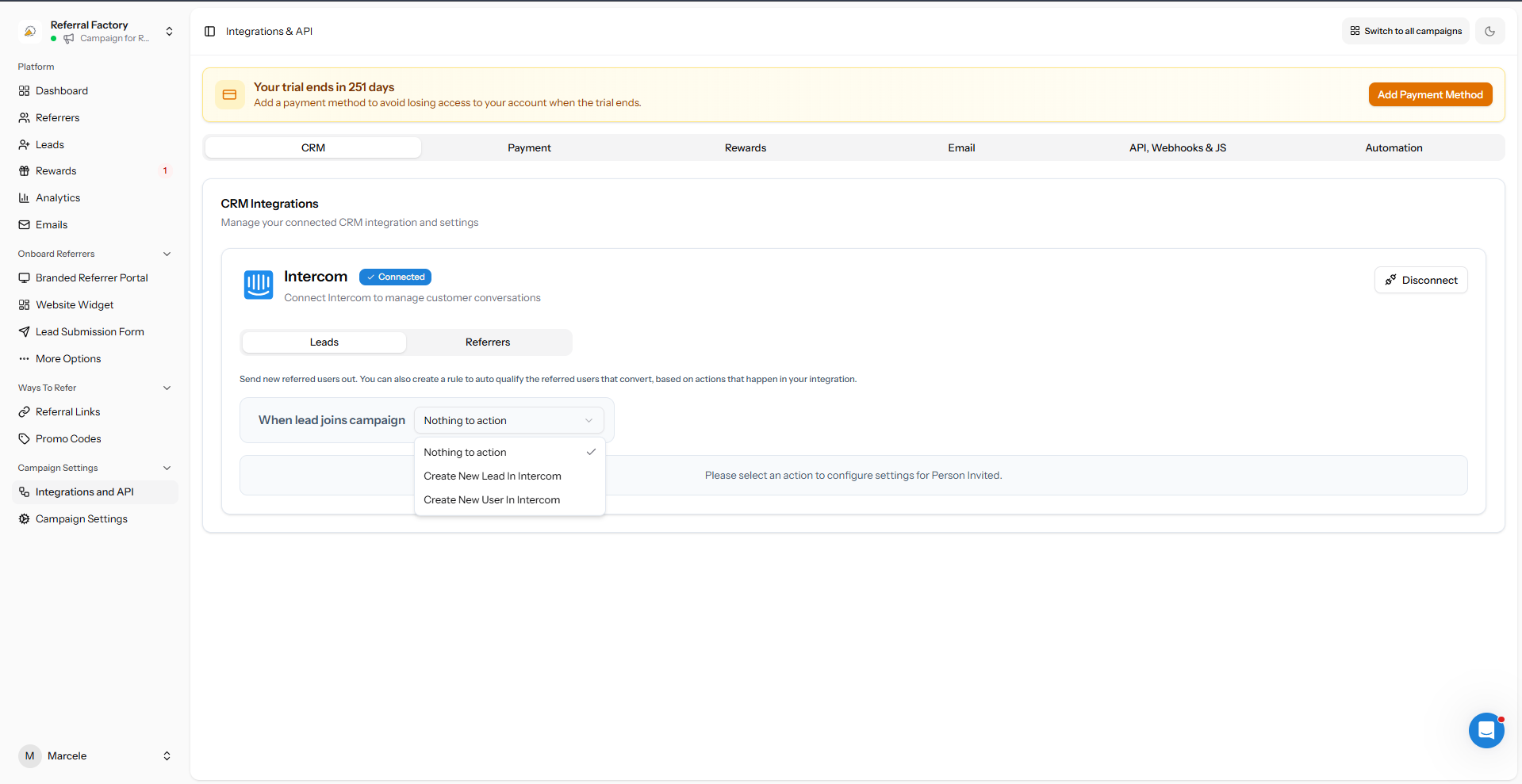
Once connected, you'll see the Intercom integration panel with two tabs:
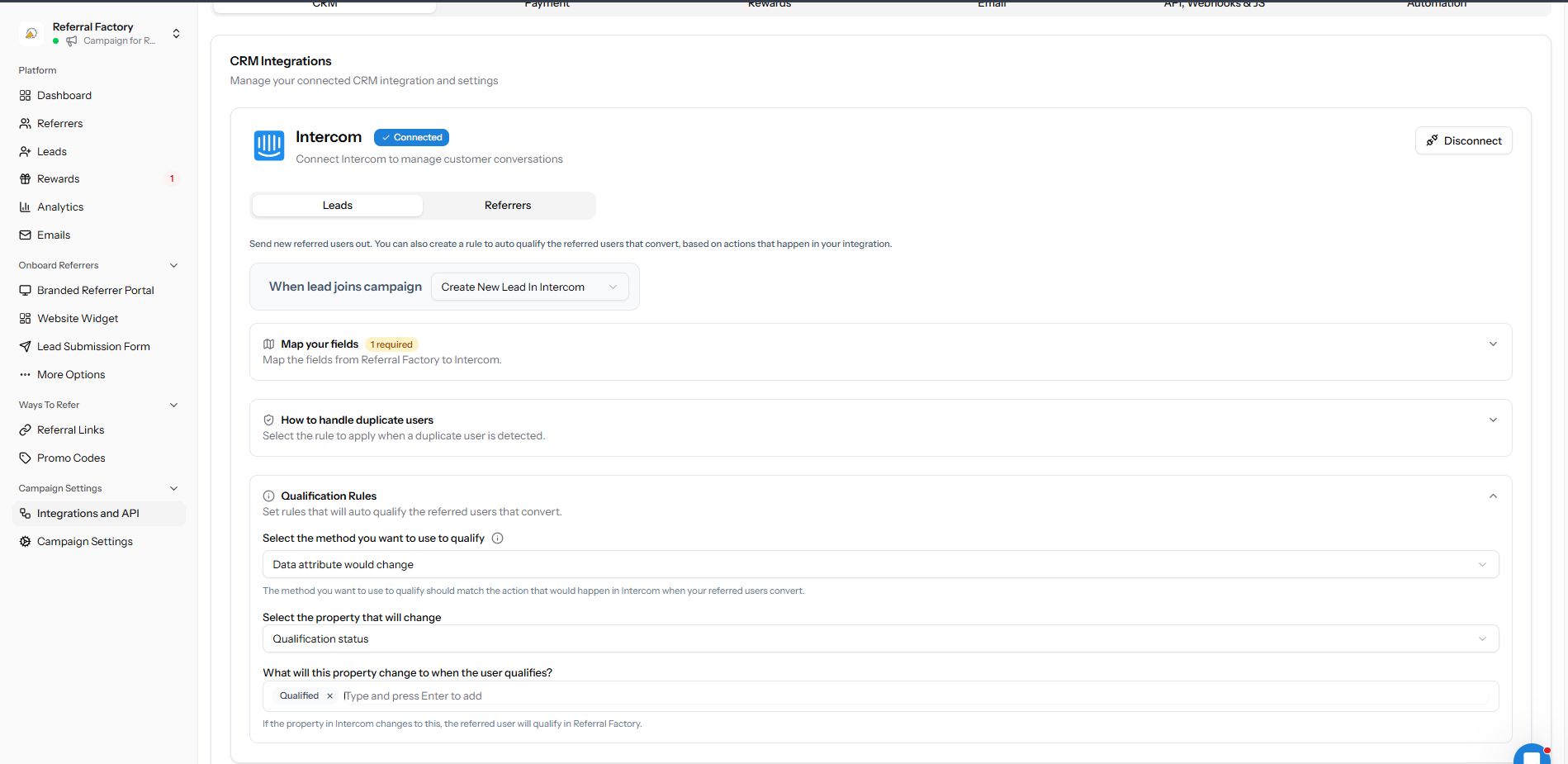
Connected Intercom panel showing Leads and Referrers tabs with action dropdown
Each tab lets you choose an action, map fields, handle duplicates, and set qualification rules. See the dedicated guides below for step-by-step instructions.
  • Leads β€” Configure what happens when a new referred lead joins your campaign
  • Referrers β€” Configure what happens when a new referrer joins your campaign

What you can do with the Intercom integration

  • Send new leads to Intercom β€” Automatically create a lead or user in Intercom when someone is referred
  • Send new referrers to Intercom β€” Automatically create a lead or user in Intercom when a referrer signs up
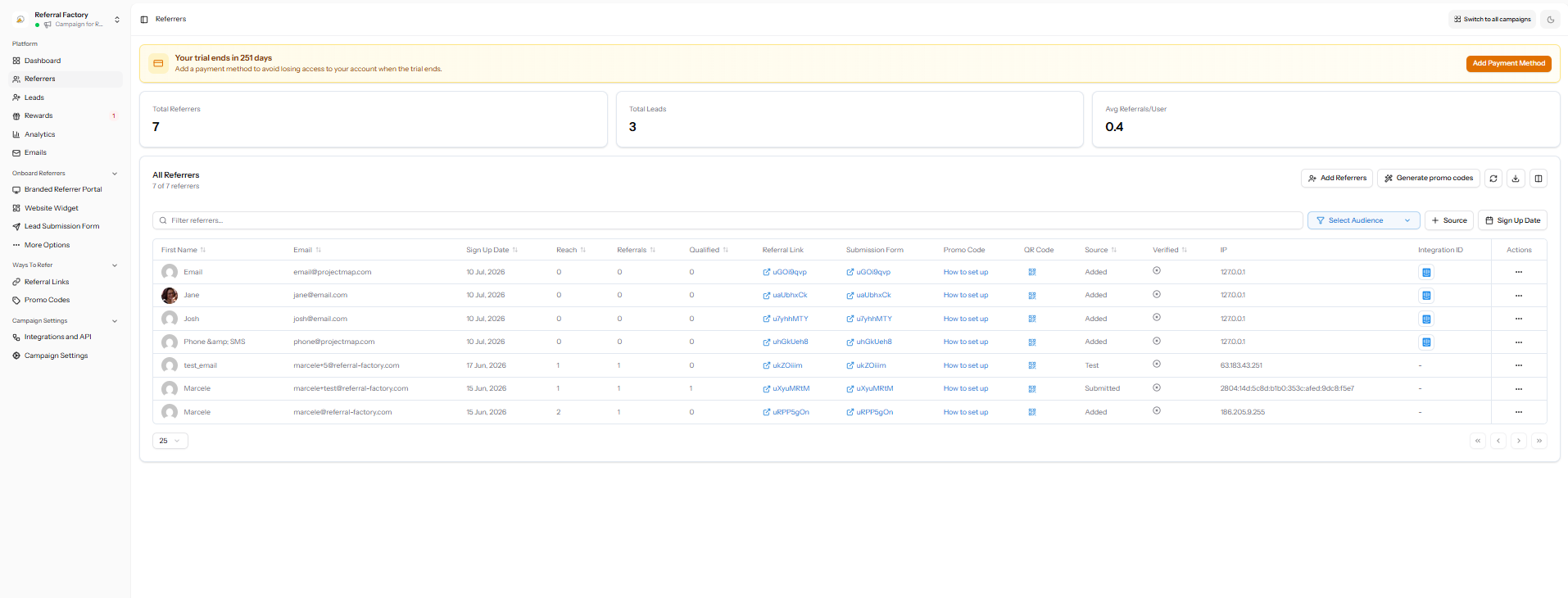
  • Sync Intercom contacts as referrers β€” Import contacts from Intercom into your campaign
  • Auto-qualify referrals β€” Qualify leads automatically when an Intercom data attribute changes
Related strategy reading

Go deeper with Learn

This help article explains the setup. These Learn guides explain the bigger strategy, planning, and real-world use of referral programs.

Article feedback

Did this answer your question?

Your vote helps support spot weak articles, fix missing steps, and decide when a person should step in.