
Need help applying this to your account?
Contact support and we will keep this article attached to your request.
Create the Reward Rule
- Open the campaign where you want to create a referral reward.
- Go to Rewards → Reward Rules.
- Select New reward.
- Under “Who is this reward for?”, choose Referrer or Lead.
- Under Reward Type, select Custom.
- Select Next to continue.
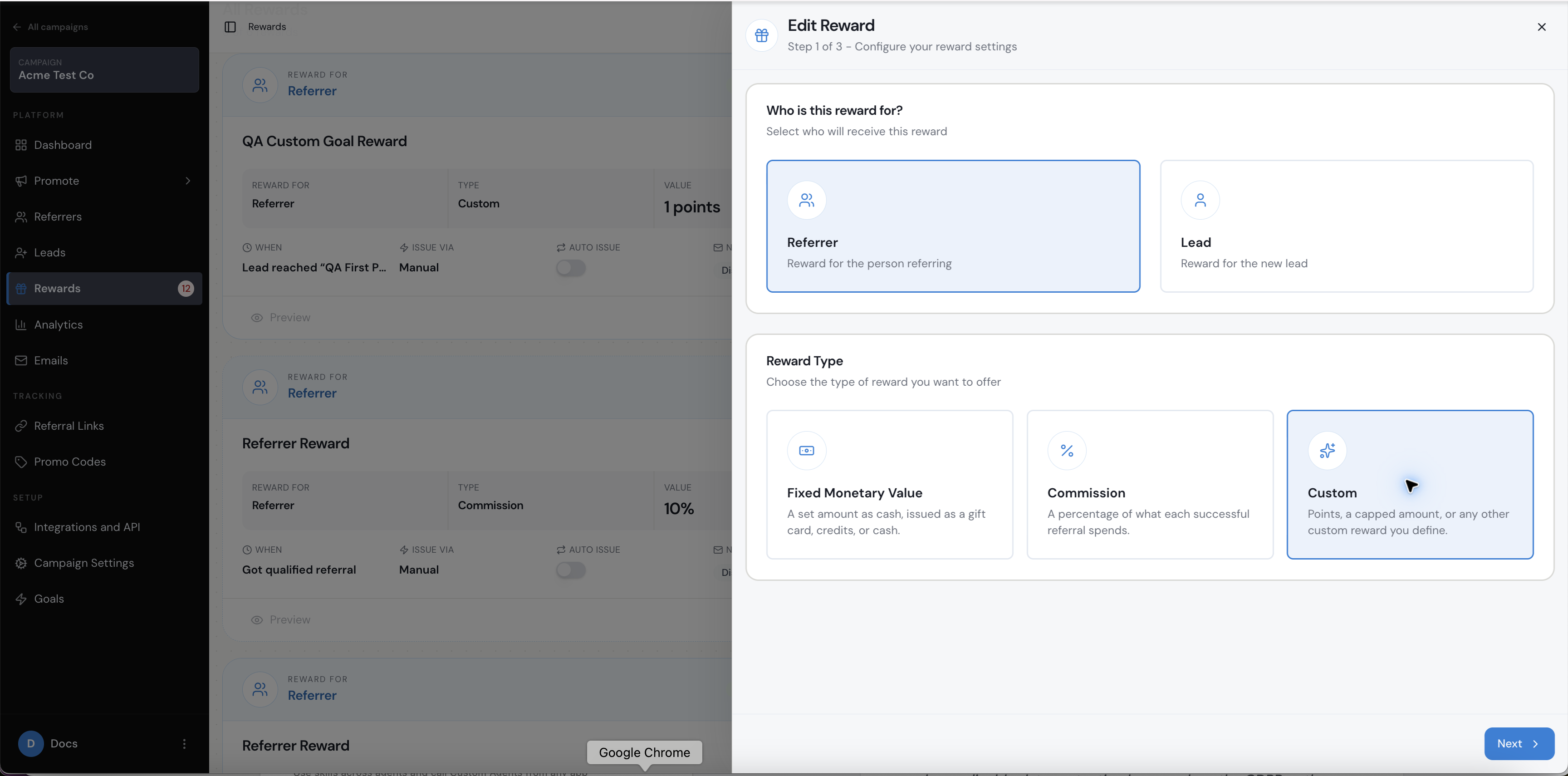
Reward Rule Step 1 with Custom selected.
Set the custom metric
- Choose the reward trigger. For example, select Qualified when the referred Lead must meet the campaign qualification criteria first.
- Enter the Metric Name, such as Points.
- Enter the Metric Amount, such as 500.
Example: Metric Name = Points; Metric Amount = 500. The Reward Rule records a reward of 500 Points.
A Custom Reward Rule records the custom reward or value. Referral Factory does not physically fulfil every possible custom reward automatically; the issuing or fulfilment method determines what happens next.
Choose how the reward is fulfilled
- Select Next to open Choose Issuing Method.
- Choose the method your business uses to fulfil the custom reward. This may be manual through Issue Yourself or automated through a connected method such as Webhooks, Zapier, Make.com or N8n.
The issuing method may be manual or automated depending on your setup. Selecting it does not by itself confirm that the custom reward has been delivered.
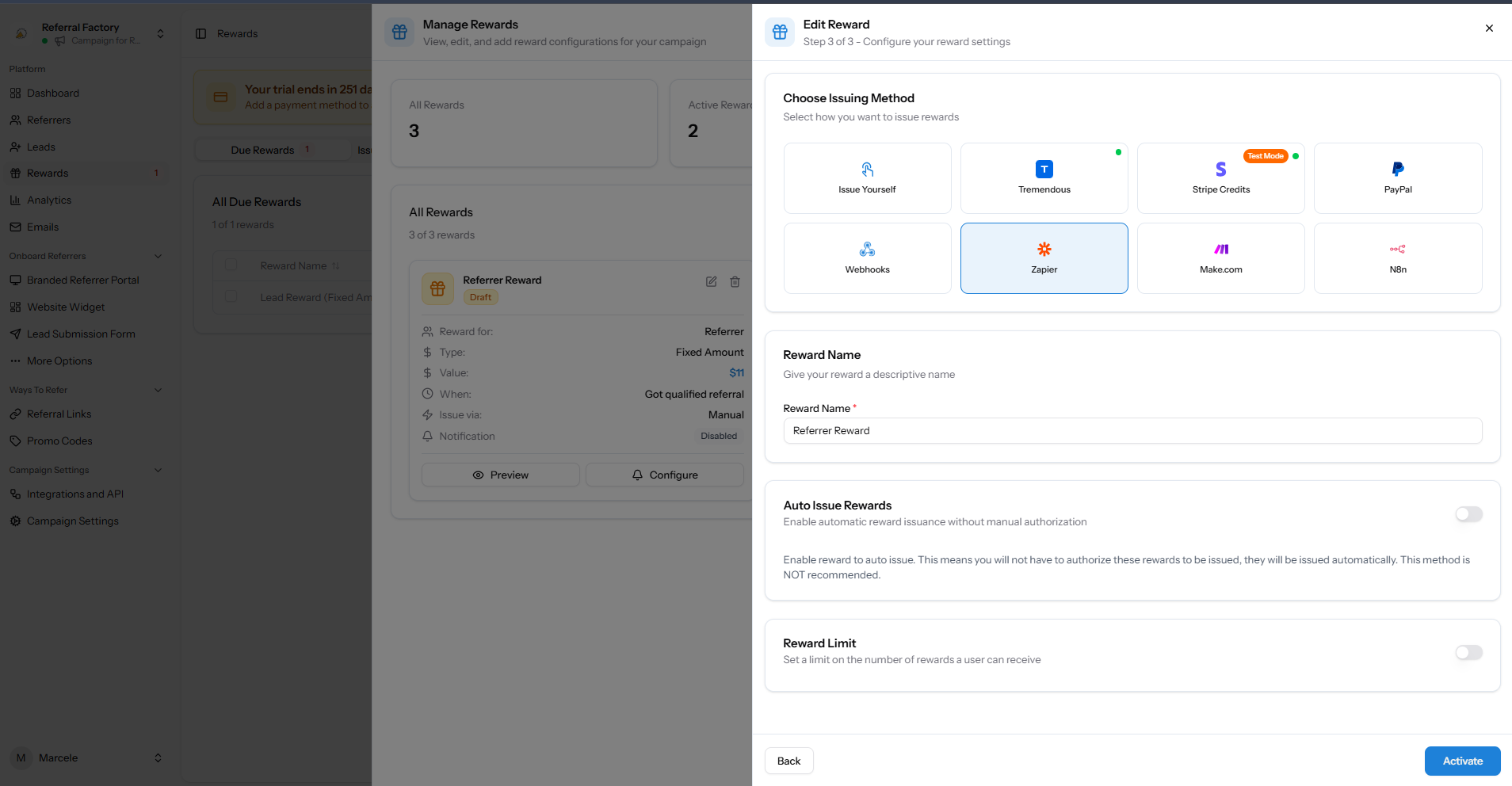
Reward Rule Step 3 showing Choose Issuing Method and the final rule settings.
Complete and activate the rule
- Enter a descriptive Reward Name.
- Review any optional Reward Rule controls shown for the selected setup, such as Ignore Rewards for Existing Users, Auto Issue Rewards or Reward Limit.
- If you enable Auto Issue Rewards, confirm that the chosen fulfilment method is ready to process the custom reward without manual authorization.
- Review the recipient, Custom type, trigger, Metric Name, Metric Amount and issuing method.
- Select Activate.