
Need help applying this to your account?
Contact support and we will keep this article attached to your request.
Create the Reward Rule
- Open the campaign where you want to create a referral reward.
- Go to Rewards → Reward Rules.
- Select New reward.
- Under “Who is this reward for?”, choose Referrer or Lead.
- Under Reward Type, select Fixed Monetary Value.
- Select Next to continue.
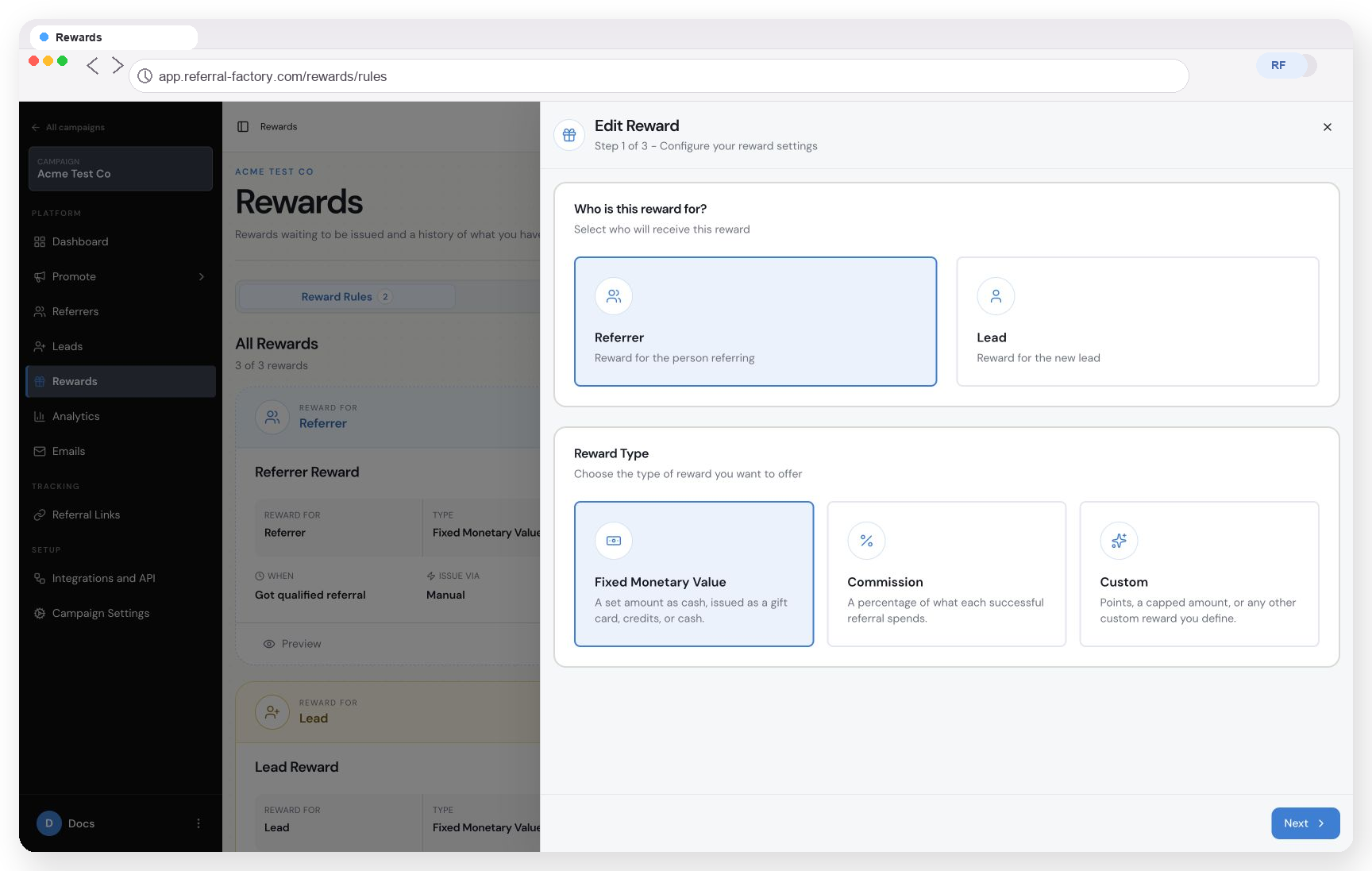
Reward Rule Step 1 with Fixed Monetary Value selected.
Set the fixed amount
- Choose the reward trigger. For example, select Qualified when the referred Lead must meet the campaign qualification criteria first.
- Select the currency.
- Enter the reward amount, such as 50 for a $50 reward.
- If the builder presents a frequency option for this setup, choose the option that matches how often the rule should create the reward.
The Fixed Monetary Value determines how much is owed each time the rule is triggered. It does not determine how the reward reaches the recipient.
Choose how the reward is Issued
- Select Next to open Choose Issuing Method.
- Choose how the reward will be delivered. Options can include Issue Yourself, Tremendous, PayPal, Stripe Credits (Test Mode), Webhooks, Zapier, Make.com and N8n.
The issuing method determines delivery. For example, the fixed amount could later be fulfilled manually, through Tremendous or PayPal, as Stripe Credits, or through an automation method.
Do not treat selecting an issuing method as confirmation that a reward has already been delivered.
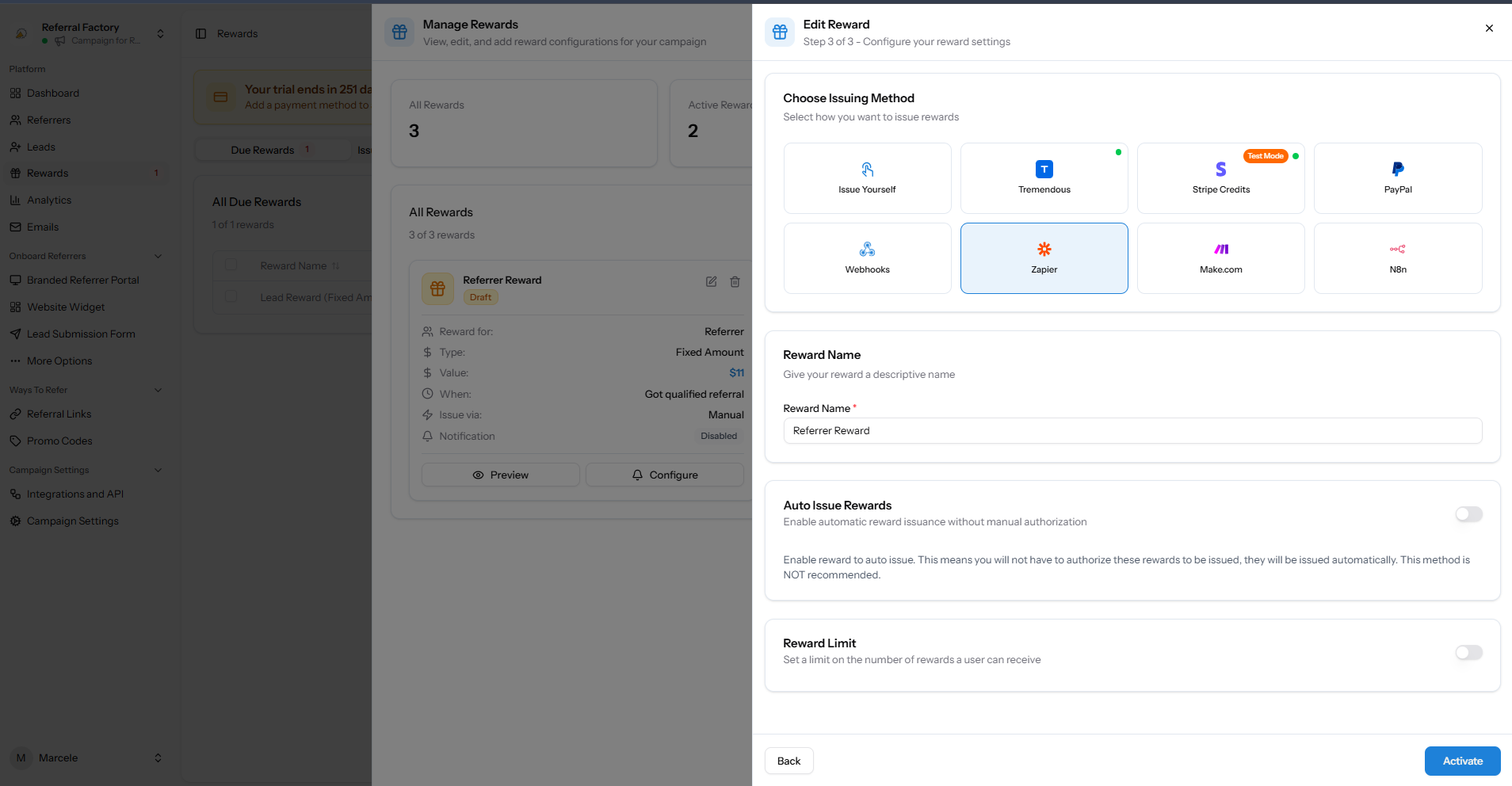
Reward Rule Step 3 showing Choose Issuing Method and the final rule settings.
Complete and activate the rule
- Enter a descriptive Reward Name.
- Review Ignore Rewards for Existing Users if that control is available for the rule.
- Leave Auto Issue Rewards off if rewards should wait for manual authorization. If you turn it on, review the issuing method and amount first.
- Optionally turn on Reward Limit and enter the maximum number of rewards one person can receive from this rule.
- Review the recipient, Fixed Monetary Value, currency, amount, trigger, frequency and issuing method.
- Select Activate.