
Need help applying this to your account?
Contact support and we will keep this article attached to your request.
Dynamic versus fixed mapping values
When you connect Referral Factory to a CRM, field mapping controls what data is sent and which CRM field receives it.
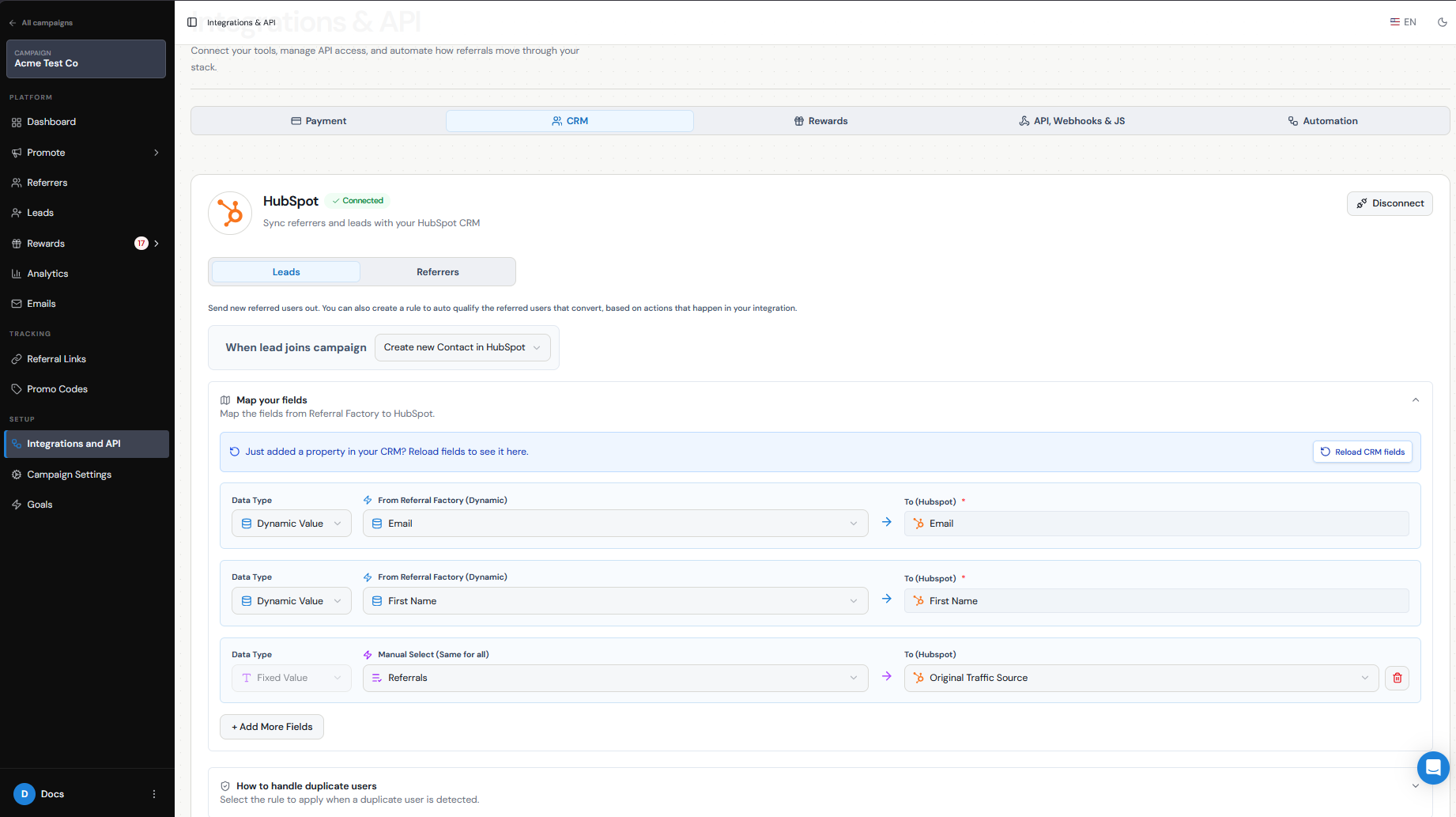
A Dynamic Value pulls information from a Referral Factory field and can be different for every Lead or Referrer. A Fixed Value is entered during setup and stays the same for every record.
For example, Email → Email sends each person’s email address dynamically, while Lead Source → Referral Factory writes the same fixed source value to every record.
In integrations such as HubSpot, select the value type under Data Type. Then choose a Referral Factory field for a Dynamic Value or enter the value to use as the Fixed Value.
When to use dynamic values
Use Dynamic Values for information that belongs to an individual Lead or Referrer.
- First Name
- Email
- Phone Number
- Company Name
- Referral Code
- Referral Link
- Referrer information
- Campaign Name
When to use fixed values
Use Fixed Values when every record should receive the same value. For example, Lead Source → Referral Factory can identify every referral Lead in your CRM.
How values are written to CRM fields
Each mapping connects a source value with a destination field in your CRM.
For a Dynamic Value, choose a Referral Factory field and a CRM field. Email → Email takes the email address belonging to that Lead or Referrer and writes it to the CRM Email field.
For a Fixed Value, enter or select the value and choose the CRM field that should receive it. Referral Factory → Lead Source writes the same value to every processed record.
The CRM field must be compatible with the value. Some fields use predefined options instead of free text, so the selected value must match an option that exists in the CRM.
Common mistakes
The most common problems are choosing the wrong value type or leaving required fields unmapped. Always check the guide for your CRM because mandatory fields vary by platform and record type.
- Using a Fixed Value for Email sends the same email address for every record.
- Mapping the correct source field to the wrong destination puts data in the wrong place.
- Leaving a mandatory field unmapped can prevent the record from being created.
- Entering a Fixed Value that a CRM dropdown does not accept can cause the integration to fail.
Impact on record creation and updates
Your mappings control what is written when a new CRM record is created. They can also change existing records when duplicate settings allow updates.
For example, a fixed Lead Source value can replace the current CRM value, while a dynamic Phone Number can replace the phone number already stored on a matching record.
Review both field mappings and duplicate handling before enabling updates so you know which CRM data may change.
Test your field mapping
Test field mapping before using the integration with live Leads or Referrers.
Step 1
Create a test Lead or Referrer with information you can recognize.
Step 2
Confirm that all mandatory fields are mapped.
Step 3
Include at least one Dynamic Value and, if needed, one Fixed Value.
Step 4
Create or send the test record to your CRM.
Step 5
Check that each Dynamic Value contains the correct person’s information.
Step 6
Confirm that each Fixed Value matches the value you configured.
Step 7
If existing CRM records may be updated, test that workflow separately and check which fields are overwritten.