
Need help applying this to your account?
Contact support and we will keep this article attached to your request.
How CRM Qualification works
Connecting your CRM does not automatically tell us when a referral has converted. In Referral Factory, a successful conversion is called a qualification. You need to configure a qualification rule that tells us which CRM event should change a Lead from Pending to Qualified.
A CRM integration can send Lead data to your CRM and send the qualification result back to Referral Factory. The typical journey is: Lead joins Referral Factory → record is created or updated in the CRM → the record reaches your conversion milestone → Referral Factory marks the Lead as Qualified.
For example, you might qualify a Lead when a HubSpot contact reaches Lifecycle Stage → Customer, a Salesforce Opportunity reaches a chosen stage, or a Pipedrive Deal reaches its successful stage.
Before you start
Make sure the connection, Lead settings and conversion rule are all configured before testing.
- Your CRM is connected to the correct Referral Factory campaign.
- The Leads section of the CRM integration is configured.
- Required CRM fields are mapped.
- A qualification rule is configured.
- The selected CRM field, status or stage matches the event your CRM actually uses when someone converts.
- The Lead exists in Referral Factory and was created or matched successfully in your CRM.
- The rule applies to Leads, not Referrers.
Data moving between systems
When a Lead joins your referral campaign, Referral Factory can send the mapped information to your CRM. The CRM then manages that person through your normal sales or customer workflow.
Referral Factory monitors the CRM event selected in your qualification settings. If the rule is Lifecycle Stage → Customer, the Lead stays Pending until the linked CRM record reaches Customer.
- First Name → First Name
- Email → Email
- Phone Number → Phone
Check your field mapping
Incorrect or incomplete field mapping can prevent the CRM record from being created correctly and stop automatic qualification later.
Map First Name and Email, plus any additional mandatory fields required by the CRM and record type. Also confirm that field types, validation rules, character limits and dependencies accept the data you send.
Make sure you are checking the correct CRM object or module, such as Lead versus Contact or Lead versus Deal. Salesforce, Zoho and Pipedrive can reject records when required fields or validation rules do not match the configuration.
Check the Qualification rule
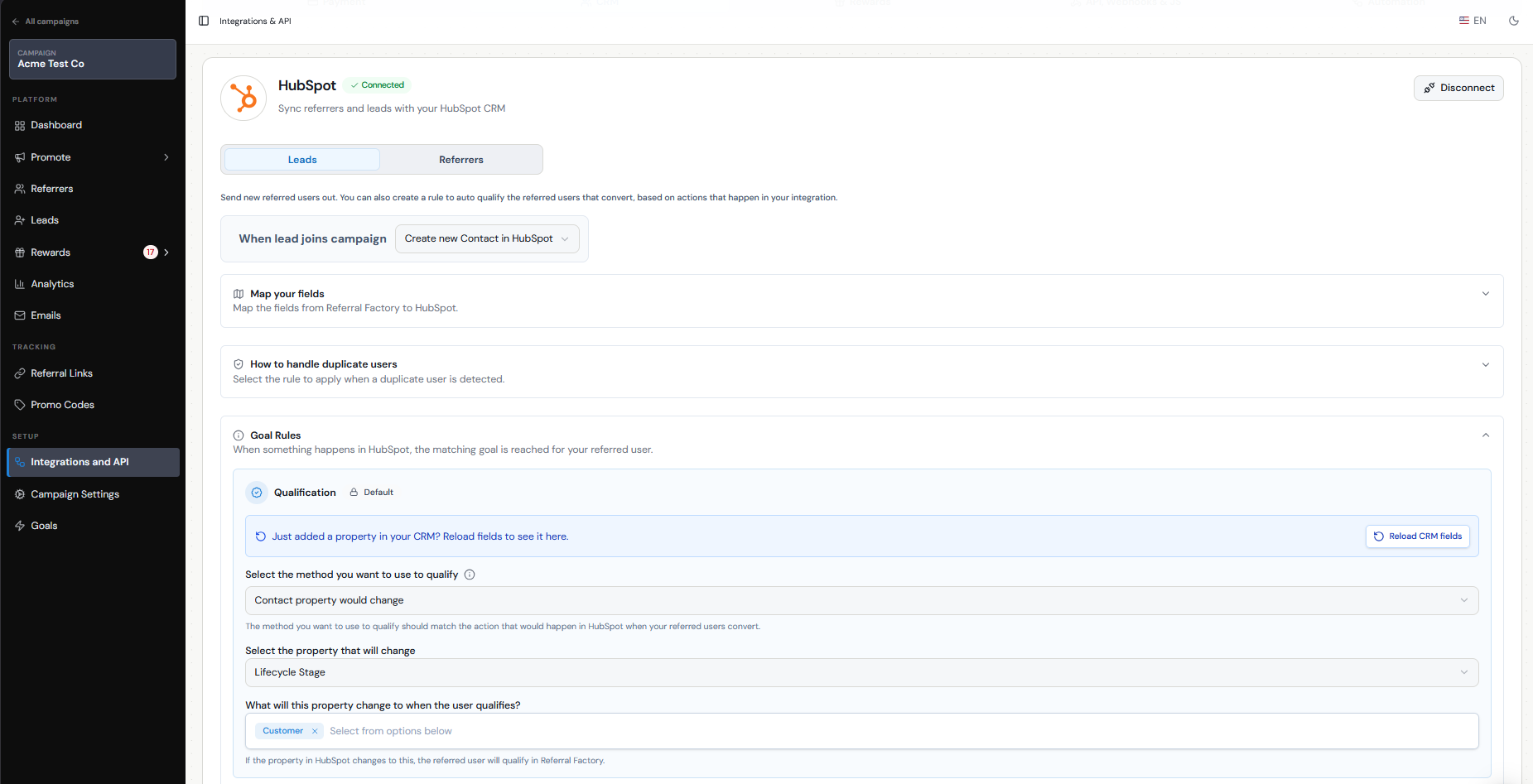
In the CRM integration settings, select the exact property, status or stage that should qualify the Lead. The available options depend on the CRM and record type.
For HubSpot, a rule might use Contact property → Lifecycle Stage → Customer or Deal Stage → Closed Won. The selected value must match what your CRM actually changes to.
If the Lead reaches the milestone in the CRM but remains Pending, compare the selected property and value with the live CRM record.
Check duplicate handling
A Lead may already exist in your CRM before entering the referral campaign. Depending on the CRM, you may be able to update the record, create a new record with the same email address, or do nothing.
If you choose Do nothing, Referral Factory may not create or update the record or establish the connection required for automatic qualification. If you update existing records, review your mappings because mapped values can overwrite CRM data.
Allow time for the systems to sync
CRM qualification is not always immediate. Depending on the CRM and current sync queue, a Lead may remain Pending for some time after the qualifying event.
Allow up to 12 hours for some qualification updates. If the CRM field or stage has just changed, let the integration sync before changing the configuration or qualifying the Lead manually.
Test and troubleshoot
Test the complete journey with a new Lead using a unique email address. CRM sending behavior is not retroactive, so an older CRM record may not prove that the current setup works.
If the Lead remains Pending, check the CRM connection, required mappings, qualification rule, duplicate settings and the CRM record itself.
Step 1
Create a test Referrer and submit a new Lead through their referral link.
Step 2
Confirm that the Lead appears as Pending in Referral Factory.
Step 3
Confirm that the correct record was created in your CRM and the mapped fields are populated.
Step 4
Change the CRM field, status or stage to the exact value in your qualification rule.
Step 5
Allow time for the systems to sync.
Step 6
Confirm that the Lead changes to Qualified in Referral Factory.
Use the guide for your CRM
Record types, mandatory fields, duplicate options and qualification triggers vary by CRM. Use the detailed setup and troubleshooting guide for the platform you connected.
If your CRM does not have a native integration, you can send the qualification signal using Zapier, Make, n8n, an inbound webhook or the Referral Factory API.