
Need help applying this to your account?
Contact support and we will keep this article attached to your request.
What does this workflow do?
A customer exists in another app or database. You choose an event that should make them a Referrer. Zapier, Make, n8n, or your API sends that customer’s details to Referral Factory and identifies the campaign where they should be added. Referral Factory then creates the Referrer record and generates the customer’s unique referral information, such as their referral link.
The Integrations & API area shows Referral Factory’s automation options.
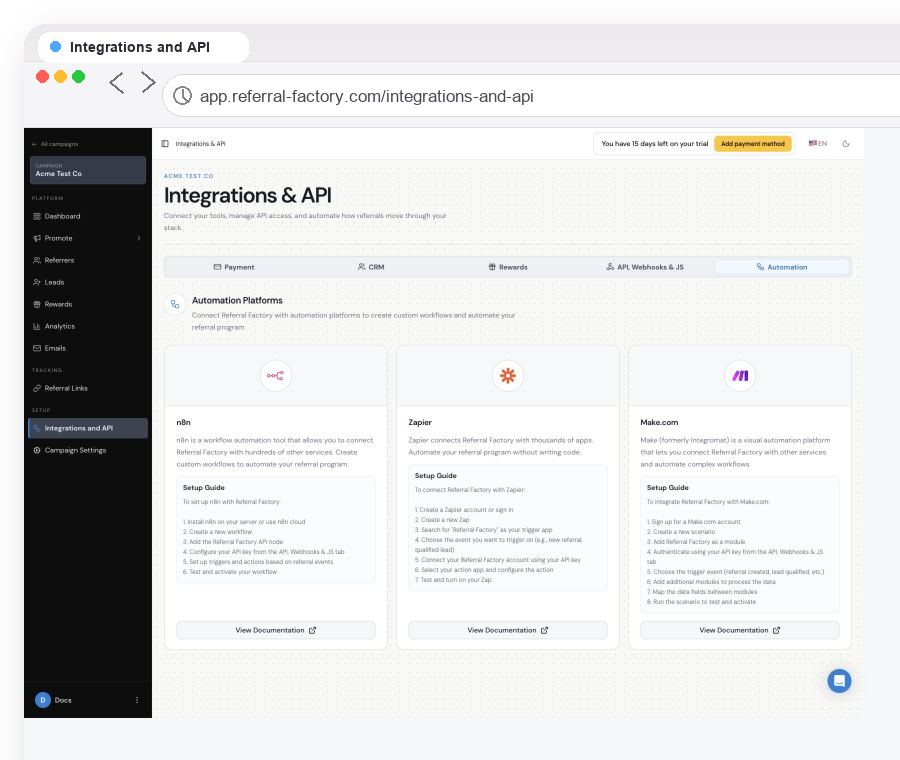
How does adding a Referrer from another app work?
Imagine that a business stores its customers in another platform. When a customer completes a chosen action—such as becoming a customer, finishing onboarding, making a purchase, or reaching another milestone—that event triggers an automation.
The business can then:
- email the customer from Referral Factory;
- give the customer access to their referral experience; or
- continue the automation and pass or store the referral information in another system.
Step 1
The external app or database identifies the customer and the event that makes them eligible.
Step 2
Zapier, Make, n8n, or an API workflow sends the customer’s details to Referral Factory.
Step 3
The workflow tells Referral Factory which campaign should receive the customer as a Referrer.
Step 4
Referral Factory creates the Referrer record and generates the customer’s campaign-specific referral information.
What do I need to set up?
The Enable Automation screen shows Zapier, Make, n8n, and API routes for adding Referrers.
Step 1
The app, platform, or database where your customers currently live.
Step 2
A trigger that identifies when someone should become a Referrer.
Step 3
Zapier, Make, n8n, or an API connection between that system and Referral Factory.
Step 4
The Referral Factory campaign where the person should be added.
Step 5
The customer information required by the chosen connection, such as the fields needed to create the Referrer record.
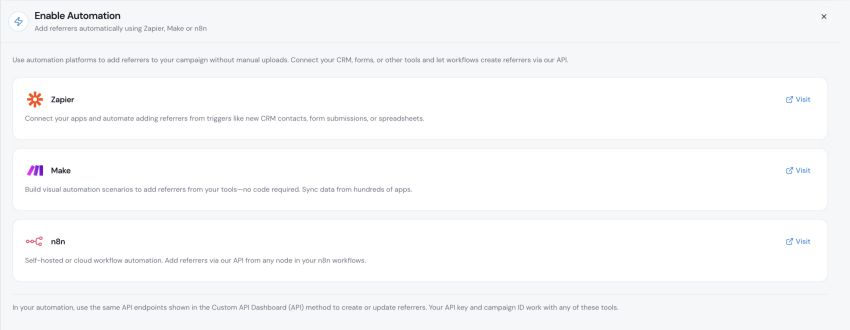
What is the actual setup flow?
Use this sequence when building the workflow:
Step 1
Trigger in the external app: choose the customer event that makes the person eligible.
Step 2
Add Referrer action or workflow: use the Referral Factory action, automation route, or API request that creates a Referrer.
Step 3
Choose the Referral Factory campaign: identify the campaign that should receive the customer.
Step 4
Map customer fields: pass the information required by the connection, such as the customer’s name and email address.
Step 5
Test: send one test customer and confirm that the person appears in the correct campaign’s Referrers area.
Step 6
Activate: turn on the workflow only after checking the mapping, campaign, and duplicate behaviour.
Real example: an email platform
Suppose a business has customers or subscribers in an email platform such as Mailchimp. When someone reaches the stage where they should join the referral program, an automation can send their details to Referral Factory and add them as a Referrer.
Referral Factory generates the customer’s unique referral information. The business can then use another step in the workflow to store that information back in its customer system where appropriate, so it can be used in future personalised communications.
This is an automation example. It does not imply that Mailchimp has a native Referral Factory integration.
Real example: a customer database
A business with its own customer database can choose an event such as completed onboarding. After that event, its system can call the Referral Factory API, identify the appropriate campaign, and add the customer as a Referrer. Referral Factory then creates the Referrer record and the customer’s unique referral information.
Real example: another SaaS app
If a business manages customers in a SaaS product that Referral Factory does not integrate with natively, Zapier, Make, or n8n can act as the bridge. The SaaS app supplies the trigger and customer details, and the automation sends them to the selected Referral Factory campaign as a new Referrer.
When should I use this instead of CRM sync?
Use CRM Sync when you want to use Referral Factory’s native integration with a supported CRM to select and map customer records.
Use Zapier, Make, n8n, or the API when your customers live somewhere else, when there is no native integration, or when a custom event should decide when somebody becomes a Referrer. These options can connect another SaaS app, your own database, or a broader customer workflow to Referral Factory.
What happens after the Referrer is added?
- The person appears in the selected campaign’s Referrers area.
- Referral Factory creates the person’s campaign-specific referral information, such as their unique referral link.
- The business can deliver that information through Referral Factory, give the person access to their referral experience, or use it in another workflow.
- Where the workflow supports it, the business can continue the automation and store or pass the generated referral information to another system.
What should I check if the workflow does not work?
- Confirm that the external trigger fired for the intended customer.
- Confirm that the workflow identifies the intended Referral Factory campaign.
- Check that the required customer fields were mapped correctly.
- Check the campaign’s Referrers area for the new record and generated referral information.
- Review the automation or API log and check how repeated events are handled before enabling the workflow for the full audience.