
Need help applying this to your account?
Contact support and we will keep this article attached to your request.
Overview
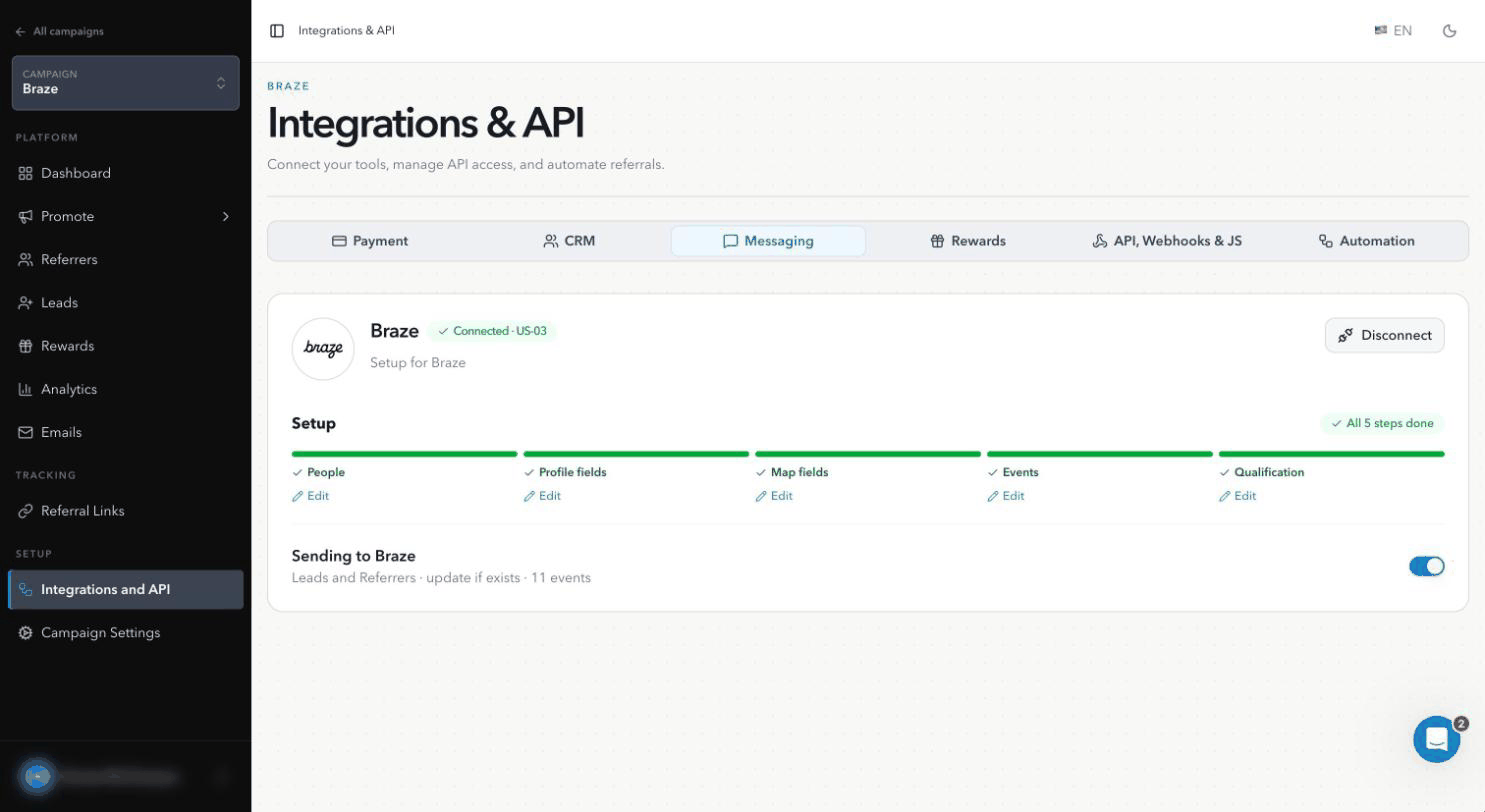
After you connect Braze, Referral Factory walks you through a short setup for your campaign. You find it on the Braze page: select your campaign, open Integrations and API, and choose Messaging.
The setup has 6 steps. Each step has a Why this step? link that explains it. You can go back and change anything before you finish. Nothing is sent to Braze until you select Finish setup.
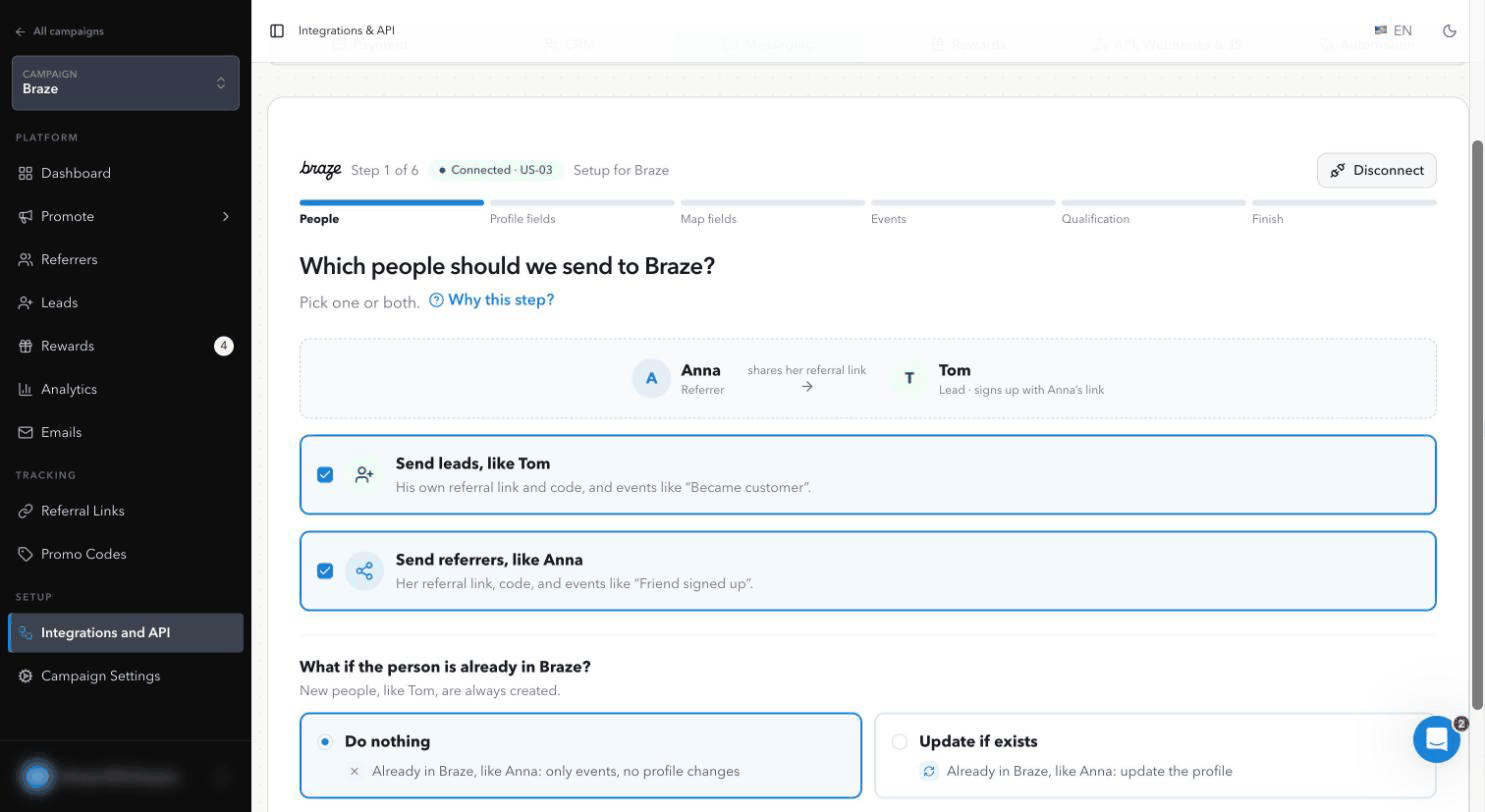
Each Referral Factory campaign has its own Braze setup. The examples use Anna, a referrer, and Tom, a lead who signed up with Anna’s link.
Step 1: Which people should we send to Braze?
Pick one or both: “Send leads, like Tom” and “Send referrers, like Anna”. New people are always created in Braze.
Then choose what happens when the person is already in Braze. Referral Factory finds people by email, or by External ID if you map it in step 3.
- “Do nothing”: people who are already in Braze only get the referral events. The app says “no profile changes”. The only change is RF - Campaign ID on leads, because qualification from Braze needs it.
- “Update if exists”: we also update the profile of people who are already in Braze, for example with their referral link.
Step 2: Profile fields in Braze?
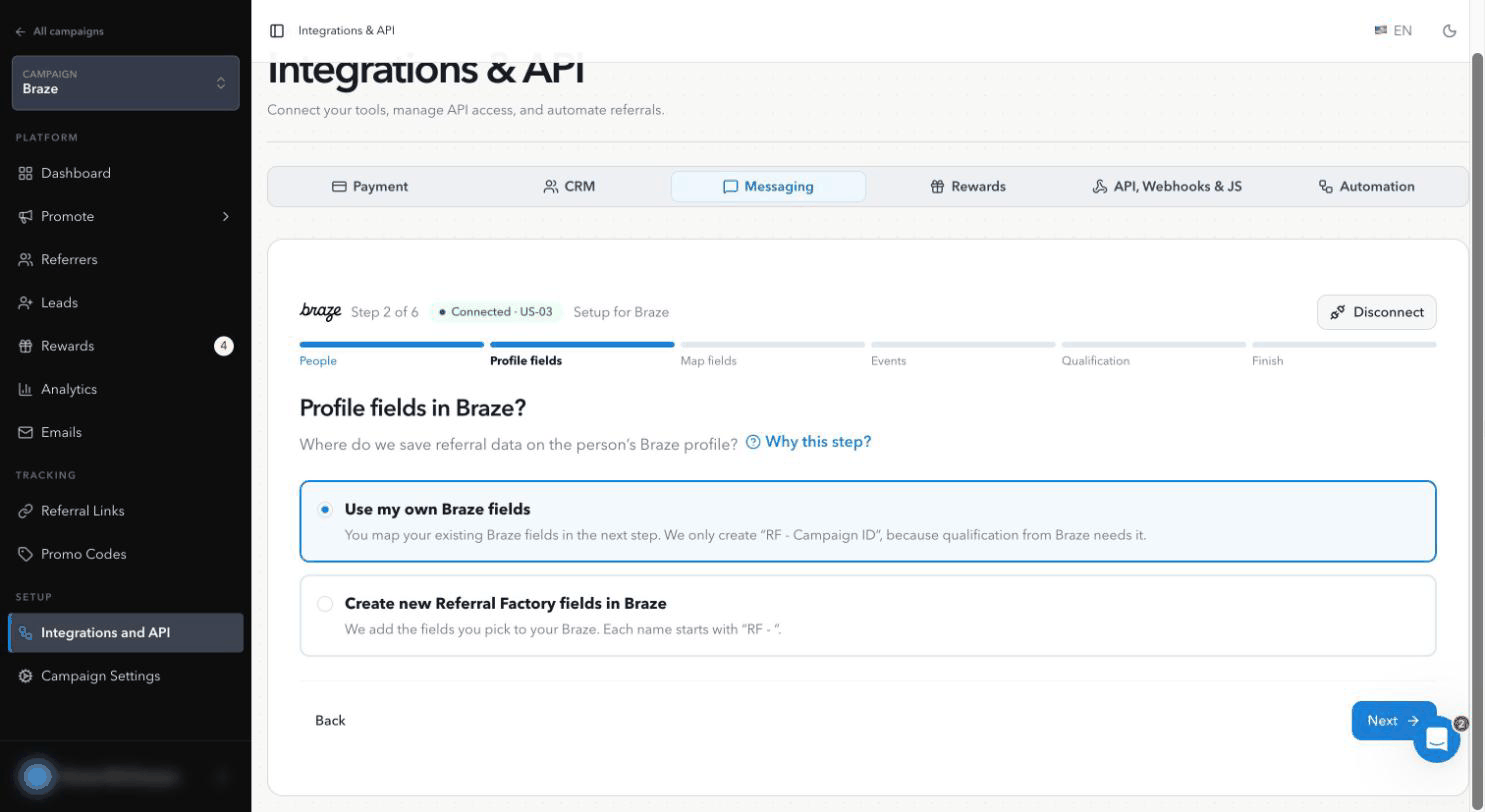
Profile fields keep each person’s referral link and code in Braze, so your messages can use them. Choose one option:
- “Use my own Braze fields”: you map your existing Braze fields in the next step. We only create RF - Campaign ID, because qualification from Braze needs it. RF - Campaign ID is the ID of your Referral Factory campaign.
- “Create new Referral Factory fields in Braze”: tick the fields you want. We add them to your Braze, and each name starts with “RF - ”.
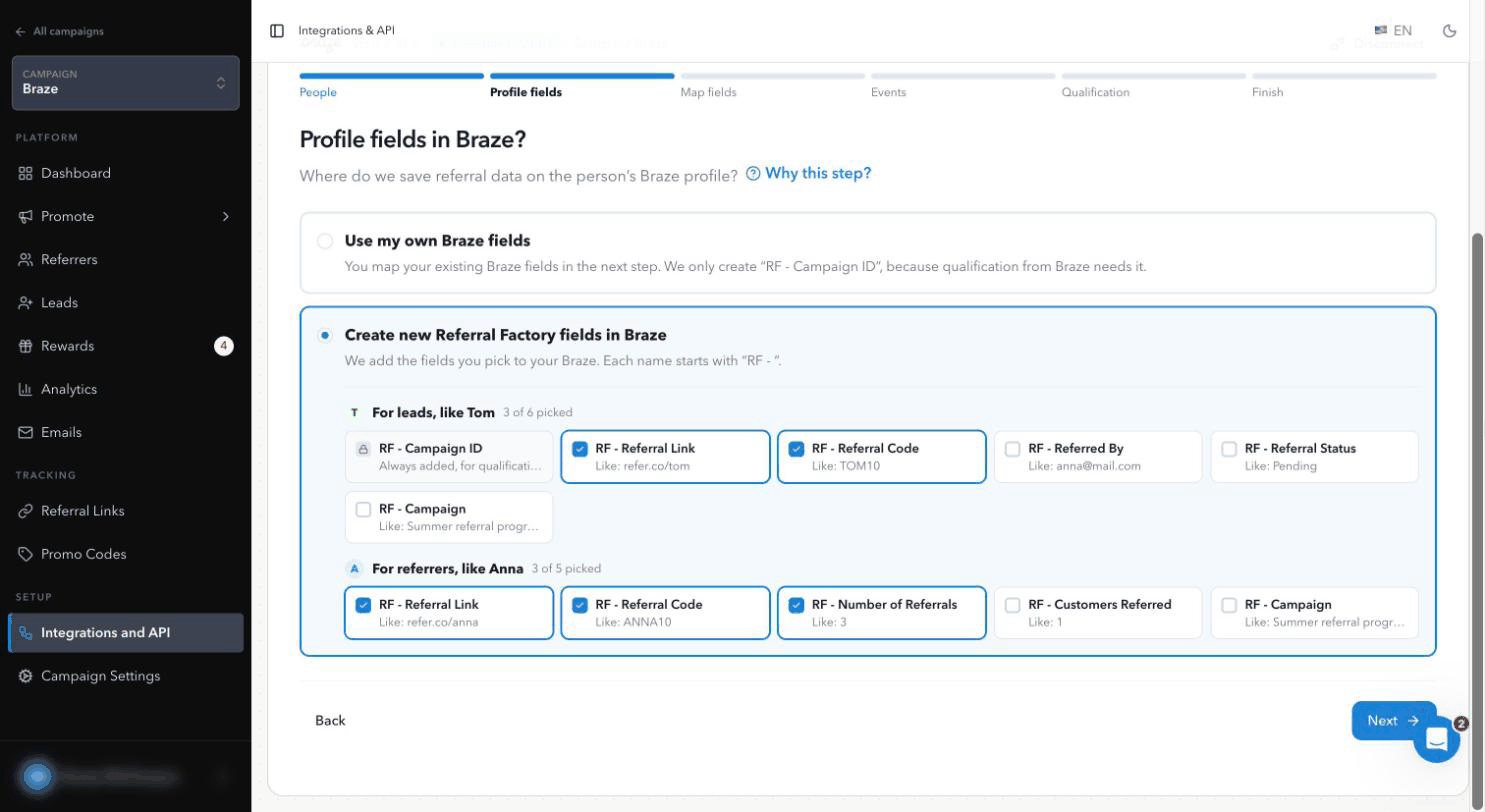
Which new fields can Referral Factory create?
- For leads: RF - Referral Link, RF - Referral Code, RF - Referred By, RF - Referral Status and RF - Campaign. RF - Referral Link and RF - Referral Code are ticked at the start. RF - Campaign ID is always added for leads.
- For referrers: RF - Referral Link, RF - Referral Code, RF - Number of Referrals, RF - Customers Referred and RF - Campaign. RF - Referral Link, RF - Referral Code and RF - Number of Referrals are ticked at the start.
Step 3: Map fields
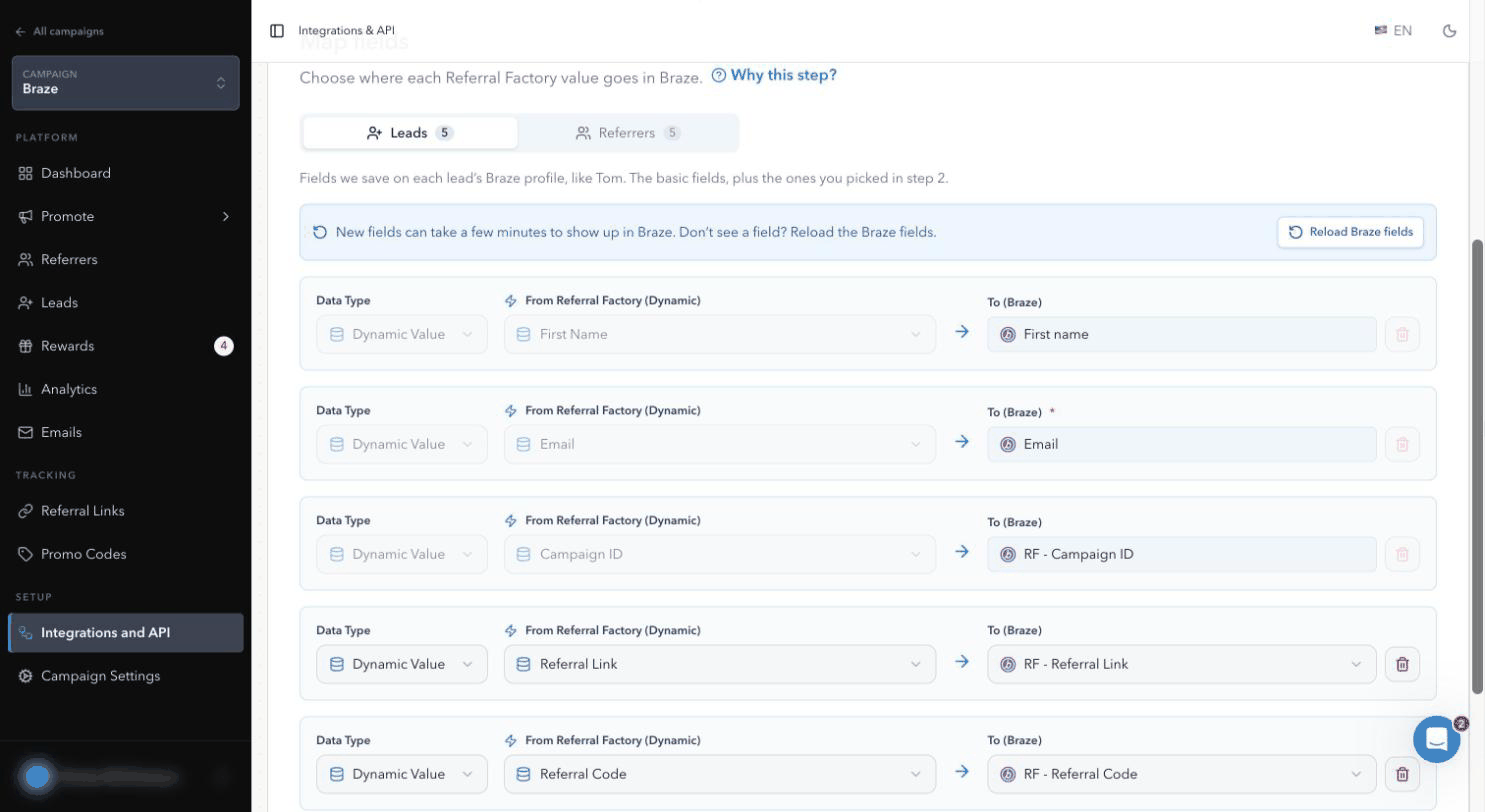
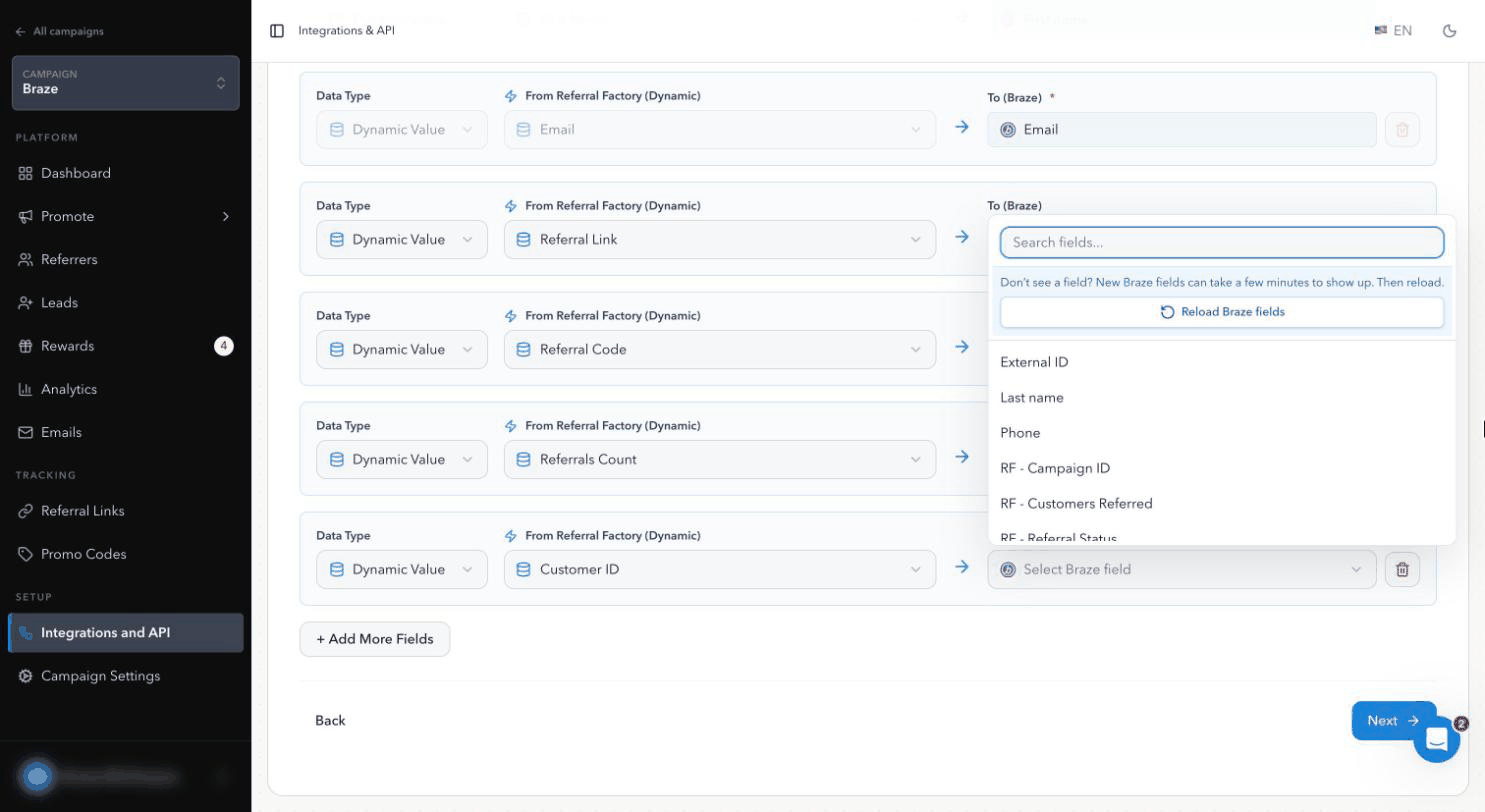
Here you choose where each Referral Factory value goes in Braze. There is a tab for Leads and a tab for Referrers. Each row has three parts: Data Type, From Referral Factory (Dynamic) and To (Braze). First name and Email are always sent, so they can’t be removed.
Step 1
Open a tab. Choose Leads or Referrers.
Step 2
Check each row. From Referral Factory (Dynamic) is the value we send. To (Braze) is the Braze field where we save it.
Step 3
Add a row if you need one. Select + Add More Fields. Keep Data Type on Dynamic Value, pick the Referral Factory value, then pick the Braze field. Choose Fixed Value only if everyone should get the same text.
Step 4
Can’t find a field? New Braze fields can take a few minutes to show up. Select Reload Braze fields, then open the list again.
Do you use your own user IDs in Braze?
Map the Referral Factory field that holds your user ID to External ID, with Data Type set to Dynamic Value. Then Referral Factory finds people in Braze by External ID instead of email.
Learn more: the Braze referrer guide
Step 4: Which events go to Braze?
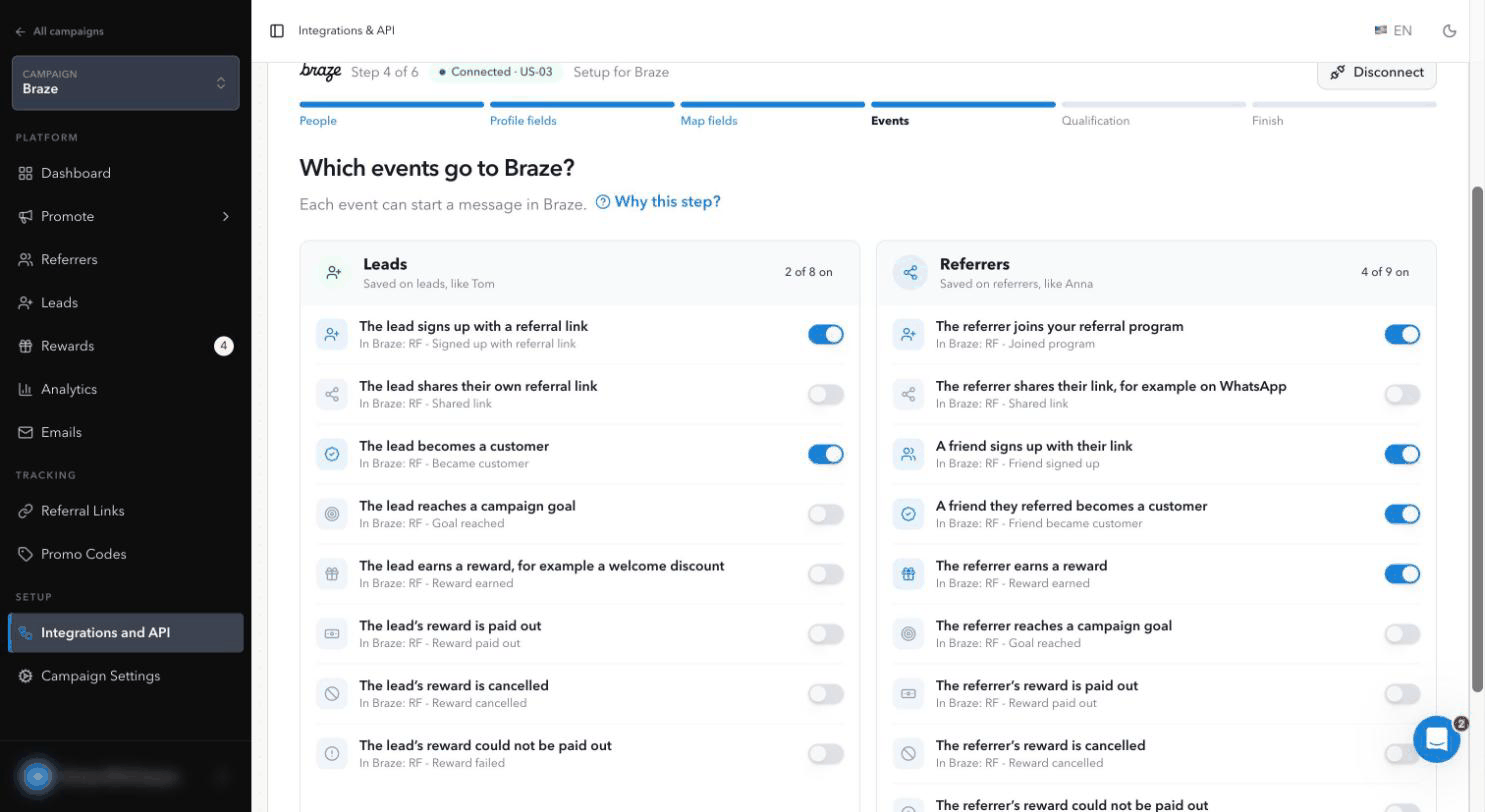
Turn on the events you want. There is a list for leads and a list for referrers. Each event is saved on the person’s Braze profile with a name that starts with “RF - ”. Under each event you see its name in Braze. Each event can start a message in Braze.
Learn more: the Braze referral messages guide
Step 5: Qualify leads from Braze?
This step only shows when you send leads.
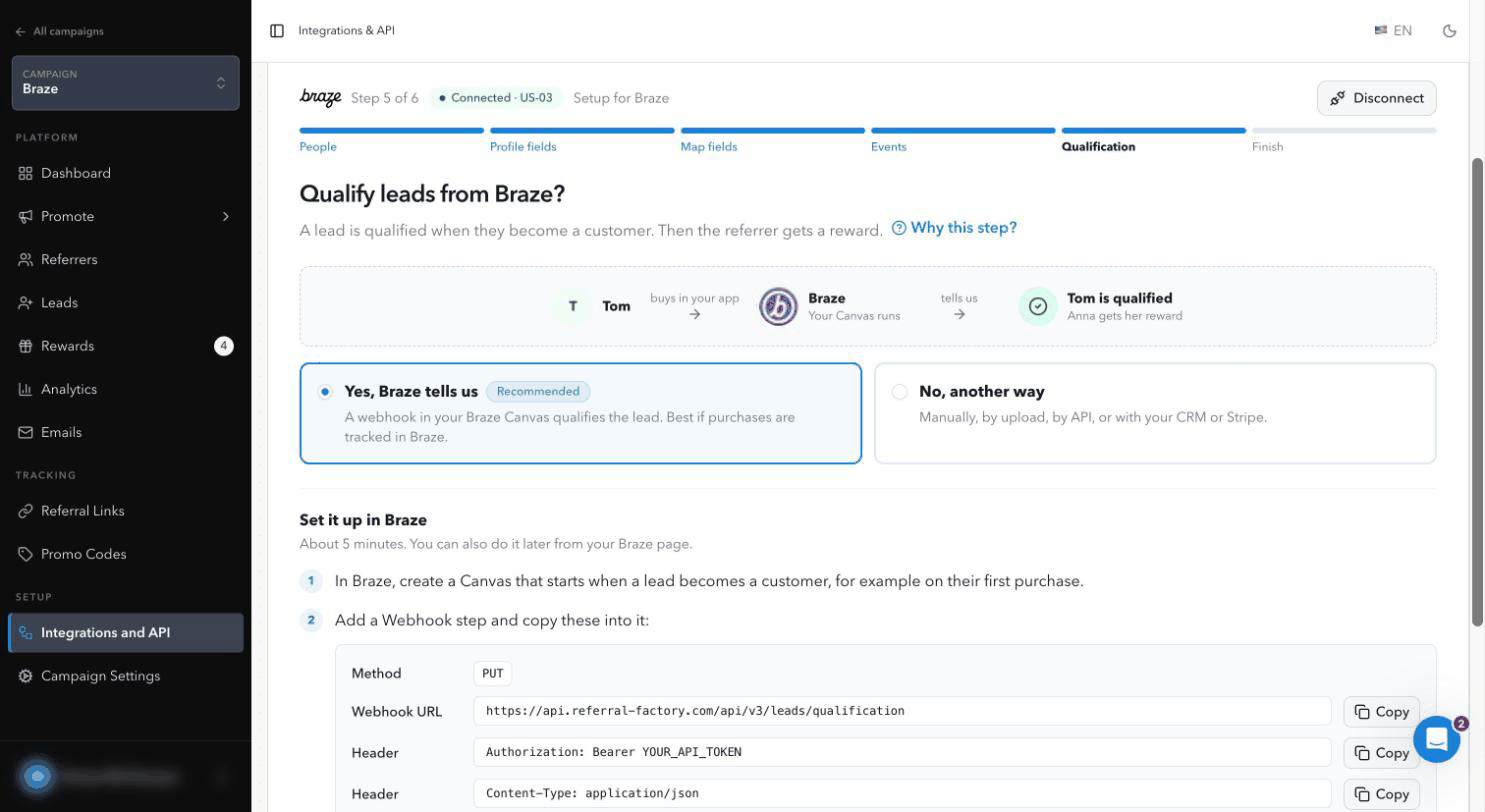
Does Braze know when a lead becomes a customer, for example from purchases in your app? Then choose “Yes, Braze tells us”. You then add a webhook to a Braze Canvas. A webhook is a message that Braze sends to another tool.
If you qualify leads another way, choose “No, another way”. For example, on the Leads page, by upload, by API, or with your CRM or Stripe.
Learn more: the Braze qualification guide
Step 6: Finish setup
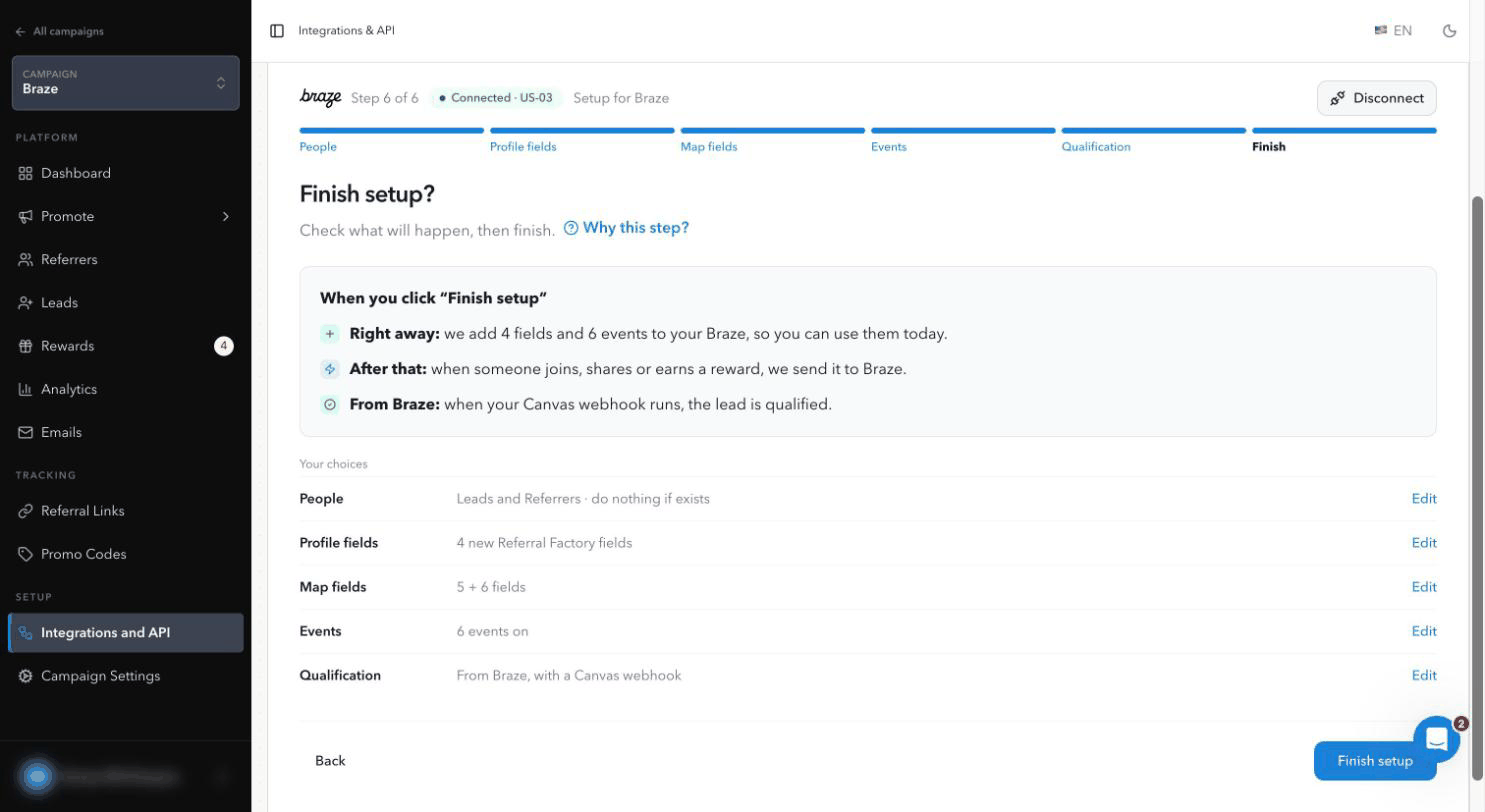
Check your choices. Select Edit next to a choice to change it. Then select Finish setup.
- Right away, we add your new fields and events to Braze, so you can use them in Braze today. To add them, we create one test profile in Braze with the External ID
referral-factory-test. Its events have the propertytest= true. You can delete this profile later. - After that, when someone joins, shares or earns a reward, we send it to Braze.
- If you chose “Yes, Braze tells us”, the lead is qualified each time your Canvas webhook runs.
What does the Braze page show after setup?
After setup, the Braze page shows All 5 steps done. Finish is not counted. If you only send referrers, there is no Qualification step, so it shows All 4 steps done.
To change a step, select Edit under it. You see that step again, and maybe some later steps. At the end, select Save.
Use the Sending to Braze switch to pause sending for this campaign. When it is off, nothing is sent. Turn it on again to continue.
Can I set up Braze in more than one campaign?
Yes. Braze is connected once for your whole account. Each Referral Factory campaign has its own setup, so select the campaign first, then open Integrations and API › Messaging.
The RF fields have the same names in every campaign. If one person is in two campaigns, their RF fields show the campaign that updated them last.