Need help applying this to your account?
Contact support and we will keep this article attached to your request.
Overview
Braze is a customer engagement platform. You use it to send push notifications, in-app messages, emails and SMS. When you connect Braze to Referral Factory, your referral program and your Braze messages work together.
Three words you will see in these guides. A referrer shares their referral link. A lead is a friend who signs up with that link. A lead is qualified when they become a customer, and then the referrer gets a reward.
Here is an example. Anna is your customer. She joins your referral program and shares her link. Her friend Tom signs up with that link. Referral Factory sends Anna and Tom to Braze with their referral links. It also tells Braze what happened, for example “Friend signed up”. Braze can then send each of them the right message. When Tom buys in your app, Braze can tell Referral Factory. Tom is qualified and Anna gets her reward.
What can Referral Factory and Braze do together?
- Send referrers to Braze. Each referrer’s Braze profile gets their referral link and code, so your messages can use them.
- Send leads to Braze. Each lead’s Braze profile gets their own referral link and code. You can also save who referred them and their referral status.
- Send referral events to Braze. Events like RF - Friend signed up or RF - Reward earned are saved on the person’s Braze profile. Each event can start a Braze Canvas or a Braze campaign.
- Qualify leads from Braze. A webhook in a Braze Canvas tells Referral Factory when a lead becomes a customer. Then the referrer gets their reward.
- Reach custom goals from Braze. If your Referral Factory campaign has custom goals, a Braze Canvas can mark them as reached too.
What do I need before I connect Braze?
- A Braze account where you can create a REST API key, in Settings › APIs and Identifiers. If you can’t create API keys in Braze, ask your Braze admin to create the key for you.
- Account owner or Account Admin access in Referral Factory to connect or disconnect Braze. Campaign Admins can set up Braze for a campaign after it is connected.
- A Referral Factory plan with API access, but only if you want Braze to qualify leads. Sending people and events to Braze does not need it.
- About 2 minutes to connect, and about 5 minutes to set up your campaign.
How do I create a REST API key in Braze?
Referral Factory connects to Braze with a REST API key. The key needs three permissions. Braze keys can’t be edited after you create them, so tick all three before you create the key.
Step 1
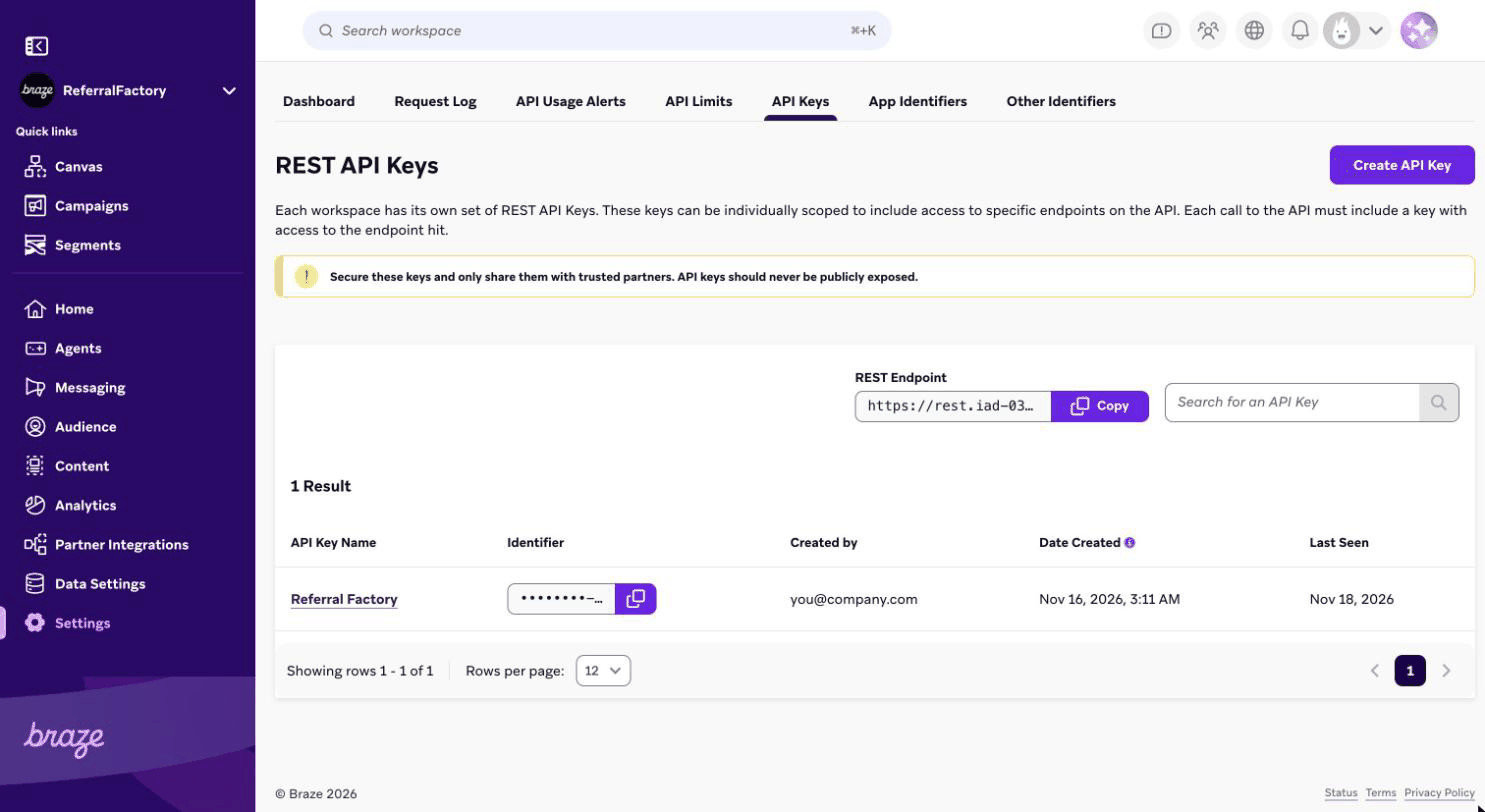
Open the API keys page. In Braze, go to Settings › APIs and Identifiers and open the API Keys tab. Select Create API Key.
Step 2
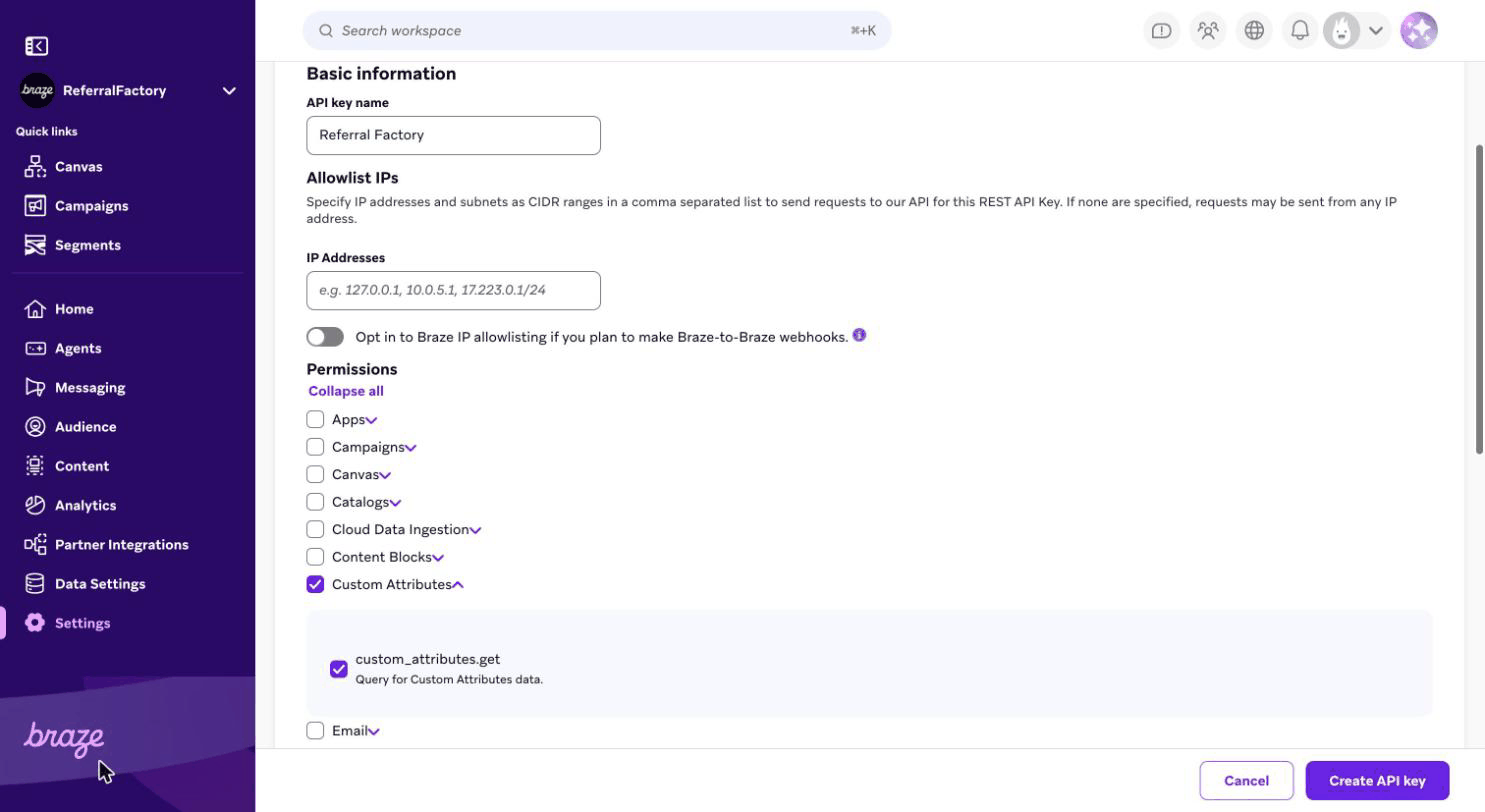
Name the key, for example Referral Factory. Leave Allowlist IPs empty.
Step 3
Tick the Custom Attributes permission. Under Permissions, select the arrow next to Custom Attributes to open it. Tick
custom_attributes.get. It lets Referral Factory show your Braze fields in a list.Step 4
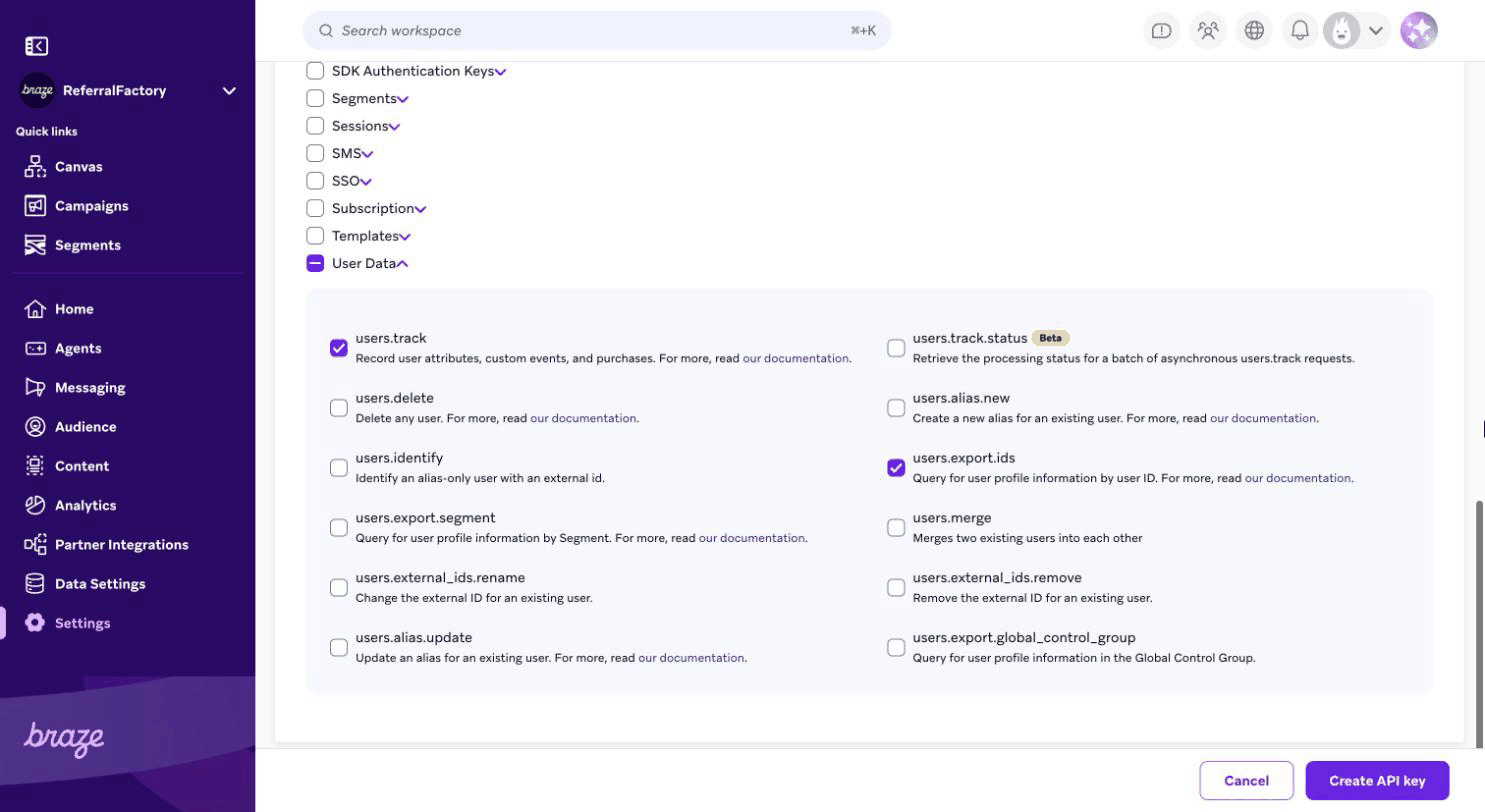
Tick two User Data permissions. Select the arrow next to User Data to open it. Don’t tick the User Data box itself, because it ticks every permission in the group. Tick
users.track, to send people and events, and users.export.ids, to check if a person is already in Braze.Step 5
Create and copy the key. Select Create API key at the bottom of the page. In the API Keys list, copy the key with the copy button in the Identifier column.
How do I connect Braze to Referral Factory?
The connection is saved for your whole Referral Factory account. Connecting only checks your key. It adds nothing to your Braze.
Step 1
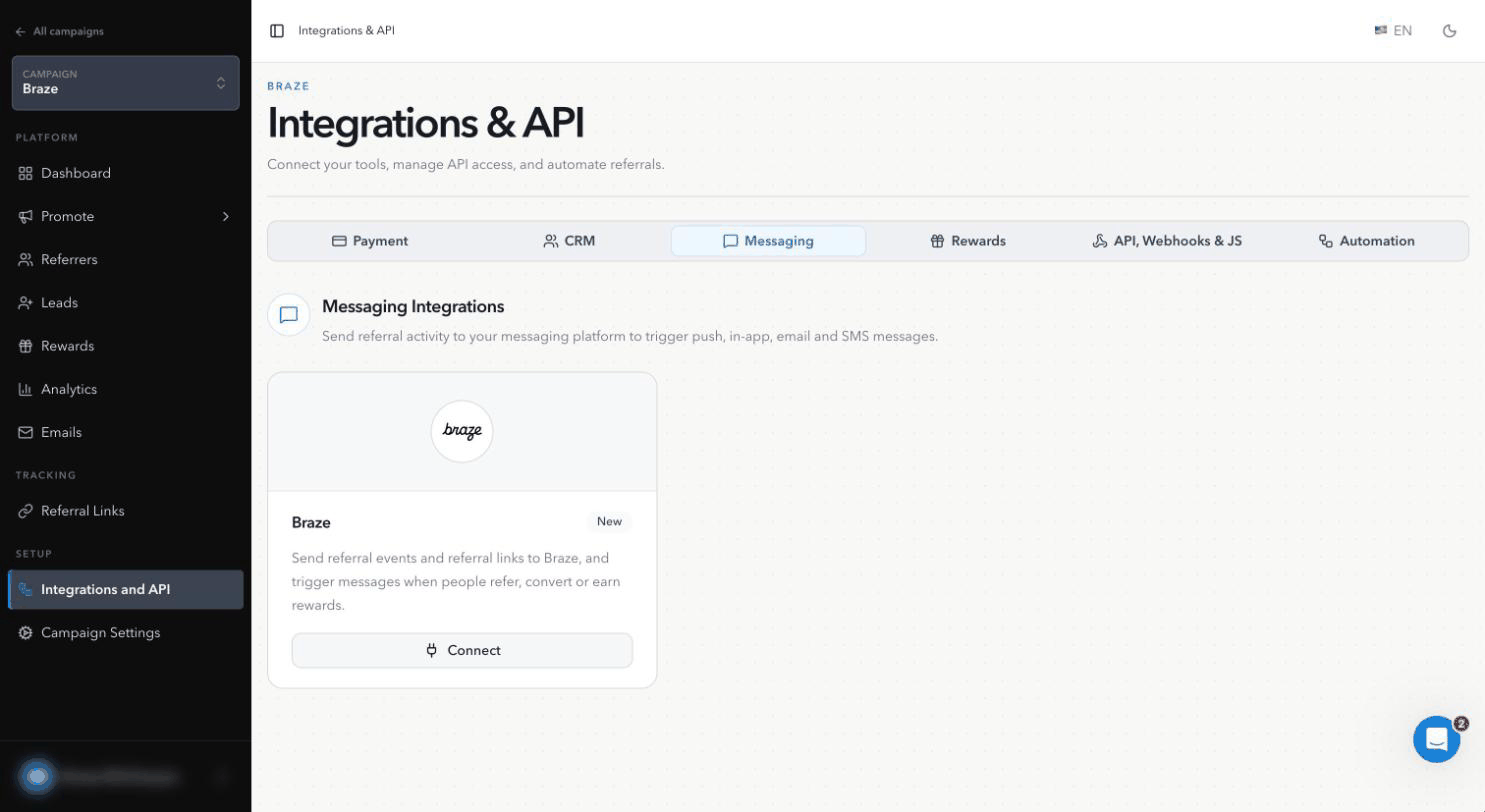
Open the Braze page. In Referral Factory, select your campaign, open Integrations and API, and choose Messaging.
Step 2
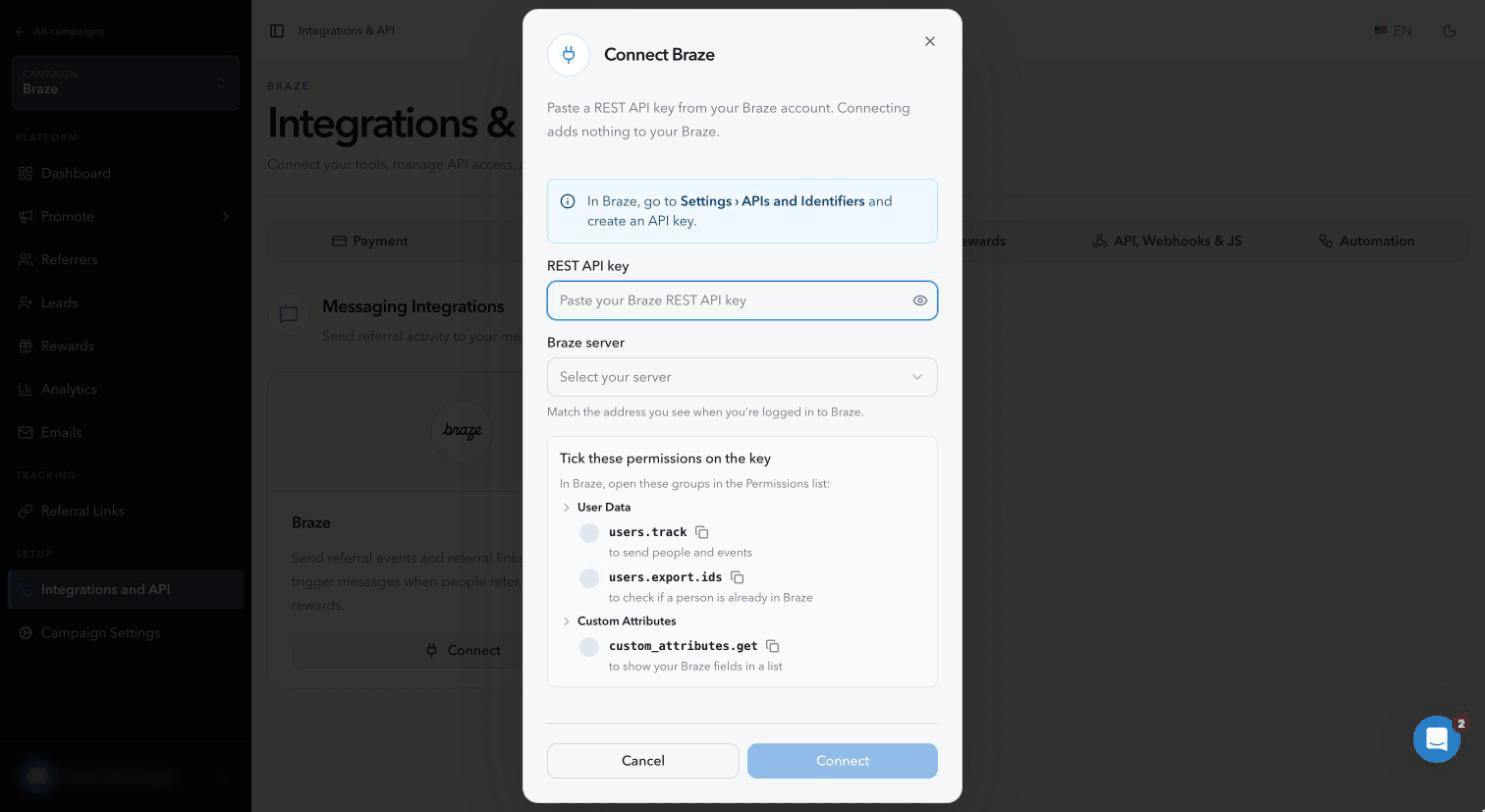
Choose Braze. On the Braze card, select Connect. The Connect Braze window opens.
Step 3
Paste your key. Paste the key you created into REST API key.
Step 4
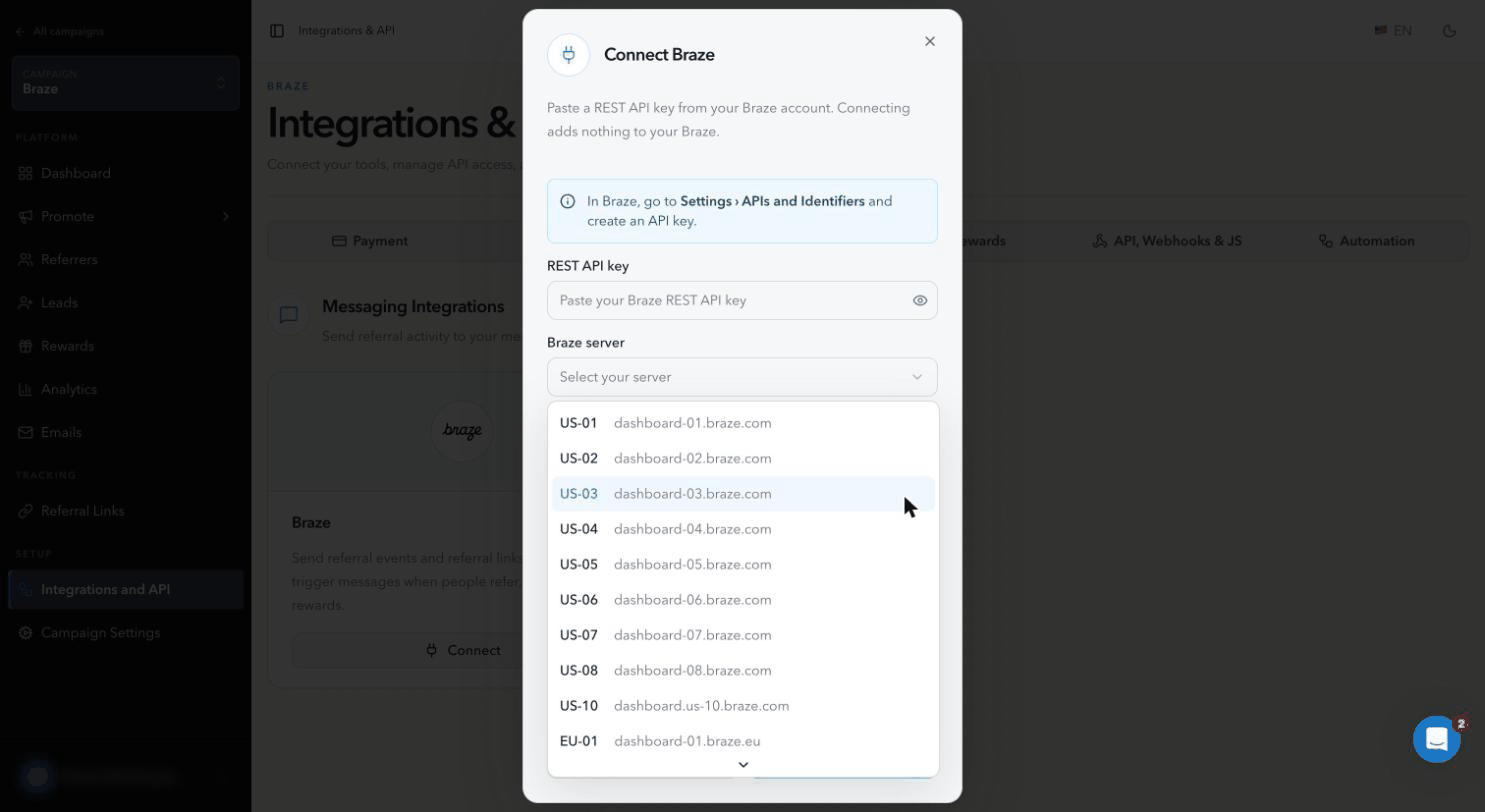
Pick your Braze server. Under Braze server, pick the server that matches the address you see when you are logged in to Braze. The next section shows how.
Step 5
Connect. Select Connect. Braze now shows Connected with your server, for example Connected · US-03. The setup for your campaign starts.
Which Braze server should I pick?
Look at the address in your browser when you are logged in to Braze. It tells you your server. The server list in the Connect Braze window shows the address next to each server.
- dashboard-01.braze.com to dashboard-08.braze.com: pick US-01 to US-08 with the same number. For example, dashboard-03.braze.com is US-03.
- dashboard.us-10.braze.com: pick US-10.
- dashboard-01.braze.eu or dashboard-02.braze.eu: pick EU-01 or EU-02.
- dashboard.au-01.braze.com, dashboard.id-01.braze.com, dashboard.jp-01.braze.com or dashboard.kr-01.braze.com: pick AU-01, ID-01, JP-01 or KR-01.
What happens after I connect Braze?
Next you set up Braze for your campaign in 6 short steps: People, Profile fields, Map fields, Events, Qualification and Finish. Nothing is sent to Braze until you select Finish setup.
Learn more: the Braze campaign setup guide
Can new referrers be sent to Braze automatically?
Yes. Each new referrer is created in Braze with their referral link and code, so your Braze messages can ask them to share it.
Learn more: the Braze referrer guide
Can leads be sent to Braze automatically?
Yes. Each new lead is created in Braze with their own referral link and code. You can also save who referred them and their referral status.
Learn more: the Braze lead guide
Can Braze send messages when something happens in my referral program?
Yes. Referral Factory sends events like RF - Friend signed up and RF - Reward earned to Braze. Each event can start a Braze Canvas that sends a push, in-app message, email or SMS.
Learn more: the Braze referral messages guide
Can Braze qualify leads in Referral Factory?
Yes. A webhook in a Braze Canvas tells Referral Factory when a lead becomes a customer. The lead is qualified, and the referrer gets their reward.
Learn more: the Braze qualification guide
What happens if I disconnect Braze?
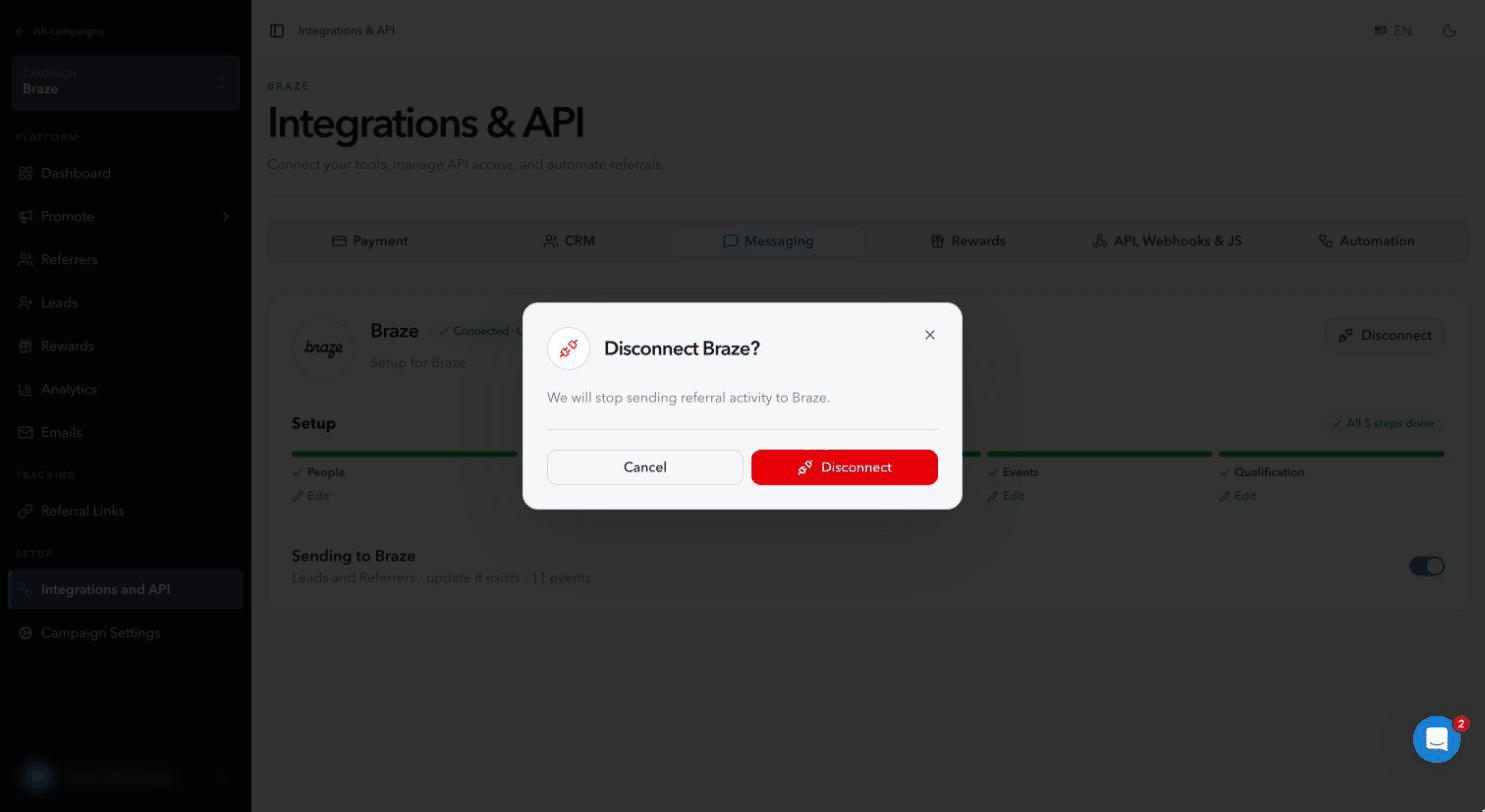
On the Braze page, select Disconnect, then confirm in the Disconnect Braze? window. Referral Factory stops sending referral activity to Braze. Your campaign setup is kept, so it works again when you connect again. Nothing is deleted from Braze.
To pause sending for one campaign only, turn off Sending to Braze on the Braze page instead.