
Need help applying this to your account?
Contact support and we will keep this article attached to your request.
Overview
When a new lead joins your campaign, for example Tom signs up with Anna’s link, Referral Factory can create Tom in Braze. His Braze profile gets his own referral link and code, and the events you turned on. You can also save who referred him and his referral status. You can then send Tom messages from Braze.
How do I turn it on?
Step 1
Open the Braze page. Select your campaign, then open Integrations and API › Messaging. If Braze is already set up, select Edit under People.
Step 2
Tick “Send leads, like Tom”.
Step 3
Choose what happens if the lead is already in Braze: “Do nothing” or “Update if exists”.
Step 4
Check the lead fields in Profile fields, and on the Leads tab of Map fields.
Step 5
Select Finish setup, or Save if you are editing.
Which fields can be saved on the lead’s Braze profile?
- First name and Email. These are always sent.
- RF - Campaign ID: the ID of your Referral Factory campaign. Always added for leads, because qualification from Braze needs it.
- RF - Referral Link and RF - Referral Code: the lead’s own link and code, so they can refer friends too. Ticked at the start.
- RF - Referred By: the email of the referrer, like Anna.
- RF - Referral Status: for example pending or qualified.
- RF - Campaign: the Referral Factory campaign name.
- Any other field you add in Map fields.
What if the lead is already in Braze?
Referral Factory finds the person by email, or by External ID if you map it. New leads are always created.
With “Do nothing”, a lead who is already in Braze only gets the events and RF - Campaign ID. Their other profile fields stay as they are. With “Update if exists”, we update their profile too.
How do I see if a lead was sent to Braze?
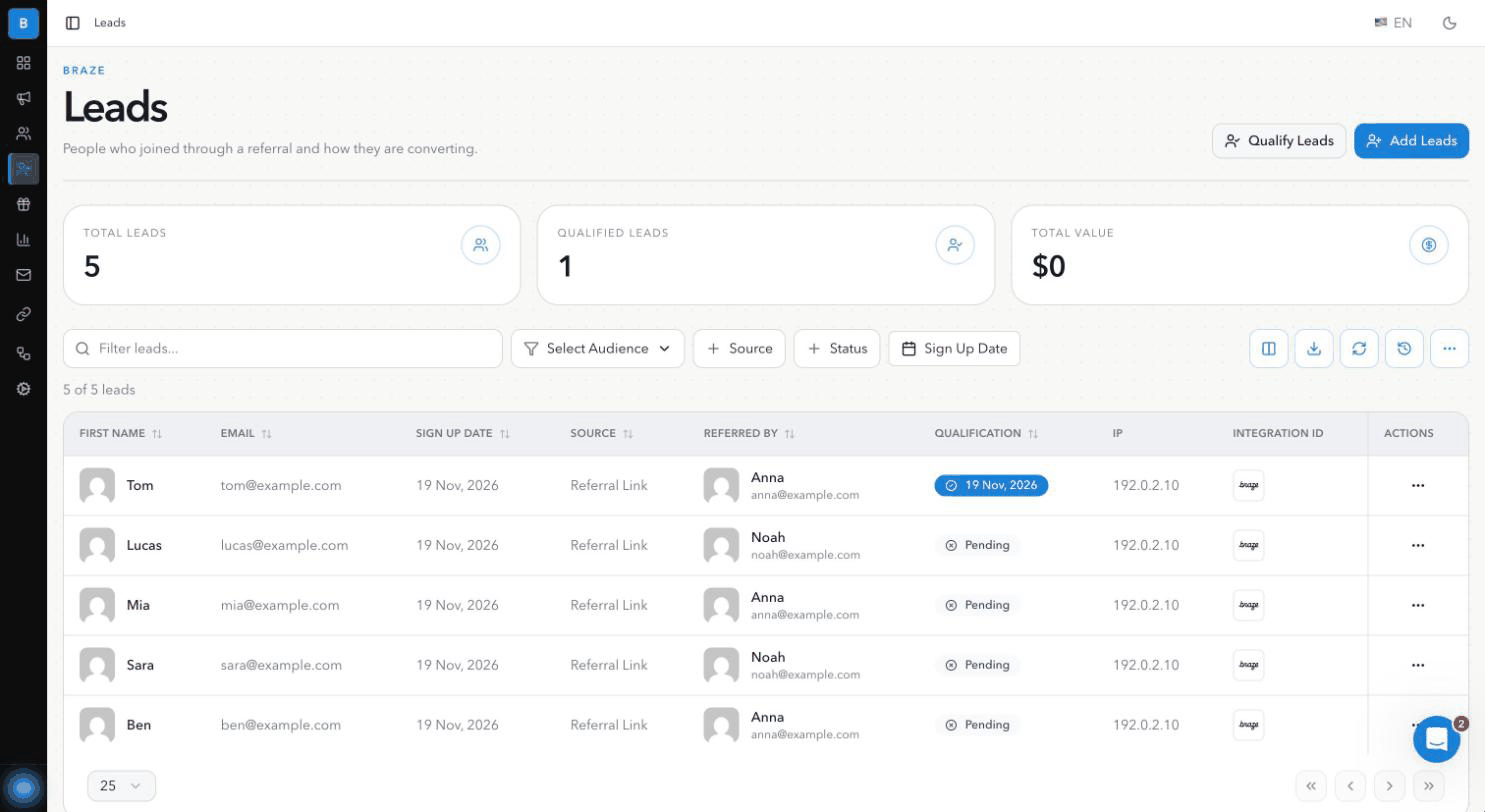
Open Leads. The Integration ID column shows the Braze icon for leads we sent to Braze. Hover the icon to see the status:
- The Braze ID: the lead is linked to this Braze profile.
- Sending to Braze…: we are sending the lead now.
- Sent to Braze, matched by email: the lead was found in Braze by their email.
- Not in Braze yet. We’ll link them once they’re added to Braze.
How do I send one lead to Braze again?
Step 1
Open Leads and find the lead.
Step 2
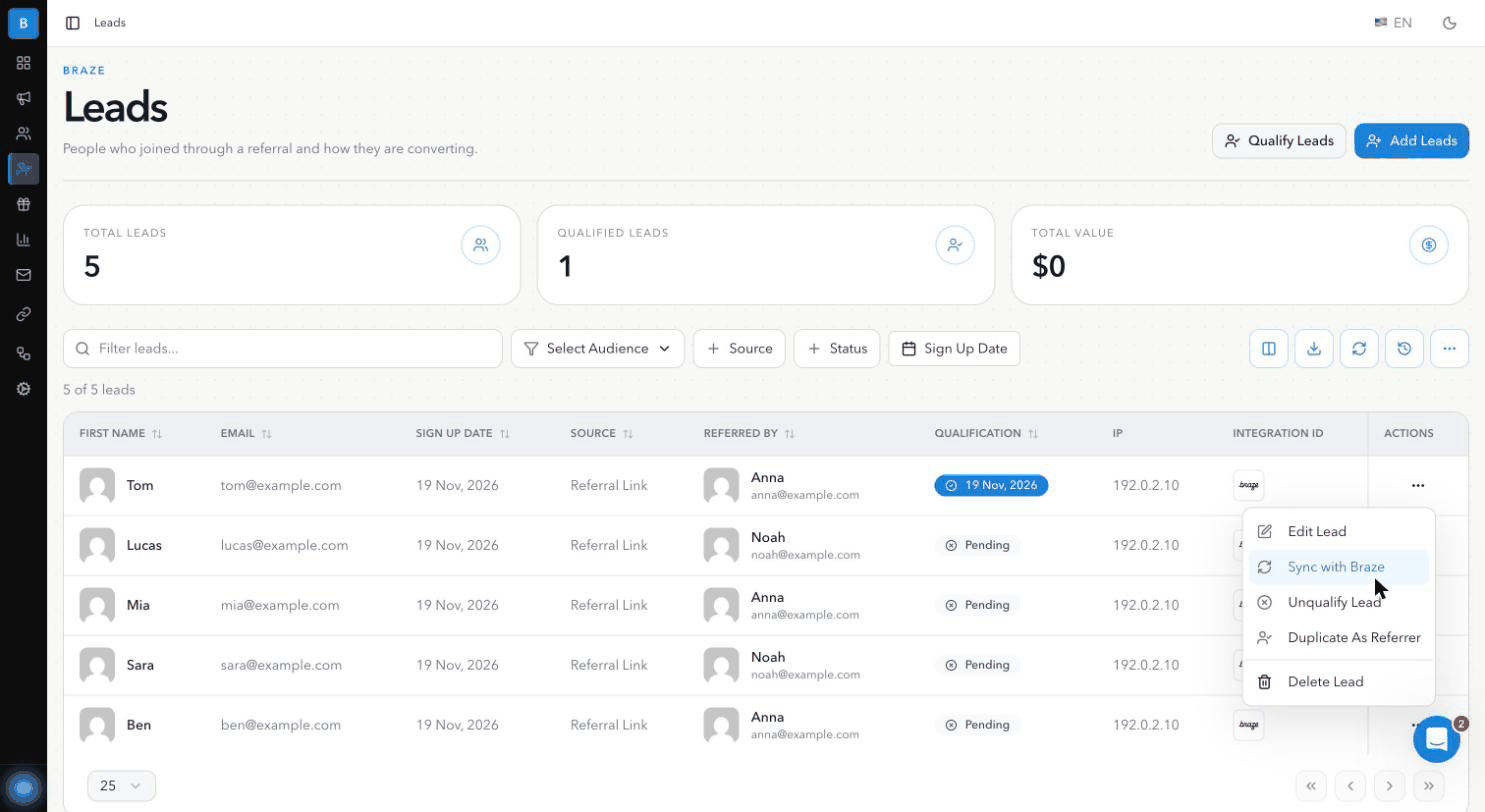
Open the actions menu (…) on the lead’s row.
Step 3
Select Sync with Braze. You see “Sent to Braze. It can take a minute to show there.”
What if Sync with Braze says Not sent?
The message is “Not sent. This person was already in Braze, and this campaign is set to “Do nothing”.” To update people who are already in Braze, select Edit under People, choose “Update if exists”, and try again.
What does the lead look like in Braze?
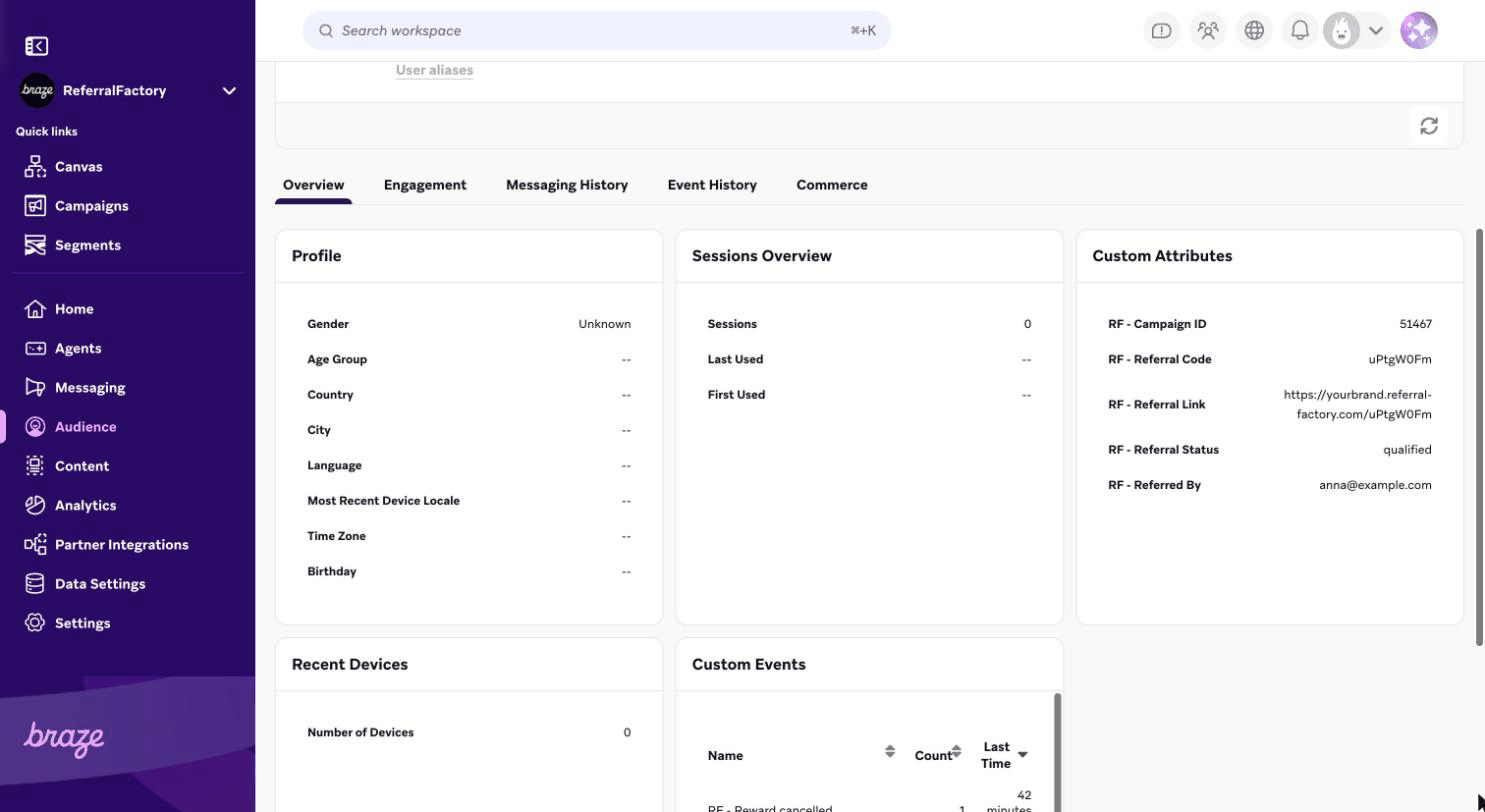
In Braze, search for the lead’s email. Under Custom Attributes, you see the RF fields, like RF - Referral Link and RF - Referred By. Under Custom Events, you see the RF events.
Does sending a lead to Braze qualify the referral?
No. Sending a lead and qualifying the referral are two separate things. To let Braze qualify leads, read the Braze qualification guide.