
Need help applying this to your account?
Contact support and we will keep this article attached to your request.
If your customer data lives in Stripe, you can sync those contacts directly into your campaign as referrers — no CSV export needed.
There are two ways to start a sync:
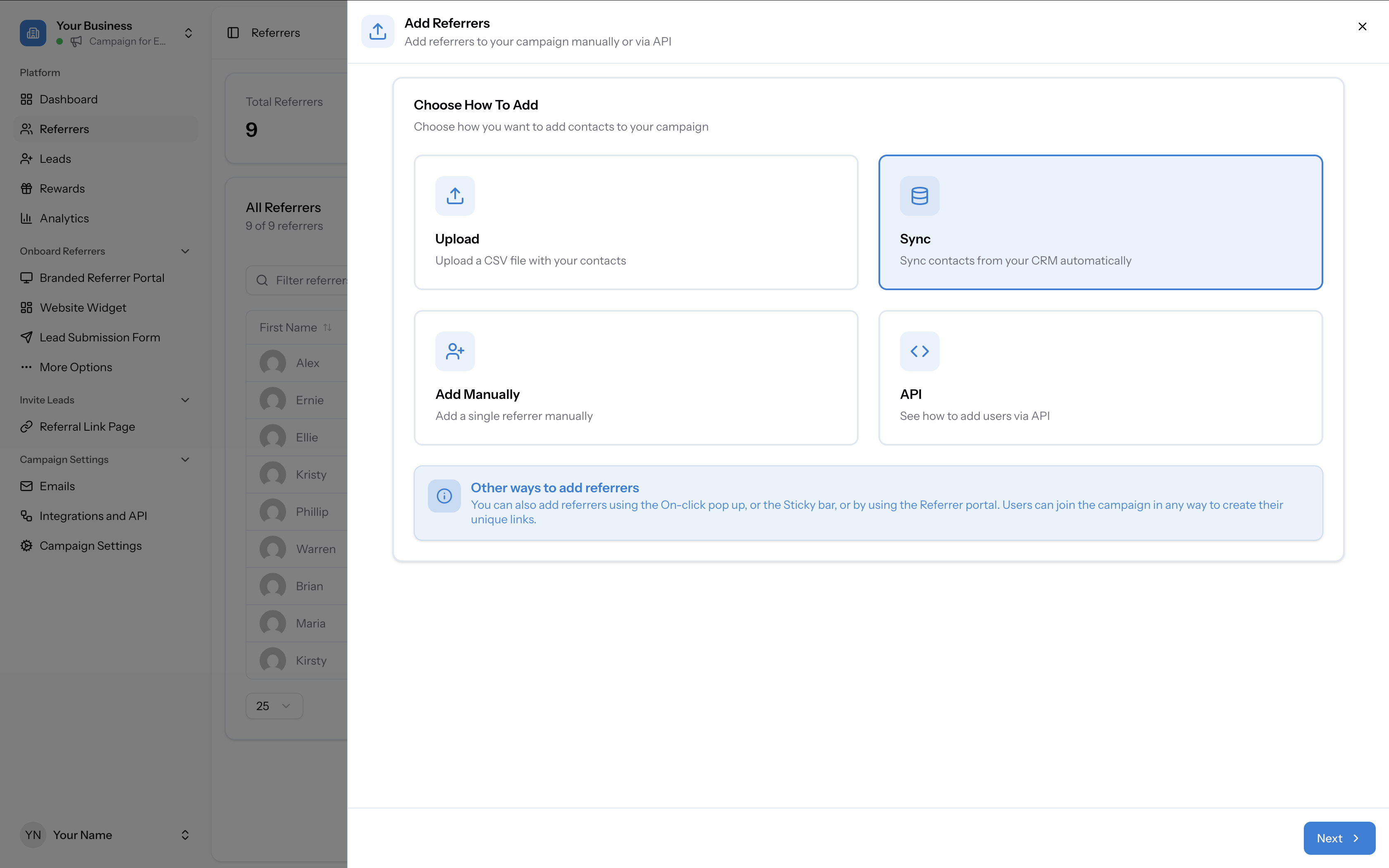
- From the Promote page — Click the Sync Or Upload Referrers card, then select Sync.
- From the Referrers tab — Go to Referrers in the left sidebar, click + Add Referrers, and select Sync.
Choose your integration type
The Sync screen offers three integration categories. Select Payment Integration and click the Stripe card to begin.
If an integration is not connected yet, the card will show "Not connected yet" — click it to begin setup.
- Payment Integration — connect a payment platform (such as Stripe) to sync customers automatically
Before you sync
Make sure you have already connected Stripe:
The sync wizard
After selecting Stripe, you will go through a multi-step setup wizard:
- Stripe: Select Object Type → Map Fields → Map Return Fields → Name Version → Confirm
Step 1: Map Fields (integration → Referral Factory)
Map your integration's customer fields to the corresponding Referral Factory fields. Required fields must be mapped before you can continue.
For example, when syncing from Stripe:
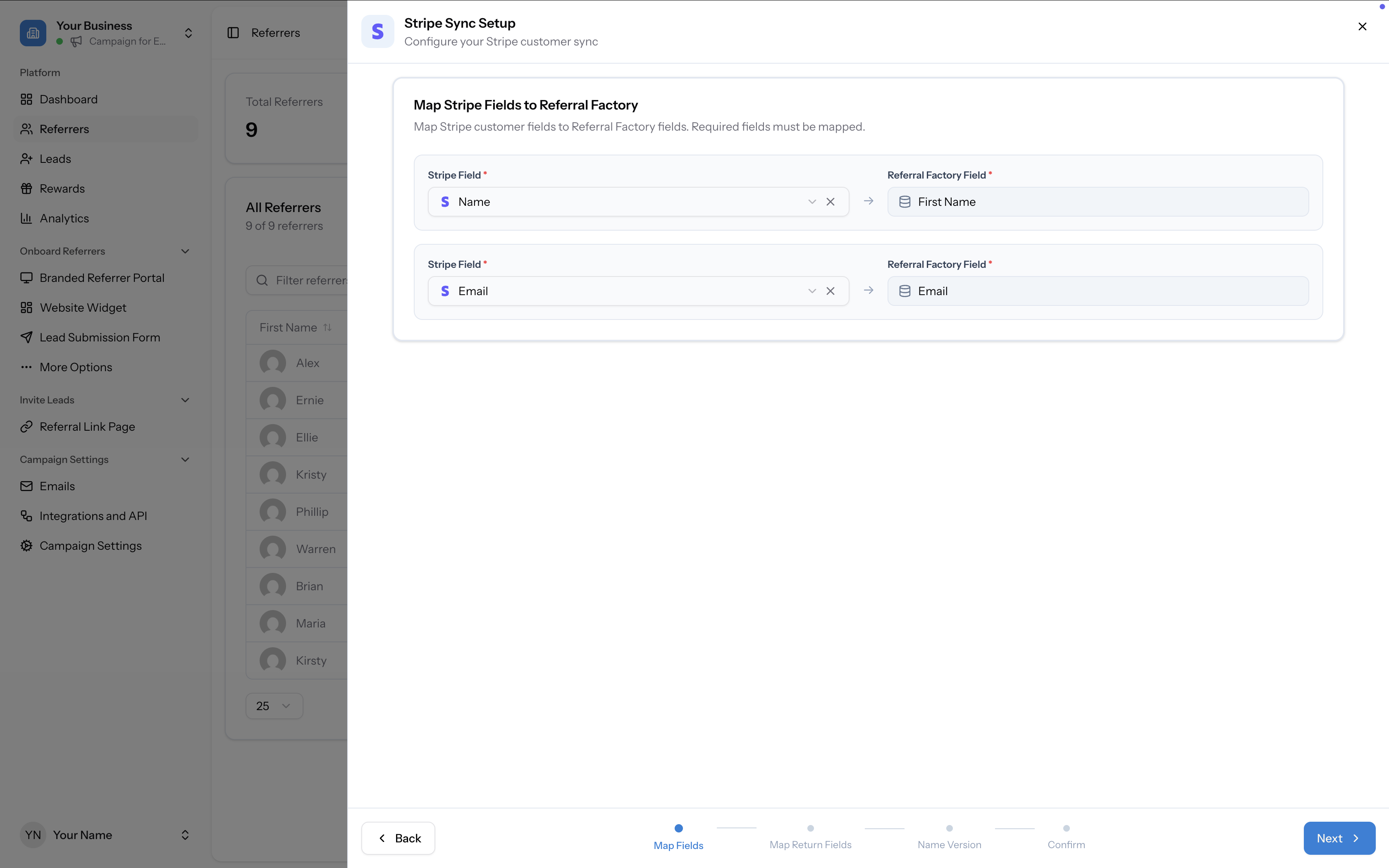
- Stripe: Name → Referral Factory: First Name
- Stripe: Email → Referral Factory: Email
Step 2: Map Return Fields (Referral Factory → integration)
This step lets you send Referral Factory data back to your integration. Required fields must be mapped — Referral Link is a required return field.
For each Referral Factory field, you can choose:
Additional Referral Factory fields such as Referrals Count and Converted Referrals Count can also optionally be mapped bac
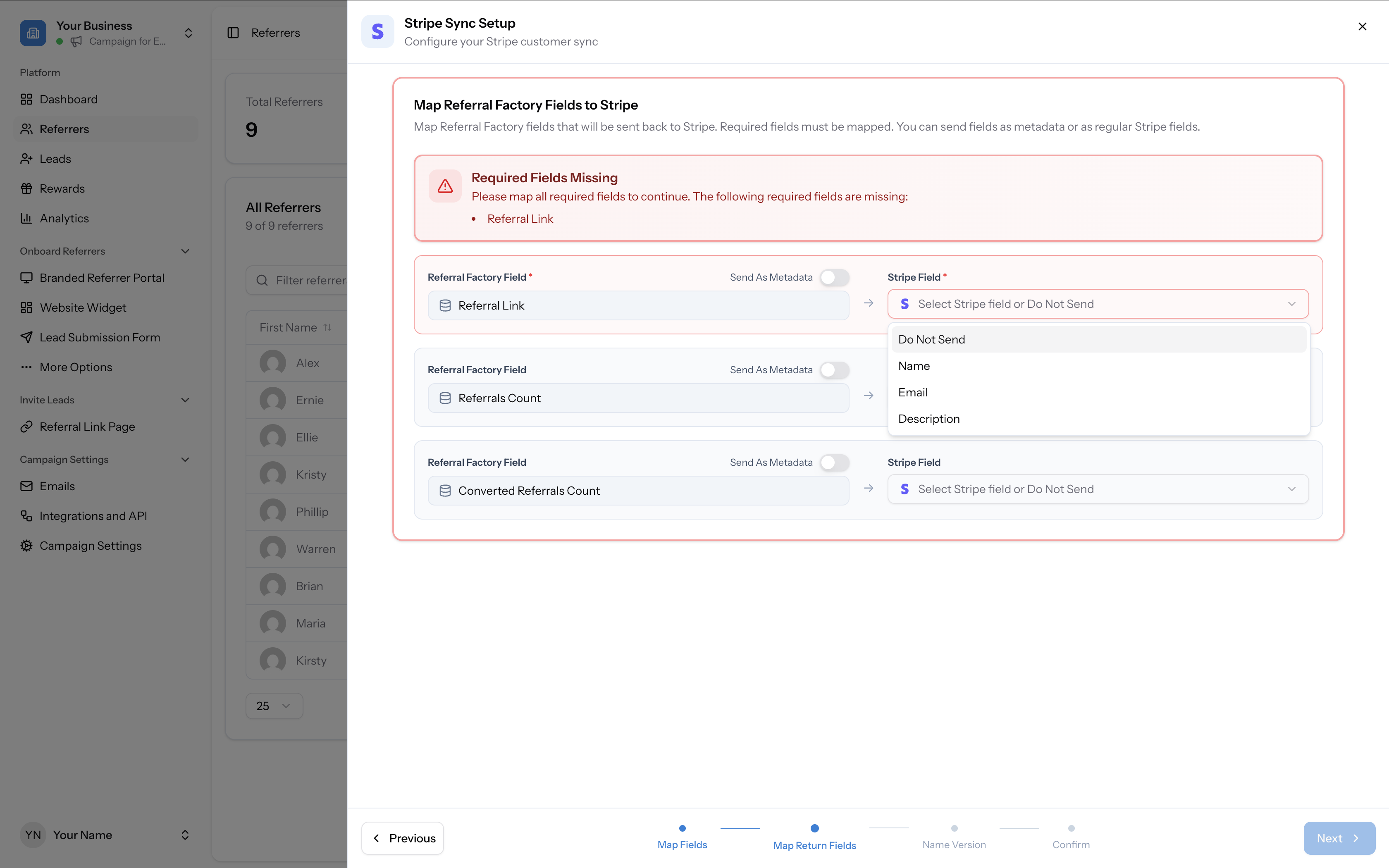
- A standard field in your integration to map it to (e.g. Name, Email, or Description)
- Send As Metadata — toggle this on to send the value as a metadata key instead of mapping to a standard field. When enabled, you provide a Metadata Key name (e.g.
referral_link) - Do Not Send — skip sending this field back to the integration
Step 3: Name Version
Select how customer names should be processed when syncing into Referral Factory:
A live preview at the bottom shows how each option will format real names from your account.
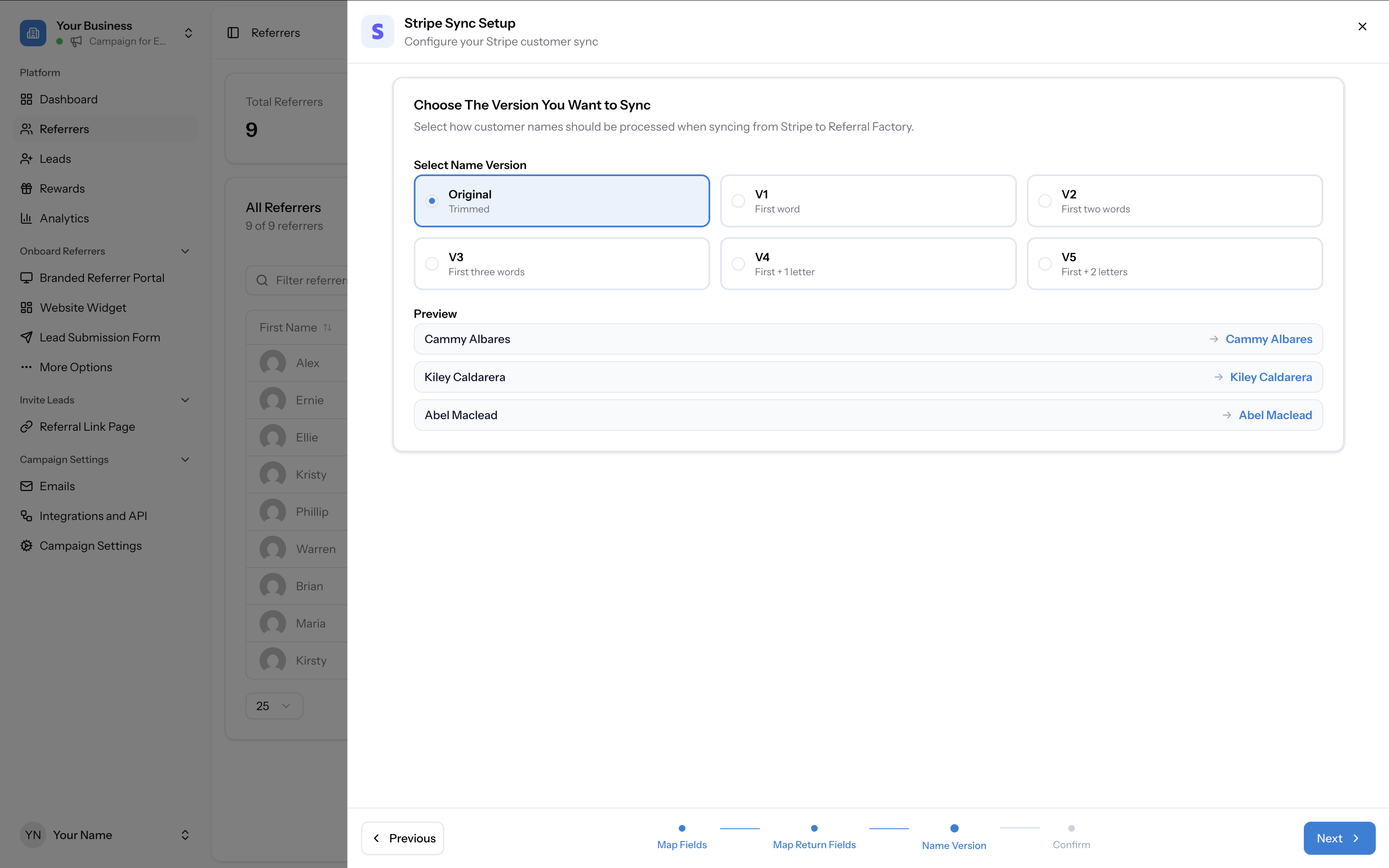
- Original — Trimmed (full name as-is)
- V1 — First word only
- V2 — First two words
- V3 — First three words
- V4 — First name + 1 letter
- V5 — First name + 2 letters
Step 4: Confirm and start sync
The final step shows a Sync Overview summarising your configuration:
Choose your Sync Type:
When the configuration is complete, a green "Ready to Sync" message appears. Click Start Sync to begin syncing contacts.
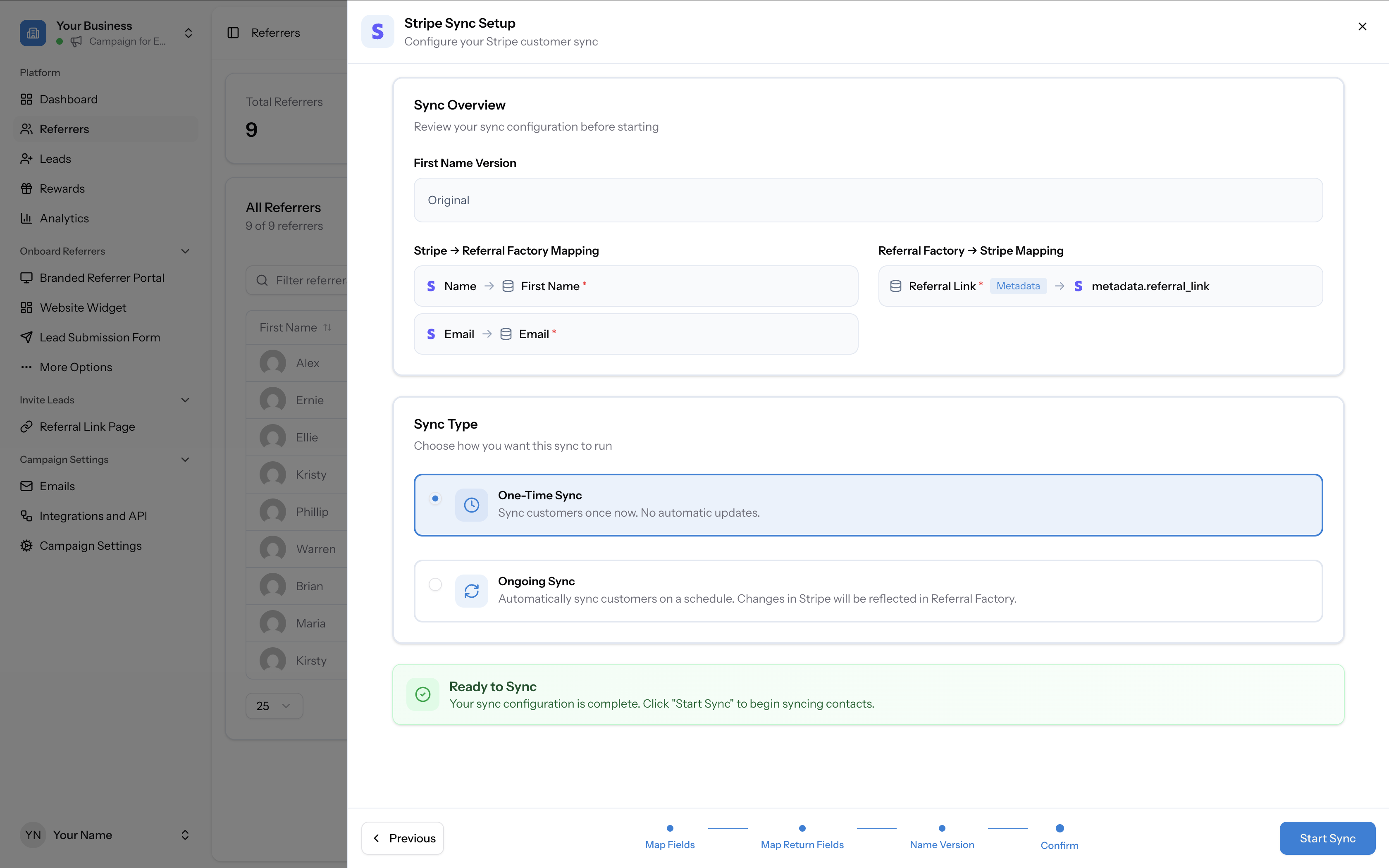
- First Name Version — the name format you selected
- Inbound Mapping — how integration fields map to Referral Factory fields
- Return Mapping — how Referral Factory fields map back to the integration (including any metadata fields)
- One-Time Sync — sync customers once now. No automatic updates.
- Ongoing Sync — automatically sync customers on a schedule. Changes in the integration will be reflected in Referral Factory.
What happens after syncing
Once synced, each contact appears in your Referrers tab with their unique referral link ready to share. If you mapped return fields, the referral link is written back to their record (as metadata or a standard field), making it easy to include in future communications.