
Need help applying this to your account?
Contact support and we will keep this article attached to your request.
Connecting Stripe lets Referral Factory automatically qualify leads when a referred customer makes a payment in Stripe. You can also sync your Stripe customers as referrers.
Referral codes do not require Stripe. Any business can use referral codes through upload, API, webhooks, or other integrations. Stripe is the automated path when you want a Stripe promo code to be redeemed directly in Stripe checkout.
Connecting Stripe
Go to Integrations and API in the left sidebar, then select the Payment tab. Click Connect on the Stripe tile.
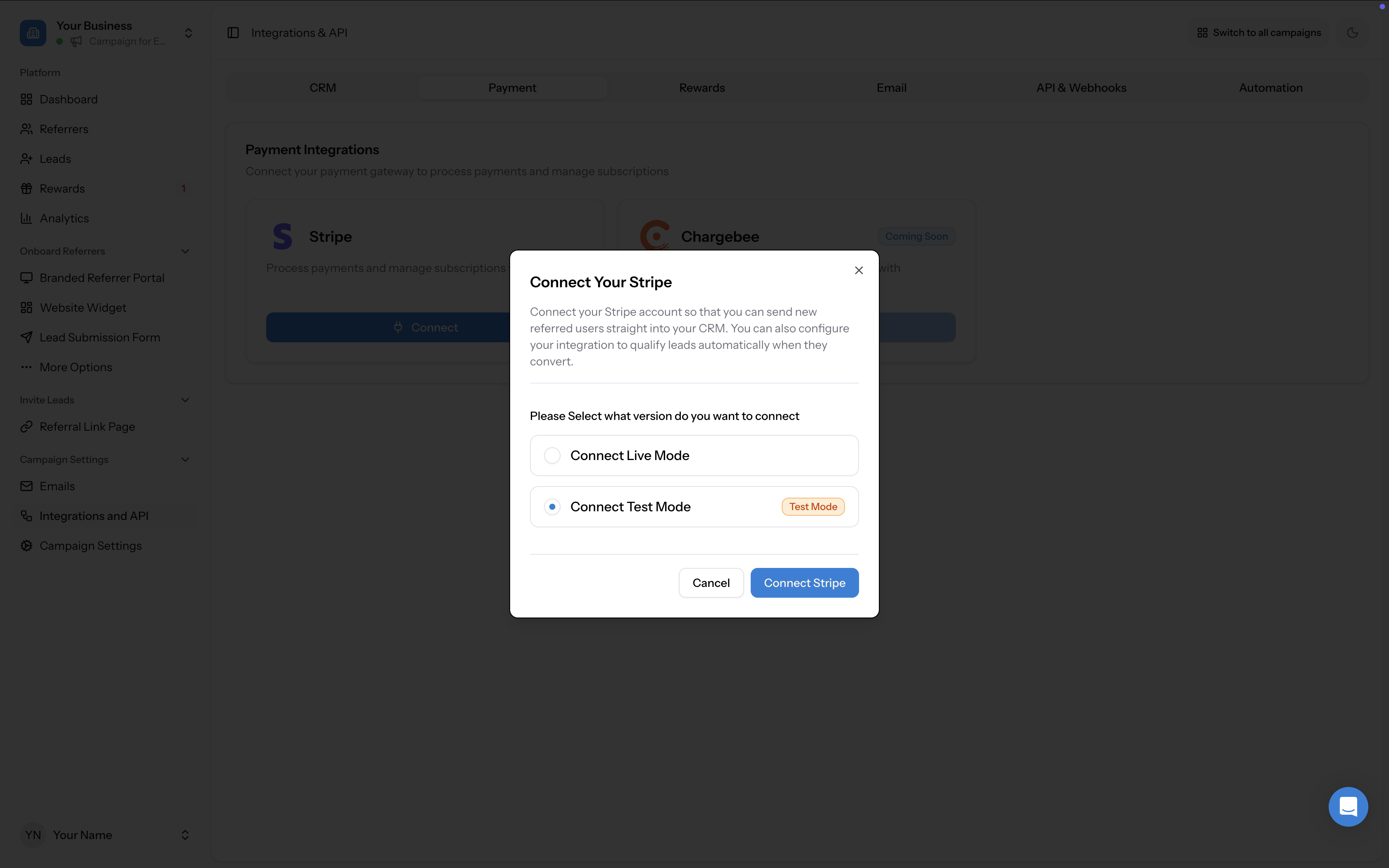
A modal will appear asking you to select which mode you want to connect:
Click Connect Stripe to proceed.
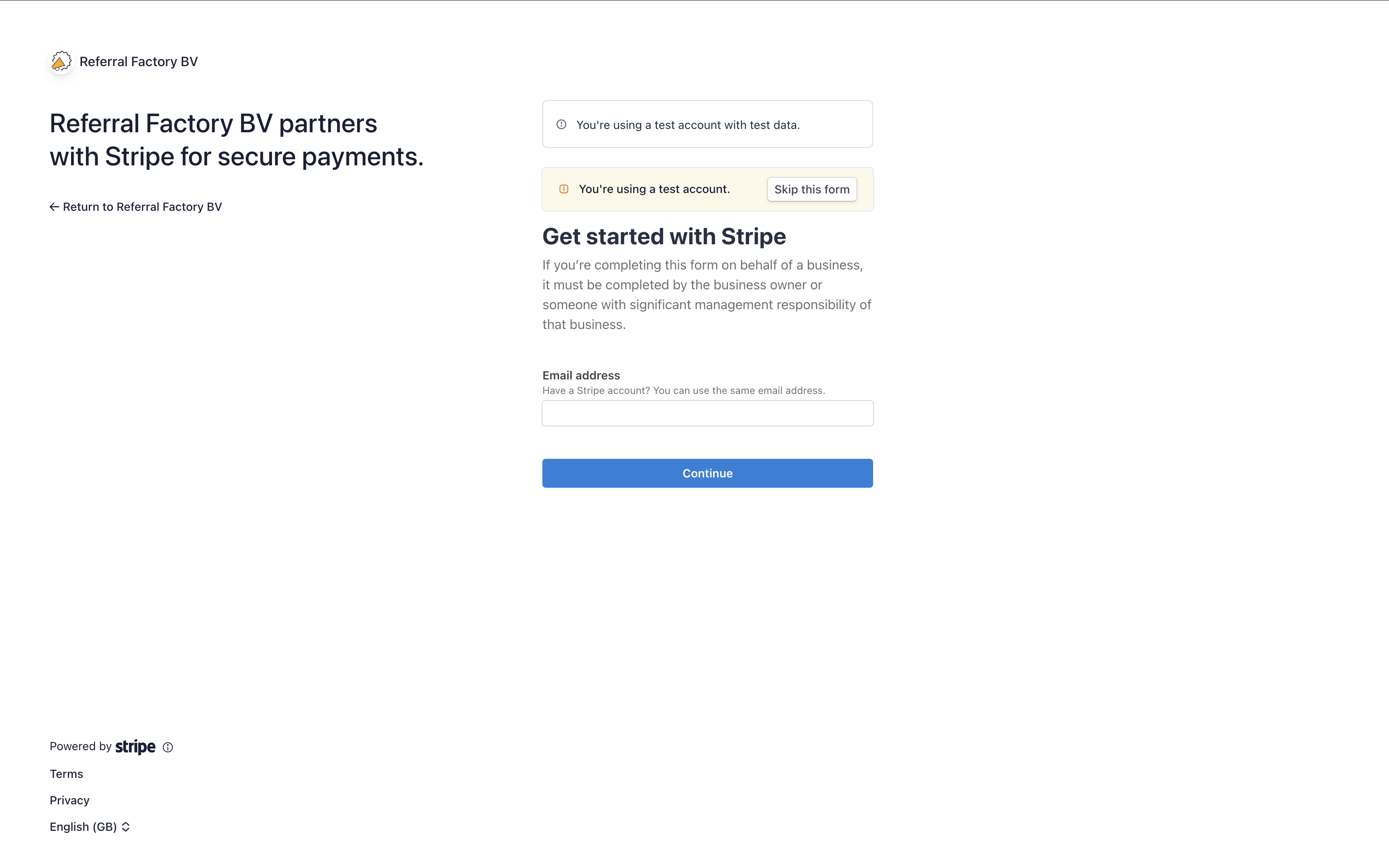
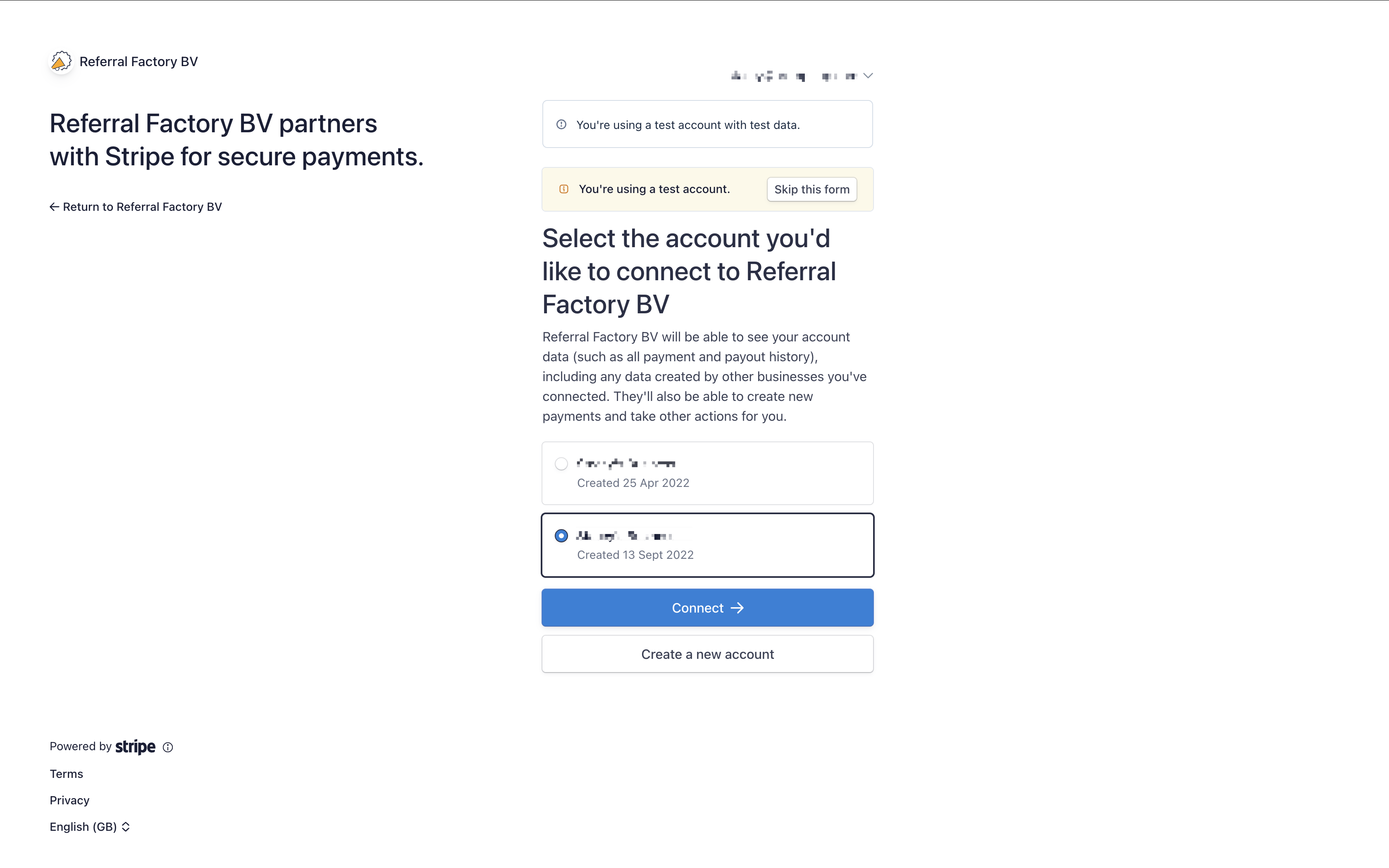
You will be redirected to Stripe's OAuth page. Enter your email address and click Continue. If you have multiple Stripe accounts, you will be asked to select which account you'd like to connect to Referral Factory.
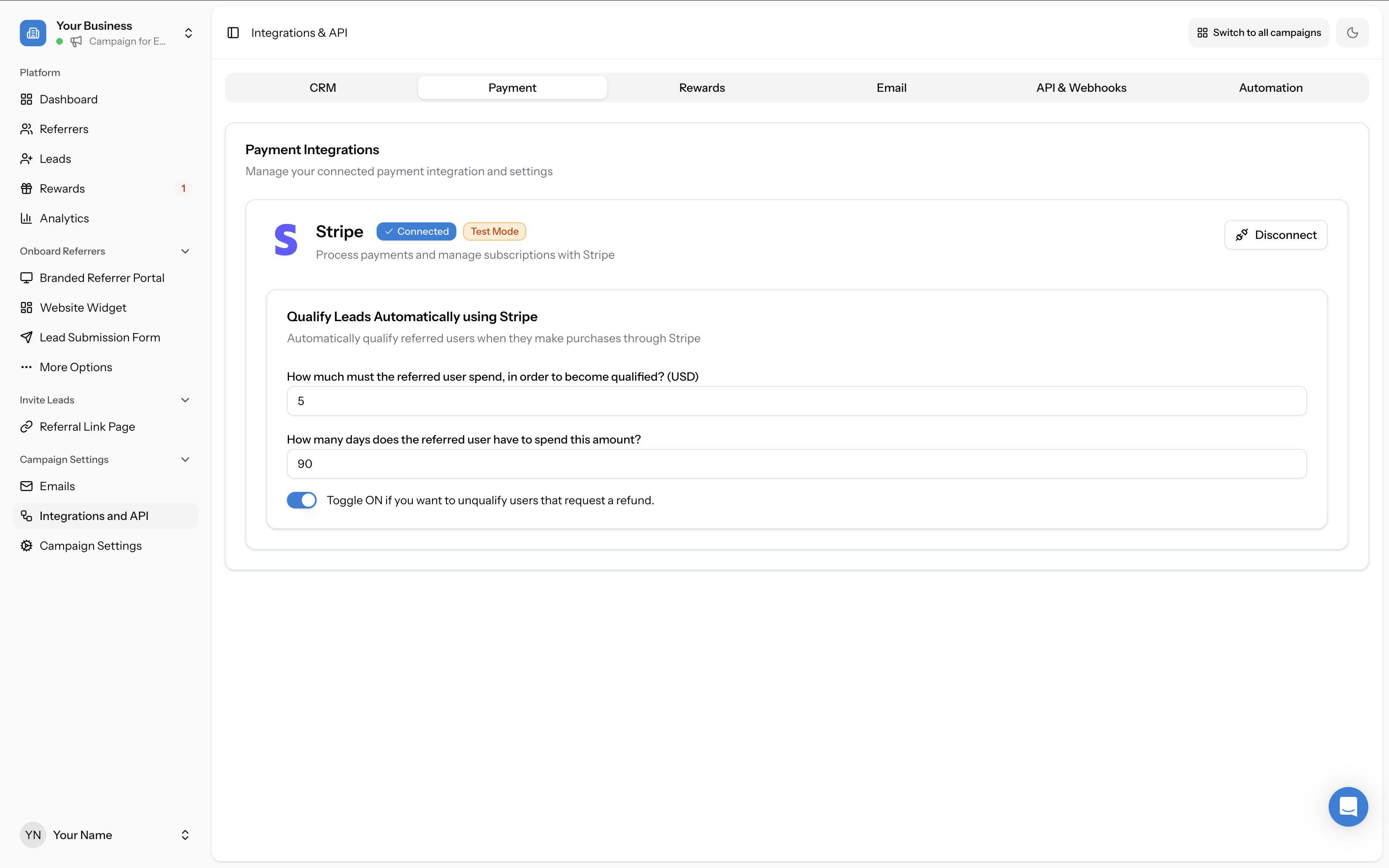
Once authorised, you are returned to the platform with Stripe showing as Connected (along with a Test Mode badge if you connected in test mode).
- Connect Live Mode — connects your live Stripe account for processing real payments
- Connect Test Mode — connects your Stripe test environment for testing the integration before going live
Configuring qualification rules
Once Stripe is connected, the Qualify Leads Automatically using Stripe section appears directly on the Payment tab. This automatically qualifies referred users when they make purchases through Stripe.
Configure the following settings:
For more details, see How to qualify leads automatically via Stripe.
- How much must the referred user spend, in order to become qualified? (USD) — Set a minimum spend amount in your chosen currency (e.g. $5)
- How many days does the referred user have to spend this amount? — Set a time window in days (e.g. 90)
- Toggle ON if you want to unqualify users that request a refund — When enabled, if a qualified user requests a refund through Stripe, their qualification status will be reversed
Syncing Stripe customers as referrers
Go to Referrers → Add Referrers → Sync → Stripe to pull your existing Stripe customers into the campaign as referrers. For step-by-step instructions, see How to sync referrers from Stripe.
Using Stripe for referral-code redemption
If your checkout uses Stripe and you want the code to be redeemed during payment, use the Promo Codes area in Referral Factory after Stripe is connected.
Referral Factory can generate referrer-specific Stripe promo codes tied to your campaign coupon. When someone redeems a code in Stripe, Referral Factory can create or qualify the lead and connect the referral back to the right referrer.
Use this only when you want Stripe to manage the code redemption in the payment flow. If you capture referral codes in another form, CRM, booking system, or product, use upload, API, webhooks, or your relevant integration instead.
- Use referral links as the primary sharing path when the referred person can click through
- Use referral codes when a code is easier to capture later
- Use Stripe promo codes when the code should be redeemed directly in Stripe checkout
Disconnecting Stripe
To disconnect Stripe, click the Disconnect button on the Payment tab. A confirmation dialog will appear warning that this will remove the integration connection and all associated settings will be lost. This action cannot be undone.