
Need help applying this to your account?
Contact support and we will keep this article attached to your request.
Overview
You can add a single Referrer directly to a campaign without asking them to sign up first or uploading a list. Once they are added, we automatically create their unique referral link so they can start referring.
When should I add a referrer manually?
Adding a Referrer manually is useful when you only need to add one person or a small number of people to your referral program.
For example, you might use it to add a specific customer, partner, employee, or affiliate without asking them to register through your Branded Referrer Portal.
To add someone manually:
The Referrer will appear in your Referrers table immediately.
Step 1
Go to Referrers.
Step 2
Click Add Referrers.
Step 3
Select Add Manually.
Step 4
Enter their details.
Step 5
Click Add Referrer.
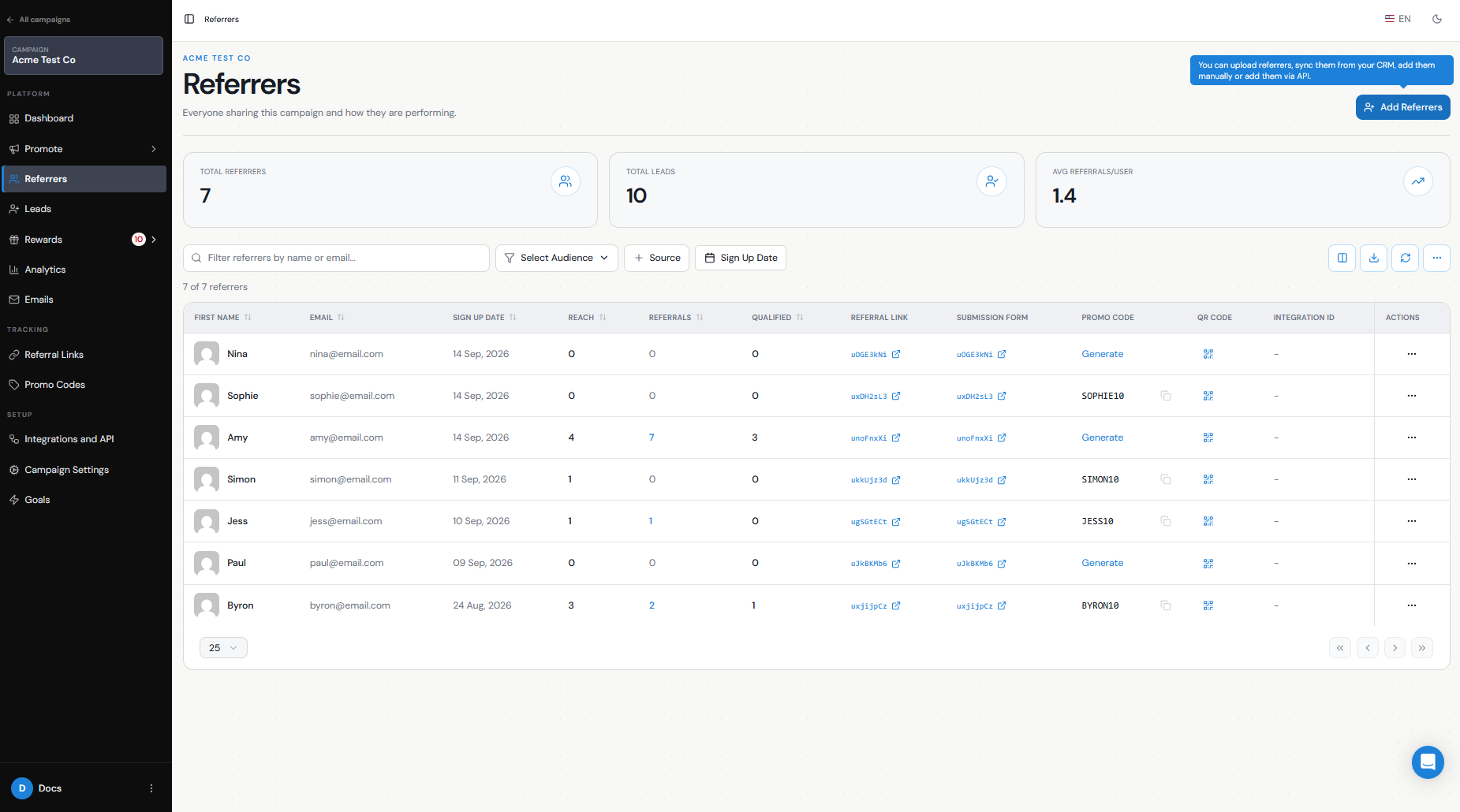
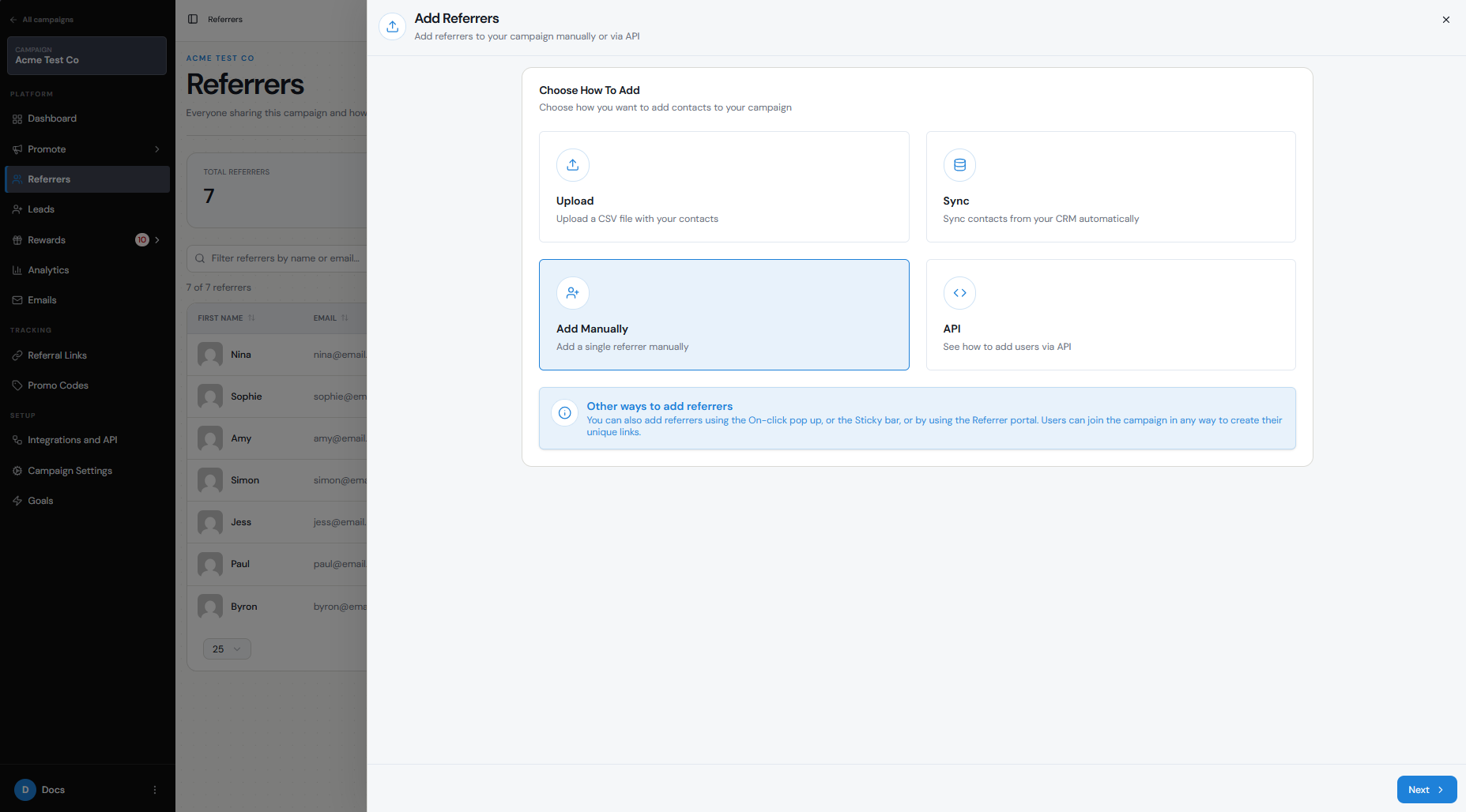
What details do I need to add them?
You need:
Both fields are always required when adding a Referrer manually.
If you have made any additional fields mandatory on your Branded Referrer Portal, those fields will also be required when you add the Referrer manually.
For example, if Last Name, Phone Number, or Company Name is set as mandatory on your portal, you will need to enter that information before the Referrer can be added.
- First Name
- Email
How do I choose the right campaign?
Make sure you are inside the campaign you want the Referrer to join before going to Referrers → Add Referrers → Add Manually.
The Referrer is added to the campaign you are currently working in.
A person can participate in more than one campaign. If you add the same person to another campaign, they will have a separate referral link for that campaign.
Will a unique referral link or code be created?
Yes. As soon as the Referrer is added, we automatically generate their unique referral link and QR code. You do not need to create the link manually.
You can find their link in the Referral Link column of the Referrers tab.
If you are also using promo codes or lead submission form in your campaign, the Referrer can use them as an additional way to refer people where a link is not practical, such as offline, during a sales conversation, or at checkout.
What happens if the person already exists?
We use the Referrer's email address as their unique identifier within each campaign. Before adding someone manually, you can search the Referrers tab by their name or email address to check whether they are already part of that campaign.
The same person can be added as a Referrer to different campaigns, and they will receive a different unique referral link for each campaign. If you try to add a Referrer who already exists in the same campaign, the system will let you know that the Referrer already exists.
A person can also be both a Lead and a Referrer within your referral program.
How does the referrer get their referral details?
Manually added Referrers are not notified by default.
If you want us to automatically email them their referral details, enable the Welcome Email (Added) in your campaign's email settings. This email is specifically for Referrers who are added manually or through a CSV upload.
You can also:
- Copy their unique referral link from the Referrers tab and send it to them yourself.
- Give them access to the Branded Referrer Portal, where they can log in using their email address to view their referral link, sharing options, QR code, and referral stats.