
Need help applying this to your account?
Contact support and we will keep this article attached to your request.
Start with the reward record
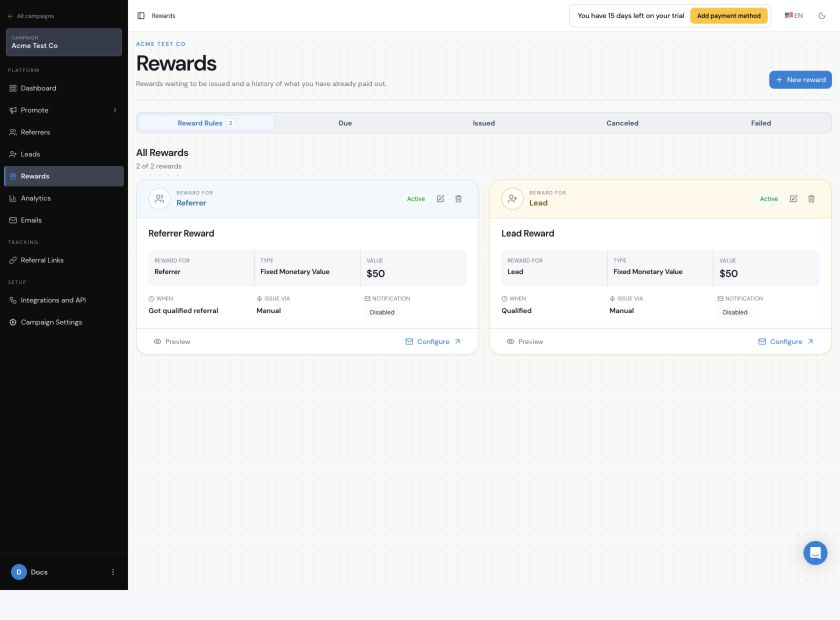
- Open Rewards and check the reward status tabs: Due, Issued, Canceled, and Failed.
- Check whether the record is for a Referrer or Lead, and note the reward name, value, date, and Issuing Method.
- If a row shows several rewards, check the total. One row can include separate rewards created by the same rule, so it is not automatically a duplicate.
- Open Reward Rules and find the rule that should have created the reward.
No reward was created
- Check that the Reward Rule is Active, not Draft.
- Check that the right person is selected: Referrer or Lead.
- Check that the required action happened. For example, a qualification rule needs the Lead to be qualified, while a custom-goal rule needs that Goal to be reached.
- Check Reward Limit and Ignore Rewards for Existing Users. These settings can stop a new reward when a limit has been reached or someone qualified before the rule was turned on.
- If the referral was tracked with a Stripe promo code, open Integrations and API → Payment → Goal Rules and check Qualify when promo code is used.
The reward is Due and has not been sent
- Due means the reward is waiting to be sent. It is not the same as Failed.
- If the rule uses Issue Yourself, a team member must choose Issue Now after sending the reward using your own process.
- If Auto Issue Rewards is off, someone needs to issue the reward manually.
- If the rule uses a provider or automation, check that the connection is ready and that you know what happens next.
- Check that the reward is still eligible and has not been canceled or stopped by a limit.
I can't issue a reward
- Confirm that the reward is in Due. Rewards in Issued, Canceled, or Failed need a different action or investigation.
- Check the row actions menu for Issue Now. If the action is missing or disabled, confirm that you are viewing the correct campaign and that the reward rule is active.
- For a connected method, check the connection and person receiving the reward before trying again. If you are using a live payout provider, avoid retrying until you have found the cause.
I need to cancel a reward
- Open Rewards → Due and open the row actions menu for the reward.
- Select Cancel reward, review the confirmation message, and confirm only if you do not want to issue it.
- Open Canceled to verify the record. If you change your mind, select Restore to due and issue it from the Due tab later.
- Canceling a Due reward does not send it and does not undo a reward that is already Issued.
A Qualification reward disappeared
If a reward was created after a Lead qualified and the Lead is later unqualified, the Due reward can disappear from the Due view. Check the Lead status and qualification history first, then review the Reward Rule. If the Lead should still be qualified, qualify them again and check whether the reward is created again.
The reward is Failed
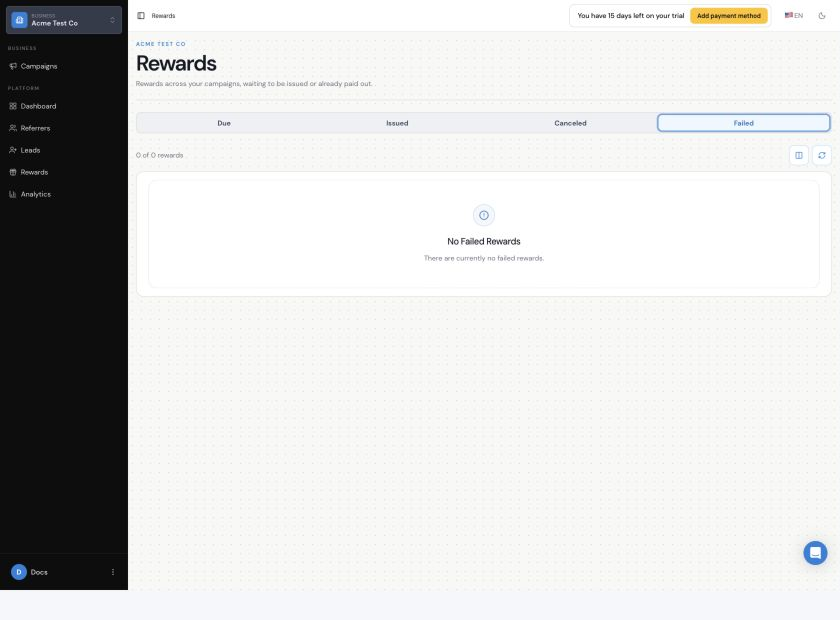
Open the Failed tab and review the reward details. Check the issuing method first, then check the provider connection, endpoint, login details, and person receiving the reward. If Retry Failed Rewards is available, use it only after you have fixed the cause and know the destination can safely handle another request.
The external service did not complete the payout
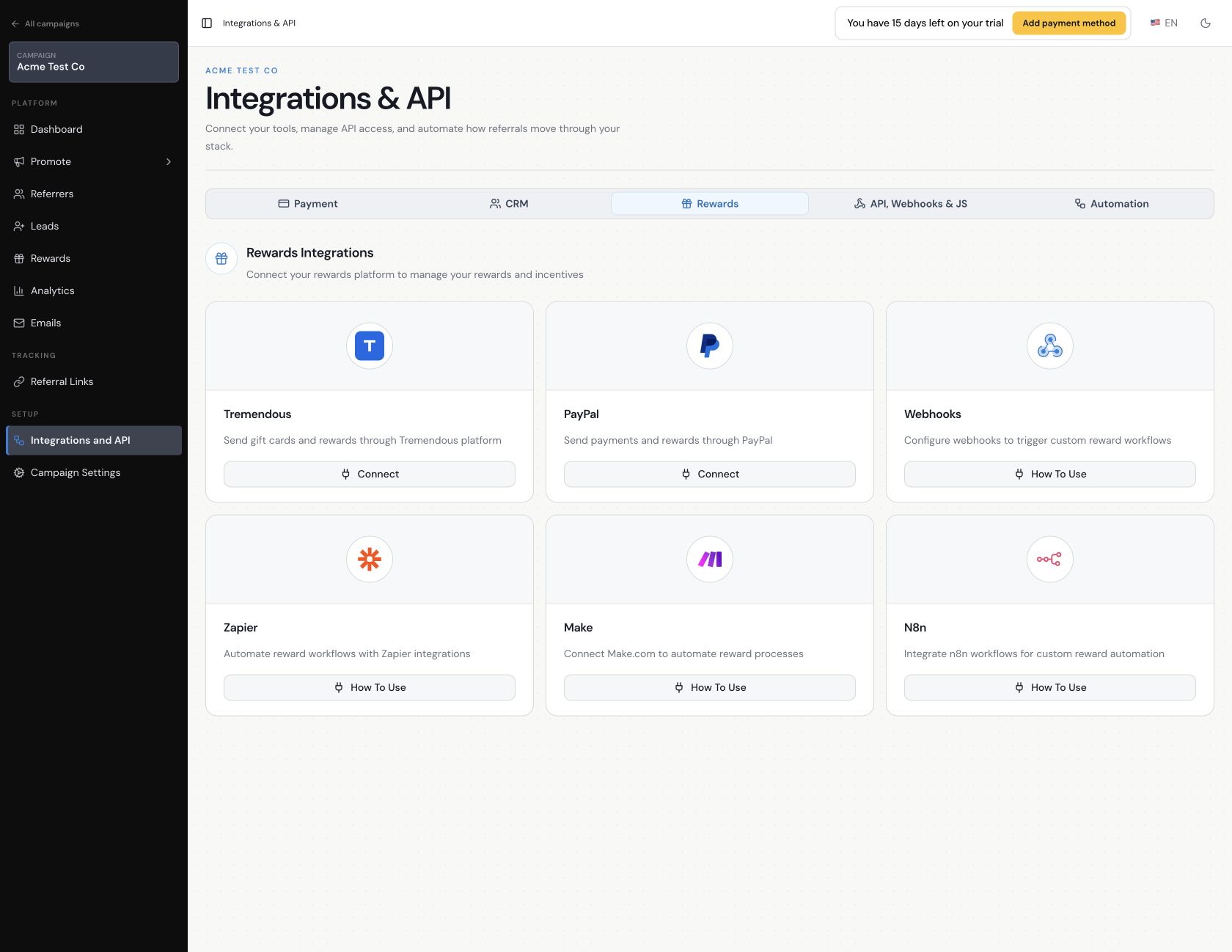
- For Tremendous, PayPal, or Stripe Credits, check the connected account, funding or credit requirements, details for the person receiving the reward, and provider status.
- For Webhooks, confirm that the endpoint URL, method, headers, credentials, and response handling are correct.
- For Zapier or Make.com, check that the workflow is active and the destination action is set up correctly. For n8n, check the n8n workflow or integration you connected.
- Remember that Issued means Referral Factory sent the reward. The external service may still have its own delivery or processing result.
A reward notification email was not received
- Open the Reward Rule and select Configure in the notification area.
- Check that Enable notification is on and that the message contains the correct variables.
- Confirm that the reward is Issued and the person receiving it has an email address.
- Check general campaign email configuration if other emails are also missing.
Several rewards look like duplicates
First check whether the rule rewards every qualifying event, whether more than one active Reward Rule applies, and whether the table is grouping several rewards into one row. Compare the reward, person, rule, trigger, and date before treating the records as duplicates.
When to Contact support
Contact support with the campaign name, Reward Rule name, reward status, whether it is for a Referrer or Lead, issuing method, date, and a screenshot with private values removed. Never include API keys, login details, payment details, or live reward links.