
Need help applying this to your account?
Contact support and we will keep this article attached to your request.
What happens when a reward becomes Due
When the event in a Reward Rule happens, Referral Factory creates the reward and places it in the Due tab. Due means the reward is waiting to be issued. It does not mean the reward has been sent or delivered.
Choose how the reward is Issued
The issuing method is selected in the Reward Rule. Open Rewards → Reward Rules, then open or create a rule and go to Step 3: Choose Issuing Method. The current options include Issue Yourself, Tremendous, Stripe Credits, PayPal, Webhooks, Zapier, Make.com, and N8n.
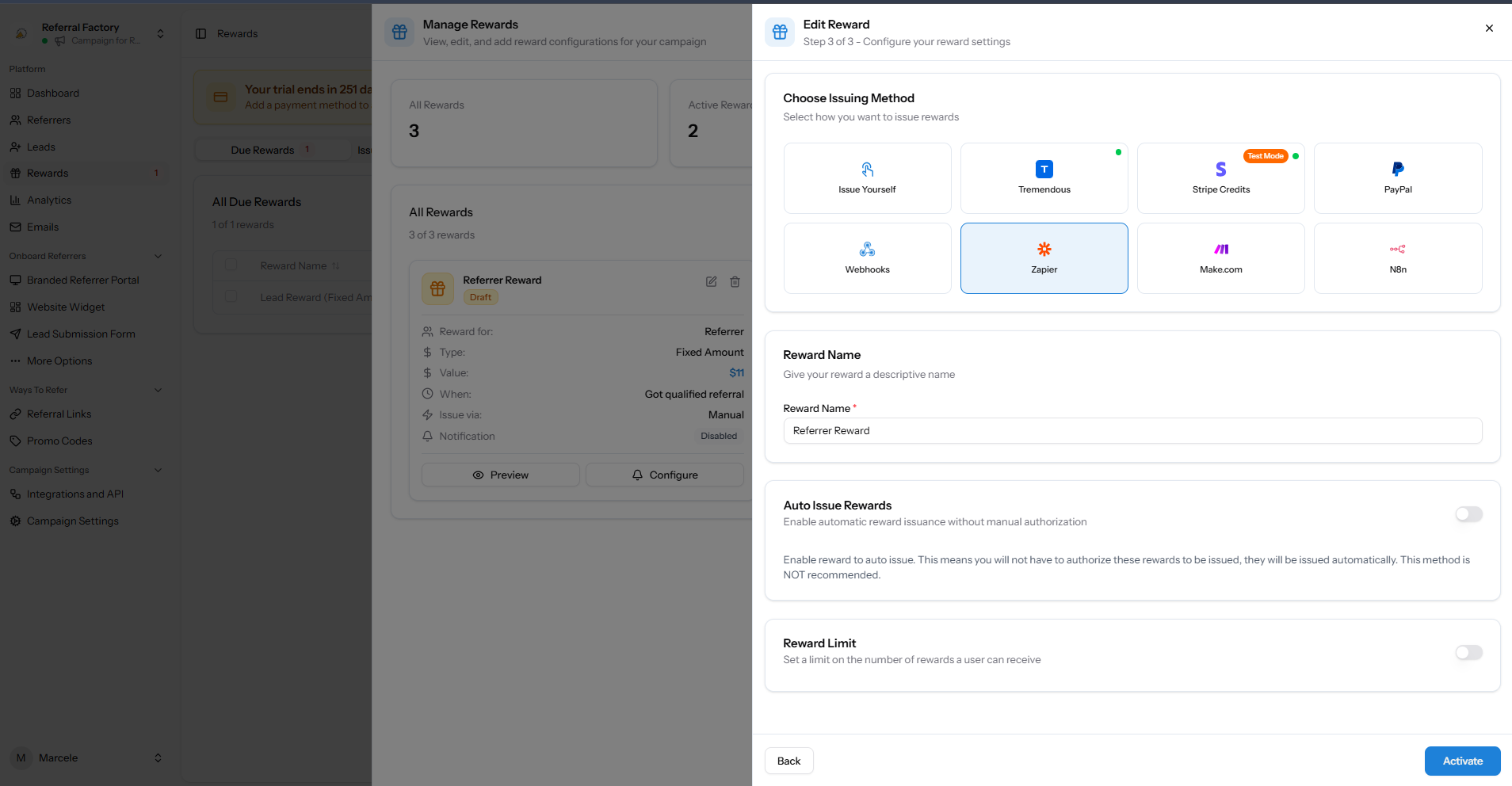
| Option | What it means |
|---|---|
| Issue Yourself | Fulfil the reward using your own process, then mark the Referral Factory reward as Issued. |
| Connected provider | Send the reward through Tremendous, Stripe Credits, or PayPal. Check the provider for its own processing or delivery result. |
| Automation | Pass the reward to Webhooks, Zapier, Make.com, or N8n so the connected system can handle the next step. |
Before you issue a reward
- Check who should receive the reward, its value, and the Issuing Method in the Due table.
- If the reward uses a provider or automation, check that the connection is ready and that you know what happens next.
- Use a test or sandbox destination when testing. Never test a live payout or gift-card connection with a real person unless you have deliberately approved the transaction.
Issue one reward manually
- Open the campaign where the reward was created.
- Go to Rewards and open the Due tab.
- Find the reward you want to send. Check the reward name, user, total, reward value, recipient type, date due, and Issuing Method.
- Open the row actions menu and select Issue Now.
- Read the confirmation message. It tells you how many rewards will be sent. Select Issue Now to confirm, or Cancel to leave the reward Due.
- After the action completes, open the Issued tab and confirm that the reward appears there with its issuing method and date issued.
The row menu uses Issue Now and Cancel reward. The confirmation window is called Issue Rewards and asks you to confirm the number of rewards before you continue.
Issue several rewards together
The Due table has a checkbox for each reward and a Select all checkbox. Select the rewards you want to process, choose the bulk action, and review the selected count and total before confirming. Check that the selected rewards use the intended issuing method before you continue.
Cancel a Due reward and restore it later
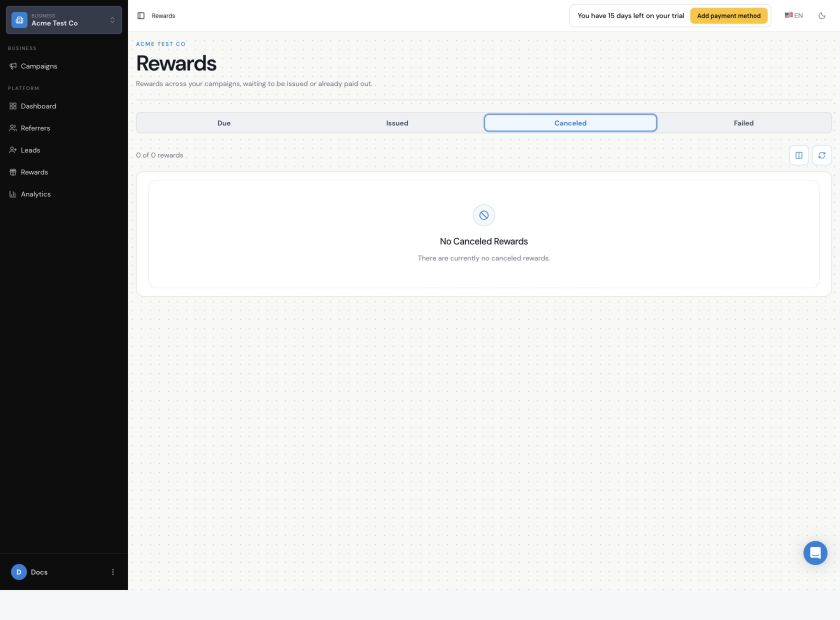
Open the row actions menu on the Due tab and select Cancel reward. Check the reward value and person receiving it before you confirm. The reward moves to Canceled, where you can choose Restore to due if you decide to send it later.
Issue yourself
Issue Yourself is the manual issuing method. Send the reward through your own process first. Then open the reward in Due, select Issue Now, and confirm the action so Referral Factory marks the reward as Issued. The Issued status records the action in Referral Factory; it does not replace your own fulfilment process.
Issue rewards automatically
Auto Issue Rewards is a separate setting in the Reward Rule. When it is enabled, qualifying rewards can be issued without a team member authorizing each one from the Due tab. This removes the manual approval step, so only enable it when the rule, reward value, and destination are ready to process every qualifying reward. The product labels this option as not recommended.
Connected issuing methods
You can also choose Tremendous, Stripe Credits, PayPal, Webhooks, Zapier, Make.com, or N8n in Step 3. This guide only covers where those options fit in the issuing workflow. For what each method does and what you need to connect, see How Are Referral Rewards Paid Out in Referral Factory?
API issuing
If your system needs to control reward issuing through the API, use the dedicated guide How Can I Issue Referral Rewards Using the API?. This guide only covers the point where API-controlled issuing fits into the Due and Issued workflow.