
Need help applying this to your account?
Contact support and we will keep this article attached to your request.
Before you start
- Connect Stripe to the campaign. Promo Codes require Stripe for the campaign discount and checkout flow.
- Choose the campaign you want to configure.
- Decide whether you want to use Promo Codes on their own or alongside Referral Links.
- Decide whether using a Promo Code should qualify the lead immediately or leave the lead pending until another rule is met.
1. Choose Promo Codes for campaign tracking
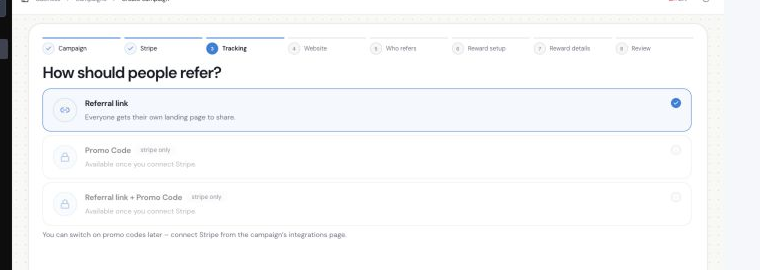
In the campaign tracking settings, choose Promo Code when you want referred customers to enter a code. Choose Referral Link + Promo Code when you want to support both a clickable link and a code. You can also use Referral Links on their own.
2. Connect Stripe and create the Campaign Coupon
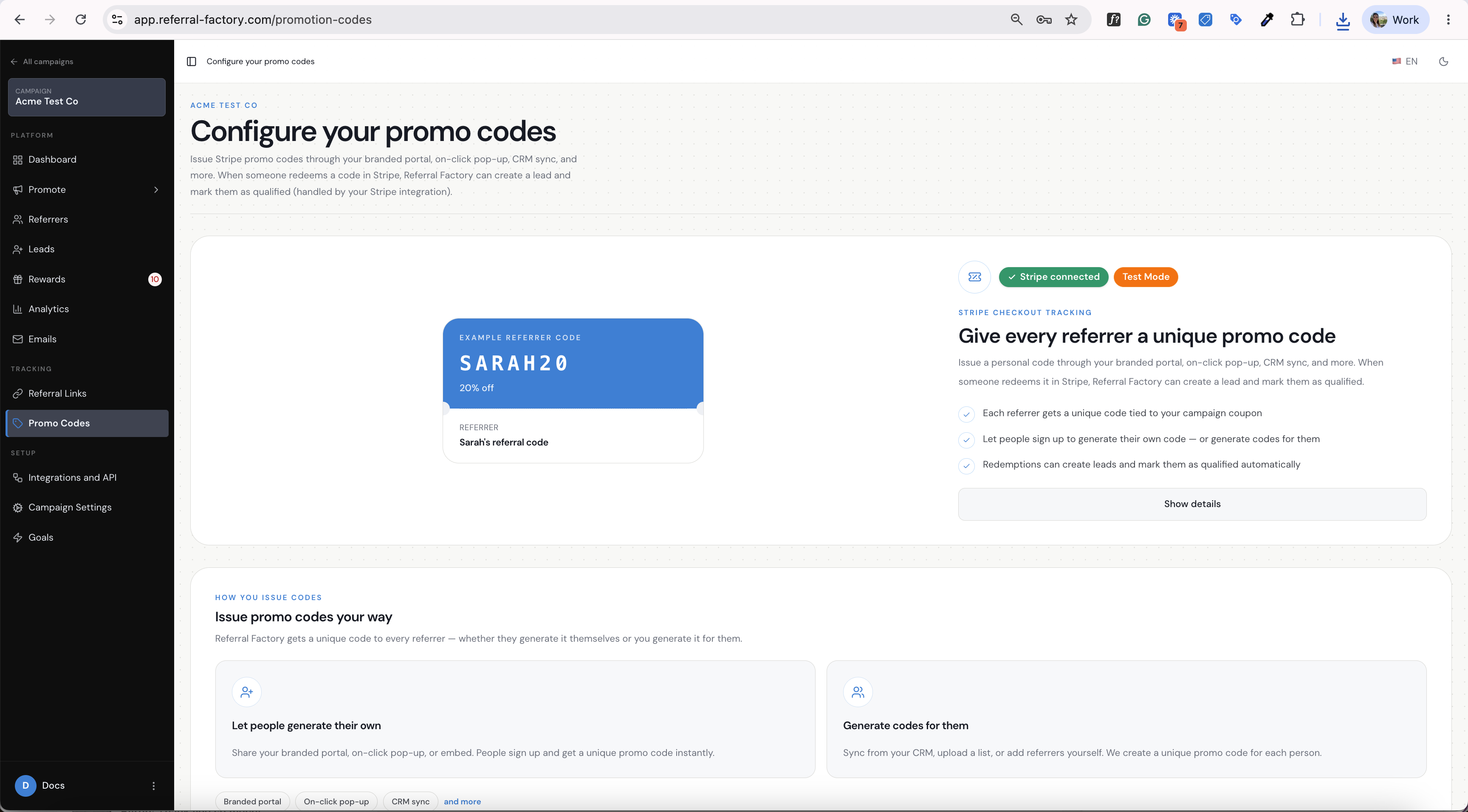
Open the Promo Codes page for the campaign and connect Stripe if it is not connected yet. Then create the Campaign Coupon that will hold the offer for referred customers.
1. Open the campaign’s Promo Codes page.
2. Connect Stripe if the page asks you to do so.
3. Under the campaign coupon settings, enter a coupon name.
4. Choose the discount type and enter the amount or percentage.
5. Choose the duration of the discount.
6. Select Create coupon in Stripe.
The Campaign Coupon is the offer. It is not the individual referrer’s Promo Code. Each referrer’s unique Promo Code is tied to this campaign coupon.
3. Set the rules for future Promo Codes
Before creating the Campaign Coupon, expand the default rules for future Promo Codes. These rules control how the generated codes can be used.
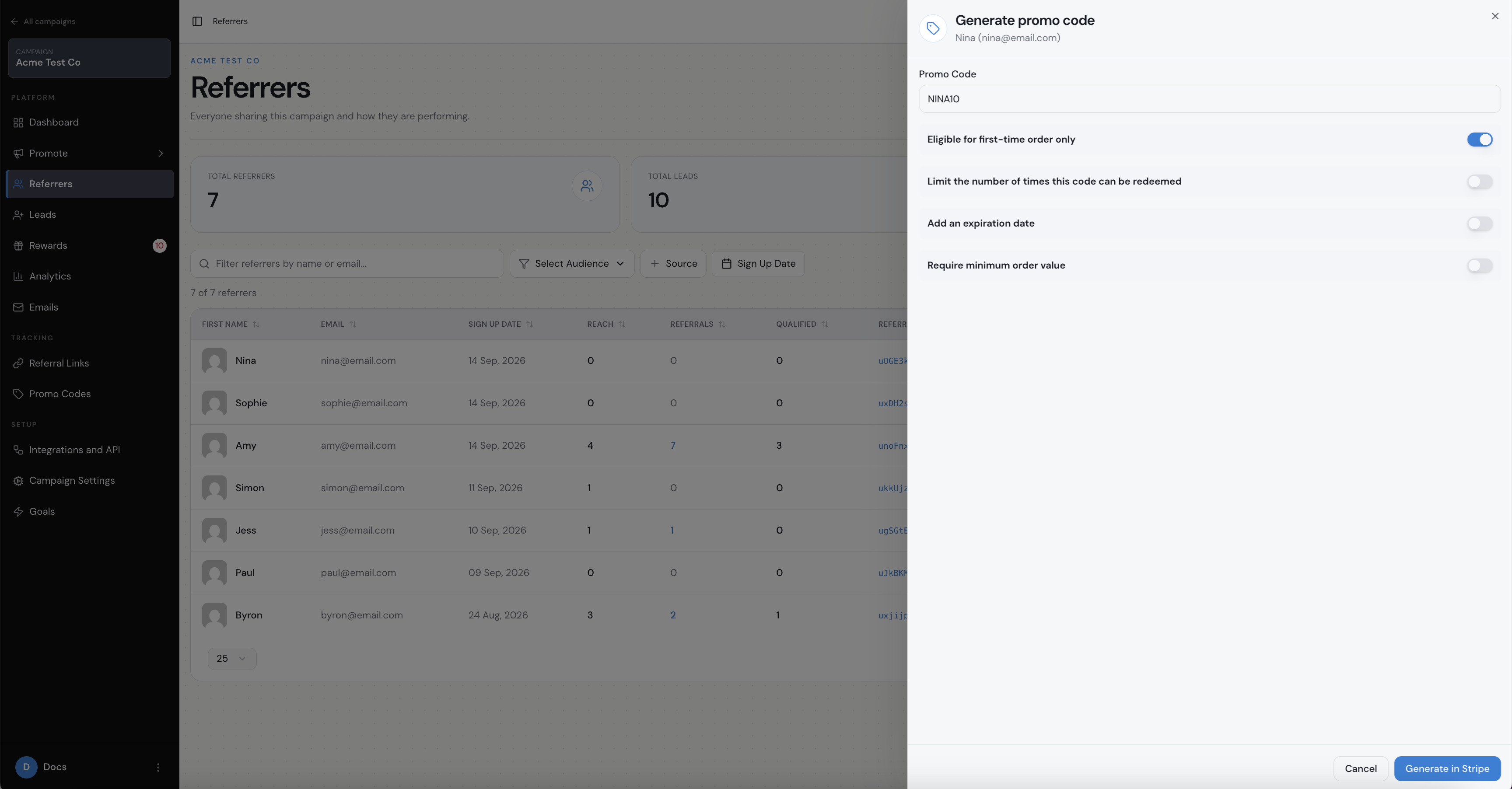
- Eligible for first-time order only: restrict the offer to new customers.
- Limit redemption count: set how many times each Promo Code can be used.
- Add expiration date: set when generated Promo Codes expire.
- Require minimum order value: require a minimum order before the code can be used.
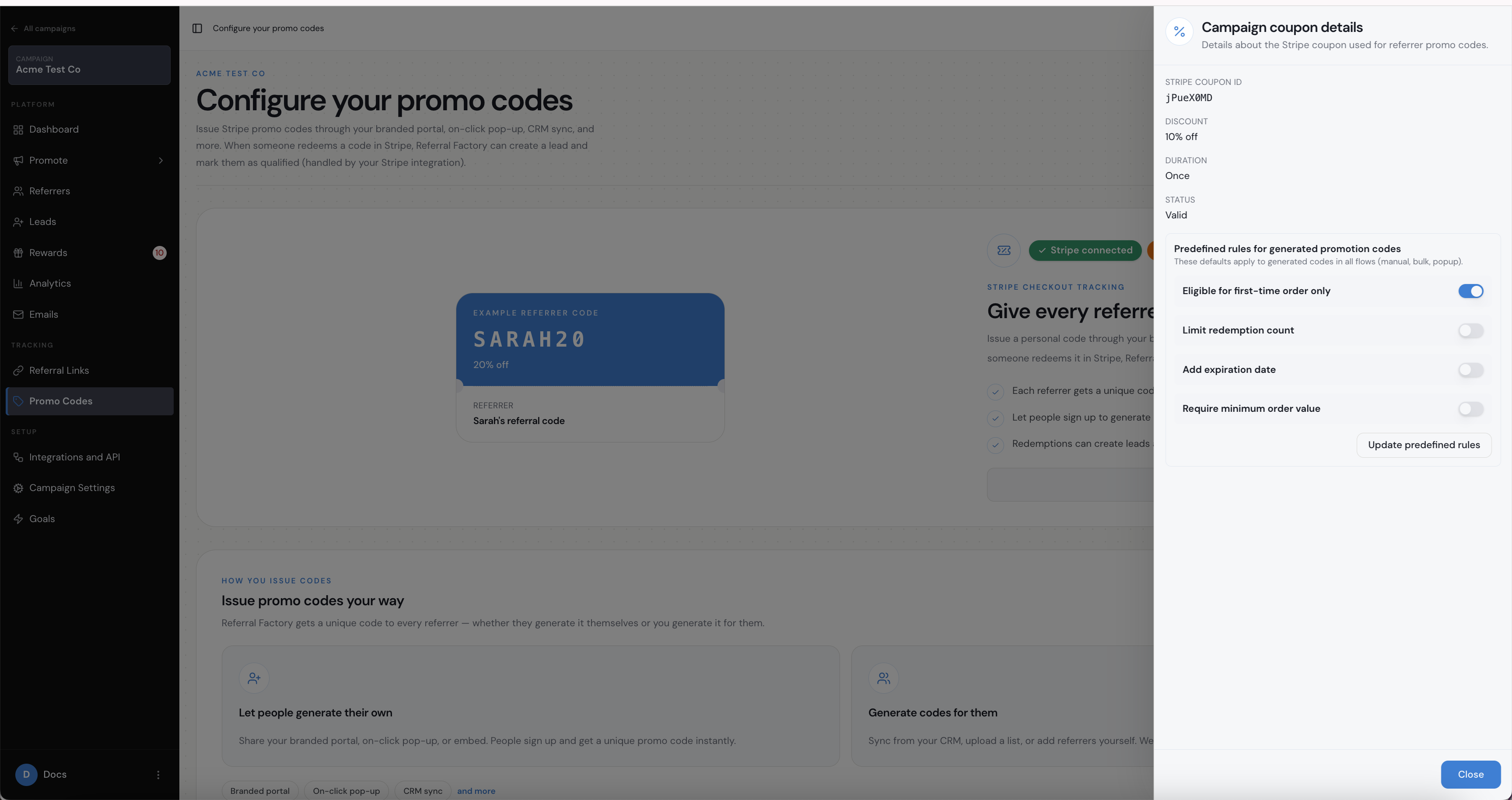
After the Campaign Coupon is created, you can review these defaults from the Campaign Coupon details panel. Updating the predefined rules changes the rules for future generated Promo Codes; it does not change the discount amount or duration of the Campaign Coupon.
4. Generate Promo Codes for Referrers
Promo Codes can be generated ahead of time by the business, or generated for a referrer through supported referrer-facing experiences when configured.
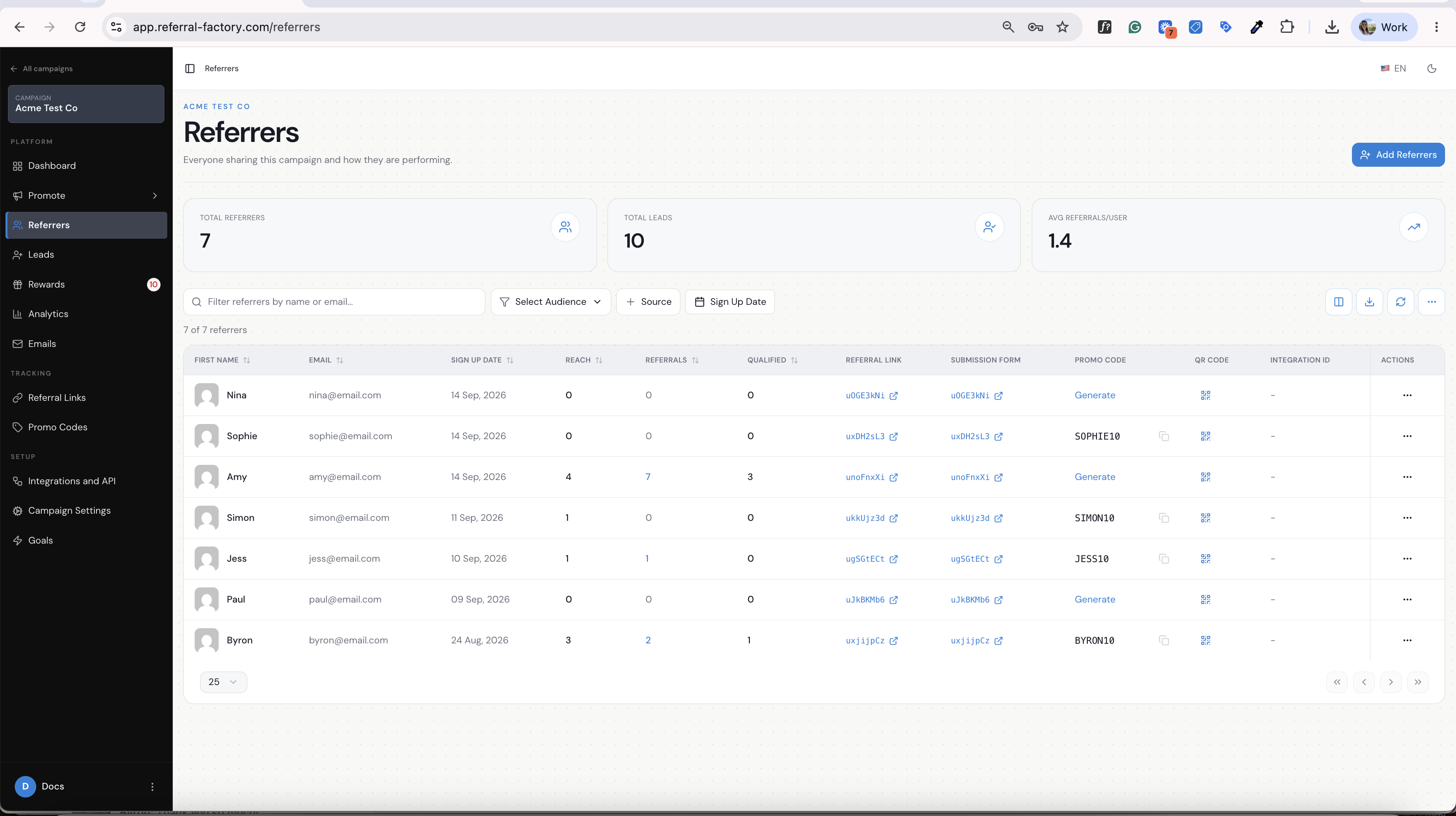
- For all existing referrers without a code, open Referrers, select Generate Promo Codes, and confirm.
- For one referrer, select Generate in that referrer’s Promo Code column.
- When adding a new referrer, turn on Generate Promo Code before adding the person.
Generating a code does not automatically send it to the referrer. Add the code to the referrer-facing experience or campaign email you plan to use.
5. Show the code in the Branded Referrer Portal
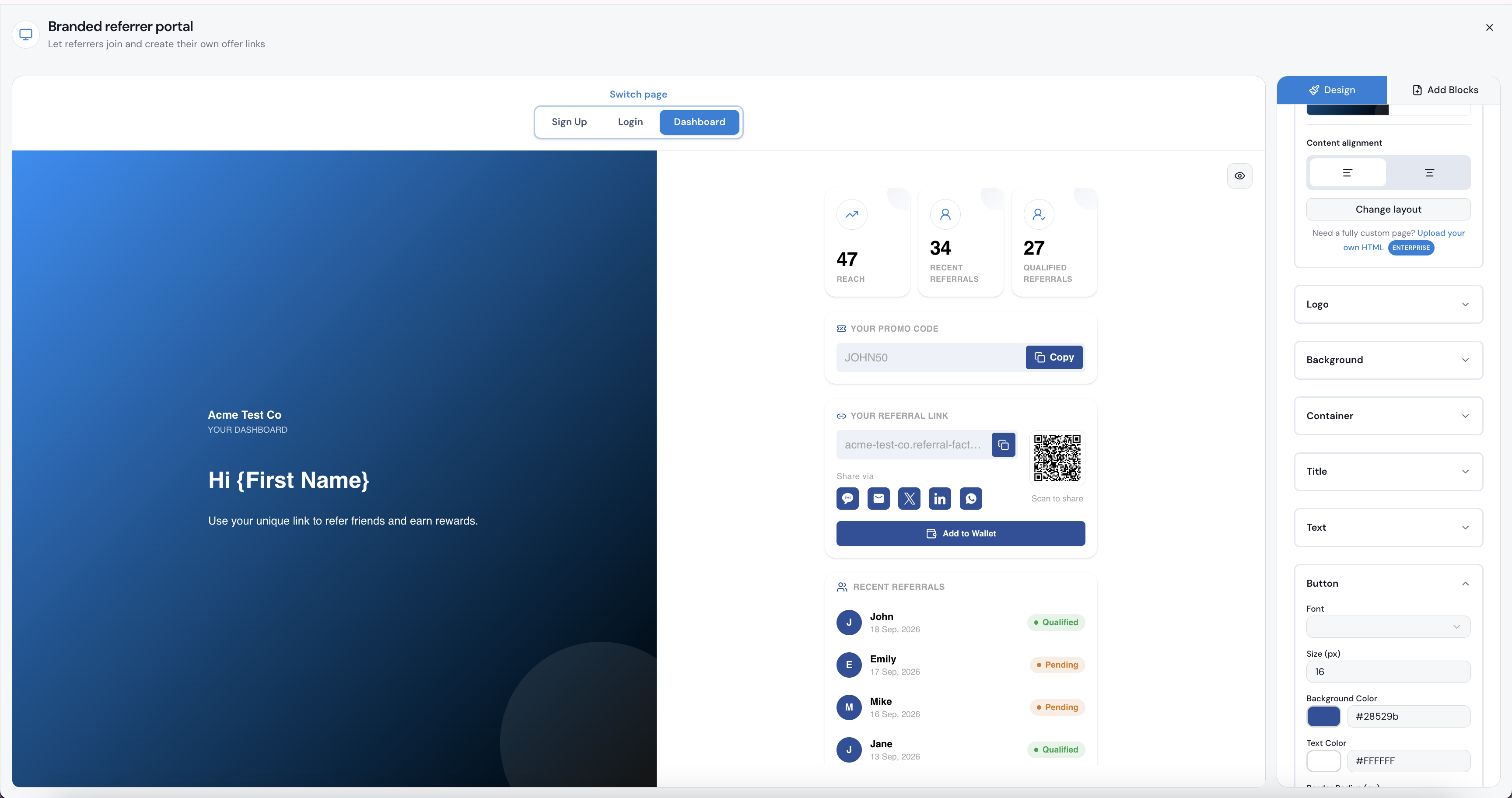
Use the Branded Referrer Portal when referrers should be able to sign up, log in, and access their own referral assets.
1. Open the campaign’s Promote area and select Branded Referrer Portal.
2. Open the Dashboard page in the portal builder.
3. Use Add Blocks to add or configure the Promo Code and sharing blocks.
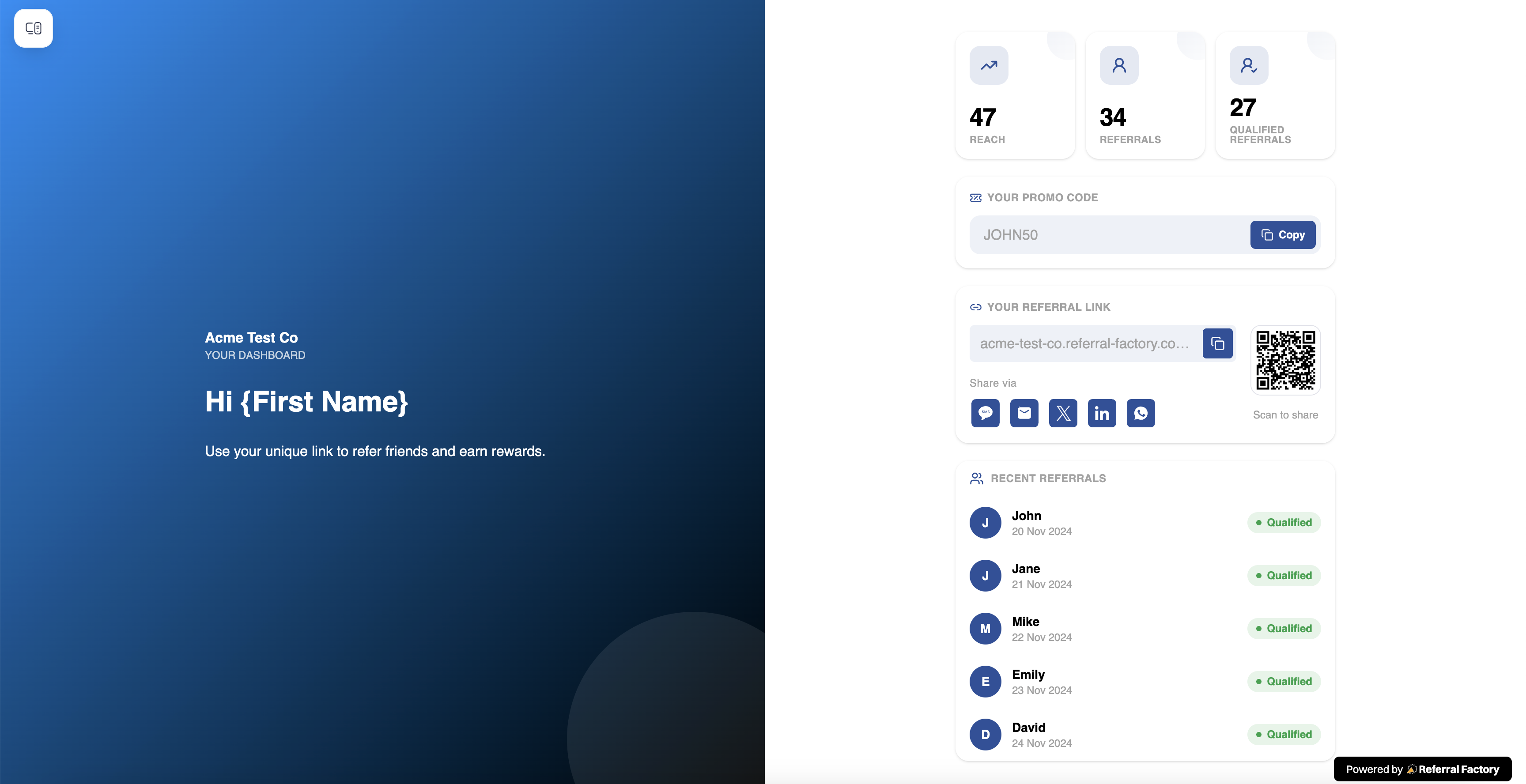
4. Check the preview to make sure the referrer can see and copy the code.
5. Select Save Changes.
Promo Codes can be generated and surfaced in different ways, including through the Branded Referrer Portal, an On-Click Pop Up, and connected CRM workflows. The code is only shown where you add the relevant content or block.
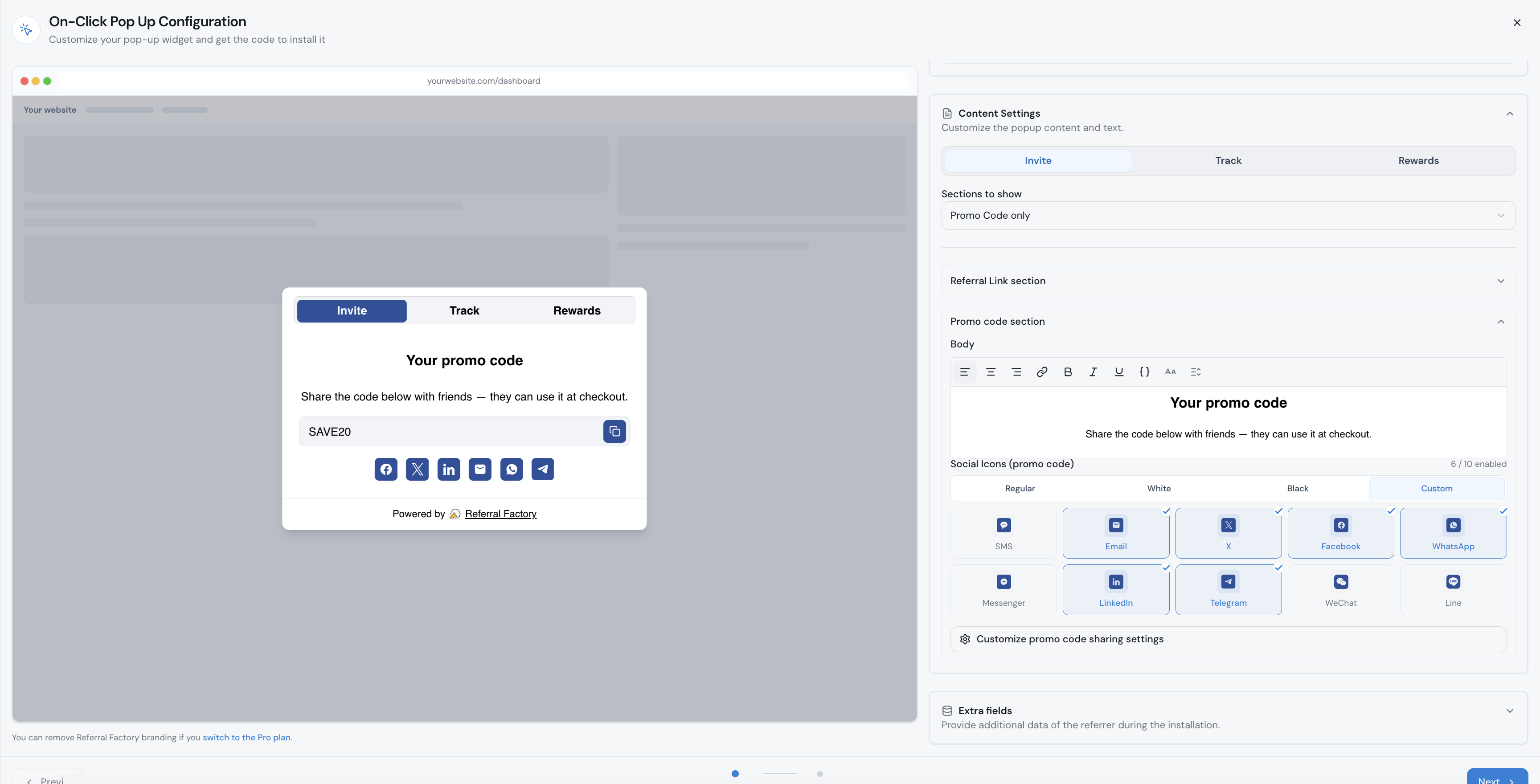
6. Show the code in the On-Click Pop Up
Use the On-Click Pop Up when you want referrers to access and share their Promo Code from a popup on your website.
1. Open the campaign’s Promote area and select On-Click Pop Up.
2. Open Content Settings and select the Invite tab.
3. Under Sections to show, choose Promo Code only or include the Promo Code with other referral sections.
4. Open the Promo code section to edit the heading, message, and social sharing icons.
5. Check the preview to make sure the code and Copy button are clear, then select Next.
7. Decide whether Promo Code use qualifies the Lead
If you want a Promo Code redemption to qualify the lead immediately, go to Campaign Settings → Integrations and API → Payment → Stripe, then enable Qualify when referral code is used.
If this setting is off, using the code can still create the lead, but the lead remains pending until another qualification rule is met. For example, you may want the customer to use the code and also meet a spend, time, or refund rule before the referral qualifies.
8. Review Promo Codes and campaign performance
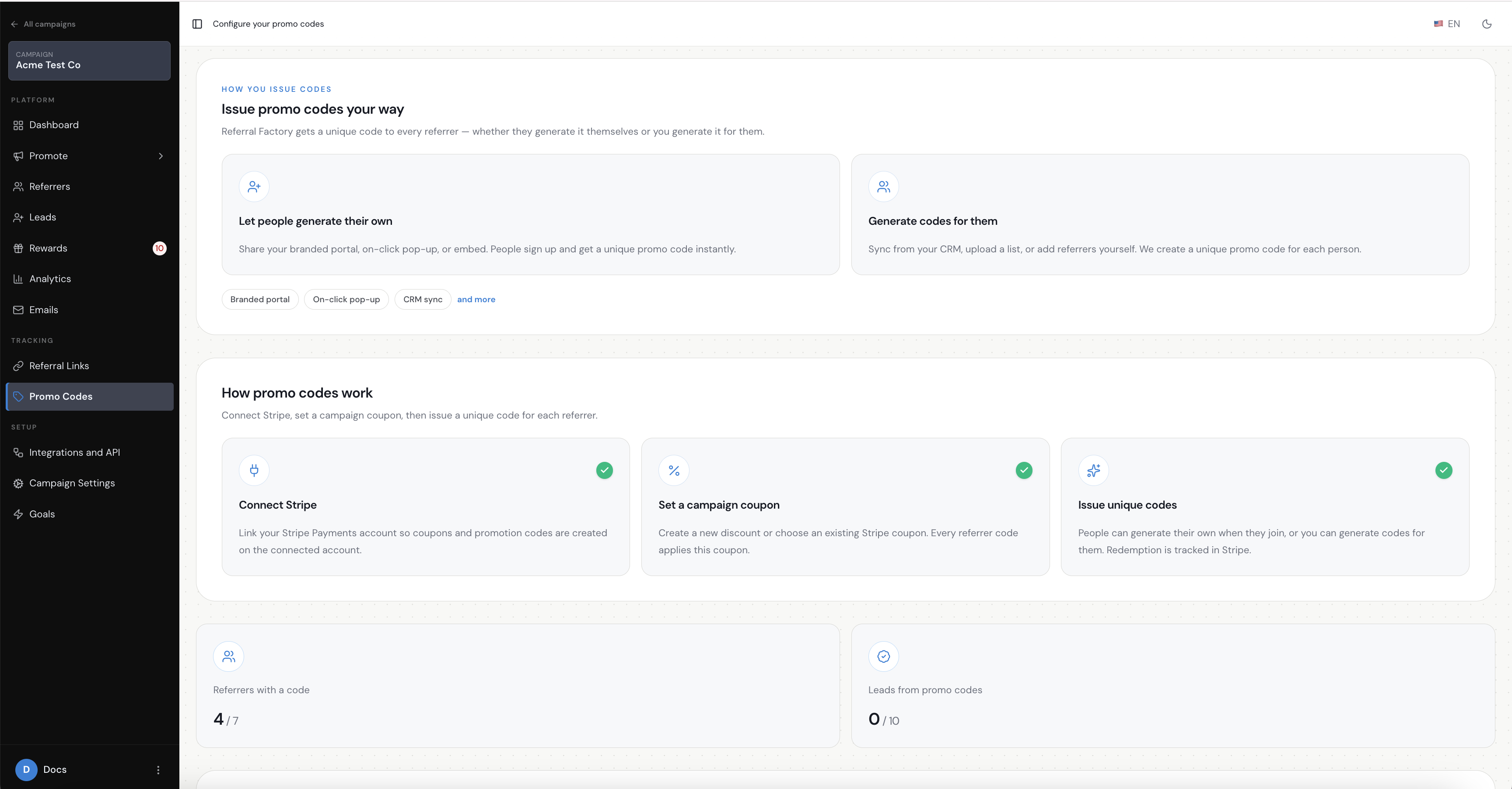
Return to the campaign’s Promo Codes page to review how many referrers have a code, how many leads came from Promo Codes, the generated codes, and the Campaign Coupon details when Stripe is connected.
Use the referrer and lead records to check which person owns a code and which referred customer was attributed to them. Referral Factory Coupons and other rewards are managed separately from Promo Codes.
9. Test the complete flow
Test with Stripe test data or a separate test campaign before using the flow with real customers. Do not test by placing a live order or by using a live payment method.
1. Confirm that the test referrer has a Promo Code for the intended campaign.
2. Open the configured signup or checkout journey and enter the Promo Code.
3. Check that the configured Campaign Coupon is applied when the journey supports the discount.
4. Check that the referred customer is attributed to the correct referrer.
5. Confirm whether the lead is qualified immediately or remains pending according to the campaign setting.
6. Check the Promo Codes page and the campaign records after the test.
If attribution is missing, first check that the code belongs to the same campaign, that Stripe is still connected, and that the code was used in the configured referral or checkout journey.