
Need help applying this to your account?
Contact support and we will keep this article attached to your request.
How Zapier fits into the reward flow
Referral Factory decides when the reward is earned. When the reward is issued, Zapier receives the reward information and runs the action you configured.
A reward that is only Due does not trigger the Zap. Due means the reward is waiting for approval or issuing. The Zap starts only when the reward reaches Issued.
For example, you could use a Zap to send a $25 gift card through a reward provider after a qualified referral is issued, or to add 500 loyalty points to the referrer’s customer record.
Choose Zapier in Referral Factory
1. Open the campaign where you want to configure the reward.
2. Go to Rewards → Reward Rules.
3. Select New reward, or open the Draft Reward Rule you want to edit.
4. Complete the reward and trigger settings, then continue to Choose Issuing Method.
5. Select Zapier.
6. Enter a descriptive Reward Name and review the settings shown for the rule.
7. Keep Auto Issue Rewards off if someone should review Due rewards first. Turn it on only after the Zap and its destination are ready to process issued rewards automatically.
8. Select Activate when the rule is complete.
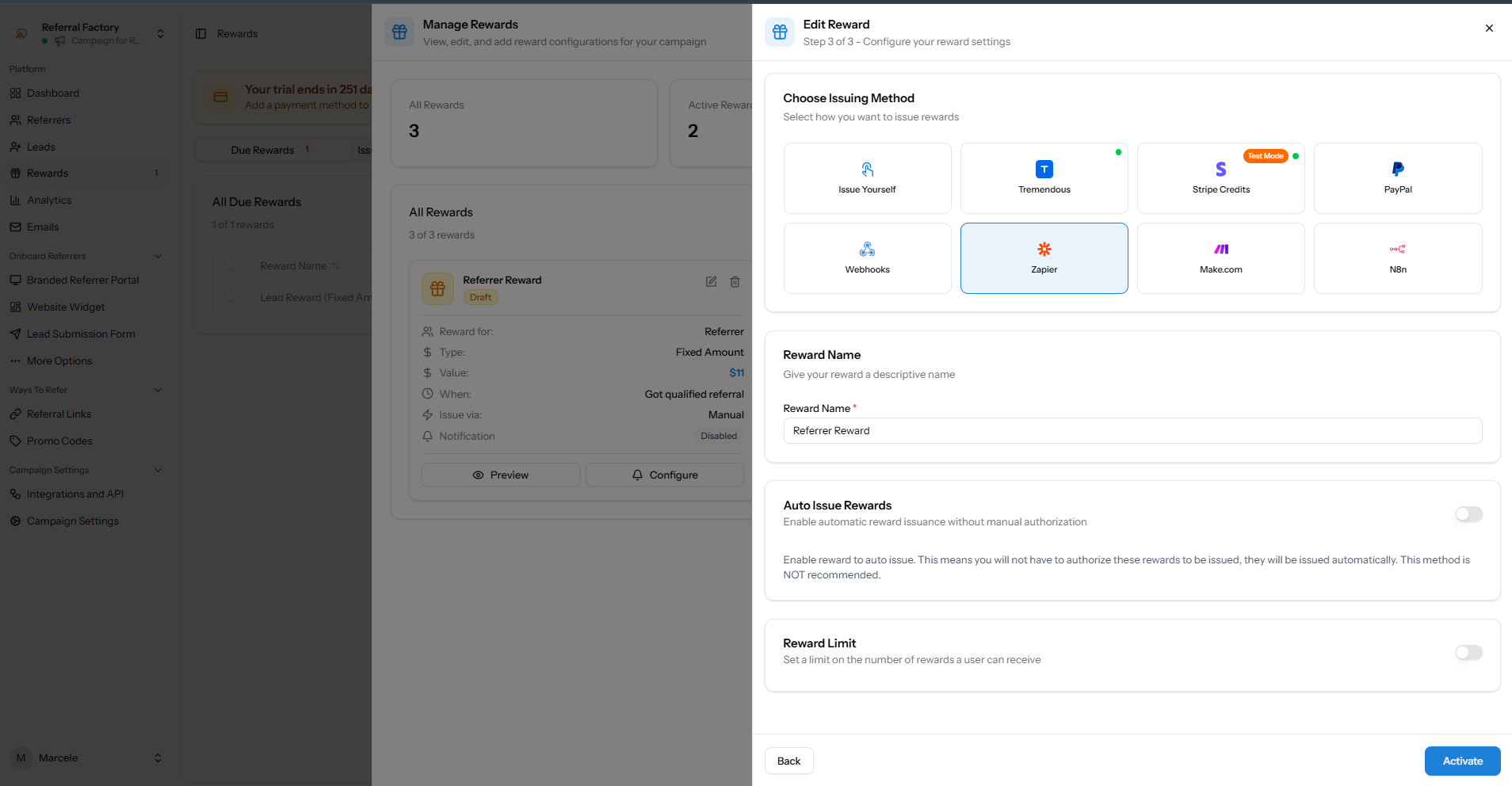
Zapier selected as the Reward Rule issuing method.
Create the Zap
1. In Zapier, select Create Zap.
2. Set the trigger app to Referral Factory.
3. Set the trigger event to Reward Issued.
4. Connect your Referral Factory account.
5. Select the relevant reward where Zapier asks you to choose one.
6. Test the trigger and check that the sample is an issued reward.
The trigger test should show reward and recipient information. A Due reward is not a valid test for this Zap because it has not been issued yet.
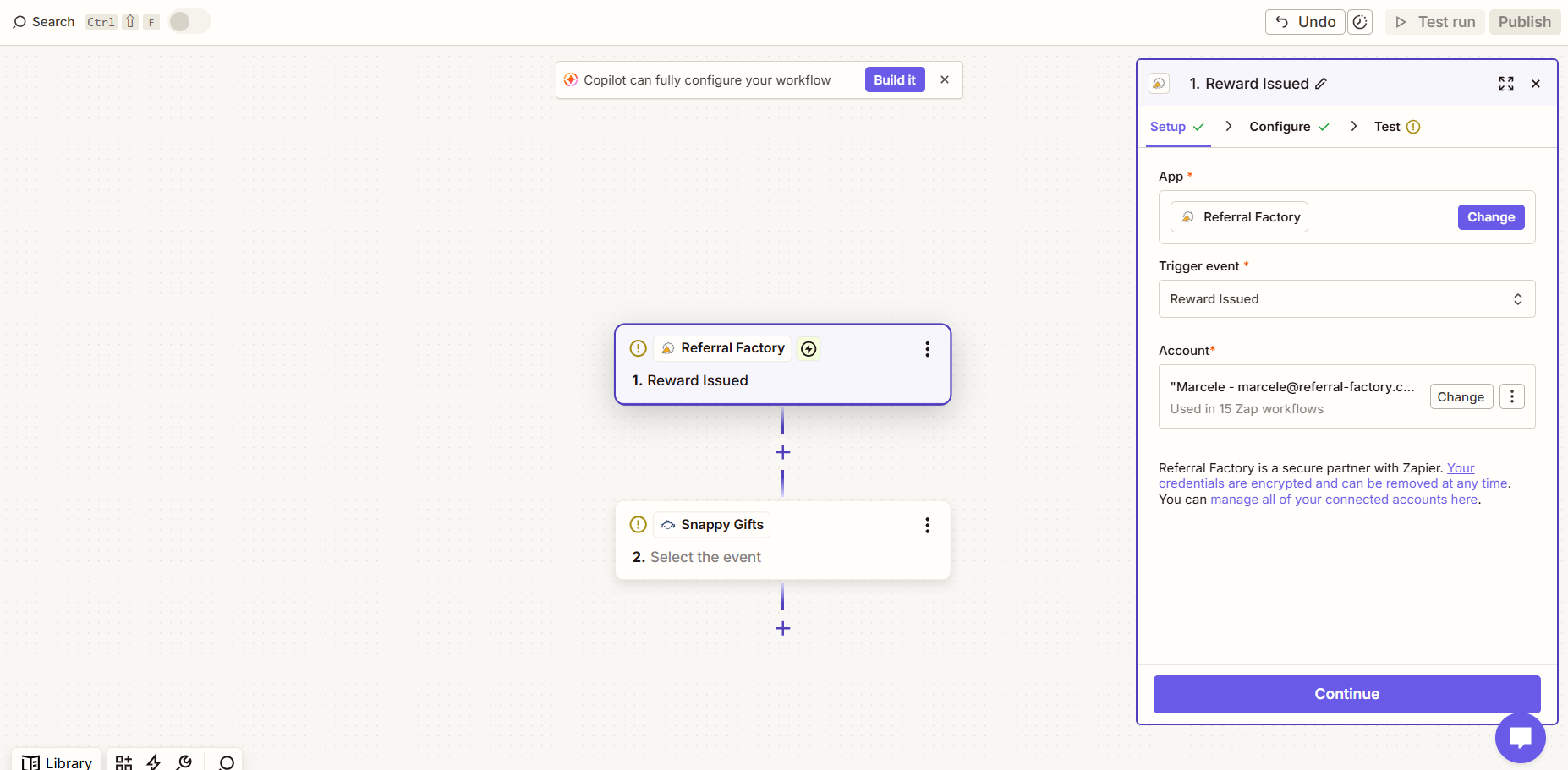
Add the action app
1. Add an Action step and choose the app that should handle the reward.
2. Choose the action you want to run, such as sending a gift card, creating a CRM record, adding account credit or sending a notification.
3. Connect the action app account.
4. Map the Referral Factory fields into the action. Use the reward ID, recipient details, reward name, value, currency, campaign and any other fields shown in the trigger test.
5. Test the action and confirm that the destination app received the expected information.
6. Publish or turn on the Zap.
Test the complete handoff
Use a safe test reward and check all three parts of the flow: Referral Factory shows the reward as Issued, Zapier records a successful Reward Issued run, and the action app completes the task you configured.
If Auto Issue Rewards is off, issue the test reward from Due after you have checked the details. Do not use a live reward or real payout while testing unless you are sure the destination action is safe.