
Need help applying this to your account?
Contact support and we will keep this article attached to your request.
Tango handles the reward catalog, funding and delivery, while Referral Factory decides when a reward is earned and sends the order to Tango.
Before you connect Tango
You need an active Tango account before you can connect it to Referral Factory.
- Create your Tango account.
- Add funds to your Tango account. Rewards are paid from your Tango balance, not by Referral Factory.
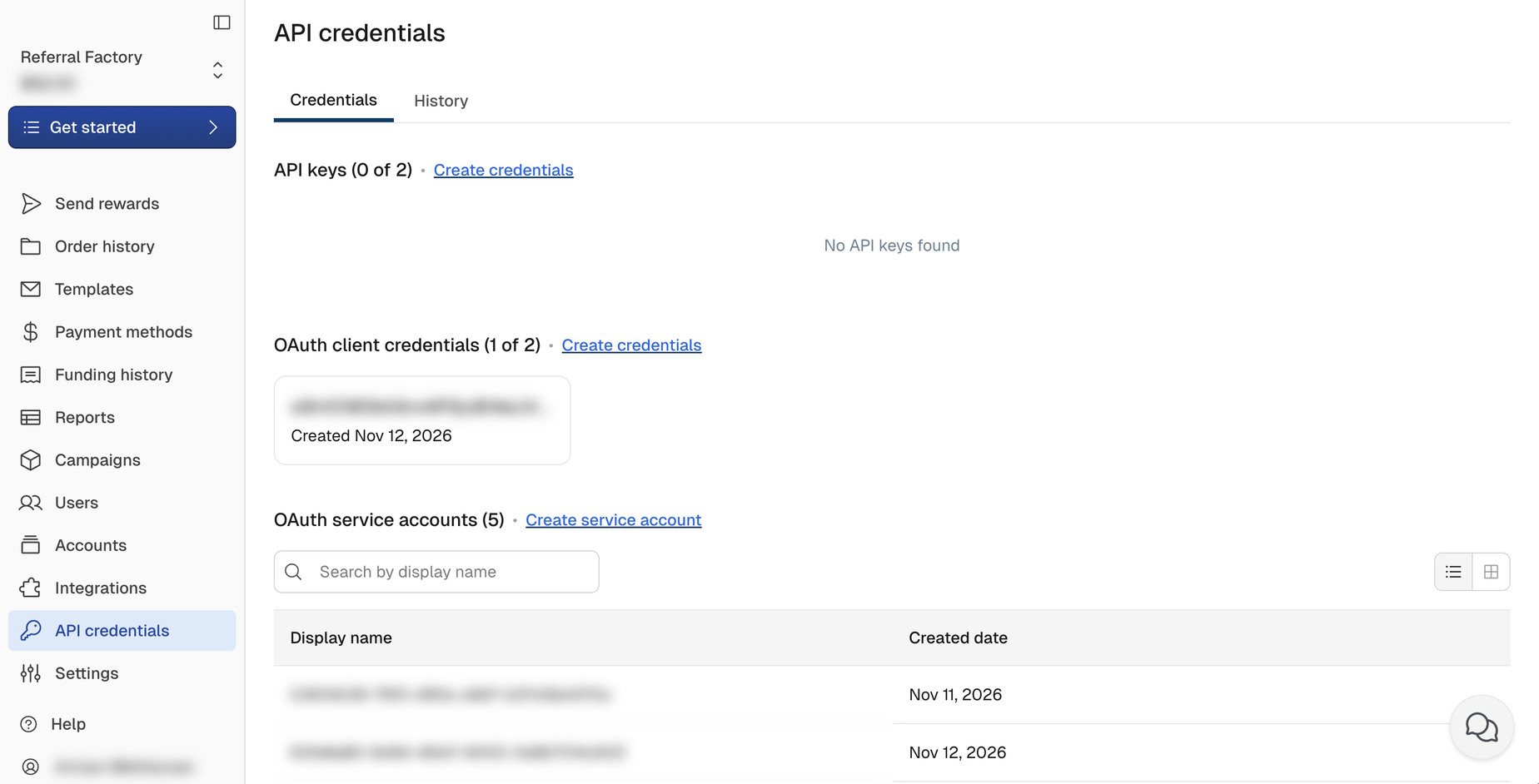
- Log in to the Tango portal and click API credentials in the left menu.
- Under OAuth client credentials, click Create credentials. This gives you a Client ID and Client Secret.
- Under OAuth service accounts, click Create service account. This gives you a service account username and password.
Keep these four values ready. You will paste them into Referral Factory in the next step.
If you don’t see API credentials in the Tango portal, ask your Tango representative to turn on OAuth credentials for your account and give your user access to API credentials.
How to connect Tango
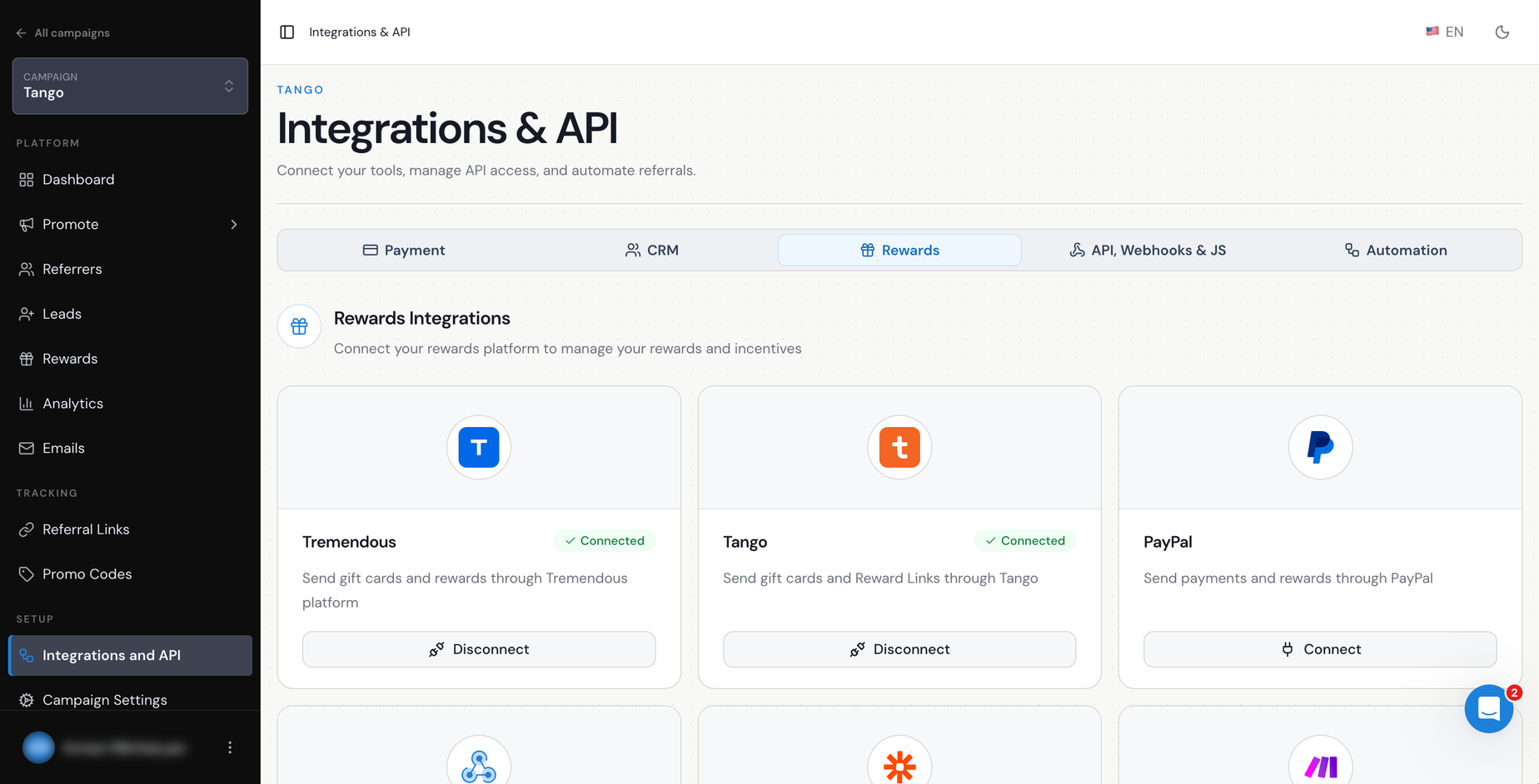
- In Referral Factory, open your campaign and go to Integrations and API → Rewards.
- Find Tango and click Connect.
- Choose Connect Live Mode to send real rewards, or Connect Test Mode to try the integration with Tango’s sandbox first.
- Click Next.
- Paste your Client ID, Client Secret, Service Account Username and Service Account Password.
- Click Connect Tango.
Once the connection is verified, Tango shows as Connected. Only an account admin can connect reward integrations.
If you see “Tango could not verify these credentials”, check that you copied all four values from the same Tango environment. Live credentials only work with Live Mode, and sandbox credentials only work with Test Mode.
How to set up a Tango reward
- Go to Rewards → Reward Rules.
- Click New reward, or click the edit icon on an existing reward.
- In step 1, choose who receives the reward and the reward type — Fixed Monetary Value or Commission.
- In step 2, choose the trigger, the currency and the amount.
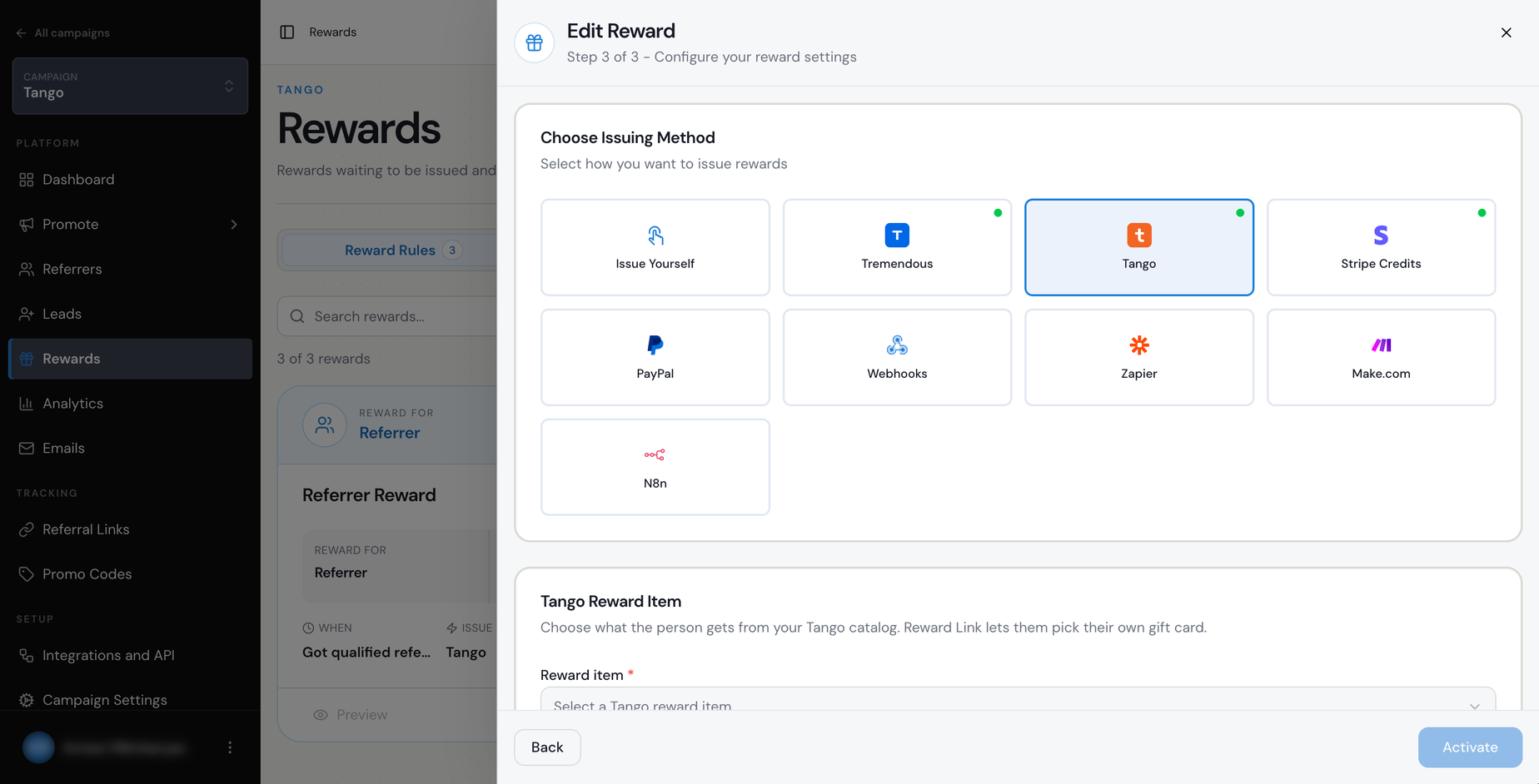
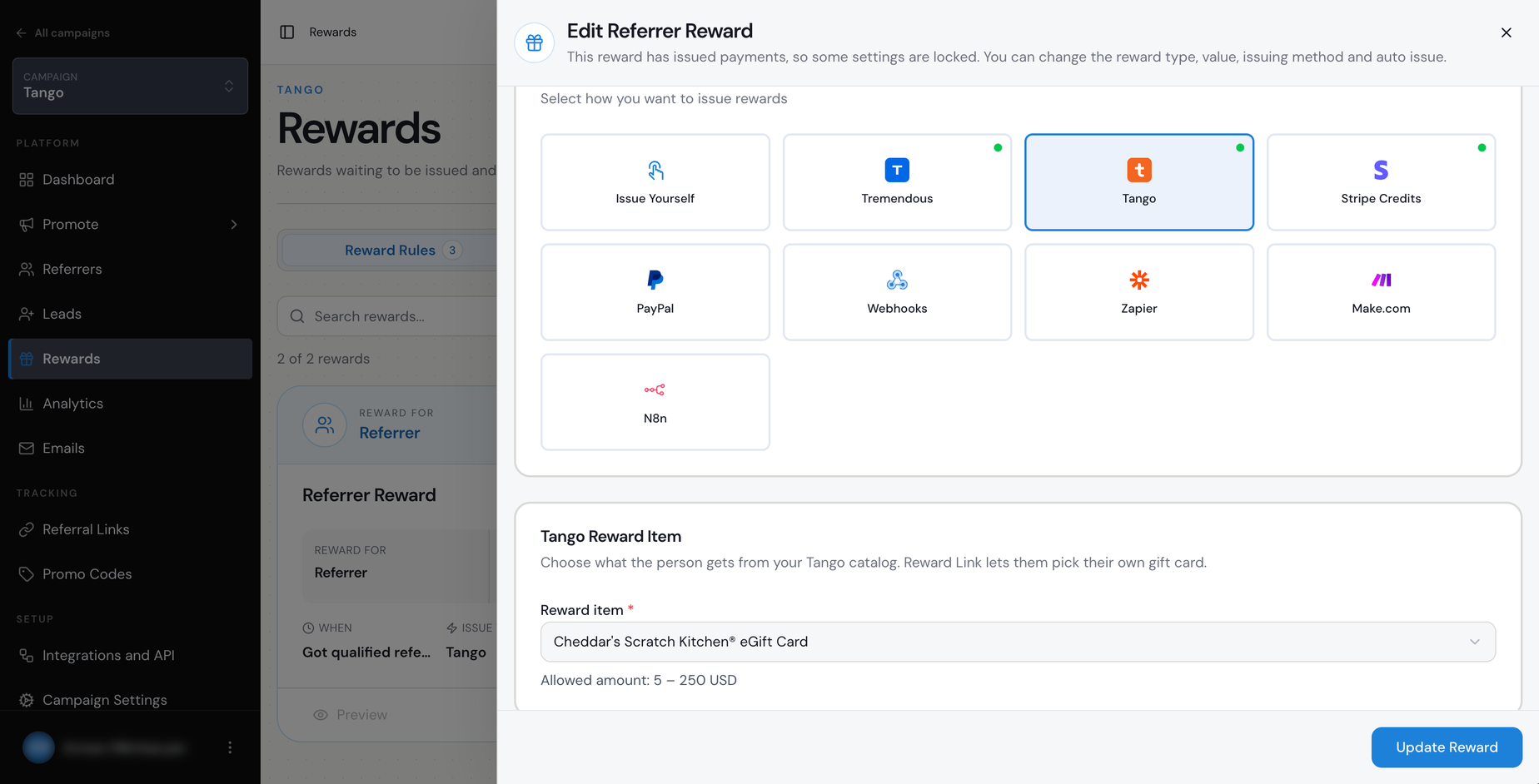
- In step 3, under Choose Issuing Method, select Tango.
- Under Tango Reward Item, choose the item you want to send from your Tango catalog.
- Click Activate.
Choose a reward item
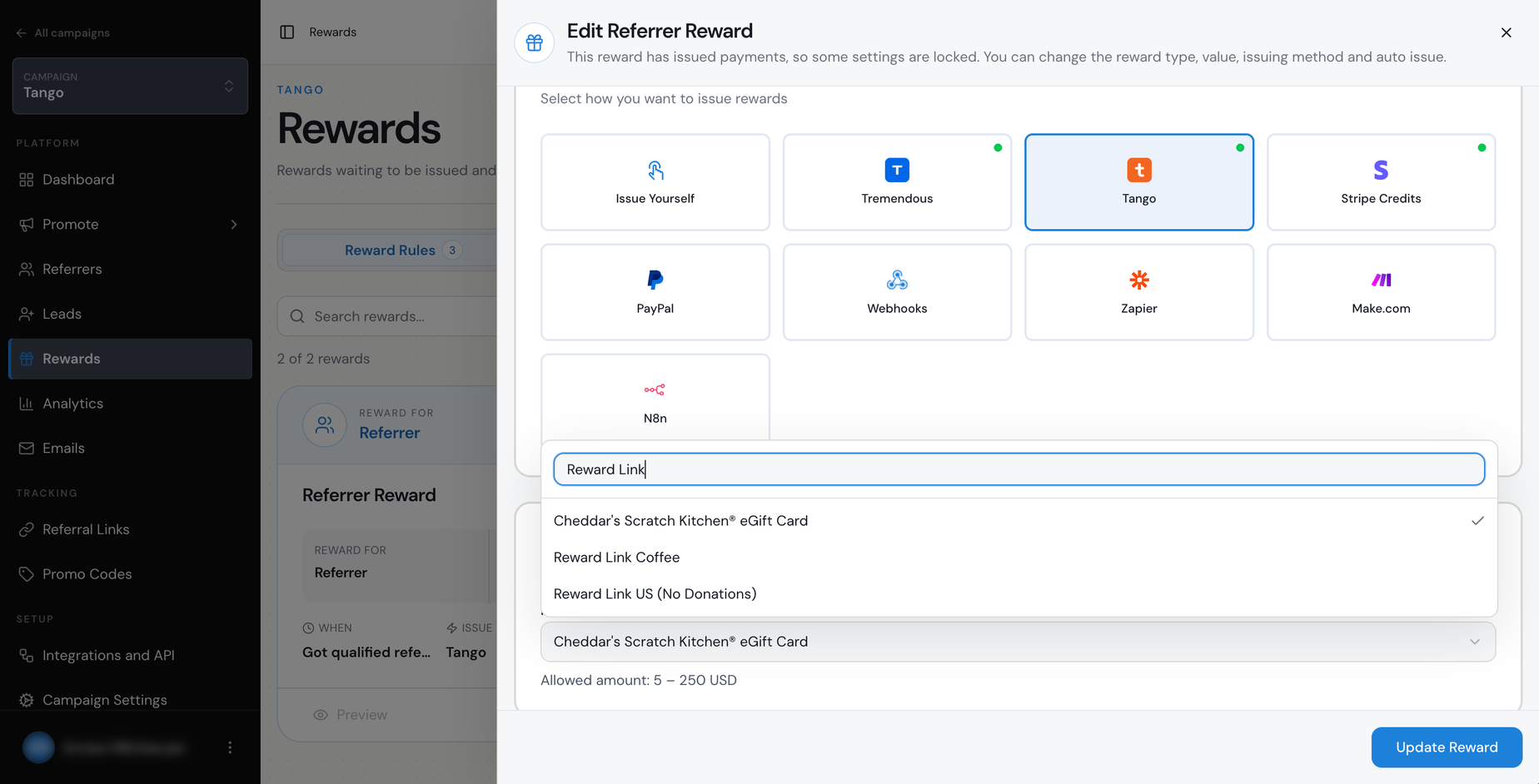
The Tango Reward Item list shows the active items in your Tango catalog. You can search the list by name.
Choose a Reward Link if you want the recipient to pick their own gift card. Choose a specific gift card if every recipient should get the same brand.
When you select an item, Referral Factory shows what that item accepts:
- Fixed amount — the item only works for one value, for example 25 USD. Your reward value must match it exactly.
- Allowed amount — the item accepts any value in a range, for example 5 – 500 USD. Your reward value must fall inside that range.
The reward currency must also match the item’s currency. If it does not, Referral Factory tells you which currency to switch to before you can activate the reward.
New items you enable in Tango can take up to an hour to appear in the list.
Which reward types work with Tango
Tango can issue Fixed Monetary Value and Commission rewards. Custom and Coupon rewards cannot be issued through Tango.
For Commission rewards, the amount is calculated when the reward is earned, so it can change from one referral to the next. Choose an item with an allowed amount range rather than a fixed amount, so Tango can accept the calculated value.
Recipient and delivery
Tango emails the reward directly to the person set as the reward recipient — the Referrer or the Lead. If you want to reward both, create a separate reward for each.
Make sure the recipient’s email address is correct before issuing the reward. Tango uses the email address and first name that Referral Factory sends.
You can also set up a Referral Factory reward notification email to let the recipient know their reward is on its way. They will receive a separate email from Tango with the reward itself.
Test Mode vs Live Mode
Test Mode connects Referral Factory to Tango’s sandbox, so you can run the whole reward journey without sending real rewards or spending funds. While Tango is connected in Test Mode, it shows a Test Mode badge under Integrations and API → Rewards and on the Tango issuing method.
When you are ready to go live, disconnect Tango under Integrations and API → Rewards, then connect again with Connect Live Mode and your live Tango credentials. Check your Tango rewards afterwards to make sure the reward items are still selected.
Automatic vs manual issue
By default, rewards stay under Due until you choose to issue them.
To issue a Tango reward manually:
- Go to Rewards → Due.
- Find the reward.
- Open the Actions menu.
- Select Issue Now.
You can also turn on Auto Issue Rewards in step 3 when you set up the reward. Referral Factory then sends the reward to Tango as soon as it becomes due.
Manual issuing gives you time to review referrals before money is spent, which helps if your business has refund periods, cancellations or fraud checks.
Test and monitor status
Before launching your campaign, test the complete Tango reward journey:
- Connect Tango in Test Mode.
- Create a reward with Tango as the issuing method.
- Create a test Referrer and Lead.
- Trigger the qualification condition.
- Confirm the reward appears under Due.
- Issue the reward.
- Check Issued to confirm the reward was sent.
If a reward shows as Failed, check the failure reason first. Tango failures start with “Tango:” and usually point to the cause.