
Need help applying this to your account?
Contact support and we will keep this article attached to your request.
You can connect a Tango reward to Qualification or another Goal in your campaign. When the Lead reaches that Goal, Referral Factory creates the reward, and if Auto Issue Rewards is enabled, the reward is sent to Tango automatically.
Before you begin, make sure Tango is connected to Referral Factory and your Tango account is funded.
How to tie a Tango reward to Qualification or another Goal
First, decide what action should trigger the reward.
You can trigger a Tango reward when a Lead reaches either:
For example:
Qualification: Lead becomes a customer → Lead is qualified → Referrer earns a Tango reward
Custom Goal: Lead books a meeting → Meeting booked Goal is reached → Referrer earns a Tango reward
Once you have chosen the Goal you want to reward, create a reward and select that Goal as the trigger.
- Qualification — the default Goal in every campaign. For example, if you consider a referral successful when the Lead becomes a customer, you can reward the Referrer when that Lead is qualified.
- A Custom Goal — an additional action you want to track before qualification. For example, you could create a Meeting booked Goal and only reward the Referrer once the Lead books a meeting.
Configure the trigger, recipient, and reward
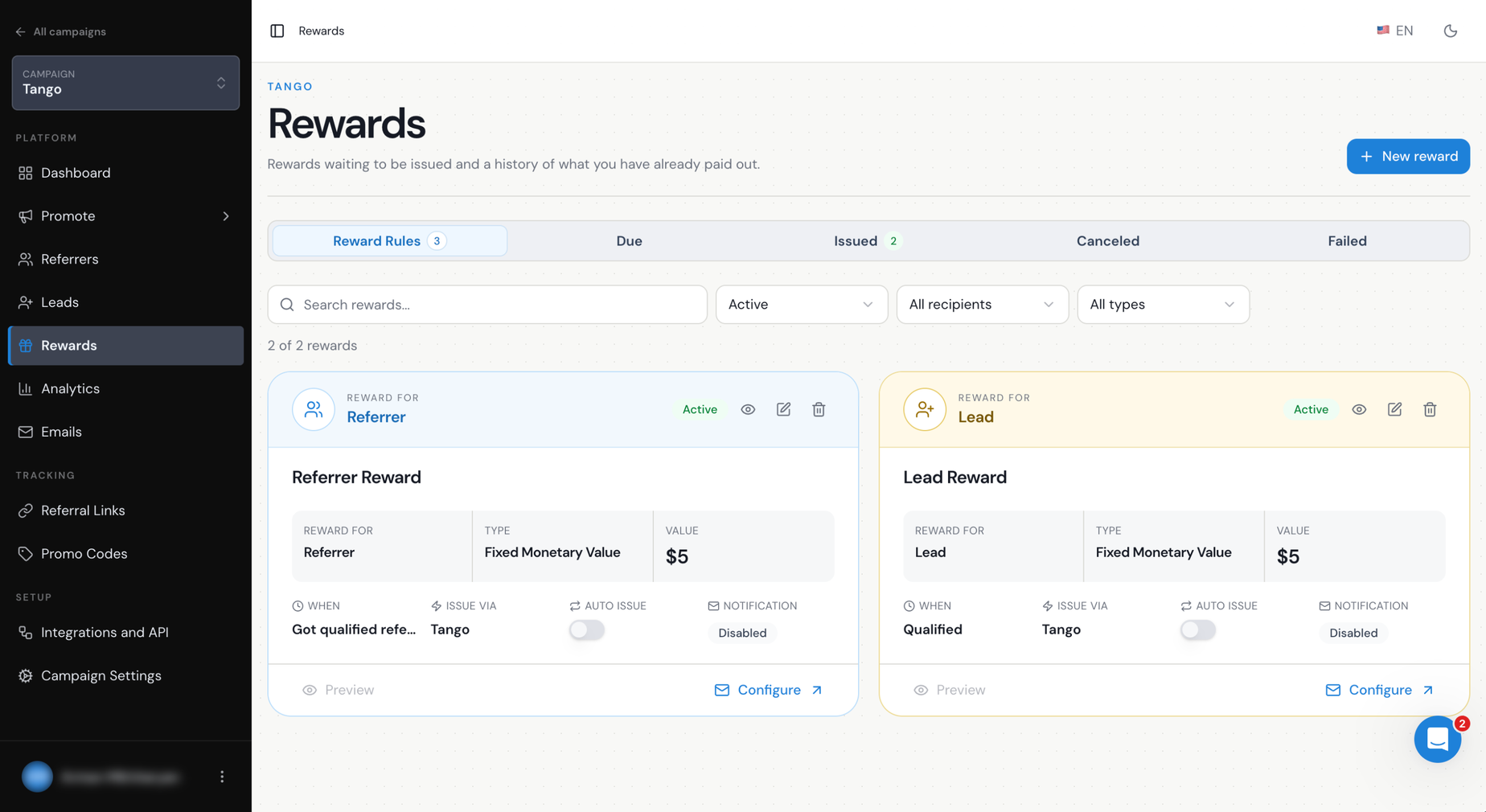
Go to Rewards → Reward Rules and click New reward.
Choose:
Click Activate when you are ready for the reward to start creating rewards. Your Tango rewards then show Tango under Issue via on the Reward Rules tab.
- Who receives the reward — the Referrer or the Lead. If you want to reward both, create a separate reward for each recipient.
- What triggers the reward — select Qualification or the Custom Goal the reward should be tied to.
- The reward type — Fixed Monetary Value or Commission. Tango cannot issue Custom or Coupon rewards.
- The reward value and currency — these must match the Tango item you choose.
- Tango as the issuing method.
- The Tango Reward Item you want to send, such as a Reward Link or a specific gift card.
Automatically issue the Tango reward
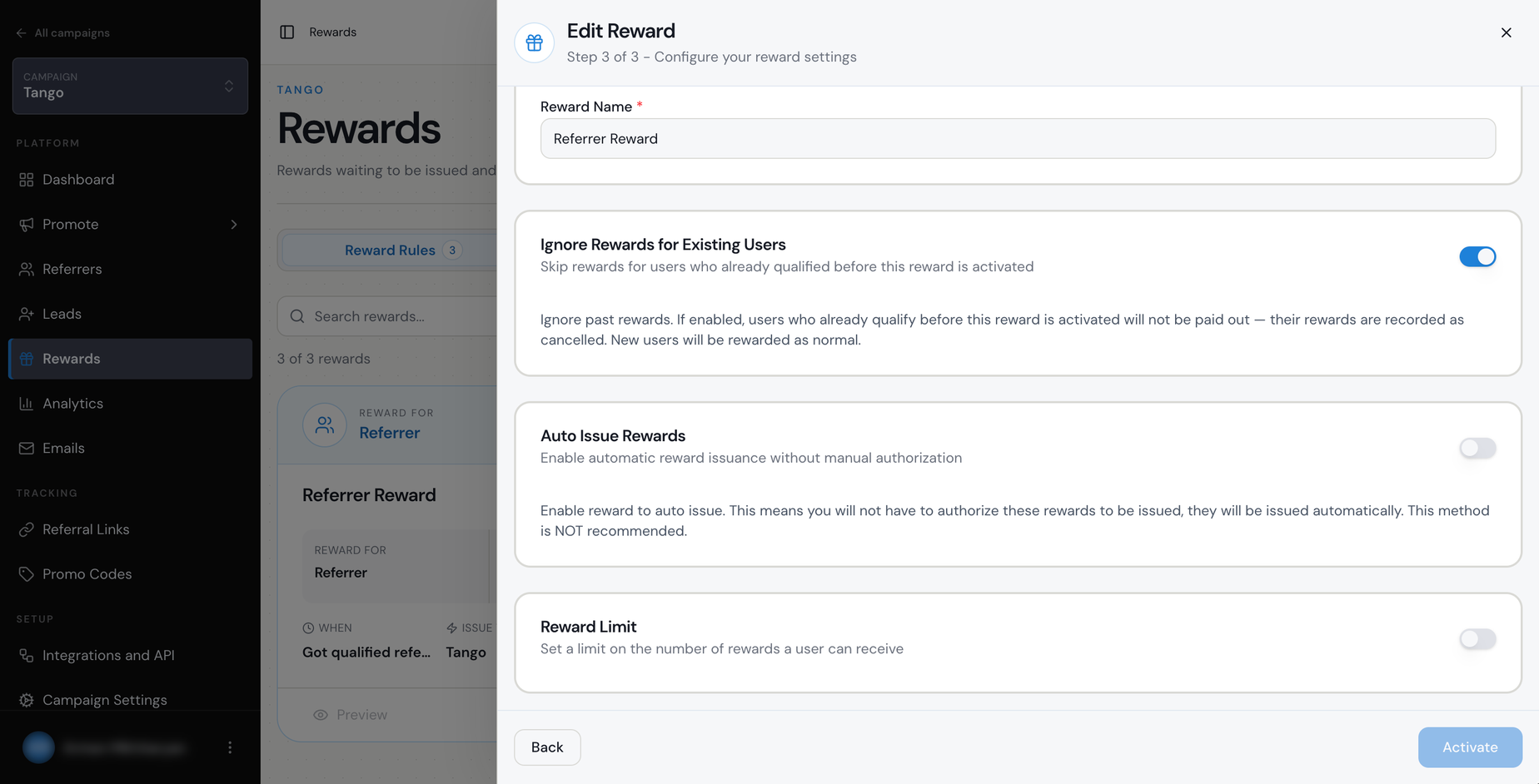
Turn on Auto Issue Rewards in step 3 if you want the reward to be sent without someone on your team approving it first.
With Auto Issue enabled, the workflow runs automatically:
Goal reached → Reward created → Reward automatically issued → Tango emails the recipient
If Auto Issue is turned off, the reward stays under Due until someone reviews and issues it manually.
You can also switch Auto Issue on or off later with the Auto Issue toggle on the reward’s card under Rewards → Reward Rules.
Because automatic issuing sends real rewards and uses funds from your Tango account, test the complete workflow in Test Mode before enabling it for a live campaign.
You can also turn on Retry Failed Rewards in the same step, so Referral Factory tries again automatically if a reward fails to issue.
Can I delay or limit Tango rewards?
Referral Factory does not currently have an automatic timer that waits a specific number of days before issuing a reward.
If you need a review period — for example, to wait for a refund or cancellation window — leave Auto Issue Rewards turned off. The reward will stay Due until you are ready to issue it.
For example:
Goal reached → Reward becomes Due → Wait 30 days → Review conversion → Issue reward
You can also turn on Reward Limit in step 3 to set the maximum number of rewards a participant can earn from that reward.
Test your Tango reward before going live
Test the full journey before enabling automatic issuing:
- Connect Tango in Test Mode.
- Create a test Referrer and Lead.
- Trigger the Qualification or Custom Goal connected to the reward.
- Confirm that the correct reward is created for the correct person.
- Confirm the reward value, currency and Tango Reward Item.
- If Auto Issue is off, confirm that the reward appears under Due.
- Issue the reward and confirm that it appears under Issued.
- Only switch to Live Mode and enable Auto Issue Rewards once you are confident the Goal and reward are working as expected.
What happens if a Tango reward fails or the Goal is reversed?
If Tango rejects the order, the reward appears under Failed with a reason that starts with “Tango:”. Insufficient funds in your Tango account, a reward value that the item does not accept, and a disconnected integration are the most common causes. See Why aren’t my Tango rewards working? for how to fix and resend them.
If the Goal or conversion is later reversed, how you handle the reward depends on whether it has already been issued.
If the reward is still Due, you can cancel it before it is sent. If the reward has already been issued through Tango, reversing the Lead’s Goal or qualification does not recover the reward. Any reversal after issuing needs to be handled in Tango.
This is why keeping rewards in Due for a review period can be useful when your business has refunds, cancellations, chargebacks or other events that could invalidate a conversion.