
Need help applying this to your account?
Contact support and we will keep this article attached to your request.
Tremendous handles the actual reward delivery and funding, while Referral Factory determines when the reward is earned and sends the reward information to Tremendous.
How to configure and send a Tremendous reward
First, set up your reward options in Tremendous, then connect Tremendous to Referral Factory.
- Create your Tremendous account.
- Create a campaign in Tremendous and choose the reward options you want recipients to be able to claim.
- Add funds to your Tremendous account.
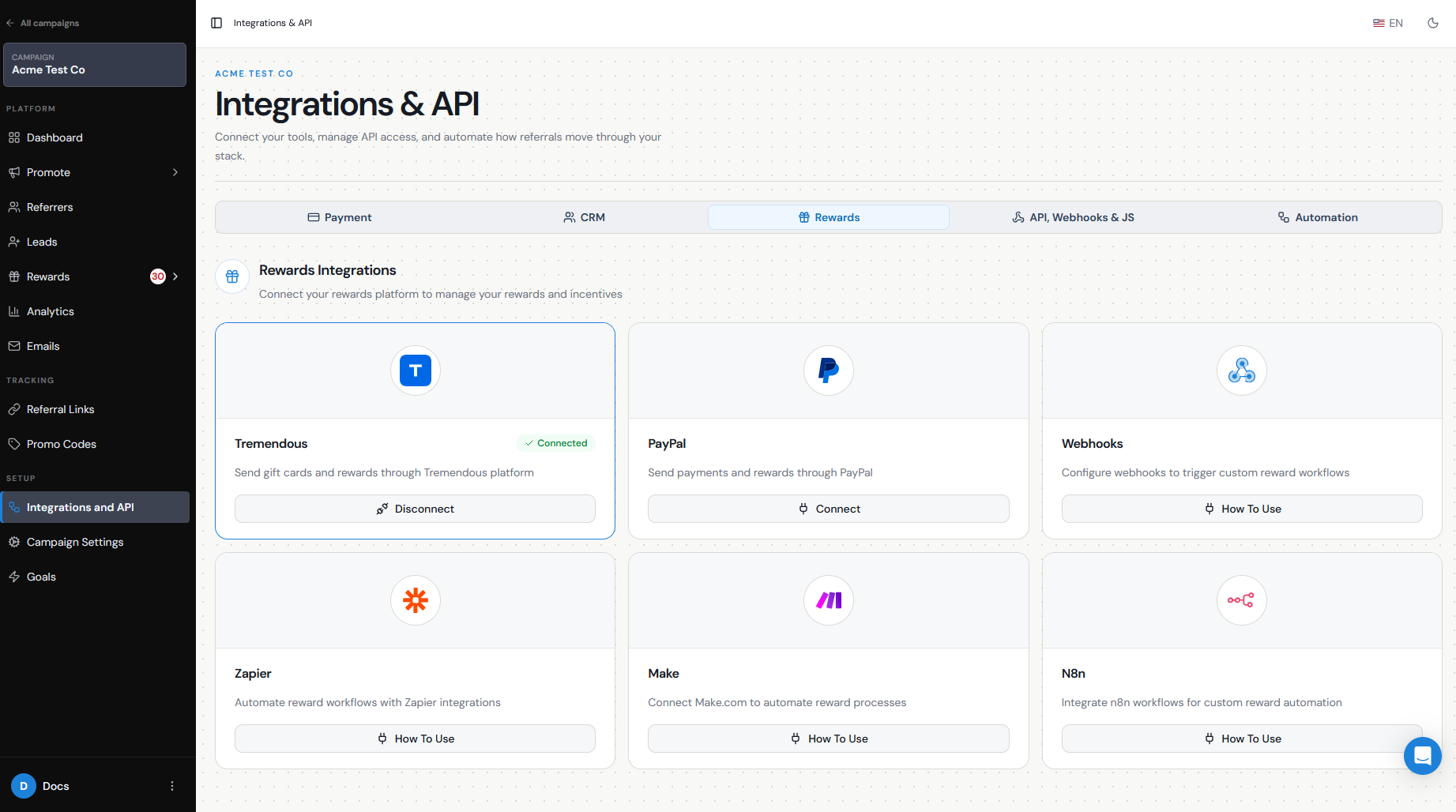
- In Referral Factory, go to Campaign Settings → Integrations and API → Rewards.
- Connect Tremendous and authorize the connection.
- Go to Rewards → Manage Rewards.
- Create a new reward or edit an existing draft.
- In the issuing step, select Tremendous.
- Choose the Tremendous campaign you want to use.
- Activate the reward.
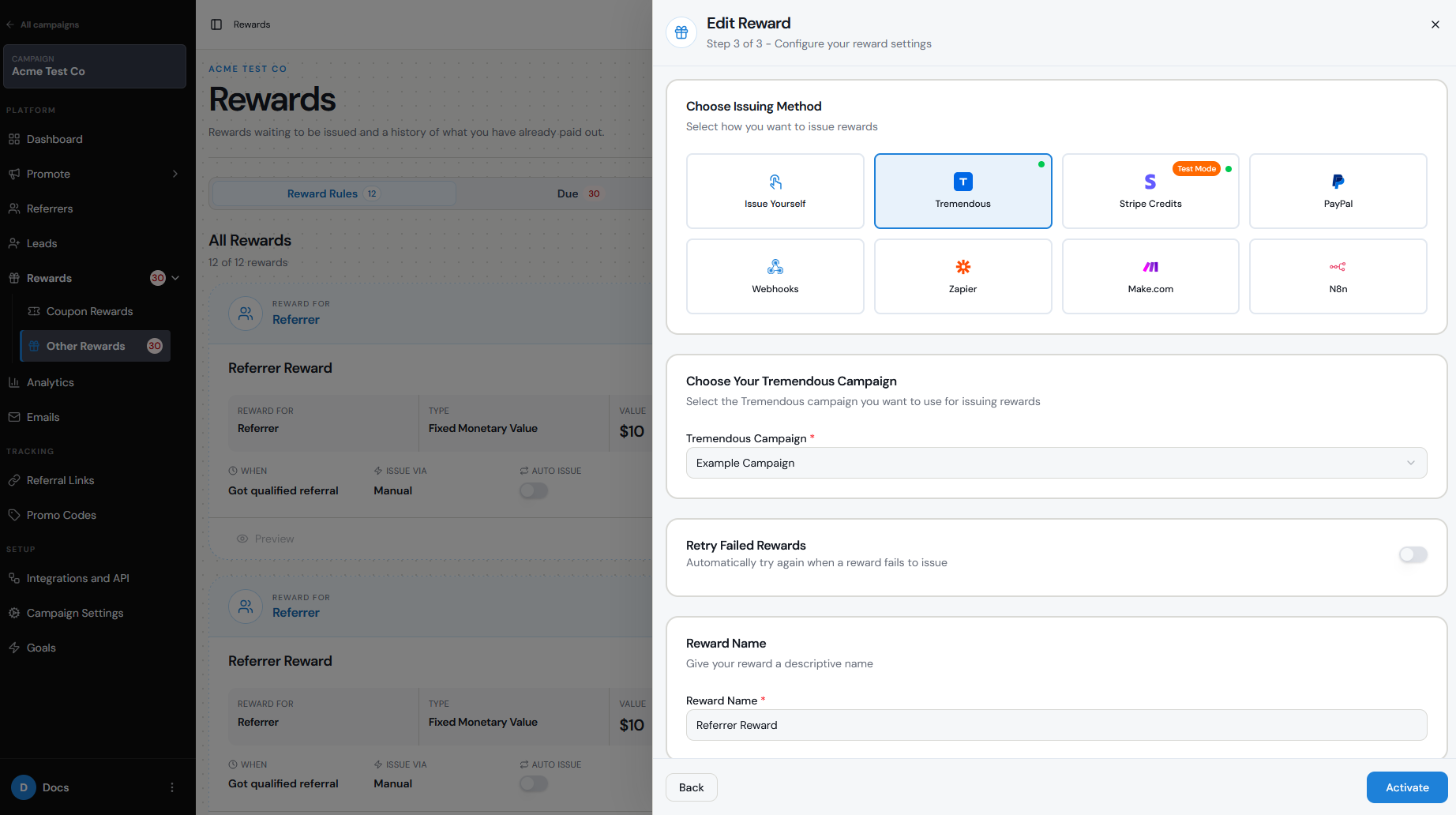
Choose campaign/product/value
The Tremendous campaign controls the reward options available to the recipient, such as gift cards, prepaid cards, PayPal, or other payout methods supported in their region. It also controls the presentation of the reward experience in Tremendous.
Inside Referral Factory, you configure the reward itself, including:
- Who receives it — Referrer or Lead.
- The reward type.
- The value or percentage.
- The currency.
- Whether it is one-time, ongoing, or milestone-based where supported.
- Which Tremendous campaign should issue it.
For example:
Referrer earns $50 when a referred Lead becomes Qualified → Referral Factory sends the reward to Tremendous → Recipient chooses an available reward from the Tremendous campaign
Recipient data
The reward is sent to the person configured as the reward recipient.
Make sure their contact details, especially their email address, are correct before issuing the reward. Tremendous uses the recipient information sent by Referral Factory to deliver the claim experience.
Depending on your setup, the recipient can be either the Referrer or the Lead. If you want to reward both, create separate reward rules for each recipient.
Trigger and delivery method
Tremendous monetary rewards are normally triggered when a referred Lead becomes Qualified.
For example:
Lead becomes Qualified → Reward becomes Due → Reward is issued → Tremendous sends the recipient their reward
Tremendous can offer different fulfillment options depending on the campaign you created, including gift cards, prepaid cards, PayPal, bank transfer options, and other available rewards. Availability varies by country and campaign.
You can also configure a Referral Factory reward notification email to let the recipient know their reward has been issued. For Tremendous rewards, the recipient may also receive a separate email from Tremendous with the link to claim their reward.
Funding/balance prerequisites
Tremendous rewards are paid from your Tremendous account, not by Referral Factory.
Before issuing rewards, make sure your Tremendous account has sufficient funding. Rewards are deducted from the balance or payment setup managed in Tremendous.
If your Tremendous account does not have sufficient funds, reward issuance can fail.
It is also worth checking that your Tremendous connection is still active under Campaign Settings → Integrations and API → Rewards, particularly if rewards unexpectedly stop sending.
Automatic vs manual issue
By default, rewards can remain in Due Rewards until you choose to issue them.
To issue a Tremendous reward manually:
- Go to Rewards → Due Rewards.
- Find the reward.
- Open the Actions menu.
- Select Issue Now.
You can also enable Auto Issue Rewards when configuring the reward. If Auto Issue is enabled, Referral Factory sends the reward for issuing automatically when it becomes due.
Manual issuing gives you time to review referrals before money is sent, which can be useful if your business has refund periods, cancellations, or fraud checks.
Test and monitor status
Before launching your campaign, test the complete Tremendous reward journey.
- Make sure Tremendous shows as Connected.
- Confirm your Tremendous account is funded.
- Create a test Referrer and Lead.
- Trigger the qualification condition.
- Confirm the reward appears under Due Rewards.
- Check the recipient and reward value.
- Issue the reward.
- Confirm the recipient receives the Tremendous claim email.
- Check Issued Rewards to confirm the reward completed successfully.
If a reward shows as Failed, first check the Tremendous connection and account funding before investigating other causes.