
Need help applying this to your account?
Contact support and we will keep this article attached to your request.
Open Rewards from the left-hand menu.
The two main views are:
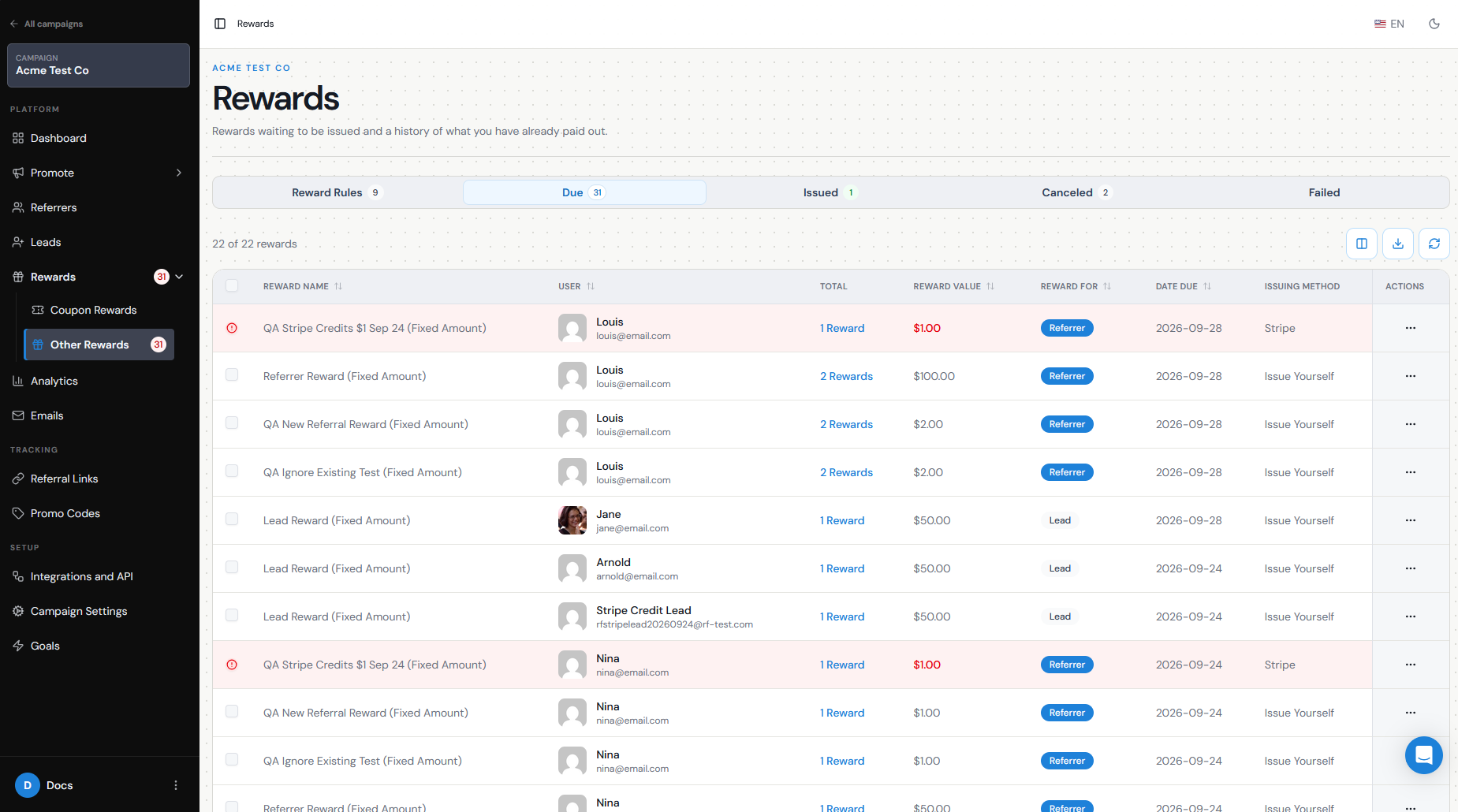
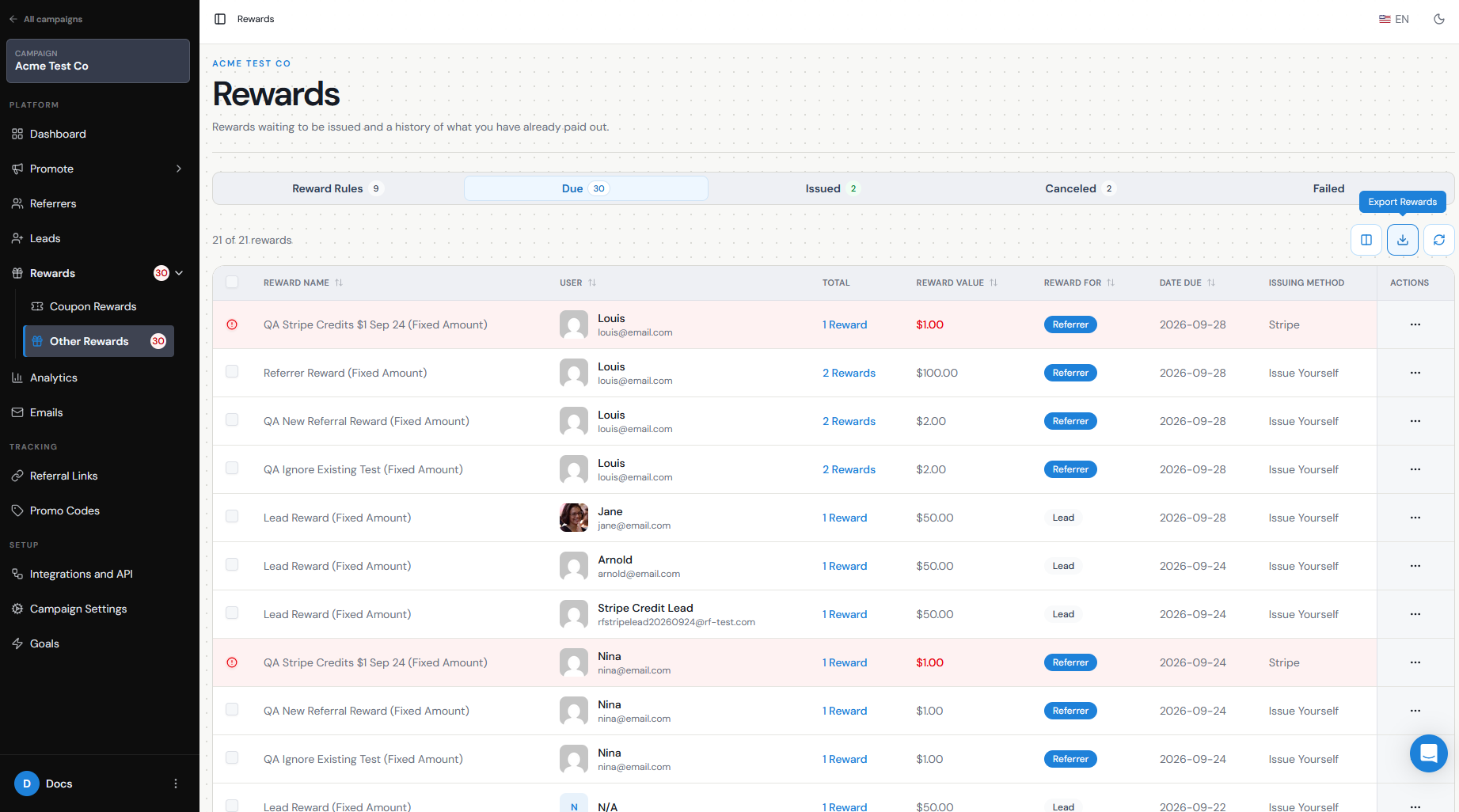
Due Rewards — rewards that have been triggered but have not yet been issued.
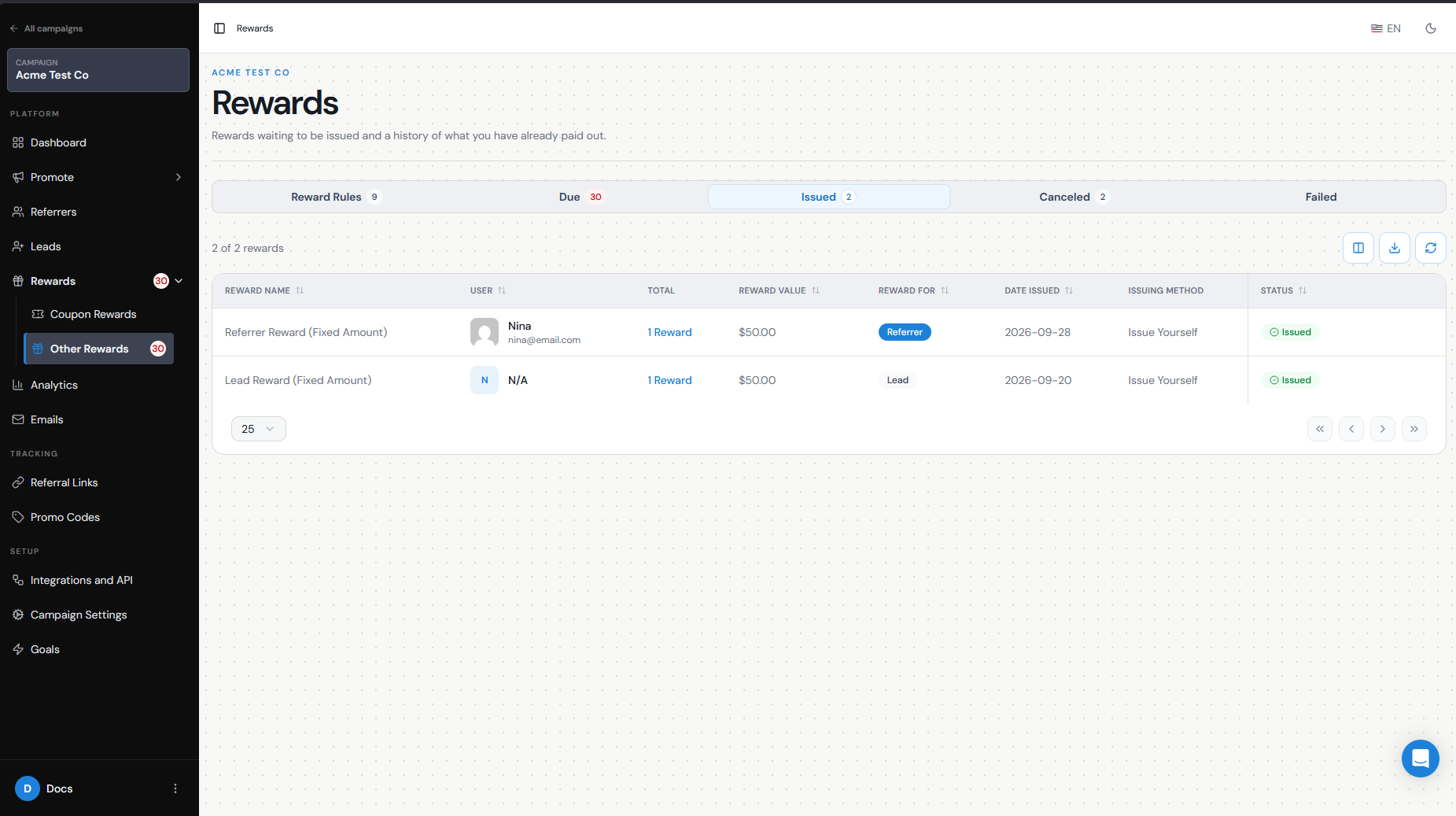
Issued Rewards — rewards that have already gone through the issuing process.
Each reward includes information such as the reward name, recipient, reward value, who the reward is for, issuing method, and relevant dates.
Use the search and available filters to narrow the list when you need to find a particular reward, recipient, campaign, date, or status.
Interpret statuses such as due/issued/failed
The reward status tells you where the reward is in the issuing process.
DueThe reward has been triggered but has not yet been issued. It remains in Due Rewards until you issue it manually or Auto Issue processes it.
SendingThe reward has been sent to the connected issuing method and is currently being processed.
IssuedThe reward was successfully issued and is recorded in Issued Rewards.
FailedReferral Factory attempted to issue the reward, but the payout or connected integration could not complete it. You should investigate the cause before trying again.
For example:
Lead qualifies → Reward becomes Due → You issue it → Sending → Issued
Or, if there is a problem with the issuing provider:
Lead qualifies → Reward becomes Due → You issue it → Failed
Manually issue or cancel where supported
If a reward is waiting in Due Rewards, you can issue it manually.
For a single reward:
Go to Rewards → Due Rewards.
Find the reward.
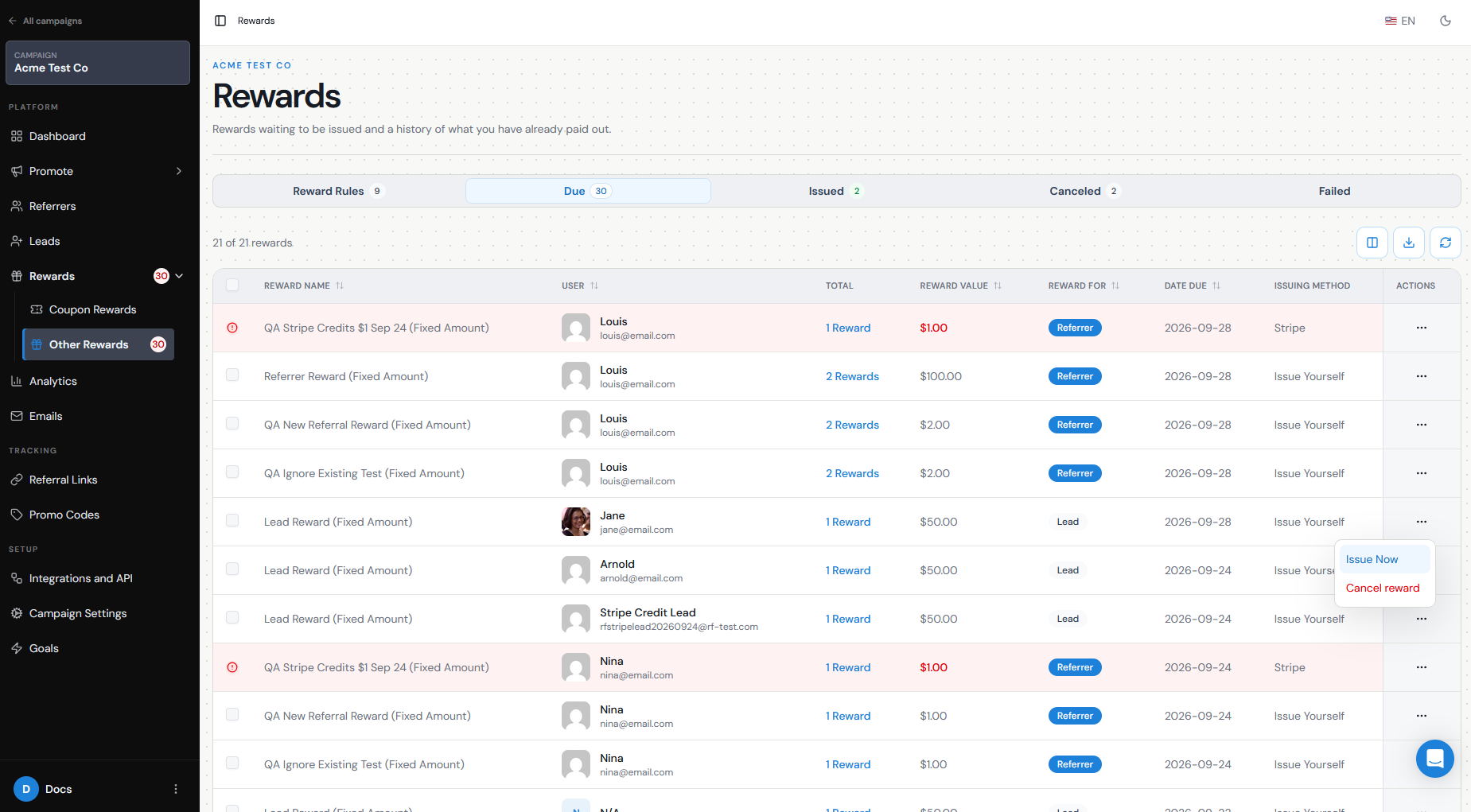
Open the three-dot Actions menu.
Select Issue Now.
Confirm the issuance.
You can also select multiple due rewards and issue them together where supported.
If a particular due reward should no longer be paid, open its Actions menu and select Cancel where that option is available. Cancelling an individual due reward is different from deactivating the entire reward configuration, which affects future rewards as well.
Be careful when issuing monetary rewards. Once a reward has been sent through an external provider, cancelling it inside Referral Factory does not necessarily reverse the payment with that provider.
Inspect recipient/trigger
Reward records help you understand both who is receiving the reward and which referral activity caused it to be earned.
In Due Rewards, you can see information such as:
The recipient.
Whether the reward is for the Referrer or Lead.
The reward value.
The date it became due.
The issuing method.
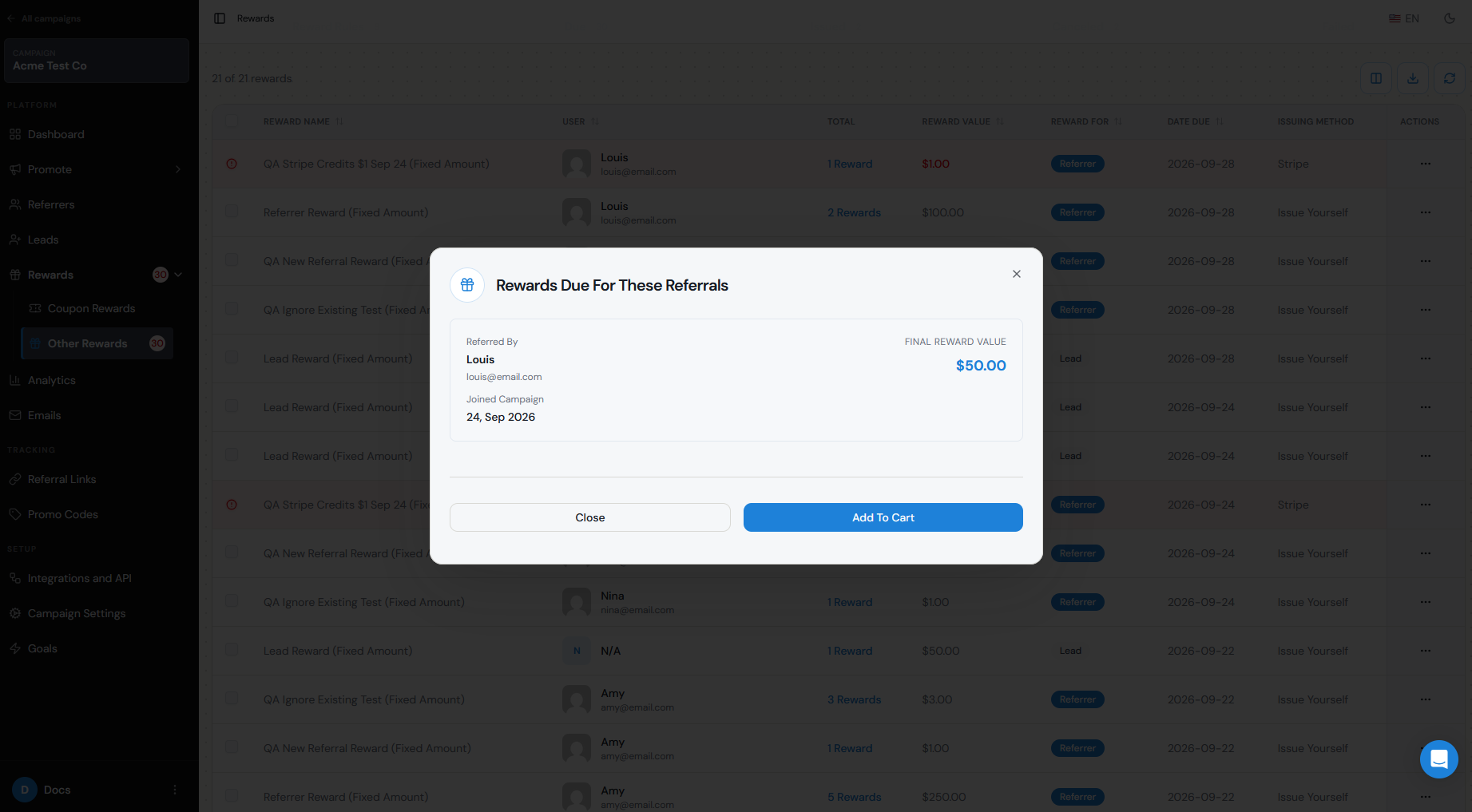
For issued rewards, open the reward details to see more information about the reward and the referrals that contributed to it. This can include the Referrer, total reward value, and the referred users that triggered the reward.
This is especially useful when someone asks why they received a particular reward or when you need to confirm that the correct referral triggered it.
Export/history
The Issued Rewards section acts as your reward history, letting you review rewards that have already been processed.
You can also export reward data when you need to:
Reconcile rewards with your finance team.
Review payments outside Referral Factory.
Compare reward activity with CRM or sales data.
Keep an external record of due or issued rewards.
Use the relevant Due Rewards or Issued Rewards view, apply any filters you need, and then use Export to download the data.
Resolve errors
If a reward shows as Failed, or a reward you expected to be issued has not been sent, check the workflow in this order.
Confirm that the Lead reached the event that should trigger the reward, such as becoming Qualified.
Check that the reward is active and configured for the correct recipient.
If you expected automatic issuing, confirm that Auto Issue is enabled.
Go to Campaign Settings → Integrations and API → Rewards and confirm that the reward provider is still connected.
If you use a funded reward provider, make sure there are sufficient funds or an active payment method.
Check Issued Rewards to see whether the reward is Sending, Failed, or Issued.
After resolving the problem, use the available action to re-issue the reward if needed.
For example, if a Tremendous reward fails because the integration became disconnected, reconnect Tremendous first and then retry the reward.
If the integration is connected, the reward settings are correct, and the reward continues to fail, contact our support team so we can investigate.
Permissions
What a teammate can do with rewards depends on their access level.
A Campaign Manager can manage campaign activity, including reviewing and issuing rewards. A Campaign Analyst has read-only access, so they can review campaign information but cannot perform management actions such as issuing rewards.
If someone can see reward information but cannot edit or issue rewards, check their account permissions before troubleshooting the reward itself.
This is particularly important for monetary rewards, as issuing a reward may trigger a real payout through providers such as Tremendous, PayPal, Stripe, Make, or another connected issuing method.