
Need help applying this to your account?
Contact support and we will keep this article attached to your request.
The email can tell the recipient that their reward is ready, explain what they earned, and provide any instructions they need. Depending on the reward provider, the actual reward may also be delivered by email or through a separate message from the provider.
Each reward can have its own email notification.
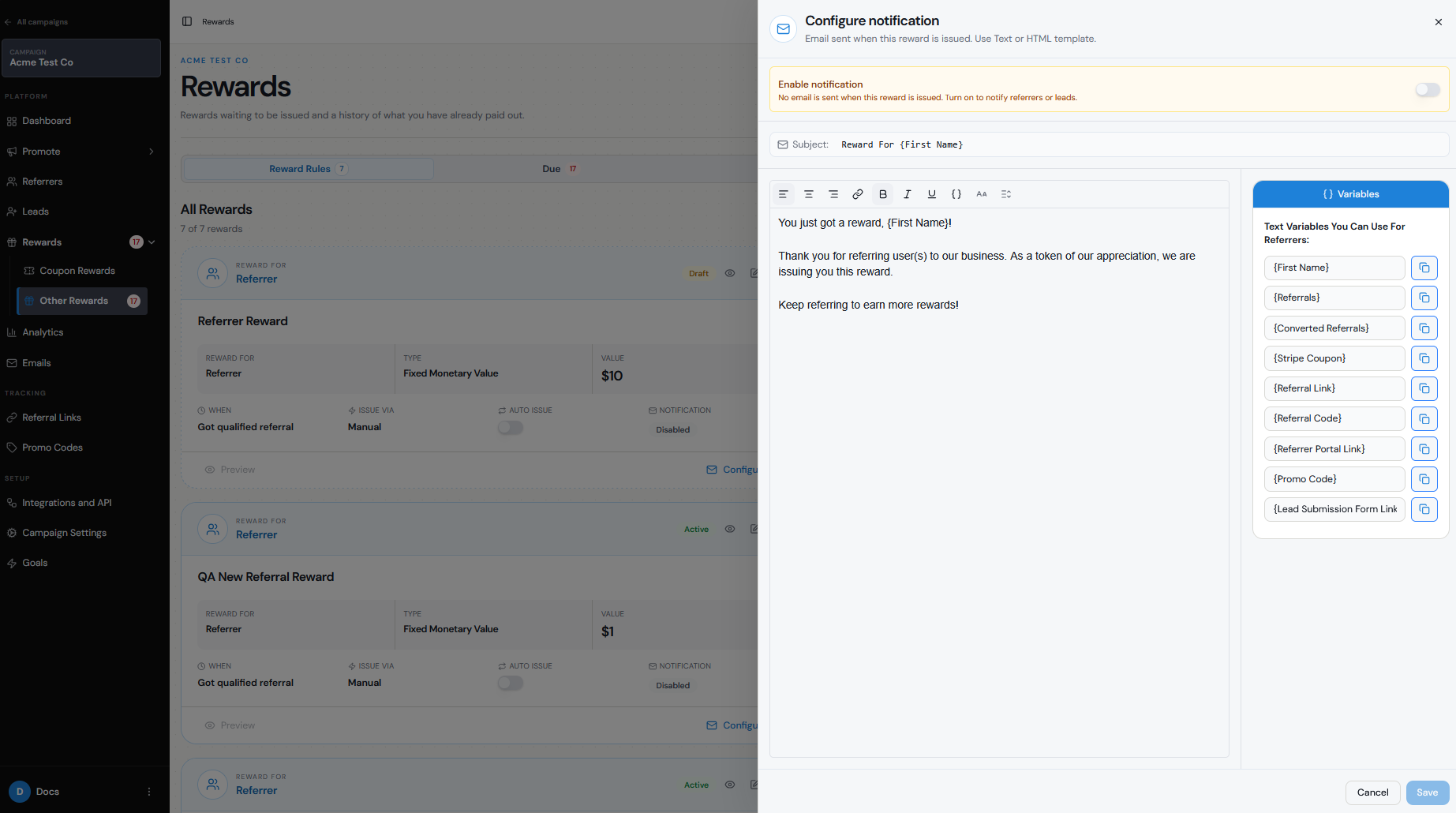
To configure it:
Go to Rewards → Reward Rules.
Find the reward you want to update.
Under Notification, click Configure.
Enable the reward notification.
Add your subject line and email message.
Save your changes.
The email is sent when the reward is issued, rather than when it first becomes Due.
For example:
Subject: Your reward is ready 🎉
Message:Hi [First Name],Thanks for referring a new customer to us! You’ve earned a $25 reward. Your reward has now been issued. Thanks for spreading the word about our business.
Which reward types/providers support it
You can configure a reward notification for the reward rule itself, but how the actual reward reaches the customer depends on the issuing method you selected.
For example:
Tremendous — the recipient will receive an email from Tremendous containing the information needed to claim their digital reward. You can also enable your Referral Factory reward notification to let them know the reward has been issued.
PayPal — the cash reward is sent to the recipient's PayPal account. The Referral Factory notification can let them know the payout has been issued.
Stripe Credits — the reward is applied as credit through Stripe, while the notification email tells the recipient they have earned it.
Issue Yourself — Referral Factory can notify the recipient, but you are responsible for delivering the actual reward outside Referral Factory.
Make, Zapier, or Webhooks — you can send the reward information to another platform, which can then deliver or email the reward according to the workflow you build.
So, the reward notification email and the actual method used to deliver the reward are not necessarily the same thing.
Recipient data
The reward notification is sent to the email address associated with the person receiving the reward.
Depending on your reward setup, that recipient may be:
The Referrer who generated the successful referral.
The Lead in a double-sided referral program.
Make sure the recipient has a valid email address before issuing the reward.
Some providers also rely on the recipient's email to deliver the reward. For example, PayPal payouts are matched using the recipient's email address.
Email content/sender
You can customize the subject line and message for each reward notification and use variables such as the recipient's first name to personalize the email.
Keep the message clear about:
Why they received the reward.
What they earned.
Whether they need to take any action.
Whether another email will arrive from the reward provider.
For example, if you use Tremendous:
Your $50 referral reward is ready! We've issued your reward and you'll receive a separate email from Tremendous with instructions to claim it.
If you use Referral Factory's default email sending setup, emails are sent from the Referral Factory sending address. If you have connected and verified your own email domain, you can use your configured Outbound Email Address so reward notifications come from your business.
Trigger timing
The reward notification is triggered when the reward is issued.
If Auto Issue Rewards is turned off:
Reward earned → Reward becomes Due → You manually issue it → Notification email is sent
If Auto Issue Rewards is enabled:
Reward earned → Reward automatically issues → Notification email is sent
This means a reward can remain in Due Rewards without the reward notification being sent yet.
Resend/failure handling
If a customer says they did not receive their reward, first determine whether the problem is with the Referral Factory notification email or with the actual reward delivery.
Check:
Whether the reward was actually issued.
Whether the reward shows as Issued, Sending, or Failed.
Whether the recipient's email address is correct.
Whether the reward provider is still connected.
Whether the external reward provider successfully delivered the reward.
For providers such as Tremendous, remember that the claim email can come directly from the provider, so the recipient may need to look for a separate email from them.
If the reward itself shows as Failed, resolve the reward issue before treating it as an email-delivery problem.
Deliverability
If the reward has been issued but the recipient cannot find the email, ask them to check:
Spam or junk folders.
Promotions or other filtered inbox tabs.
Whether the email address entered in the referral program is correct.
Their inbox for a separate message from the reward provider, where applicable.
Using your own verified email domain can also help recipients recognize that the reward notification is coming from your business.
Keep your subject line clear and avoid overly promotional wording. A subject such as Your referral reward is ready makes the purpose of the email immediately clear.
Testing
Test your reward email before using it with live customers.
Create a test Referrer or Lead using an email address you can access.
Trigger the condition required to earn the reward.
Confirm that the reward appears in Due Rewards.
Issue the reward.
Confirm that the reward notification email arrives.
Check the subject, personalization, formatting, and reward instructions.
If using an external provider such as Tremendous or PayPal, confirm that the actual reward is also delivered correctly.
Testing both the notification email and the actual reward delivery is important because they can be handled separately.