Need help applying this to your account?
Contact support and we will keep this article attached to your request.
Overview
Referral Factory can automatically send emails to referrers and leads at key stages of the referral journey. These are called automated emails and can be used to welcome participants, notify referrers when they receive a referral, confirm when a lead becomes qualified, send reminders, and communicate after specific lead actions.
You can edit the content of these emails, personalise them with participant and referral data, and decide which emails you want to turn on or off. Reward notification emails are also available and are configured separately with each reward.
What referral program emails can Referral Factory send?
Each campaign includes automated emails for both referrers and leads.
For the referrer emails:
Source-specific referrer welcome emails You can also add additional welcome emails for referrers based on how they joined your campaign. This lets you send a different message depending on the referrer’s source.
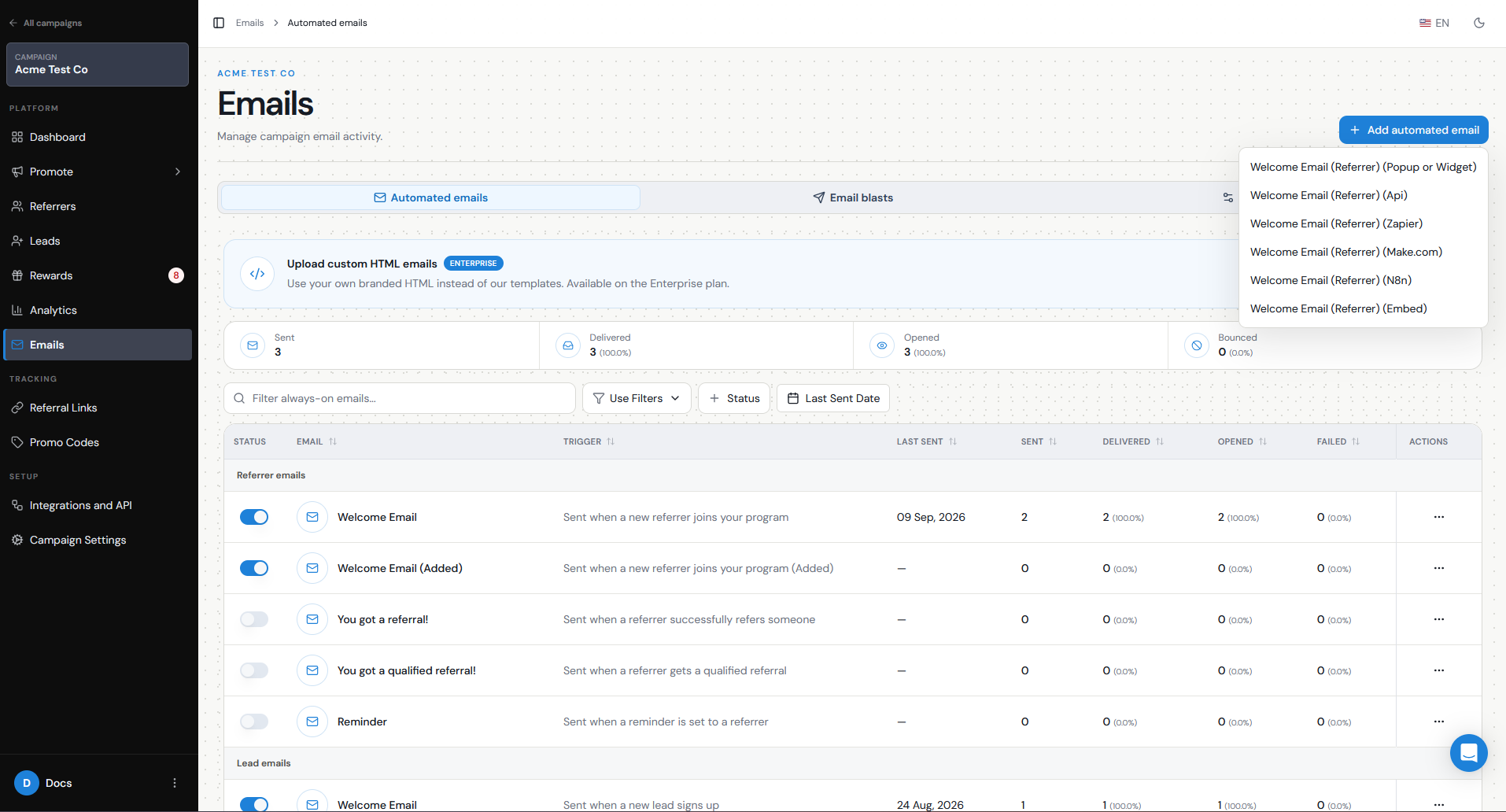
Click Add automated email to create a source-specific welcome email for referrers added through:
This is useful when referrers joining through different channels need different instructions or messaging.
For example, someone added directly by your team may need a different welcome email from someone who joins through an embedded referral experience.
For leads, you can send:
You can also configure a reward notification email for each reward. This is managed separately from automated emails and can be sent to the referrer or lead receiving the reward.
If you want to send a one-time email rather than an email triggered automatically by referral activity, you can use email blasts.
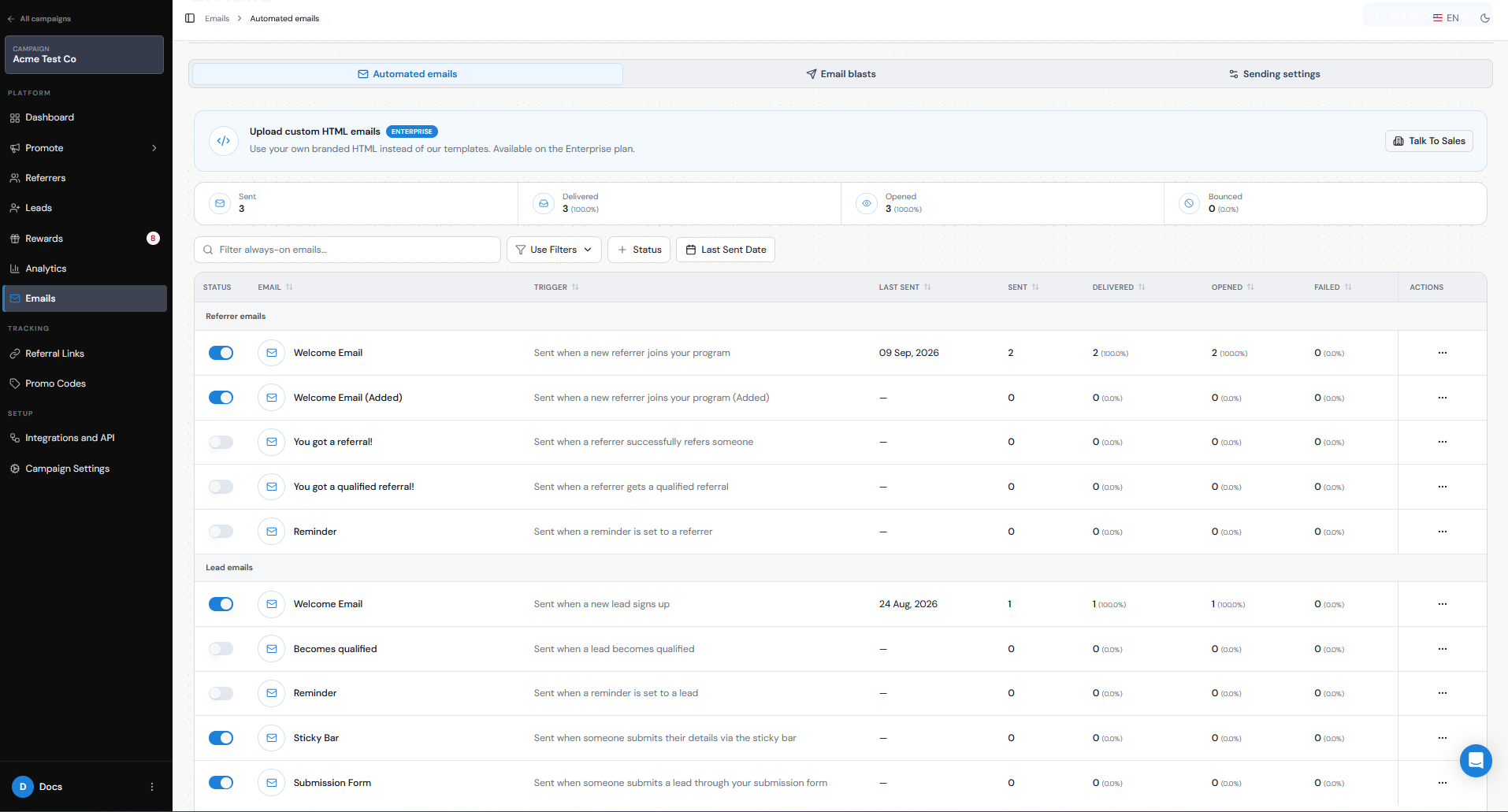
- Welcome email — sent when a new referrer joins your program.
- You got a referral! — sent when a referrer successfully refers someone.
- You got a qualified referral! — sent when one of the referrer’s leads becomes qualified.
- Reminder — sent to remind the referrer to share their referral link and generate more referrals.
- Added
- Popup or Widget
- API
- Zapier
- Make.com
- n8n
- Embed
- Welcome email — sent when a new lead signs up.
- Becomes qualified — sent when a lead becomes qualified.
- Reminder — sent to remind the lead to share their referral link and generate more referrals.
- Sticky Bar — sent when someone submits their details through a Sticky Bar.
- Submission Form — sent when someone submits a lead through your lead Submission Form.
Who receives each email and what triggers it?
Each automated email has its own recipient and trigger.
| Who receives it? | What triggers it? | |
|---|---|---|
| Referrer Welcome Email | Referrer | A new Referrer joins the program |
| You got a referral! | Referrer | The Referrer successfully refers someone |
| You got a qualified referral! | Referrer | One of their Leads becomes Qualified |
| Referrer Reminder | Referrer | Remind them to share their referral link and refer |
| Lead Welcome Email | Lead | A new Lead signs up |
| Becomes qualified | Lead | The Lead becomes Qualified |
| Lead Reminder | Lead | Remind them to share their referral link and refer |
| Sticky Bar | Lead | Someone submits their details through the Sticky Bar |
| Submission Form | Lead | Someone submits a Lead through the Lead Submission Form |
| Reward notification | Referrer or Lead | A reward configured for that person is issued |
This means the same referral journey can trigger different emails at different stages. For example, when a new lead joins, the lead can receive a welcome email while the referrer receives a You got a referral! email.
Can I edit or personalise the emails?
Yes. You can customize your automated emails to match your referral program and brand.
To edit an email:
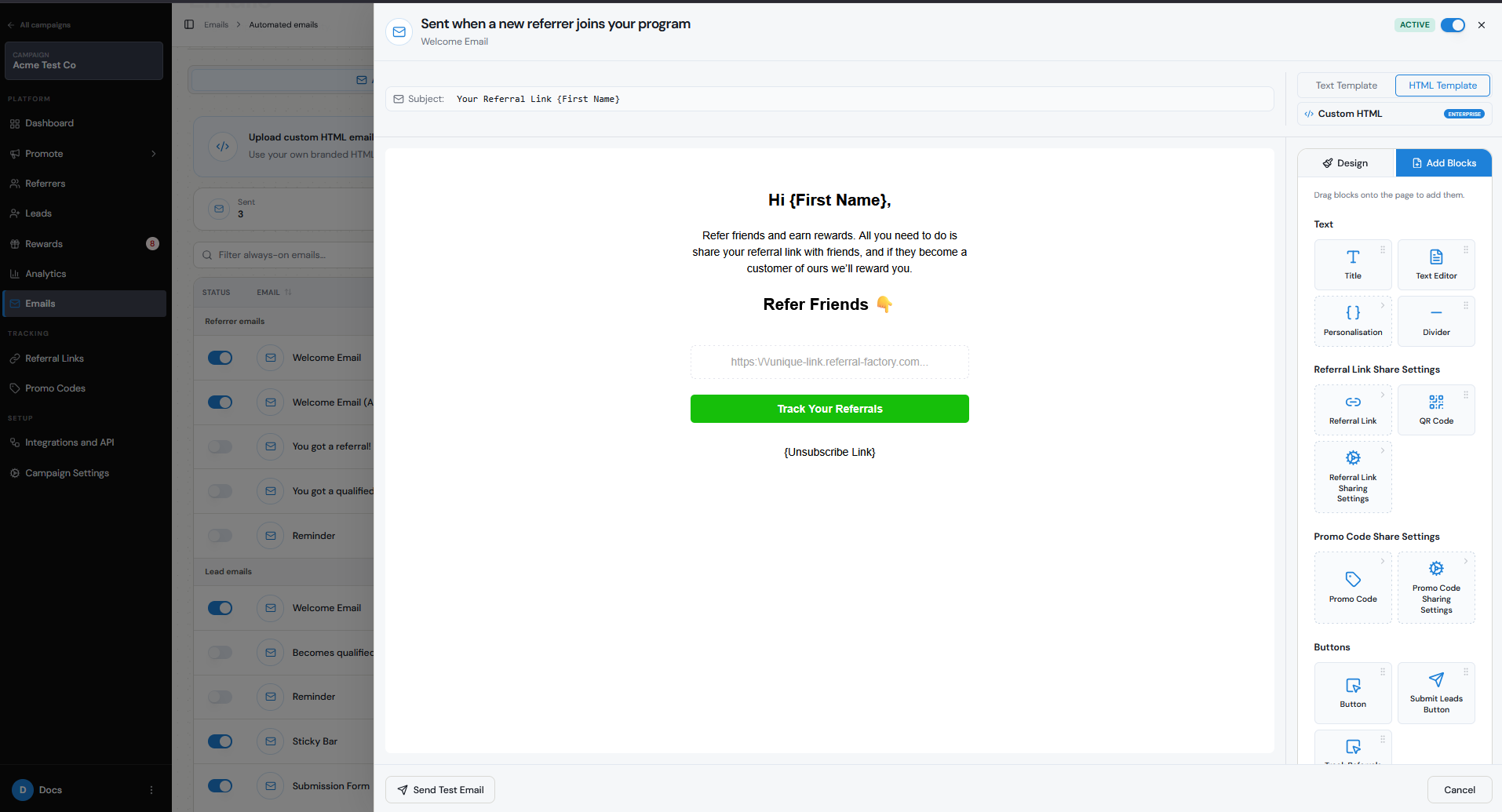
Personalisation can be used to include information relevant to the recipient, such as their name, referral information, or unique referral link, depending on the email and fields available in your campaign.
For example, you can include a referrer’s unique referral link in their welcome email so they can start sharing it immediately.
Enterprise customers also have the option to upload custom HTML emails if they want to use their own branded HTML instead of the standard templates.
Step 1
Open the campaign you want to manage.
Step 2
Go to Emails → Automated emails.
Step 3
Find the email you want to customize.
Step 4
Open the Actions menu for that email.
Step 5
Edit the subject line and email content.
Step 6
Use available variables to personalise the message.
Step 7
Save your changes.
Can I turn individual emails on or off?
Yes. Each automated email can be enabled or disabled individually.
Go to Emails → Automated emails and use the toggle in the Status column:
This gives you control over the email journey. You can use all of the available automated emails, only the ones that make sense for your program, or manage some communications through another system.
For example, if you turn off the referrer welcome email, referrers will not automatically receive that email when they join. Make sure they can access their referral link another way, such as through your Branded referrer Portal.
Reward notification emails are managed separately from the automated emails page.
- Turn the toggle on if you want the email to send when its trigger occurs.
- Turn the toggle off if you do not want that email to be sent.
Where do I set up and test the email journey?
Email settings are configured separately for each campaign.
To review your referral program emails:
From the Emails area, you can also access:
The automated emails page also shows email performance information, including:
You can also see these metrics for individual email templates, making it easier to check whether your automated emails are being sent and delivered.
Before launching your campaign, test the full email journey rather than only checking the templates individually. For example:Important: When testing, always use different email addresses for the referrer and lead, and use email addresses that are not already part of the campaign. This helps ensure you are testing the full referral journey correctly and avoids conflicts with existing users or referral records.
Testing the full journey helps you confirm that the right email is sent to the right person at the right stage before you launch your referral program.
For practical copy ideas, use the referral email template guide. To control individual automated messages, follow the notification and reminder setup guide.
- Automated emails — emails triggered by referral program activity.
- Email blasts — one-time emails sent to an audience.
- Sending settings — where you manage how your campaign emails are sent.
- Sent
- Delivered
- Opened
- Bounced
Step 1
Open the campaign you want to manage.
Step 2
Go to Emails.
Step 3
Select the Automated emails tab.
Step 4
Review the emails available for Referrers and Leads.
Step 5
Edit the templates you want to use.
Step 6
Turn each email on or off depending on the journey you want to create.
Step 7
Configure your reminder emails where needed.
Step 8
Join the campaign as a test Referrer.
Step 9
Confirm the Referrer Welcome Email is sent.
Step 10
Use that Referrer’s referral link to create a test Lead.
Step 11
Confirm the Lead receives the expected email.
Step 12
Confirm the Referrer receives the You got a referral! email.
Step 13
Qualify the Lead.
Step 14
Confirm the relevant qualification emails are triggered.
Step 15
If you have rewards configured, check that the reward notification behaves as expected.