
Need help applying this to your account?
Contact support and we will keep this article attached to your request.
Which options can I use
The Promote area brings the main website and product options together. Use the option that best matches where customers are and how you want them to reach their referral tools.
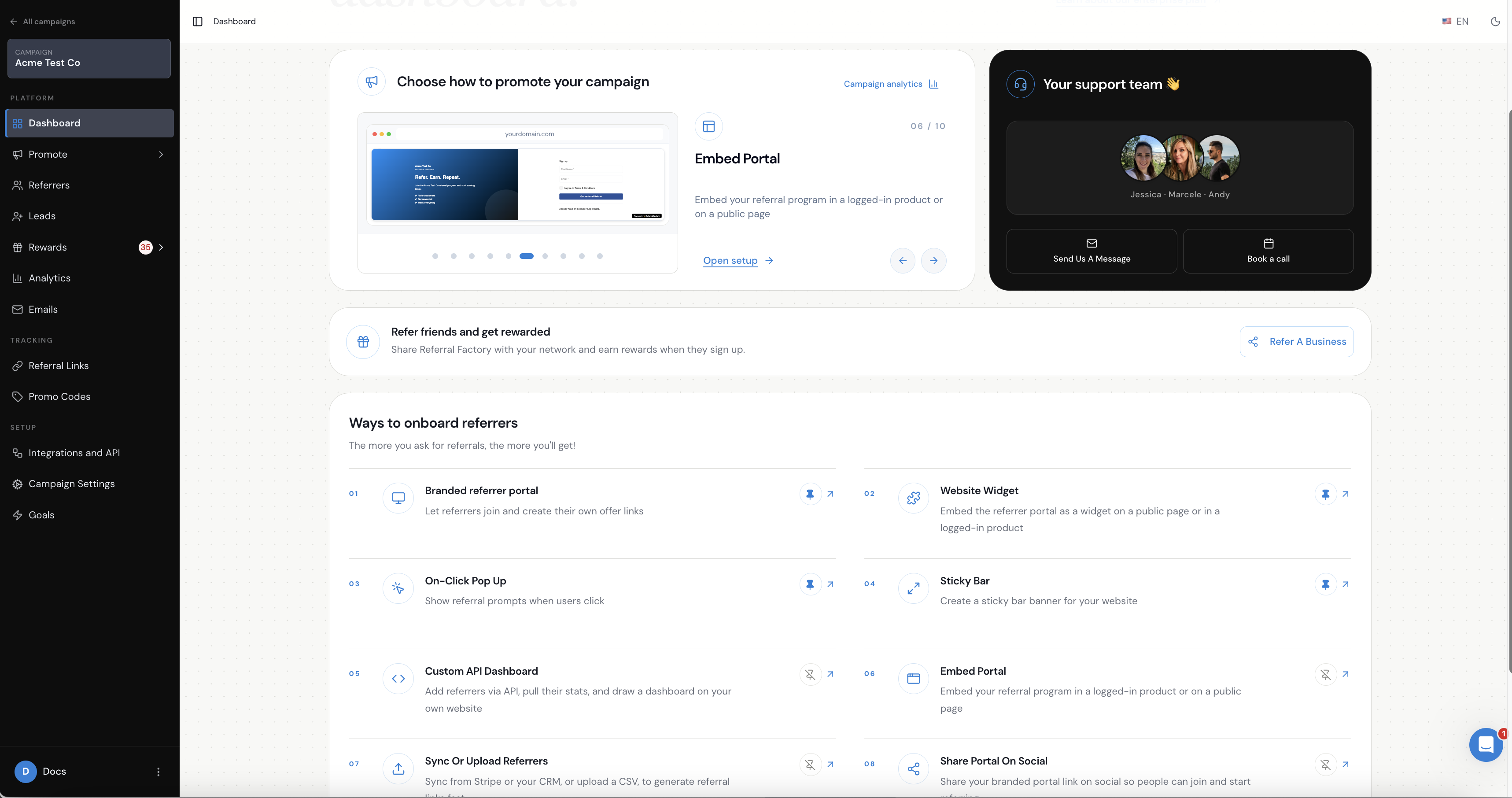
1. Link to your Branded Referrer Portal
This is the simplest option. Add a Refer a Friend link or button to your existing website and send customers to the Referral Factory hosted Branded Referrer Portal.
From the portal, customers can sign up or log in, access their referral link or promo code where configured, share referrals, and track their referral activity and rewards. The website links to the hosted portal; the portal is not embedded into the website.
See the Branded Referrer Portal setup guide for the portal setup and access options.
2. Embed the referral experience inside your website or product
Use this option when you want the referral experience to appear inside your own website or inside a logged-in product or customer portal, instead of sending customers to a separate hosted page.
This is useful when the referral experience should feel like part of your existing customer journey. Public website and logged-in product placements have different implementation requirements, so keep the detailed configuration in the embedded referral-program guide
3. Add a Website Widget
The Website Widget gives customers an easy referral entry point from an existing public website or, where configured, from a logged-in product. A customer clicks the widget to open their referral experience without you having to build a separate referral page into your site.
Choose the widget when you want a configurable on-page entry point that can be styled and positioned to suit your website or product. See the Website Widget setup guide for the full setup instructions.
5. Add a Sticky Bar
The Sticky Bar gives you a persistent referral call to action at the top or bottom of your website or product. It keeps the referral prompt visible while customers browse.
Where configured, logged-in customers can also use the Sticky Bar referral form to submit another person’s details directly. That direct submission is a capability of the supported referral experience, not a separate website installation method.
See the Sticky Bar setup guide for configuration and the website referral-submission guide for the direct-submission use case.
How should I choose between these options
This guide helps you choose the right website or product option. Use the linked feature guides for the detailed setup instructions.
- Want the simplest option? Link to the hosted Branded Referrer Portal.
- Want the referral experience inside your page or product? Embed it.
- Want a configurable on-page entry point? Use the Website Widget.
- Want your own Refer a Friend button or menu item? Use the On-Click Pop Up.
- Want a persistent referral prompt across the site or product? Use the Sticky Bar.