
Need help applying this to your account?
Contact support and we will keep this article attached to your request.
What is the On-Click Pop Up?
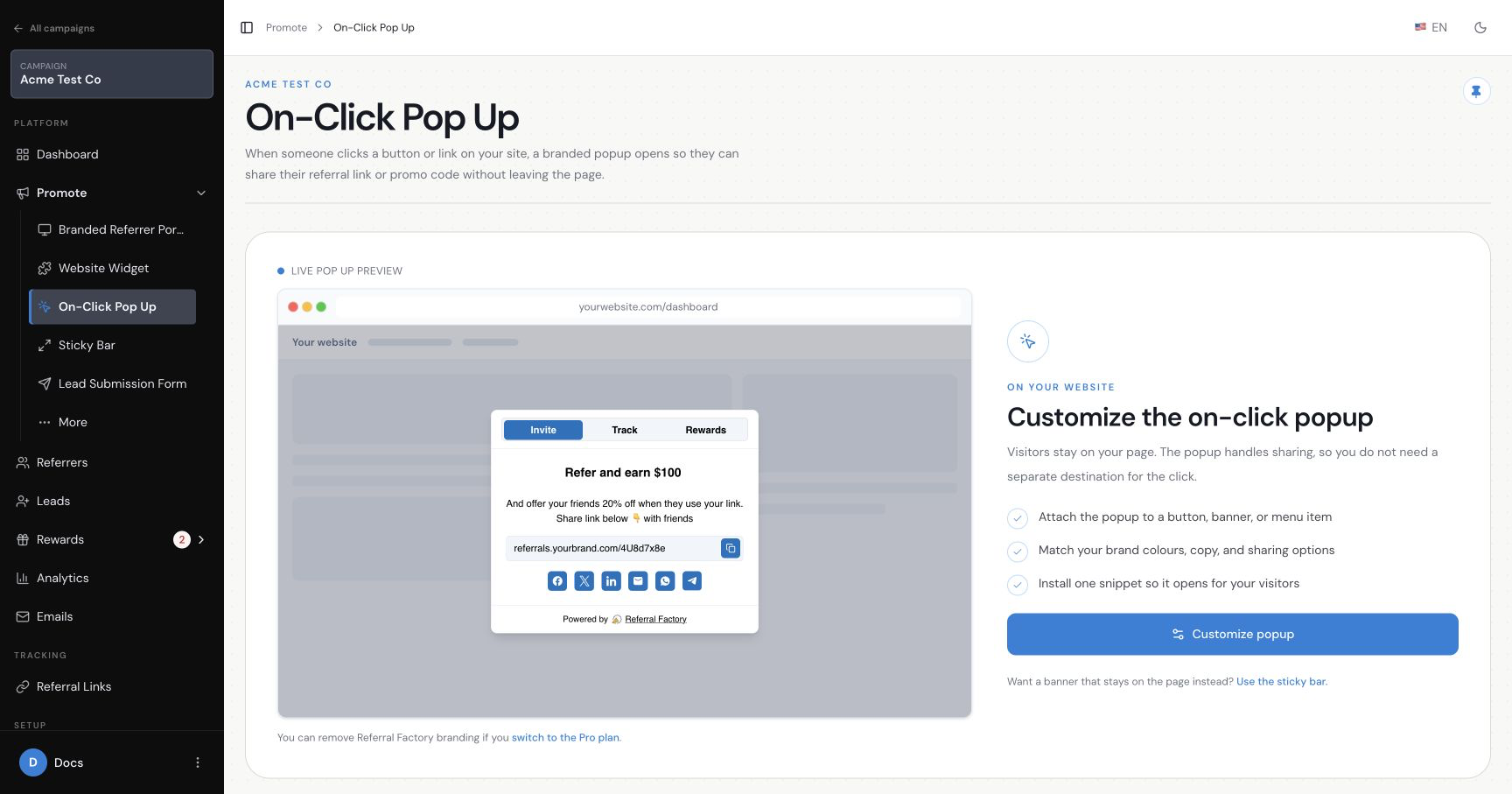
The On-Click Pop Up is an embedded referral window for existing customers that opens over the current page when a customer clicks a configured element. It keeps the customer in your product while giving them access to their referral link and referral activity.
When should I use the On-Click Pop Up?
Use it when your customers already sign in to a website, app, dashboard or portal and you want to prompt referrals in that existing experience. It is especially useful when you want the referral prompt to appear from a navigation item, dashboard button, sidebar or post-login message without sending customers to a separate referral page.
How is the On-Click Pop Up triggered?
The pop-up opens when a customer clicks an element containing the `referral-factory-popup` class. Add the class to a button, link, menu item or another clickable element. The installation script must also be loaded on the page.
What does a Referrer see when the pop-up opens?
The pop-up can show three tabs: Invite, Track and Rewards. Invite displays the referrer's referral link and sharing options. Track shows referral activity and statuses. Rewards shows earned or pending rewards. You can control which tabs are visible and edit the content shown in each one.
On-Click Pop Up Content Settings showing Invite, Track and Rewards tabs
Do I need a developer to install the pop up?
Yes. Installation requires a backend request, a JavaScript snippet and a class added to the clickable element. Someone who can safely edit your backend and website or product code should complete the installation. The popup secret must remain on the backend and must not be exposed in browser-side code.
How do I add it to my website or product?
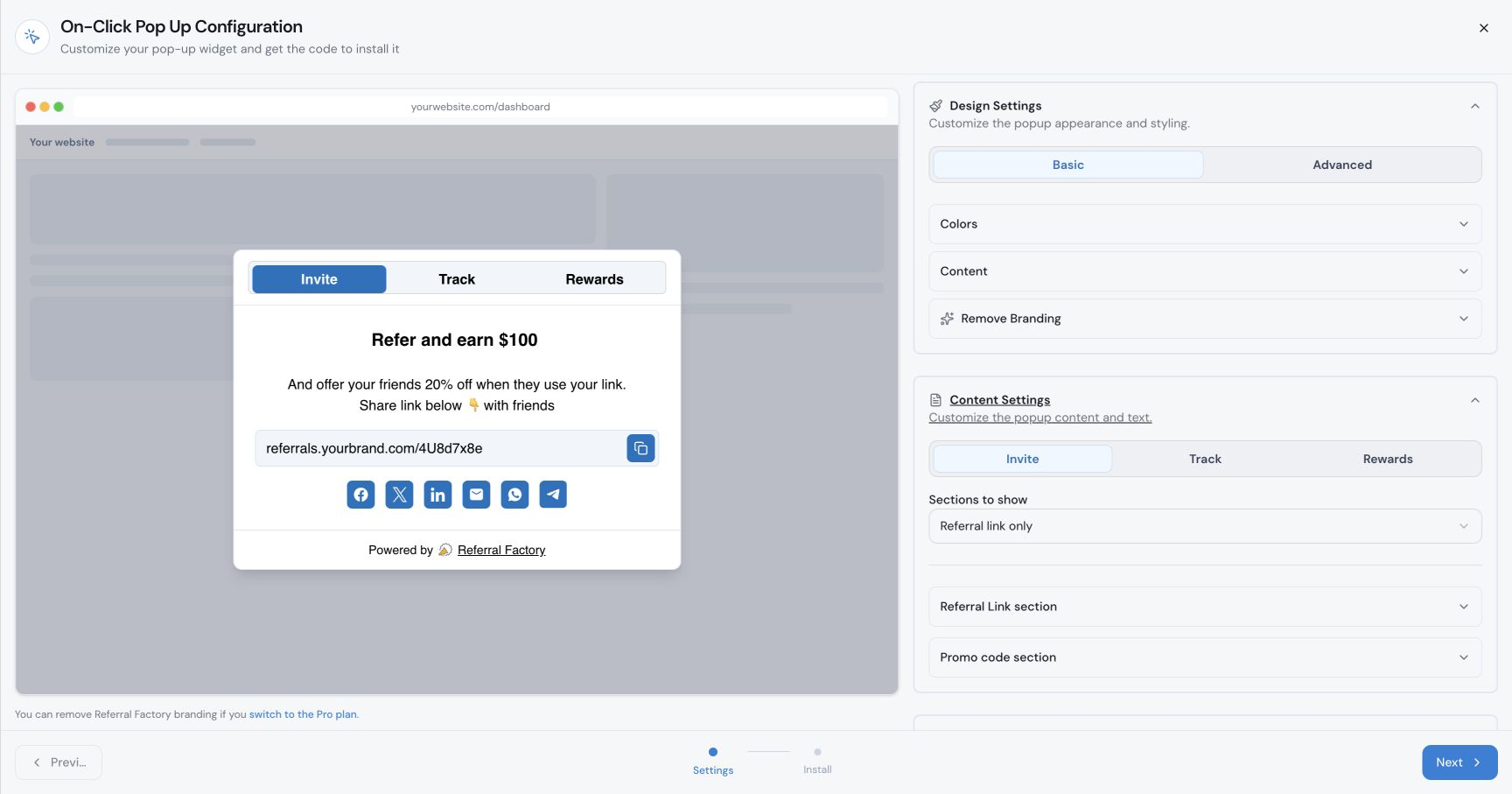
On-Click Pop Up Configuration showing Design Settings and the live popup preview
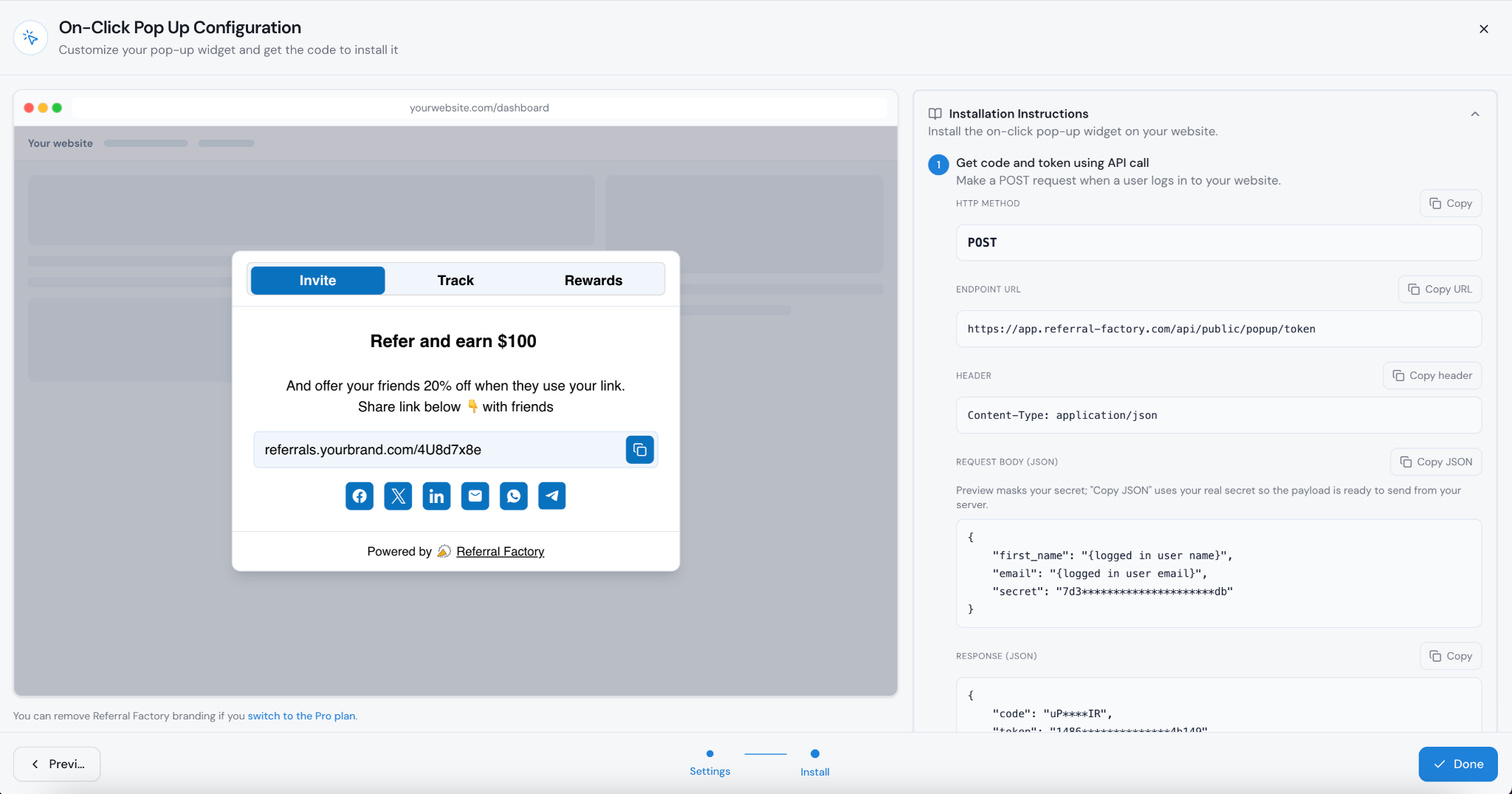
On-Click Pop Up installation instructions showing the JavaScript and referral-factory-popup trigger class
Step 1
Select the campaign. Open the campaign whose referral experience you want to show.
Step 2
Open Promote. From the selected campaign, open Promote.
Step 3
Select On-Click Pop Up. In Promote, select On-Click Pop Up.
Step 4
Open the configuration. Select Customize popup to open the On-Click Pop Up Configuration panel. The configuration has a Settings step for design and content and an Install step for the code.
Step 5
Configure the pop-up. Review the live preview and adjust the design and content settings before installation.
Step 6
Retrieve the user code and token on your backend. When a customer logs in, make the documented POST request with the customer's first name, email and pop-up secret. Keep the secret on your backend and never expose it in browser-side code.
Step 7
Add the JavaScript snippet. Use the returned code and token in the supplied JavaScript snippet and place it before the closing `</body>` tag on the relevant page.
Step 8
Add the trigger class. Add `referral-factory-popup` to every button, link or other clickable element that should open the pop-up.
Step 9
Test the trigger. Save your changes in a safe test environment and click the configured element to confirm that the pop-up opens for the intended logged-in customer.
What can I customise?
Design Settings include Basic and Advanced controls for the pop-up appearance. You can adjust colors, content styling and detailed visual settings such as the background, text, button and link appearance.
You can customise:
Content Settings let you switch between Invite, Track and Rewards and edit the content shown on each tab. Depending on the tab, you can change the body text, button text, sharing icons, visible sections and whether the tab is shown.
- colours and overall styling
- background, text, buttons and links
- content shown under Invite, Track and Rewards
- which tabs are visible
- sharing icons and referral actions
How does the On-Click Pop Up keep referral attribution?
The backend request returns a code and token for the logged-in customer. The pop-up uses those values to load that customer's referral experience, so the referral link and activity belong to the correct referrer.
How do I test it on desktop and mobile?
Test the same trigger on desktop and mobile in a safe environment. Confirm that the intended button or link opens the pop-up, the correct Invite, Track and Rewards tabs are visible, and the correct referrer's link and activity load.
Also test a second dummy logged-in customer to confirm that they see their own referral experience and attribution. Do not use a real customer or expose the pop-up secret while testing.