
Need help applying this to your account?
Contact support and we will keep this article attached to your request.
Overview
Goals allow you to track important actions your referred Leads take, such as completing a demo or making their first purchase.
You can also connect rewards to specific Goals, giving you more flexibility over when Referrers or Leads earn rewards.
What Are Goals?
Every Referral Factory campaign includes a default Goal called Qualification.
Qualification represents the moment a referred Lead becomes a customer or completes the action your business considers a successful referral.
You can also enable Custom Goals to track additional milestones in your referral program.
For example, you might want to track when a Lead:
- Completes a demo
- Makes their first purchase
Each Goal works independently, meaning a Lead can reach different Goals in any order.
Note: The default Qualification Goal cannot be renamed or deleted.
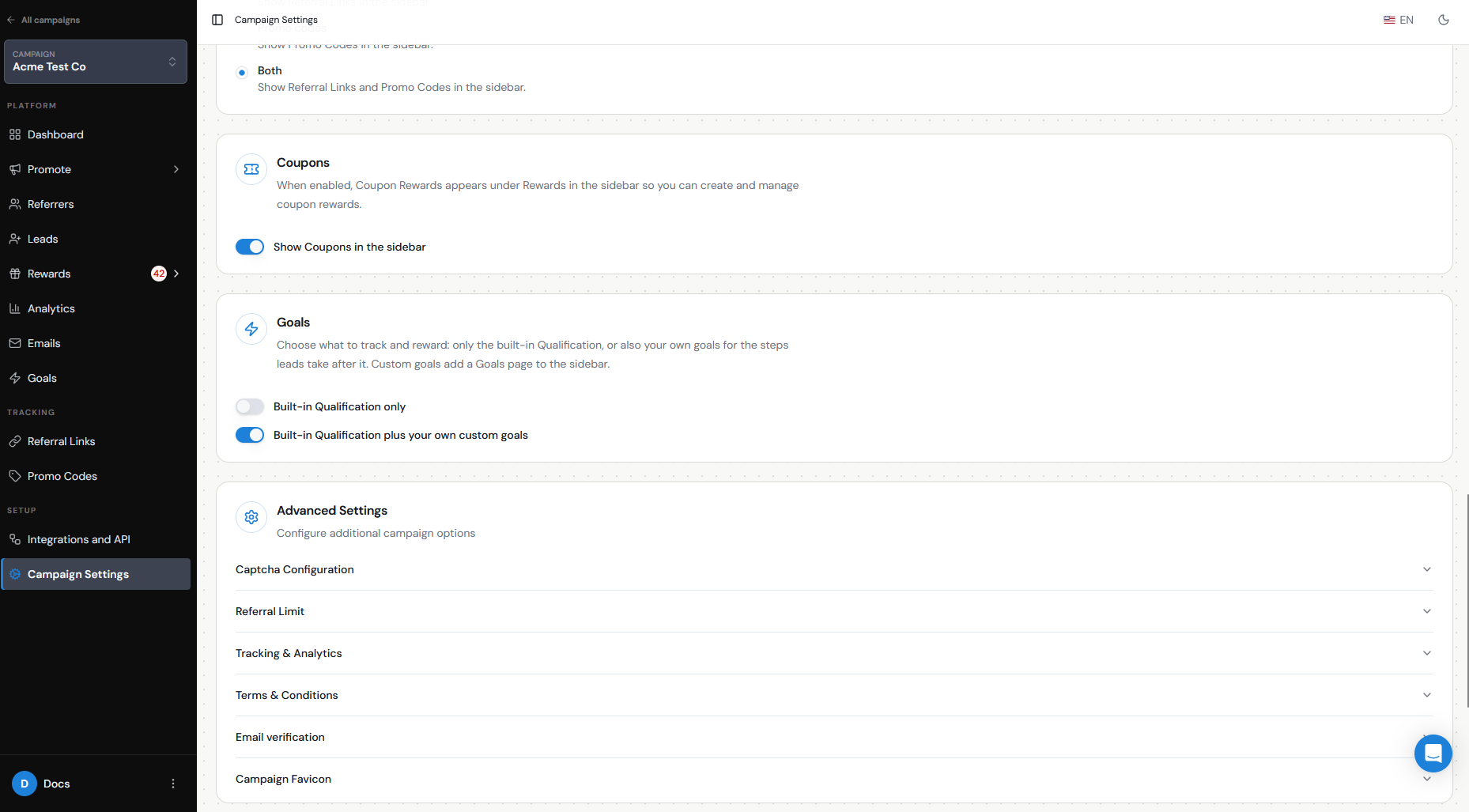
Step 1: Enable Custom Goals in Campaign Settings
Before creating Custom Goals, you'll need to enable the feature for your campaign.
Step 1
Log in to Referral Factory and select the campaign you want to manage.
Step 2
From the left-hand menu, click Campaign Settings.
Step 3
Scroll down to the Goals section.
Step 4
Enable Built-in Qualification plus your own custom goals.
Once enabled, a new Goals section will appear in your left-hand menu.
If you only want to track when Leads qualify, you can leave Built-in Qualification only enabled.
Step 2: Navigate to Goals
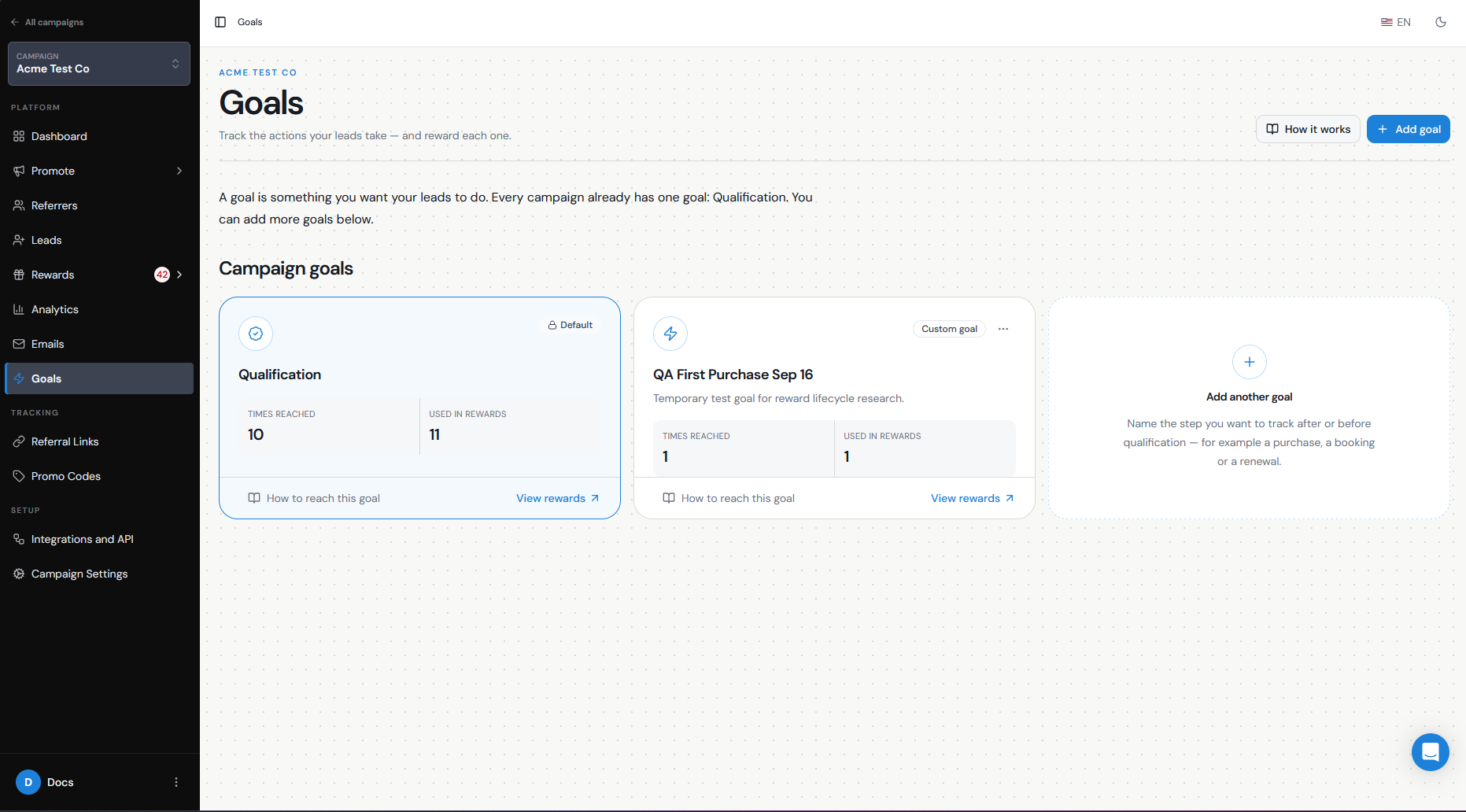
From the left-hand menu, click Goals.
Here, you'll see your default Qualification Goal, along with any Custom Goals you've created.
Each Goal displays:
- Times Reached: How many times the Goal has been reached.
- Used in Rewards: How many Reward Rules are connected to that Goal.
Step 3: Create a Custom Goal
To track an additional milestone:
Step 1
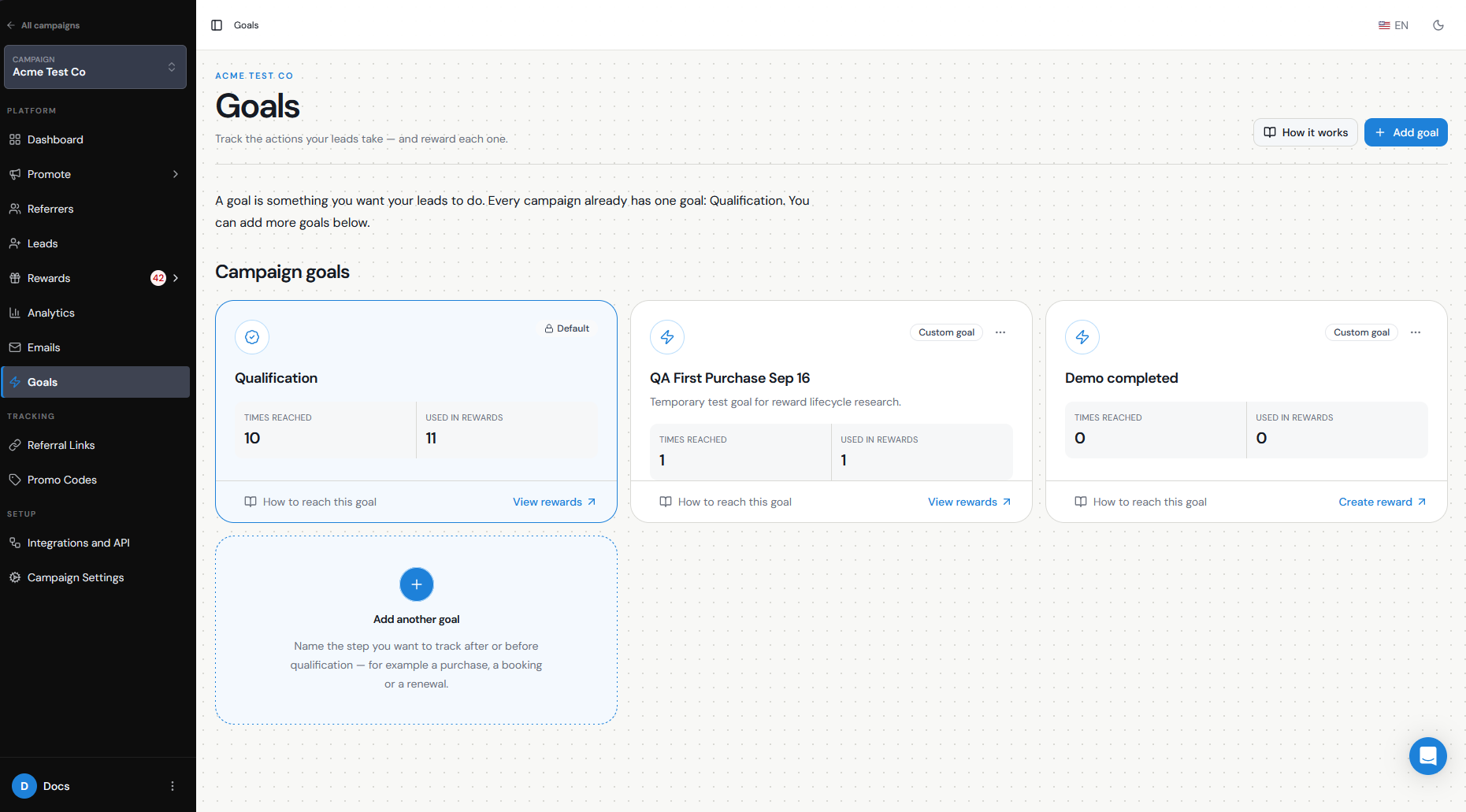
Click + Add Goal in the top-right corner, or select Add another goal.
Step 2
Enter a name for the action you want to track, such as Demo Completed or First Purchase.
Step 3
Complete the Goal creation process.
Your new Goal will appear alongside your default Qualification Goal.
You can create separate Goals for different stages of your referral journey.
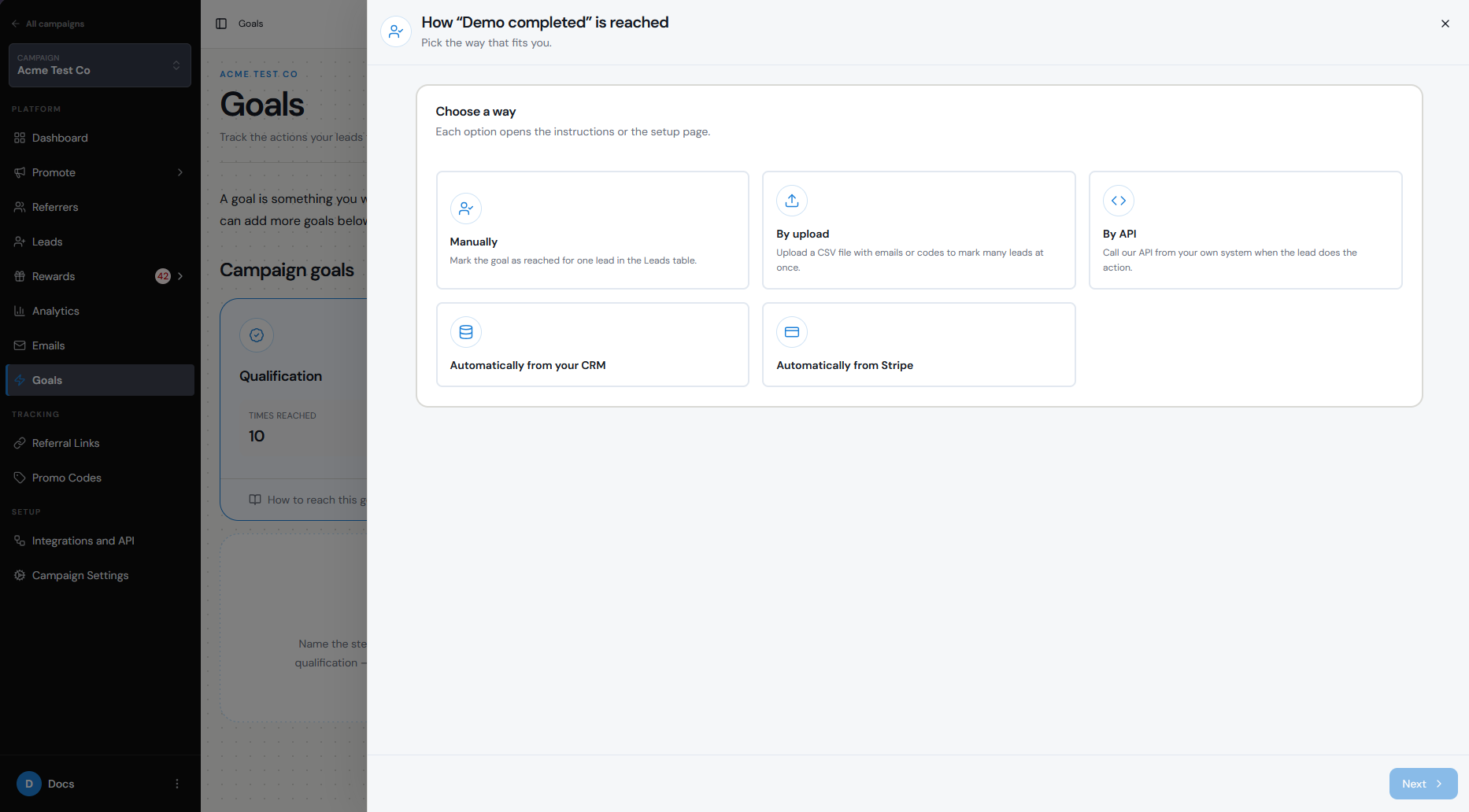
Step 4: Choose How Your Goal Is Reached
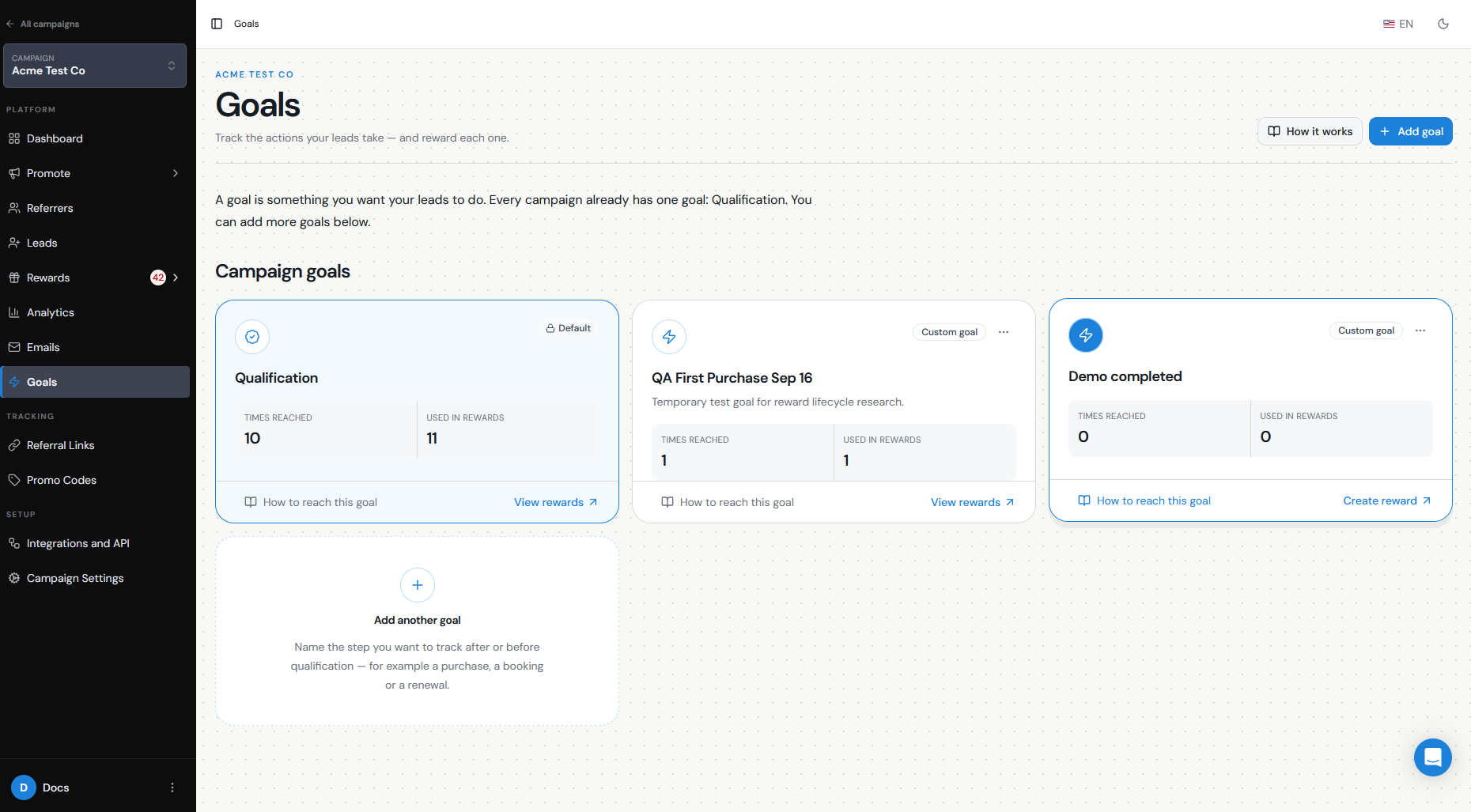
Once you've created a Goal, Referral Factory needs to know when a Lead completes that action.
Click How to reach this goal on the Goal card.
You'll see five available methods:
1. Manually
Mark a Goal as reached directly from your Referral Factory dashboard.
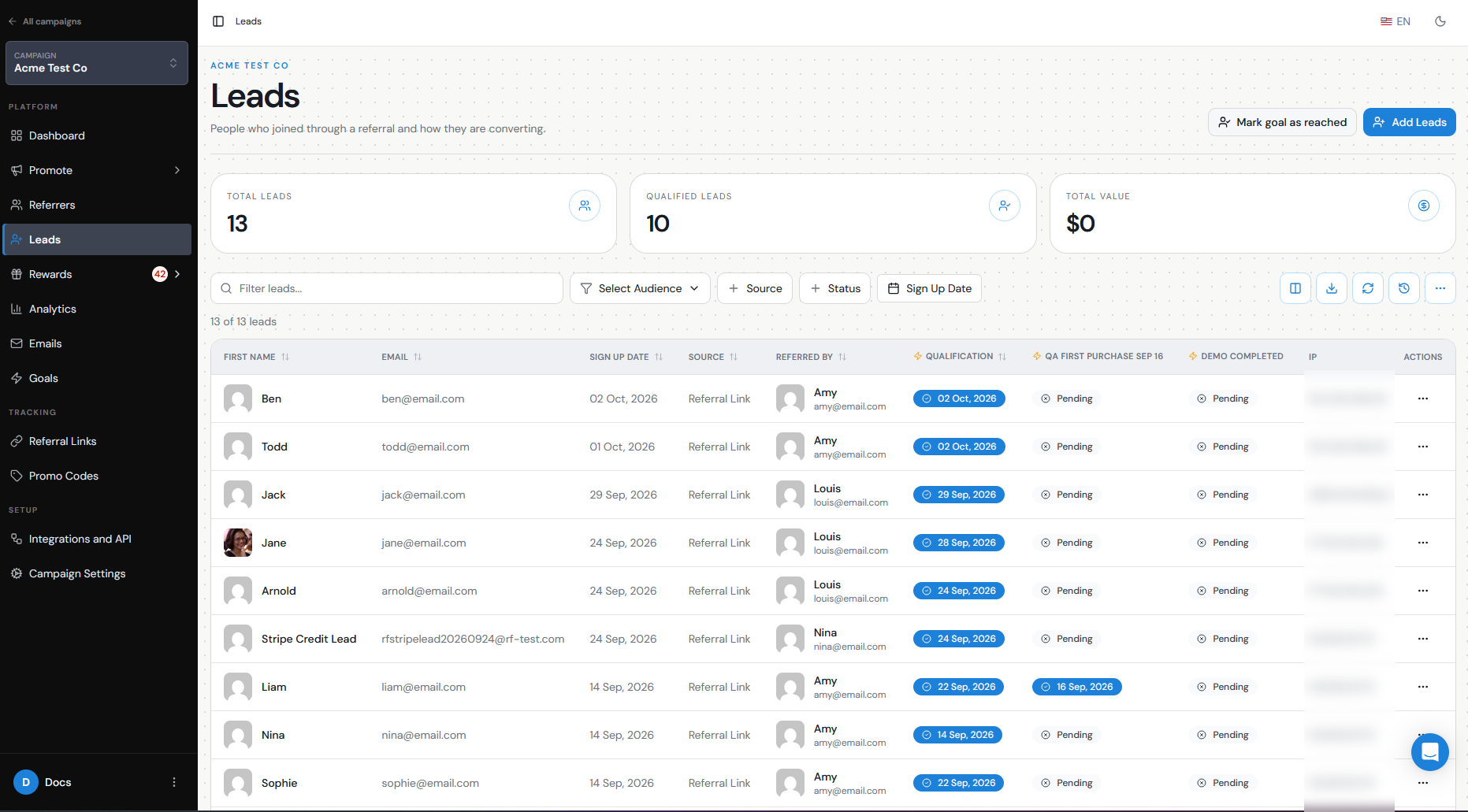
Go to Leads, find the relevant Lead, open the row actions, and select the option to mark the Goal as reached.
This is a great option if you're managing referrals manually or don't have a high volume of Leads.
2. By Upload
Upload a CSV file containing the email addresses or referral codes of Leads who have completed the Goal.
This allows you to mark multiple Leads as having reached a Goal at once, without updating each record individually.
3. By API
Use the Referral Factory API to mark a Goal as reached when an action happens in your own system.
For example, when a referred customer completes their first purchase on your platform, your system can notify Referral Factory through the API.
4. Automatically From Your CRM
Connect your CRM and configure a rule to automatically mark a Goal as reached when a Lead meets your chosen criteria.
For example, when a deal moves to Closed Won in your CRM, Referral Factory can mark the corresponding Goal as reached.
5. Automatically From Stripe
If you're using Stripe, you can connect your account and configure Goal tracking based on supported Stripe events.
This is useful for tracking purchase-related milestones.
Important: Creating a Goal doesn't automatically track the action. You must configure how Referral Factory will know when the Goal has been reached.
Step 5: Connect a Goal to a Reward
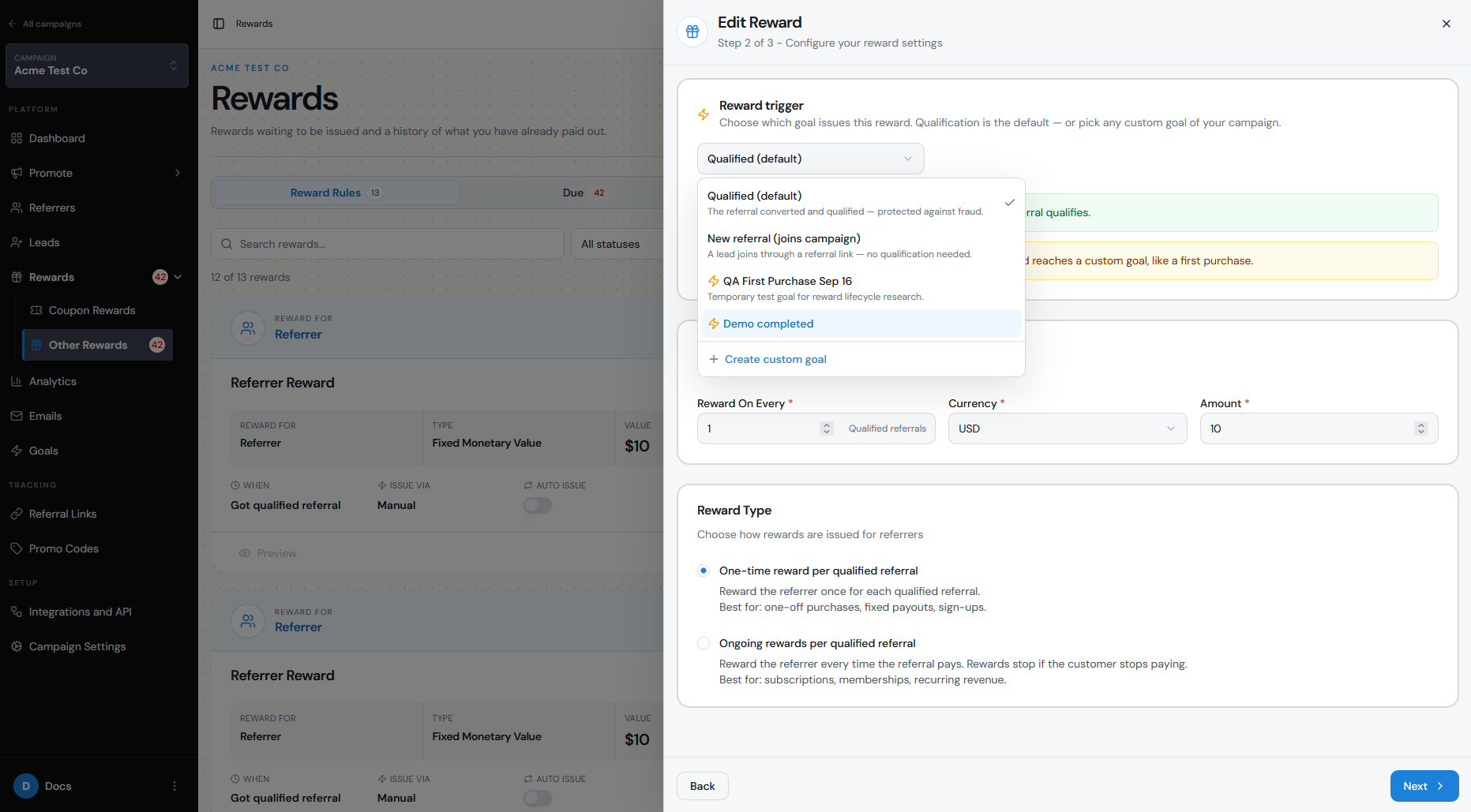
You can use Goals to trigger rewards when Leads complete specific actions.
For example:
- A Lead completes a demo → The Referrer earns a $10 gift card.
- A Lead makes their first purchase → The Referrer earns a $50 reward.
To connect a reward to a Goal:
Step 1
Navigate to Rewards in your dashboard.
Step 2
Create a new Reward.
Step 3
Select the Goal that should trigger the reward.
Step 4
Configure the reward recipient, type, and other settings.
Step 5
Activate the Reward Rule when you're ready.
Once the Lead reaches the selected Goal, Referral Factory will issue the associated reward according to your Reward Rule.
You can also create Goals without connecting them to rewards if you only want to track certain milestones.
Step 6: Monitor Your Goals
Return to the Goals section to see how your campaign is progressing.
Each Goal card shows how many times the Goal has been reached and how many Reward Rules use it.
You can also manage individual Leads and their Goal statuses from the Leads section.
Example: Tracking Multiple Stages of a Referral
Let's say you're running a referral program for a SaaS business.
You want to track two important milestones:
- Demo Completed: The referred Lead attends and completes a product demo.
- First Purchase: The referred Lead makes their first purchase.
You could reward Referrers when their Leads complete a demo and offer an additional reward when those Leads make their first purchase.
This gives you the flexibility to track and reward different stages of your referral program, rather than relying on a single conversion event.
Can I create multiple Goals in one campaign?
Yes! Once you've enabled Custom Goals in your Campaign Settings, you can add multiple Goals to track different actions.
Can I rename or delete the Qualification Goal?
No. Qualification is the default Goal included in every campaign and cannot be renamed or deleted.
Do Goals have to be completed in a specific order?
No. Each Goal is independent, and Leads can reach them in any order.
Does creating a Goal automatically trigger a reward?
No. You need to create a Reward Rule and select the Goal as its trigger.
Can I use Goals without issuing rewards?
Yes. Goals can be used simply to track important milestones in your referral program.
Can Goals be tracked automatically?
Yes! Depending on your setup, you can use a CRM integration, Stripe, or the Referral Factory API to update Goals automatically.
What if I don't need Custom Goals?
You can keep Built-in Qualification only enabled in Campaign Settings. This allows you to continue tracking qualified Leads without creating additional Goals.
Need help setting up Goals?
Our support team is happy to help you choose the right Goals and tracking methods for your referral program.