
Need help applying this to your account?
Contact support and we will keep this article attached to your request.
Overview
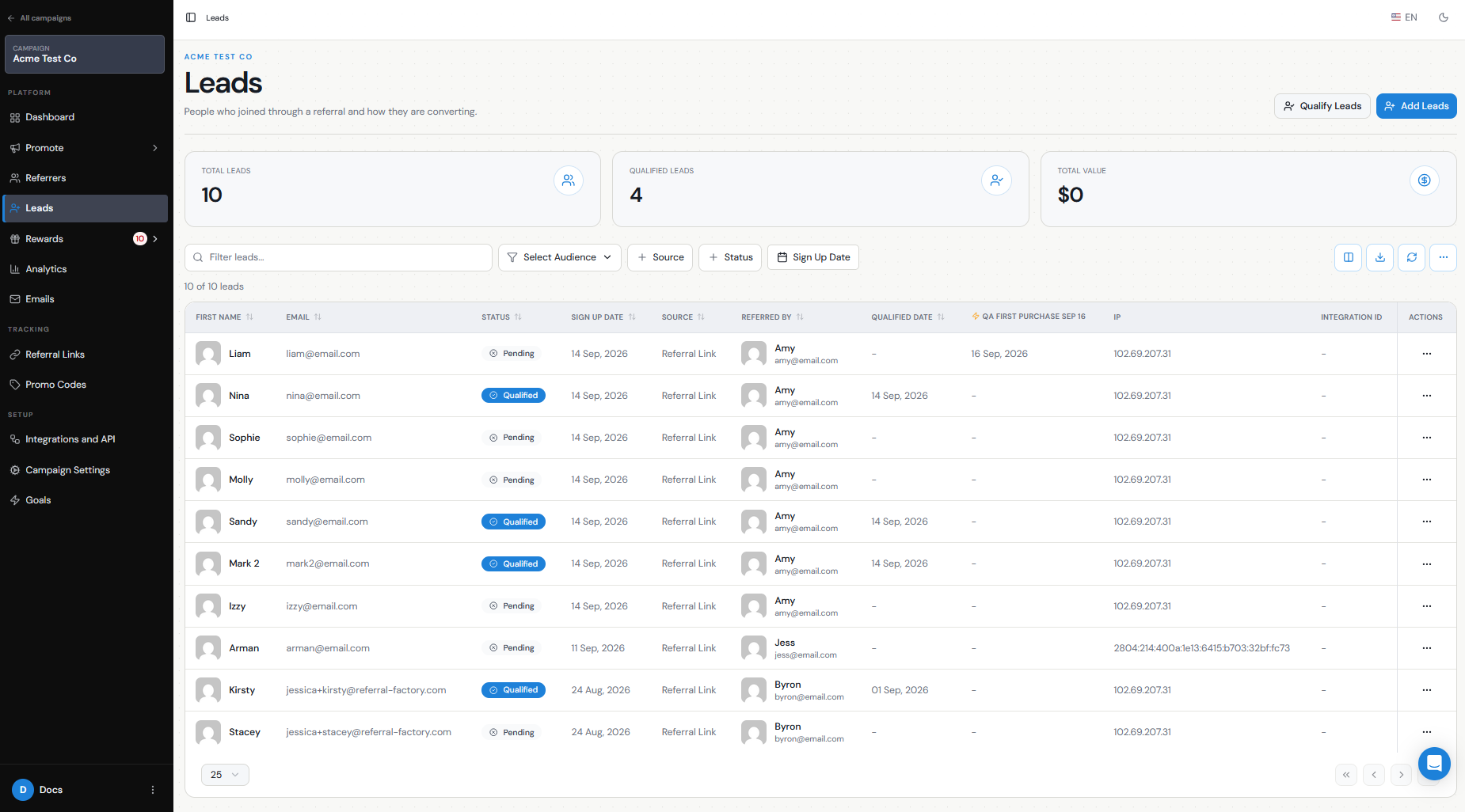
The Leads tab shows everyone referred to your campaigns. From here, you can see who referred each Lead, check their qualification status, qualify or unqualify them, and add or import Leads when needed.
Where can I view and search Leads?
You can view and search Leads in two places:
In both places, you can use the search and filter options to find specific Leads and review information such as who referred them and whether they are Pending or Qualified.
- From the Leads tab in the main Campaigns dashboard, where you can see Leads across your referral programs.
- From within an individual campaign, where you can view the Leads for that specific campaign.
How do I see who referred each Lead?
Each Lead is connected to the Referrer responsible for that referral.
In the Leads tab, check the Referred By column to see who referred the Lead. We record this attribution when the Lead joins the campaign, whether they joined through a referral link or were added through another supported method.
Every Lead must be attributed to a Referrer. You cannot add a Lead without selecting or identifying the person who referred them.
How do I understand Lead statuses?
Leads have two main qualification statuses:
A Lead remains Pending until they are qualified manually or through one of your automated qualification methods.
Qualification is particularly important if your rewards are configured to be triggered only when a referral becomes Qualified.
- Pending — The Lead has been referred but has not yet met the criteria you use to define a successful referral. New Leads are Pending by default.
- Qualified — The Lead has completed the action you consider successful, such as making a purchase, becoming a customer, signing a contract, or reaching a specific stage in your CRM.
How do I qualify or unqualify a Lead?
You can qualify a Lead manually from the Leads tab:
The Lead's status will change from Pending to Qualified.
You can also automate qualification using your CRM, Stripe, Zapier, Make, webhooks, JavaScript, or the Referral Factory API. This is useful when you want a Lead to become Qualified automatically after completing an action in another system.
If a Lead was qualified by mistake, you can also unqualify them. Find the Lead, open their Actions menu, and select Unqualify. Be careful when doing this if rewards are connected to qualification, as changing the Lead's qualification status can also affect their rewards.
Step 1
Find the Lead you want to qualify.
Step 2
Click the three-dot Actions menu on their row.
Step 3
Select Qualify Lead.
Can I edit, add, import or delete Leads?
Yes. There are several ways to manage Lead records.
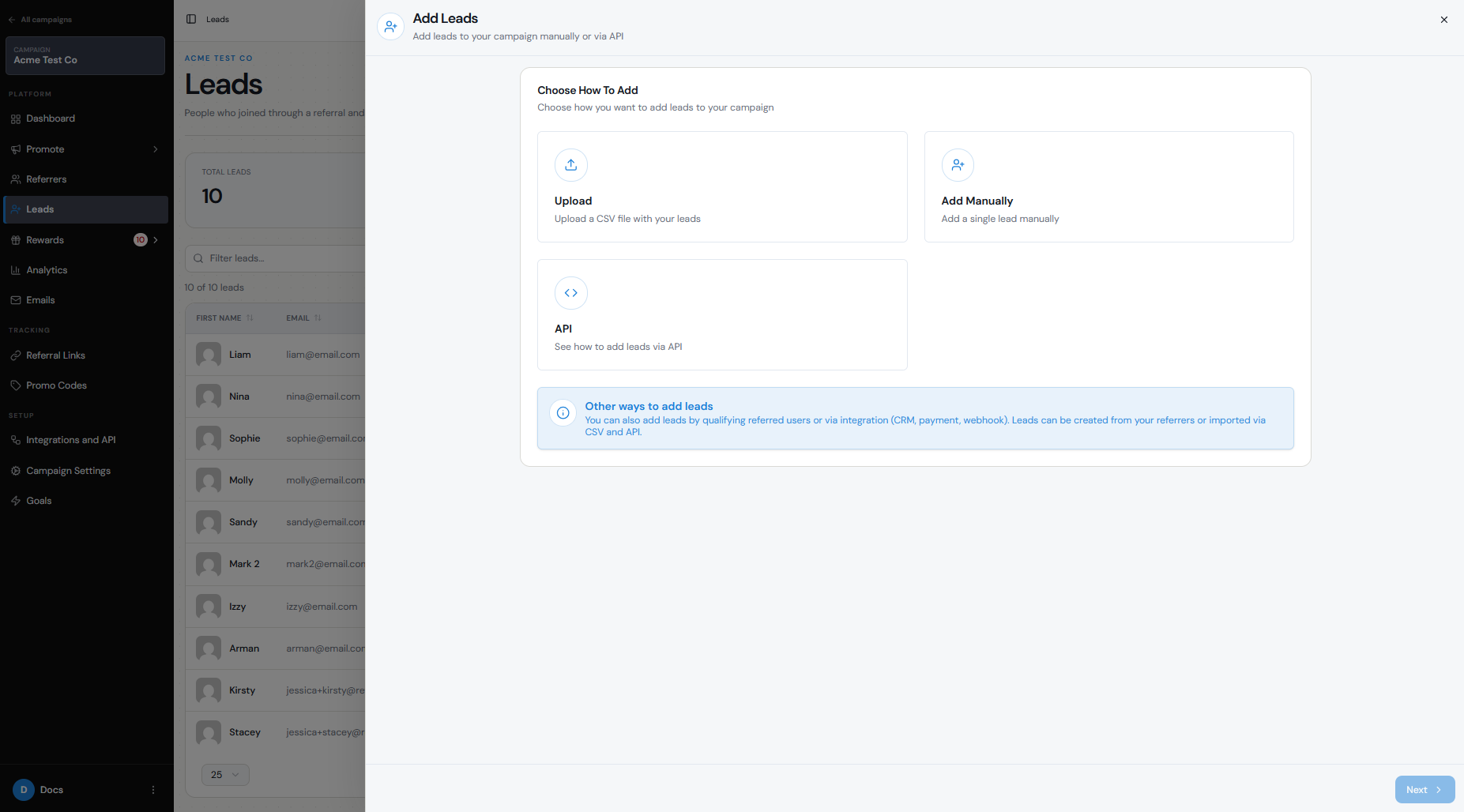
To add one Lead manually, open Leads, select Add Leads, then choose Add Manually. You will need:
The Referrer is required because every Lead must be attributed to someone in the campaign.
To import multiple Leads, go to and upload a CSV file. At minimum, your file must include:
You can then map any additional fields before completing the import.
You can also add Leads programmatically using our API. The API can be used to access, add, update, and delete records when you need to manage Lead data from another system.
For existing Lead records in the dashboard, use the Actions menu on the Lead's row to see the management options available for that Lead.
- First Name
- Email
- Referrer
- First Name
- Email
- Referrer Email Address
How do duplicates and rewards affect Lead management?
We use the Lead's email address to prevent the same person from being added more than once to the same campaign.
If a Lead with the same email address already exists in that campaign, the duplicate entry is rejected and the original referral attribution remains in place. This applies whether the new Lead is coming through a referral link, manual entry, or an integration.
Qualification can also affect rewards. If you have configured a reward to apply only to Qualified referrals, qualifying a Lead triggers the active reward rules for that campaign. Depending on your reward setup, the reward can then become Due or be issued automatically if Auto Issue is enabled.
If you unqualify a Lead, check your reward configuration first. Rewards can be configured to Cancel or Pause when a Lead becomes unqualified, so changing a Lead's status can affect rewards that have already been triggered.