
Need help applying this to your account?
Contact support and we will keep this article attached to your request.
Overview
A Lead shows as Pending when they have entered your referral program but have not yet met the criteria you use to define a successful referral.
This is the default status for new Leads and does not mean anything is wrong. A Lead stays Pending until they are qualified manually or through one of your automatic qualification methods.
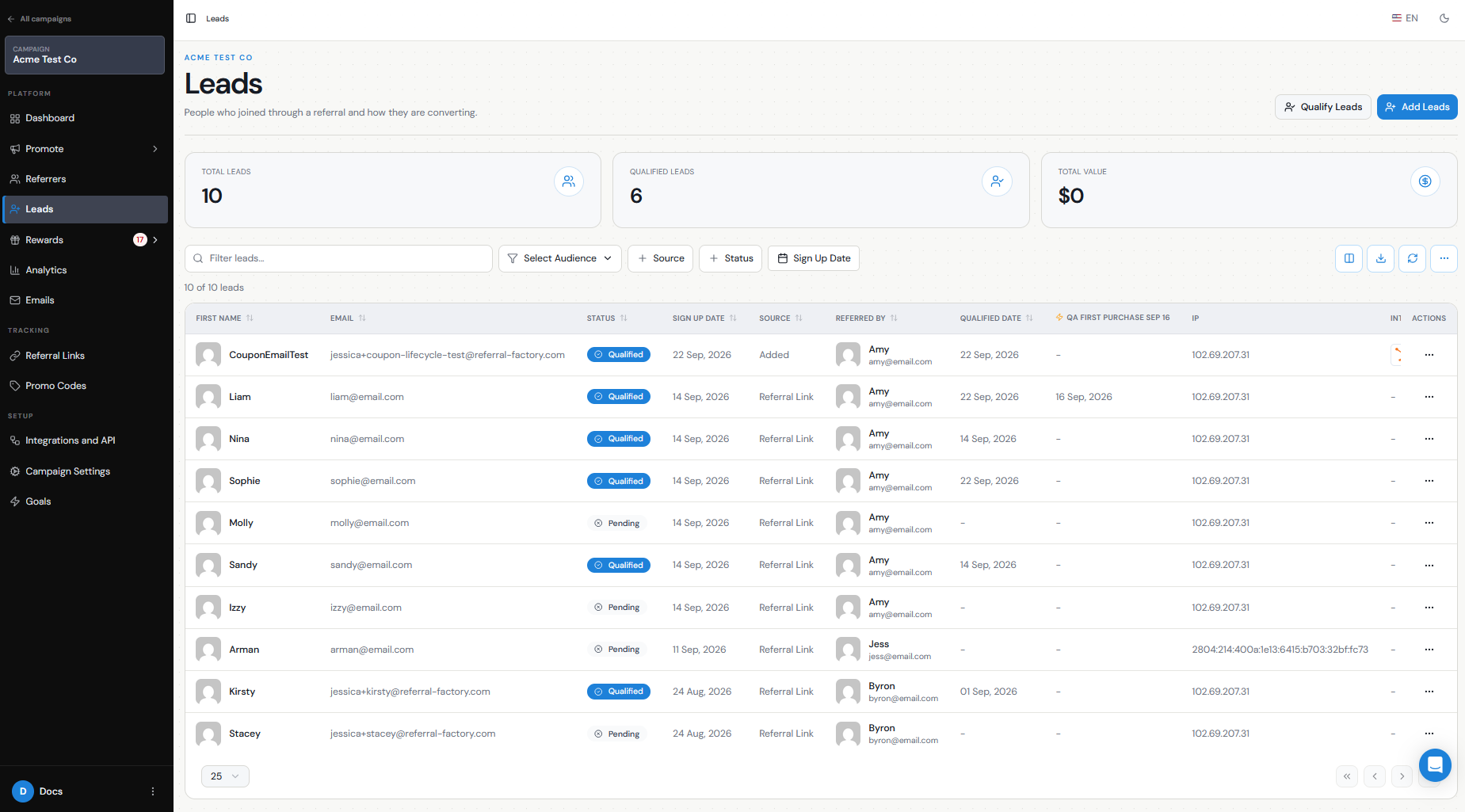
The Pending status
When a Lead submits their details through a referral link, Lead Submission Form, or another supported method, we capture the referral and add the Lead to your campaign.
At this point, their status is Pending.
Pending means:
The referral has been captured and attributed to a Referrer, but the Lead has not yet been confirmed as successful.
For example, if your referral program only considers someone successful after they make a purchase, the Lead will remain Pending after signing up and will only become Qualified once that purchase is confirmed.
What conditions keep a Lead Pending
A Lead will remain Pending until a qualification event happens.
Common reasons include:
A Lead remaining Pending is therefore expected if they have not yet reached the conversion milestone you defined.
- The Lead has not completed the qualifying action yet, such as making a purchase, becoming a customer, or reaching a specific CRM stage.
- You have not configured an automatic qualification method.
- Your CRM is connected, but you have not configured the qualification rule.
- The field, stage, or value in your CRM does not match the qualification rule you selected in Referral Factory.
- The Lead already existed in your CRM and your duplicate handling was set to Do nothing, so Referral Factory did not create or update the CRM record needed for automatic qualification.
- An integration, Zapier workflow, webhook, or API request has not triggered successfully.
- The identifier being used to qualify the Lead does not match the Lead in Referral Factory.
- The qualification event has happened, but the integration is still processing the update.
Difference between captured, Qualified and other states
For Leads in Referral Factory, the two main qualification statuses are:
Pending — the Lead has been captured and attributed to a Referrer, but has not yet been confirmed as a successful referral.
Qualified — the Lead has completed the action you consider a successful conversion, such as making a purchase, signing a contract, or reaching a selected stage in your CRM.
Captured is not a separate Lead status. It simply means the Lead has entered your campaign and their referral has been recorded. A newly captured Lead will normally show as Pending.
You may also see other statuses elsewhere in Referral Factory, such as reward statuses like Due, Issued, or Failed. These relate to rewards, not to the Lead's qualification status.
If a Qualified Lead is later unqualified, their status returns to Pending.
How the Pending status changes
A Lead moves from Pending to Qualified when you confirm that they have completed your successful referral action.
You can qualify Leads in several ways, including:
For example, if you configure HubSpot to qualify a Lead when , the Lead remains Pending until that HubSpot property reaches Customer.
If you qualify a Lead manually, their status changes immediately. If you use an integration, there may be a delay while the qualification is processed.
A Lead can also move from Qualified back to Pending if you unqualify them, for example after a refund or cancellation.
- Manually from the Leads tab.
- Through a CRM integration when a selected field, stage, or status changes.
- Through Stripe when your configured payment or purchase criteria are met.
- Using Zapier, Make, n8n, or webhooks.
- Using the Referral Factory API.
- By uploading a list of customers or converted Leads and allowing Referral Factory to match them to existing referrals.
What to check if it remains Pending unexpectedly
If you believe a Lead should already be Qualified, check the qualification workflow from start to finish.
First, confirm that the Lead actually completed the action you use to define a successful referral.
Then check:
If everything is correct but you do not want to wait for the automatic process, you can qualify the Lead manually from the Leads tab by opening the Lead's Actions menu and selecting Qualify Lead.
Step 1
Your qualification method — make sure you have configured how Leads should become Qualified.
Step 2
Your CRM qualification rule — if you use a CRM, confirm that the correct field, property, stage, and qualifying value are selected.
Step 3
The CRM record — make sure the correct Lead, Contact, Deal, Opportunity, or other record actually reached that value.
Step 4
Your identifier — if you use Zapier, Make, a webhook, or the API, make sure the email address, Referral Factory user ID, or other supported identifier matches the correct Lead.
Step 5
Your integration connection — confirm that the CRM or external app is still connected and the automation is active.
Step 6
Duplicate handling — if the person already existed in your CRM, check that your duplicate settings allowed Referral Factory to create or update the record needed for qualification.
Step 7
Timing — CRM qualification is not always immediate. Some CRM integrations can take up to 12 hours to process qualification updates.