
Read this page as a quick path: scan the headings, use the step blocks, and escalate if the expected result does not happen.
Need help applying this to your account?
Contact support and we will keep this article attached to your request.
If a reward shows as failed or simply hasn’t been sent after a referral qualified, work through the checks below in order.
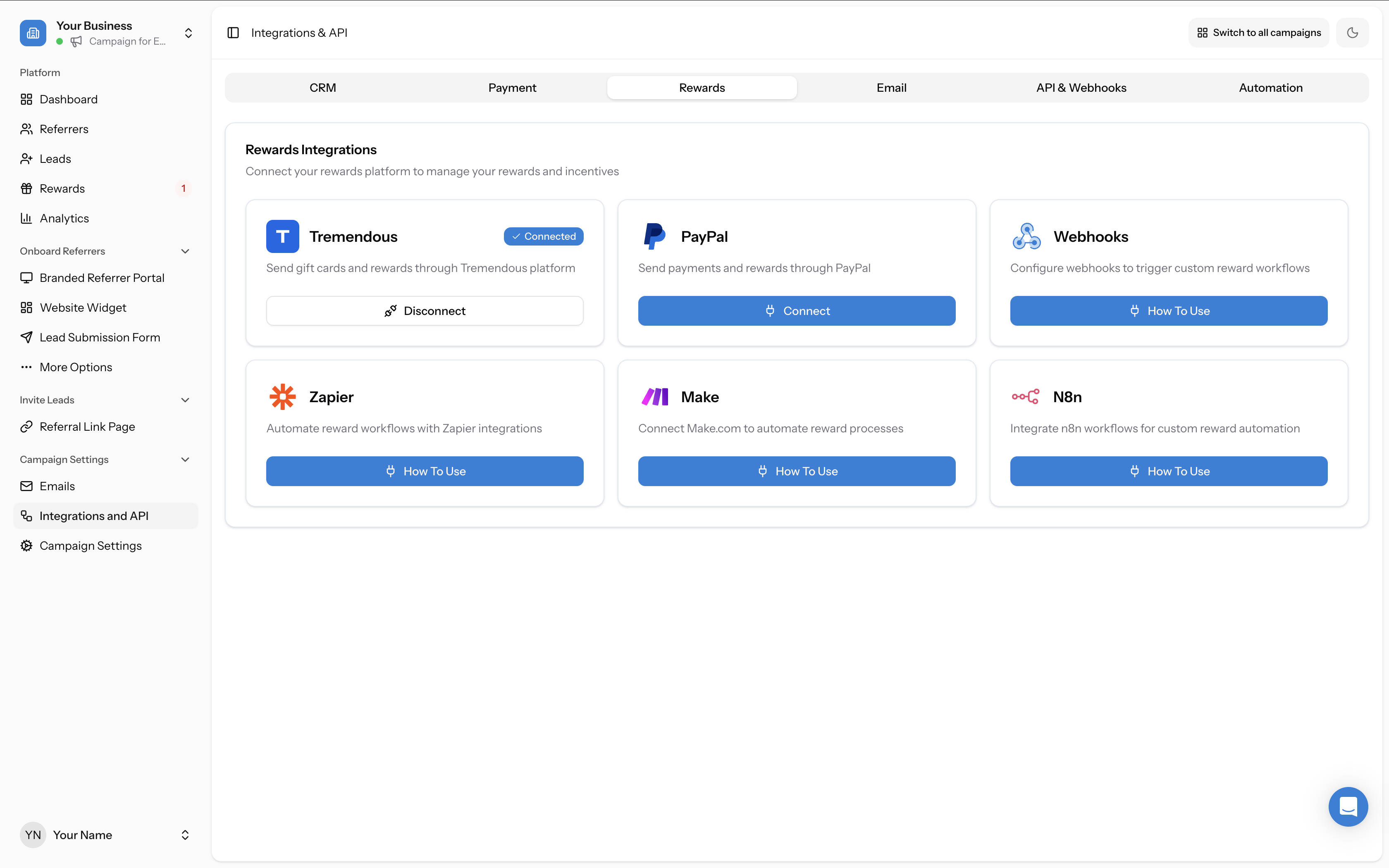
Step 1: Check your reward integration is still connected
Reward integrations — particularly Tremendous — can become disconnected from Referral Factory without warning. This is the most common cause of failed rewards.
Go to Campaign Settings → Integrations and API → Rewards and check whether your reward platform (Tremendous, Stripe, PayPal, etc.) shows as Connected. If it is disconnected, reconnect it and then retry the reward issuance.
Step 2: Check you have sufficient funds in your reward account
Referral Factory can only issue rewards if your reward account has funds available. This applies especially to Tremendous.
A common situation: a business sets up Tremendous, runs the program, and doesn’t realise their balance has been exhausted. Rewards silently fail until the account is topped up.
- Tremendous: Log in to your Tremendous account and confirm you have a positive balance, or that a funding source (credit card or bank account) is attached and active.
- PayPal: Confirm your connected PayPal account has sufficient balance. Also verify that the referrer's email address matches their PayPal account — if not, the payout will fail.
- Stripe Credits: The referred person must already be a customer in your Stripe account. When issuing a Stripe Credits reward, if the referrer is not synced with Stripe, you will be prompted to Sync with Stripe — this searches your Stripe account by email address to match the user. See FAQ: How do I connect Stripe to issue cash rewards? for a step-by-step walkthrough of the issuing process.
Step 3: Check whether the referral actually qualified
Referrers sometimes report that their reward wasn’t sent when the actual problem is that the referral never qualified in the first place. Before concluding there is a reward issue, confirm:
If the lead is still Pending, the reward has not failed — it has not been triggered yet. The qualification step needs to happen first.
- Go to Leads tab and find the referred person’s record
- Check their status — is it Qualified or still Pending?
Step 4: Check your reward settings
Confirm that:
- The reward is Active (not in Draft state). Note that once a reward has already issued payments, it cannot be edited — you would need to deactivate it and create a new one if changes are needed.
- Auto Issue is enabled if you want rewards to go out without manual approval (not recommended)
- The reward is configured for the right recipient (Referrer vs Lead)
- Fraud Protection is toggled on if you only want to reward qualified referrals
Step 5: Review reward statuses
Once you've checked all the above, review the actual status of the reward:
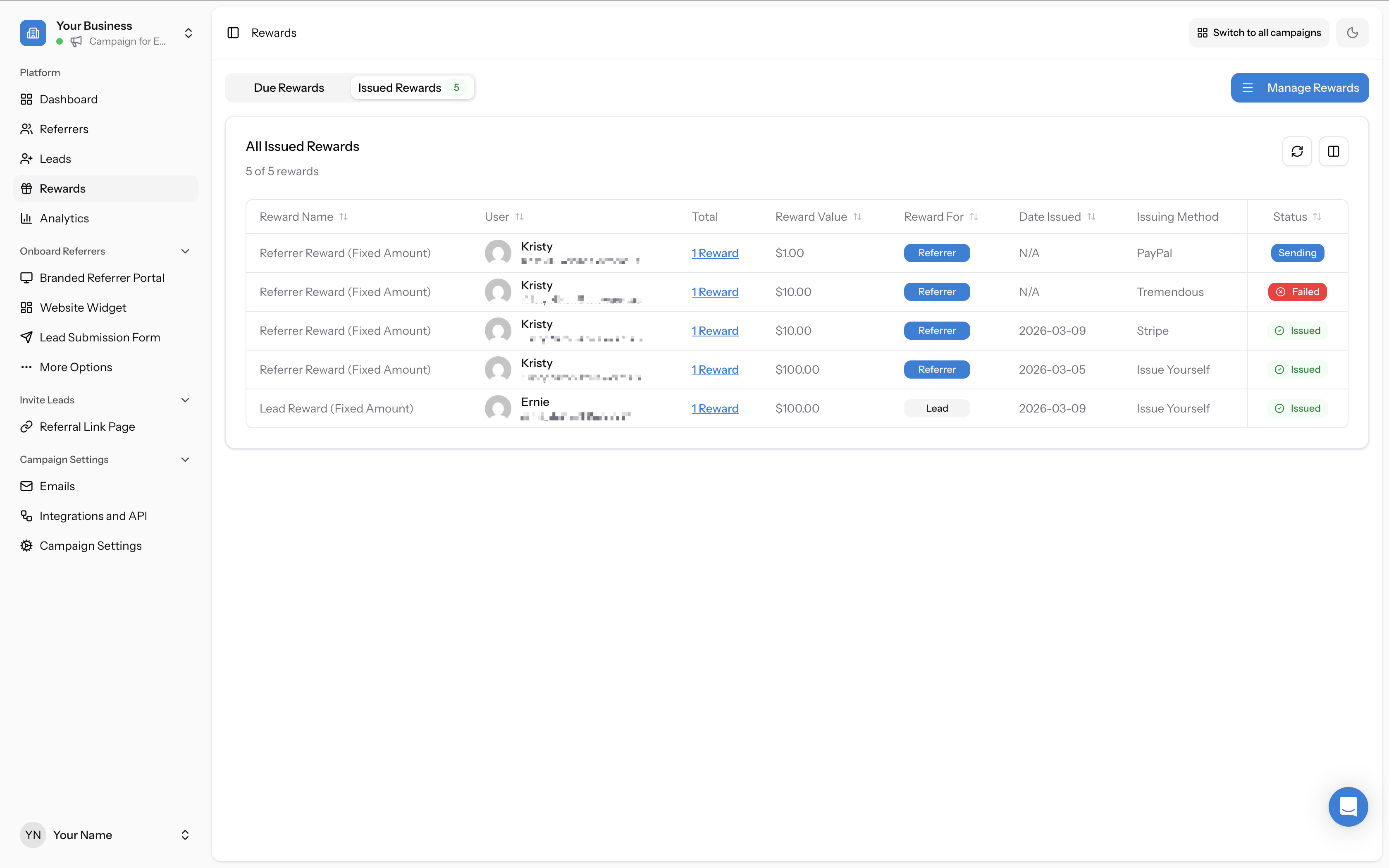
- Go to the Rewards page and check both the Due Rewards and Issued Rewards tabs
- In the Issued Rewards tab, look for rewards with a Sending, Failed, or Issued status
- Sending means the reward is being processed by the integration (Tremendous, PayPal, etc.)
- Failed means the payout could not be completed — investigate and re-issue using the three-dots action menu
Step 6: Escalate if the above all check out
If the integration is connected, funds are available, the referral is qualified, and the reward is active — but the reward still hasn't sent — this needs investigation by the support team. Contact support@referral-factory.com and include:
- The campaign name
- The email address of the referrer
- The email address of the qualified lead
- A screenshot of the reward configuration