
Read this page as a quick path: scan the headings, use the step blocks, and escalate if the expected result does not happen.
Need help applying this to your account?
Contact support and we will keep this article attached to your request.
The two most common causes of failed rewards are insufficient funds in your Tremendous account and a disconnected integration.
Troubleshooting steps
1. Check your Tremendous balance
Log into Tremendous and verify you have enough funds to cover the reward amount. Rewards will fail silently if the balance is too low. Ensure your account is funded — either with a preloaded balance or an active credit card attached inside Tremendous.
2. Check the integration status
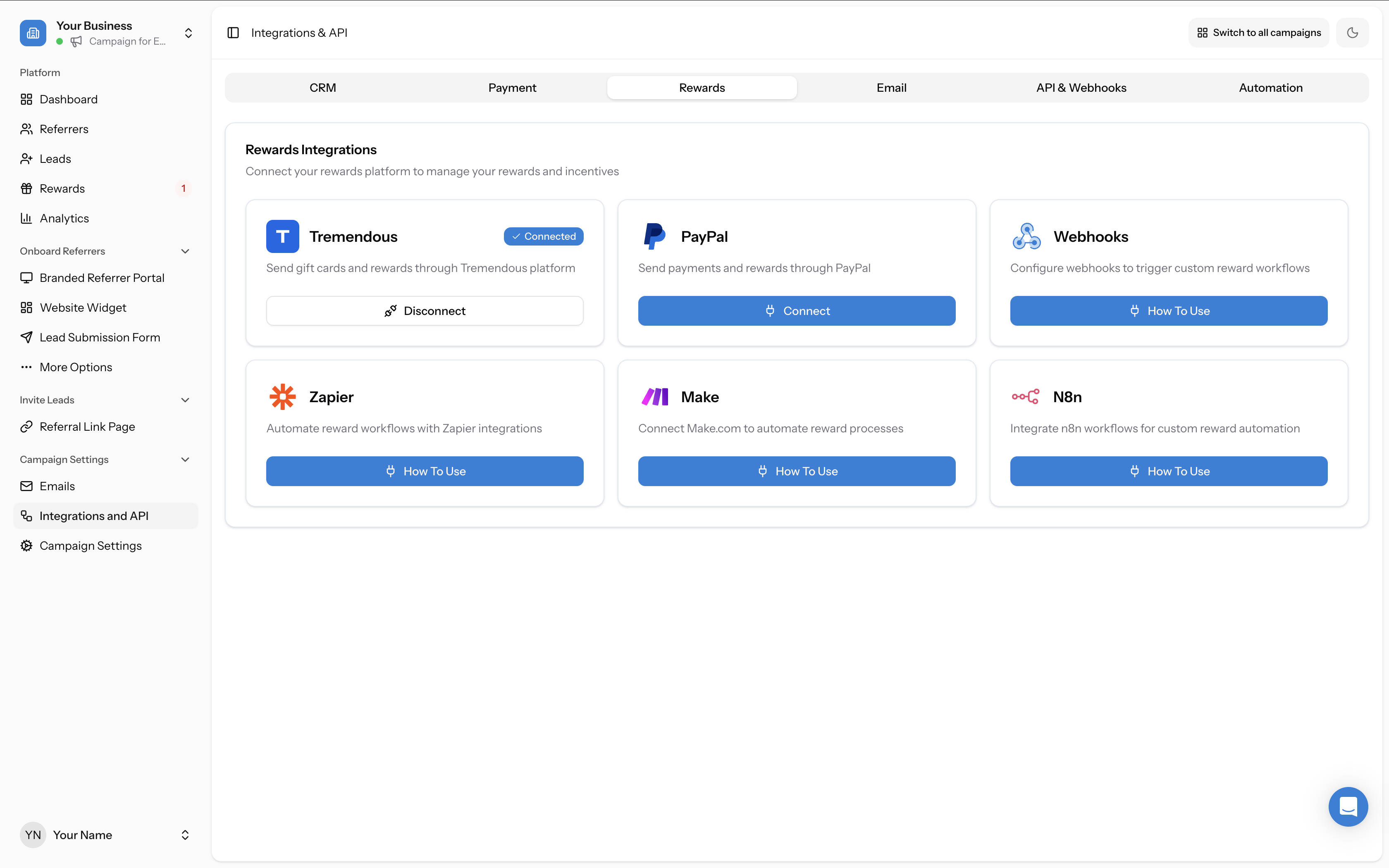
Go to Campaign Settings → Integrations and API → Rewards tab and confirm Tremendous still shows as Connected. If it's disconnected, click Connect to re-authenticate.
3. Find and resend failed rewards
Once the issue is resolved, go to the Rewards page and open the Issued Rewards tab. Failed rewards will appear here with a Failed status badge. To re-issue them:
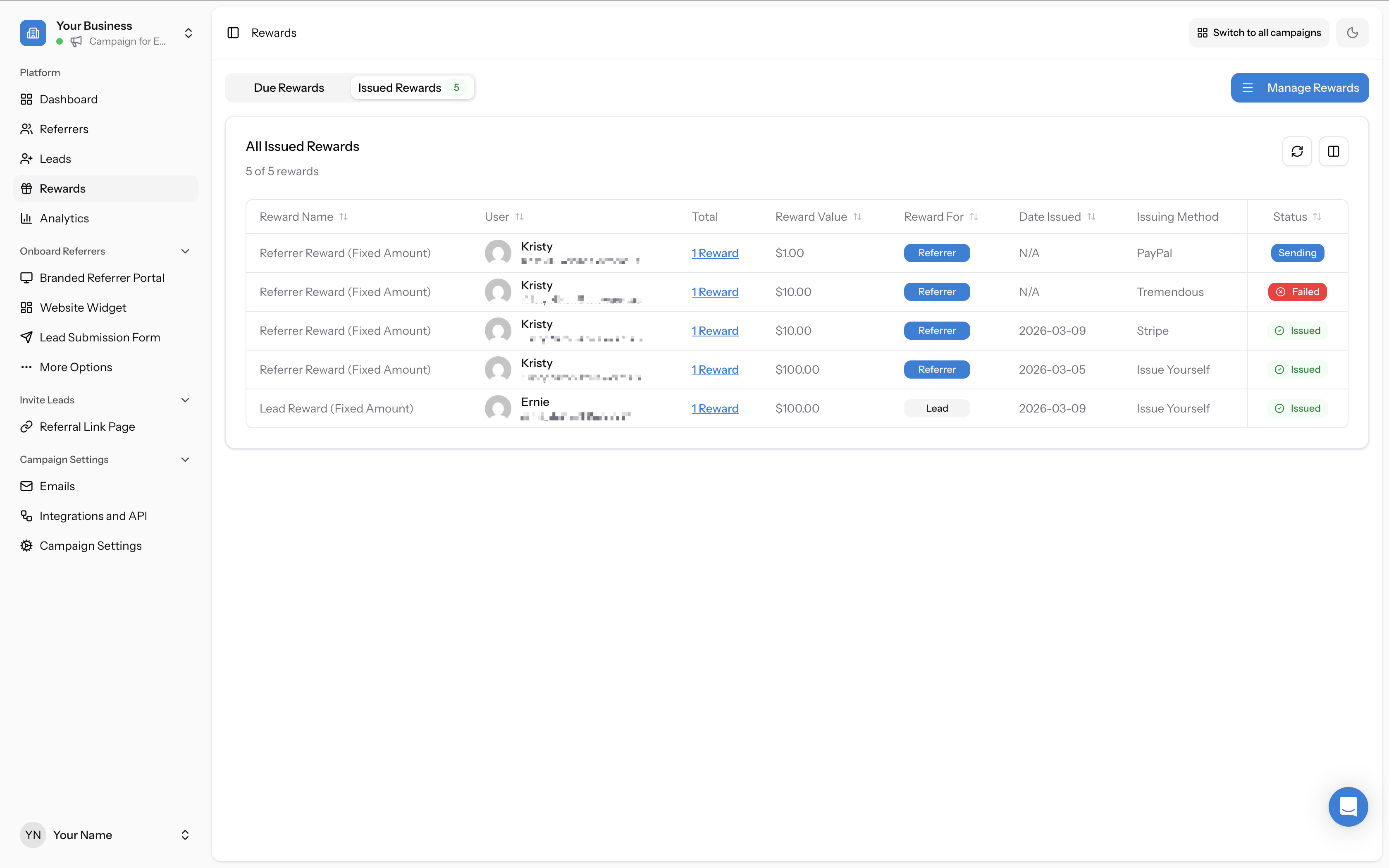
- Click the three-dots action menu on a failed reward row and select Issue Now
- Or select multiple failed rewards using checkboxes and click Issue Now to resend in bulk
4. Check the Due Rewards tab
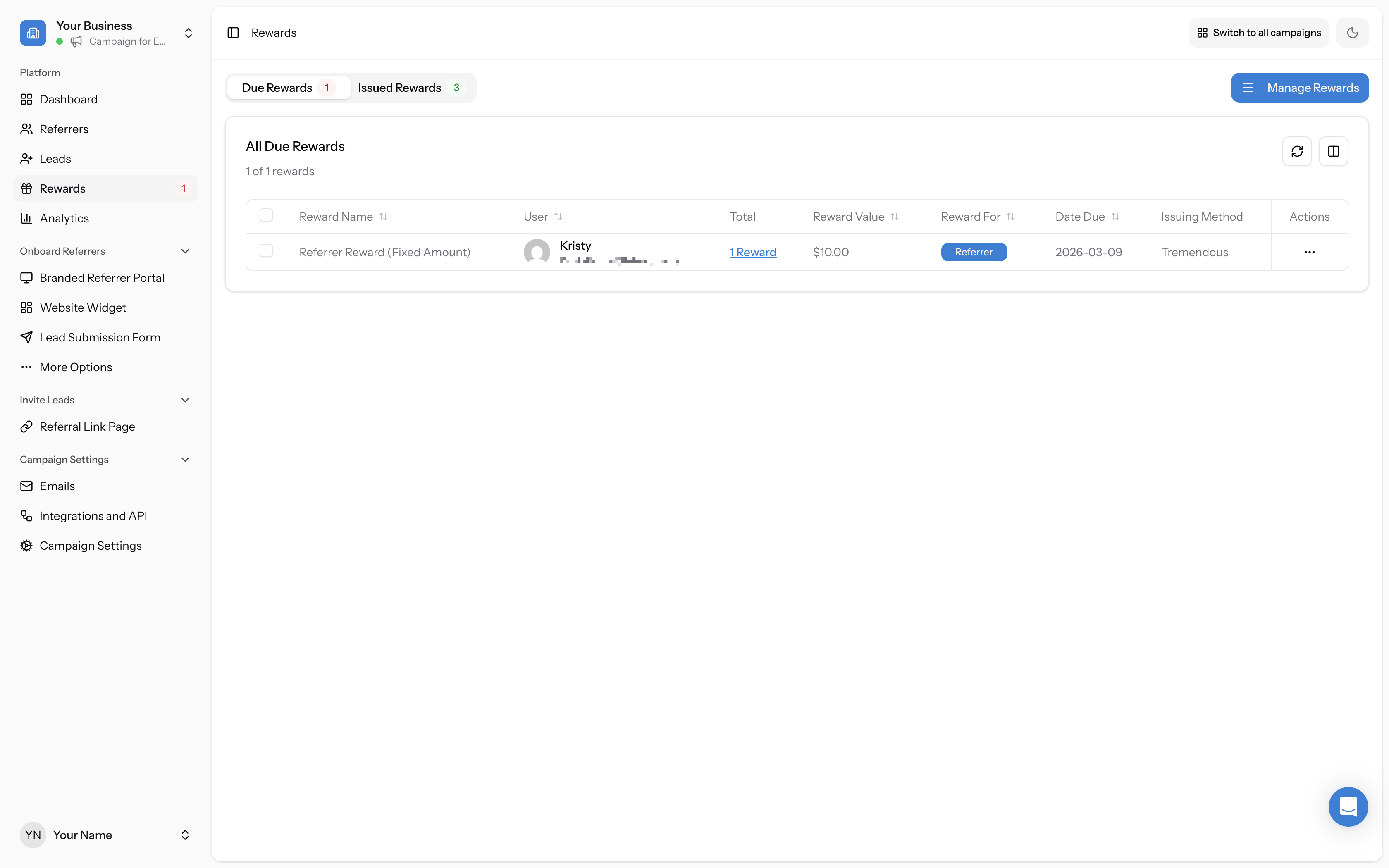
If the reward hasn't failed but simply hasn't been sent yet, check the Due Rewards tab. If it appears here, it's waiting for manual approval (Auto Issue is off). Click the three-dots menu and select Issue Now to send it.
If funds are confirmed and the integration is connected but rewards are still failing, try disconnecting and reconnecting Tremendous entirely, then resend. If the problem persists, contact support.