
Read this page as a quick path: scan the headings, use the step blocks, and escalate if the expected result does not happen.
Need help applying this to your account?
Contact support and we will keep this article attached to your request.
Stripe Credits let you reward referrers or referred leads by applying a billing credit to their Stripe account balance. This credit is automatically applied to their next invoice, reducing what they owe on future subscription payments, usage charges, or other Stripe-billed services. It is not a cash payout — the recipient does not receive money directly. Instead, they receive a credit that offsets their future charges with your business.
This makes Stripe Credits ideal for subscription-based or usage-based businesses that want to reward referrers with discounts on their own account, rather than sending cash.
Prerequisites
- You must have an active Stripe account connected to Referral Factory (see How to connect Stripe to Referral Factory)
- The reward recipient must be an existing customer in your Stripe account, since the credit is applied to their customer balance
Setting up a Stripe Credits reward
Step 1: Create a reward and choose the recipient
Go to Rewards in the left sidebar, click Manage Rewards, then Add Reward (or edit an existing draft reward).
Select who the reward is for:
Then choose the reward type: Fixed Amount or Commission Amount (Stripe Credits are available for Fixed and Commission reward types only).
- Referrer — the person who made the referral
- Lead — the new customer who was referred
Step 2: Configure the reward amount
First, ensure Fraud Protection is toggled on (recommended). This ensures rewards are only given for qualified referrals.
Then set the monetary reward configuration:
Choose the reward frequency:
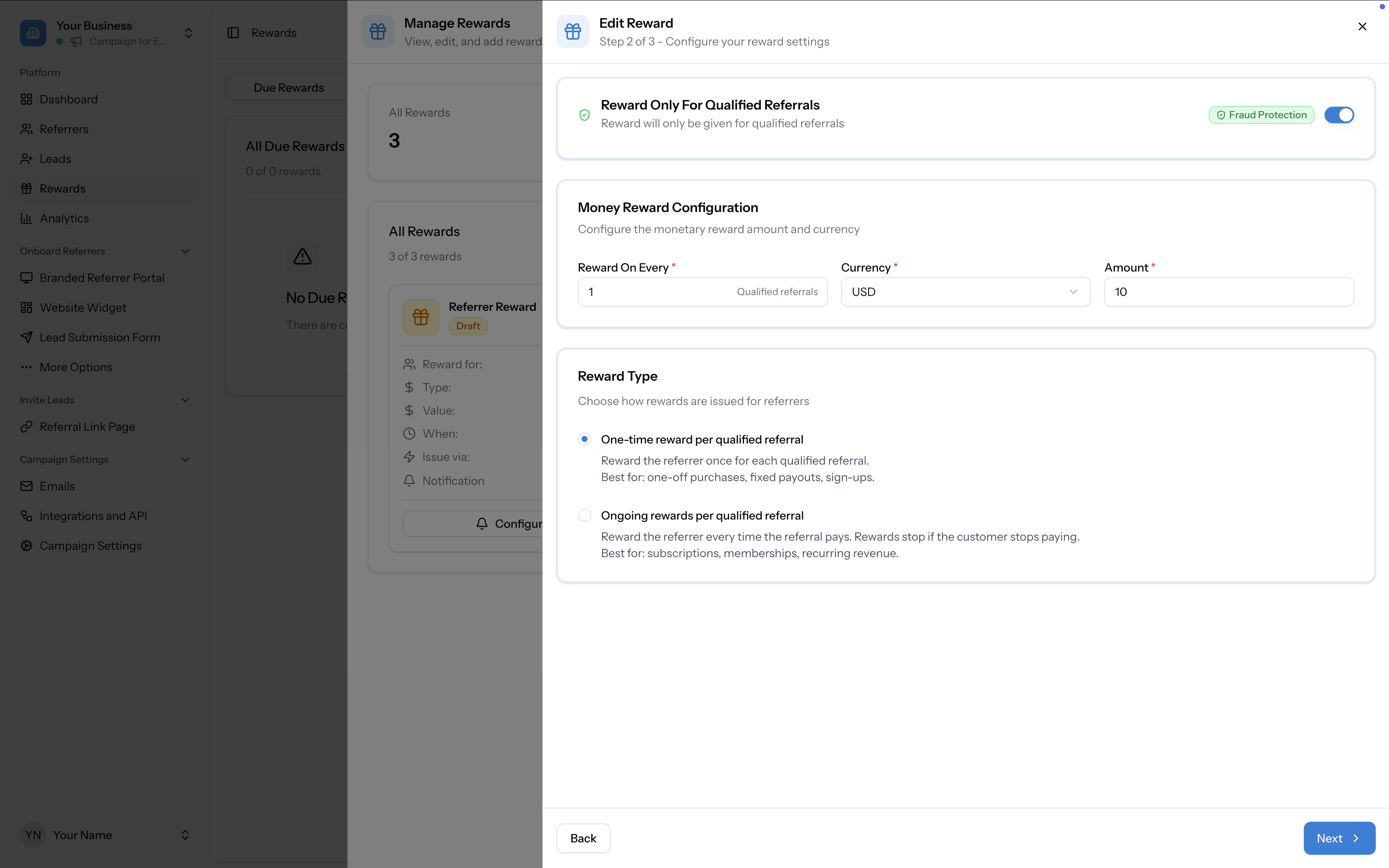
- Reward On Every — how many qualified referrals trigger a reward (e.g. every 1 qualified referral)
- Currency — select your currency (e.g. USD)
- Amount — the credit amount (e.g. $10)
- One-time reward per qualified referral — the referrer receives the credit once for each qualified referral. Best for one-off sign-ups or fixed incentives.
- Ongoing rewards per qualified referral — the referrer receives a credit every time the referred customer pays. Credits stop if the customer stops paying. Best for subscriptions, memberships, and recurring revenue models.
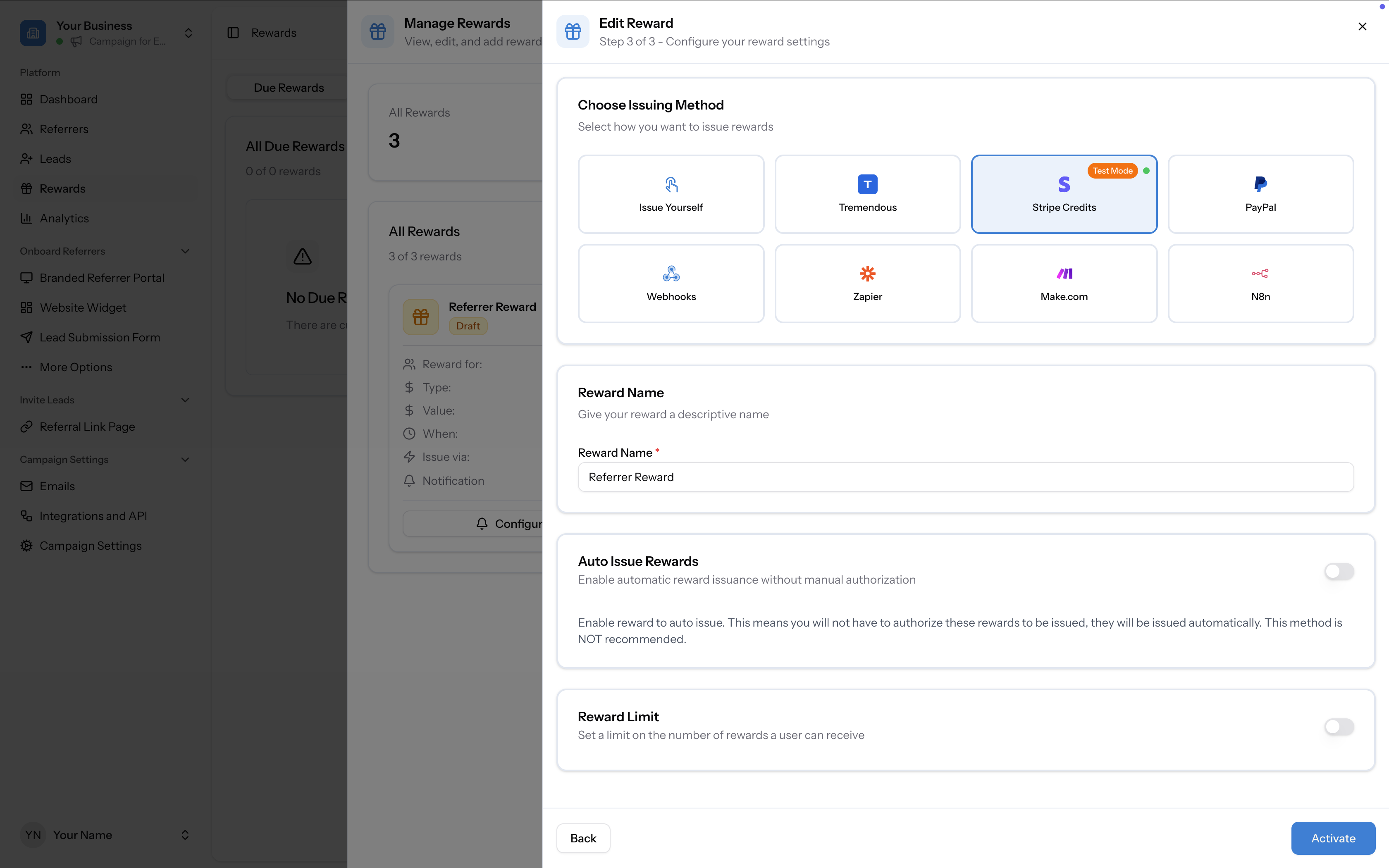
Step 3: Select Stripe Credits as the issuing method
On the issuing method screen, select Stripe Credits. Other available options include Issue Yourself, Tremendous, PayPal, Webhooks, Zapier, Make.com, and N8n.
Then configure:
Click Activate to make the reward live.
- Reward Name — give your reward a descriptive name (e.g. "Referrer Credit")
- Auto Issue Rewards — enable to issue credits automatically without manual authorization (off by default)
- Reward Limit — set a cap on the number of credits a user can receive (off by default)
How Stripe Credits rewards are issued
When a referral qualifies and a reward becomes due:
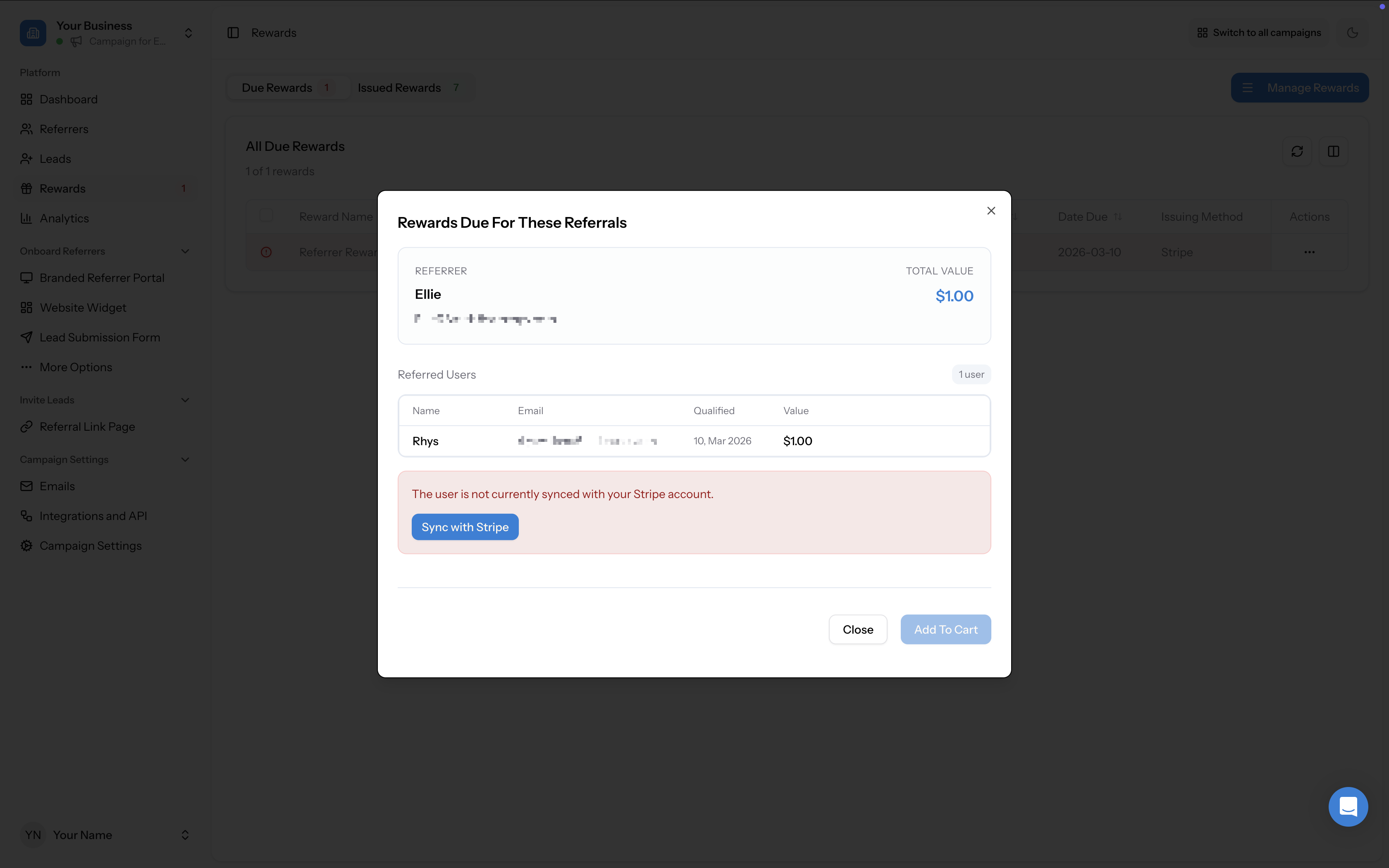
![Rewards Due tab showing the "user is not currently synced" message]](/images/help/31fb777f519f80fca731c3aca5fe4b71.png)
- Go to the Rewards page and open the Due Rewards tab. You will see pending rewards listed with the Issuing Method shown as Stripe.
- Click on the reward to open the Rewards Due For These Referrals modal. This shows the referrer details (name, email, total value) and the referred users who triggered the reward.
- If the referrer is not currently synced with your Stripe account, you will see a warning: "The user is not currently synced with your Stripe account." Click Sync with Stripe to match the user.
- If the user cannot be found automatically, a prompt will appear to Sync By Email Address to search for them in Stripe by email.
- Once synced, a confirmation message appears: "Great news! We found this user in your Stripe account." Click Done.
- With the user synced, the modal now shows the referred users with their qualification date and reward value. Click Add To Cart to queue the credit for processing.
- After issuing, the reward appears in the Issued Rewards tab with a status of Issued and the issuing method shown as Stripe.
Understanding Stripe Credits vs. cash rewards
It's important to understand that Stripe Credits are not the same as cash rewards:
| Stripe Credits | Cash rewards (e.g. PayPal, Tremendous) | |
|---|---|---|
| What the recipient gets | A billing credit applied to their Stripe account balance | Actual money sent to their account |
| How it's used | Automatically offsets their next invoice or subscription charge | Recipient can spend or withdraw the money freely |
| Requirement | Recipient must be an existing customer in your Stripe account | Recipient only needs a PayPal or Tremendous account |
| Best for | Subscription/SaaS businesses rewarding existing customers with discounts | Rewarding anyone with a direct monetary incentive |
If you want to send actual cash payouts to referrers, consider using PayPal or Tremendous as your issuing method instead.
Important notes
- The reward recipient must already be a customer in your Stripe account before the credit can be issued. If they are not, use the Sync with Stripe flow described above to match them.
- Stripe Credits are applied as a credit balance on the customer's Stripe account. Referral Factory does not hold or disburse funds — the credit is issued through your connected Stripe account and automatically applied to the recipient's next invoice.
- Credits are tracked in Stripe's immutable ledger, giving you a full audit trail of all credit transactions.
- You can view all issued rewards (including Stripe-issued credits) in the Issued Rewards tab.