
Need help applying this to your account?
Contact support and we will keep this article attached to your request.
| Before you start: have a list of unique coupon codes ready. You can paste one code per line or upload a CSV or text file. Coupon Rewards are managed separately from Stripe Promo Codes. |
|---|
1. Enable coupon rewards
Open the campaign you want to use.
Open Campaign Settings from the campaign sidebar.
Scroll to Coupons and turn on Show Coupons in the sidebar.
Click Save Changes.
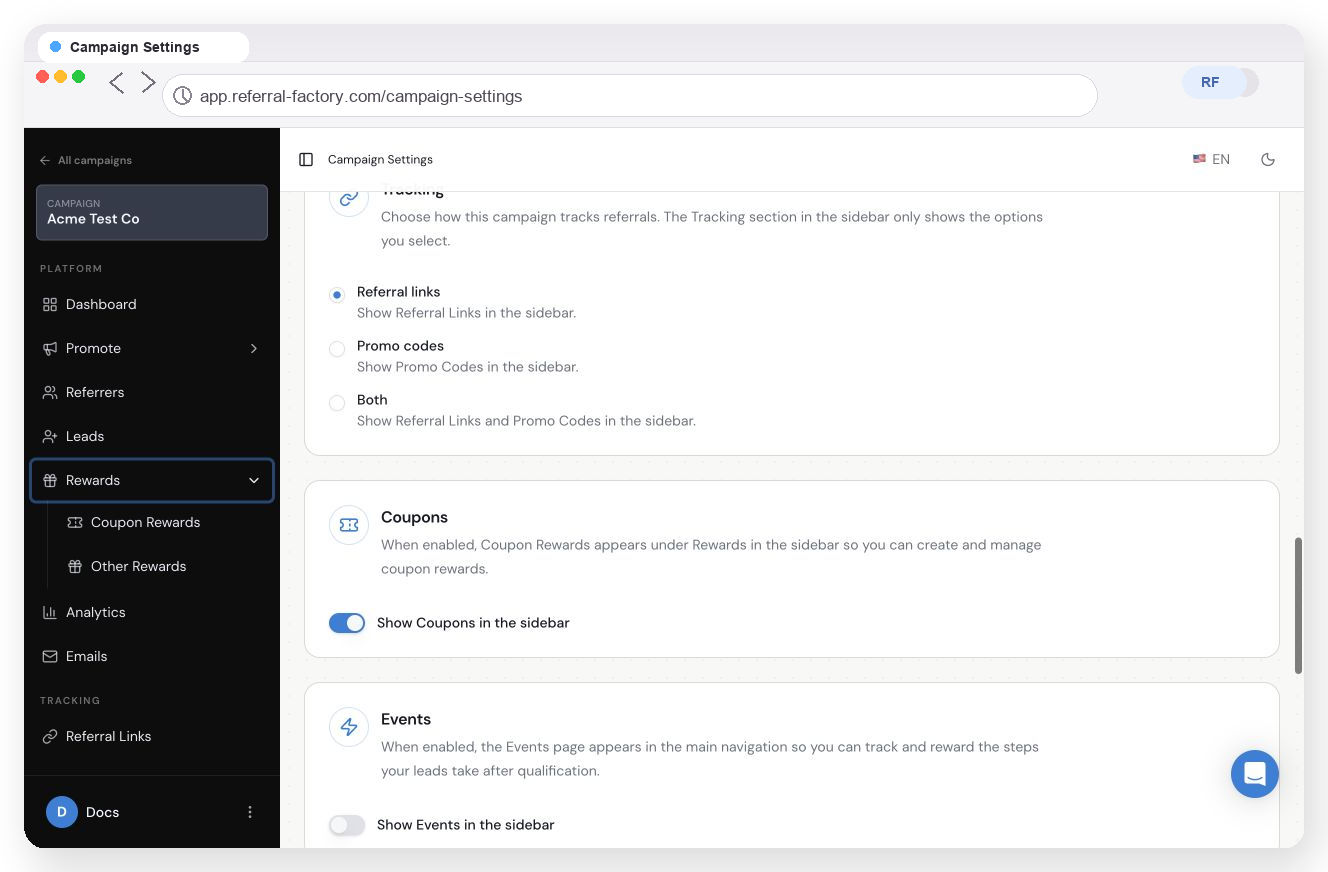
Turn on Show Coupons in the sidebar from Campaign Settings.
2. Open coupon rewards
Expand Rewards in the campaign sidebar.
Click Coupon Rewards.
Choose Leads or Referrers. A campaign can have one batch for each audience.
3. Choose when the coupon is earned
Click Set up coupons and choose the event that should assign a code.
For Leads
When a lead joins the campaign
When a lead becomes qualified
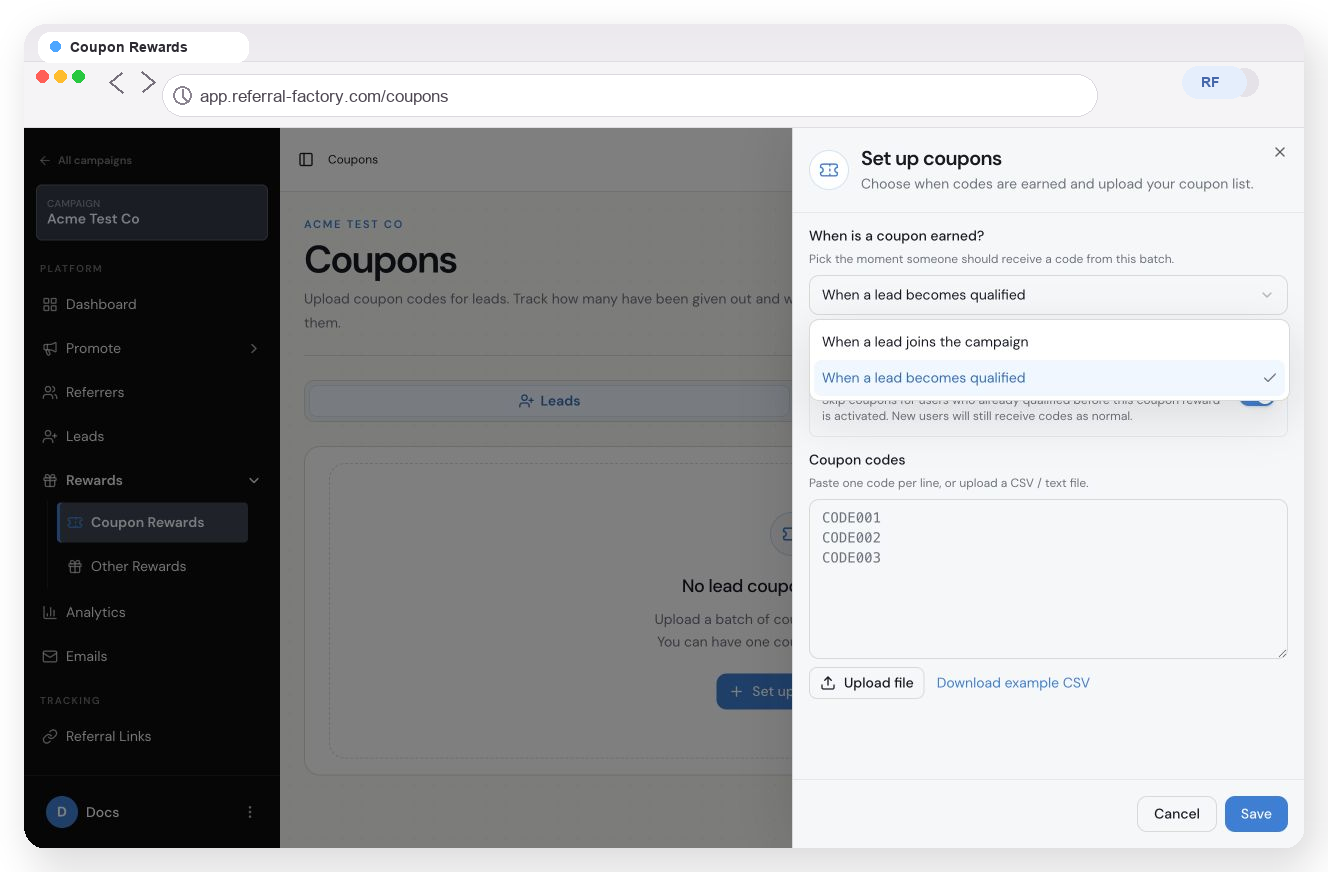
Lead coupon setup with the available earning triggers.
For Referrers
When a referrer joins the portal to start referring
When they get a referral
When they get a referral and it becomes qualified
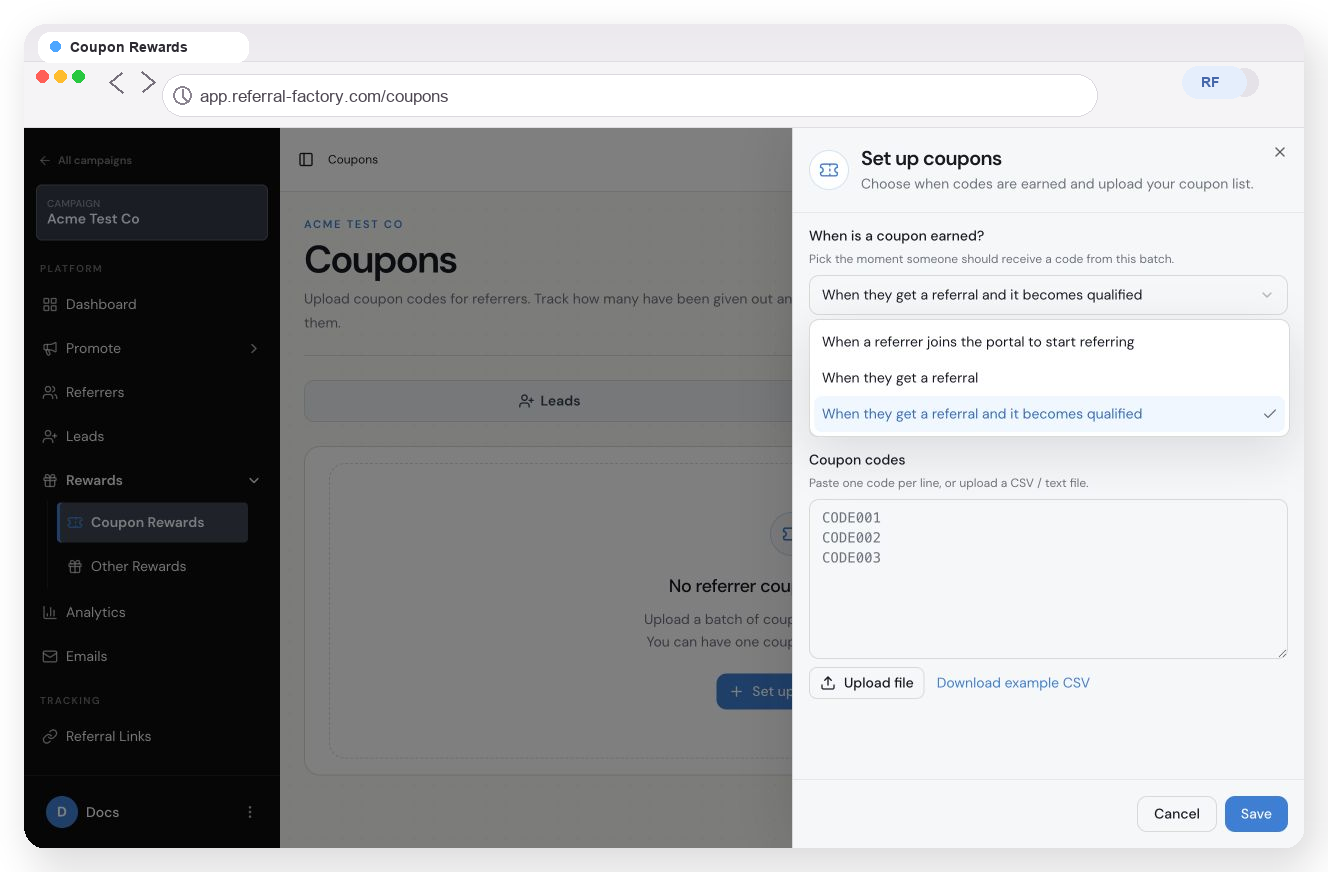
Referrer coupon setup with the available earning triggers.
You can also choose whether to Ignore rewards for existing users. Leave this on when people who qualified before the coupon batch was created should not receive a code.
4. Upload the coupon codes
Paste one unique code per line into the coupon-code box, or click Choose file and upload a CSV or text file.
Review the number of unique codes shown in the setup panel.
Click Save.
Referral Factory uses the codes you upload. It does not create the voucher value, expiry date or redemption rules for you.
| Tip: keep one code per line. If you upload a code that is already in the batch, it will not increase the total inventory. |
|---|
5. Review the coupon batch
After saving, the batch shows the active trigger and the current inventory. Use the counters to monitor the pool:
Issued: codes already assigned to recipients
Used: codes you have marked as redeemed
Remaining: unused codes still in the batch
Total: codes in the batch
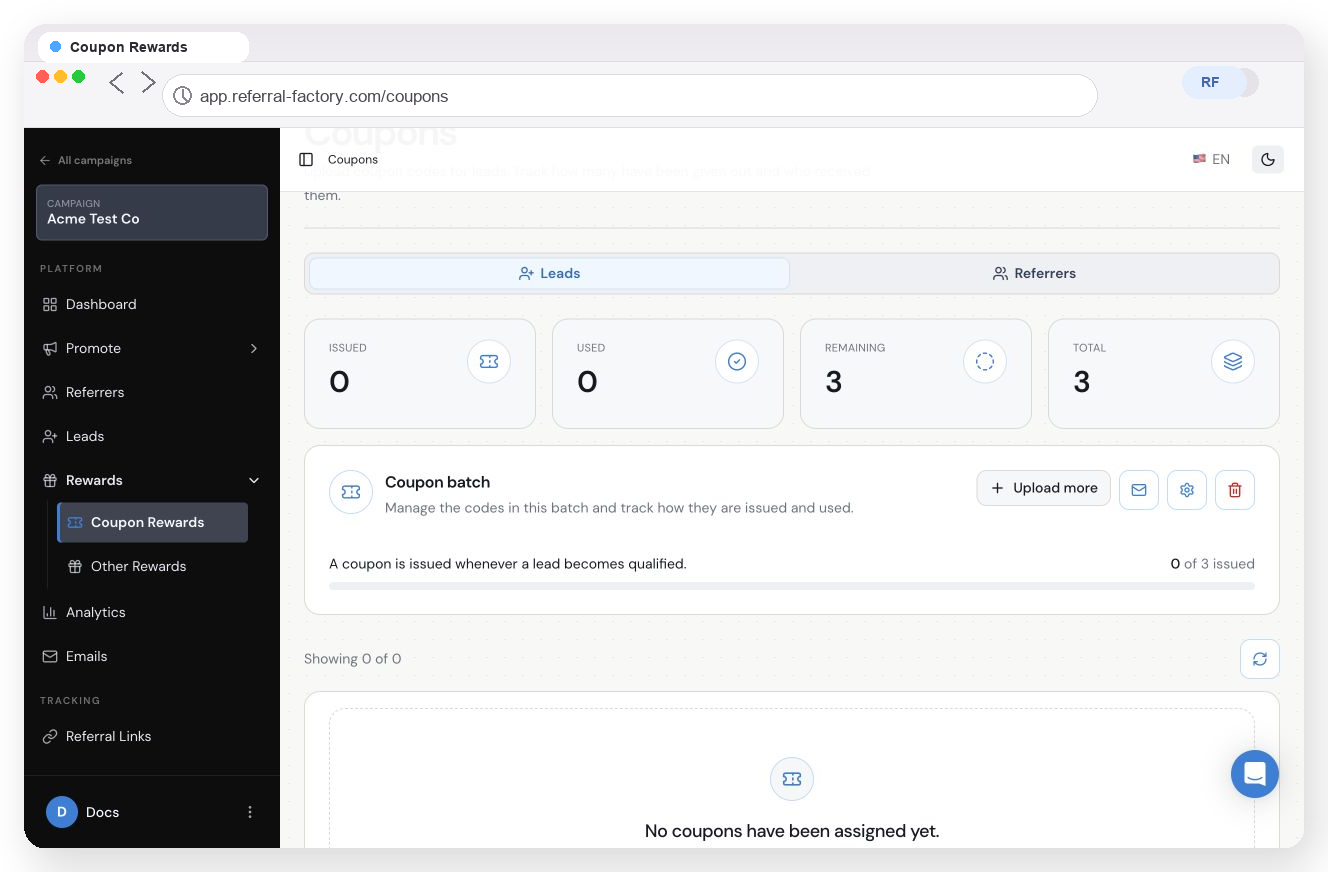
The coupon batch dashboard shows inventory and the selected trigger.
6. Configure the coupon notification
Open the notification settings from the coupon batch.
Turn on Enable notification if recipients should receive an email when the coupon reward is issued.
Set the subject and choose Text Template or HTML Template.
Add {Reward Coupon} where the recipient’s unique code should appear.
Save the notification.
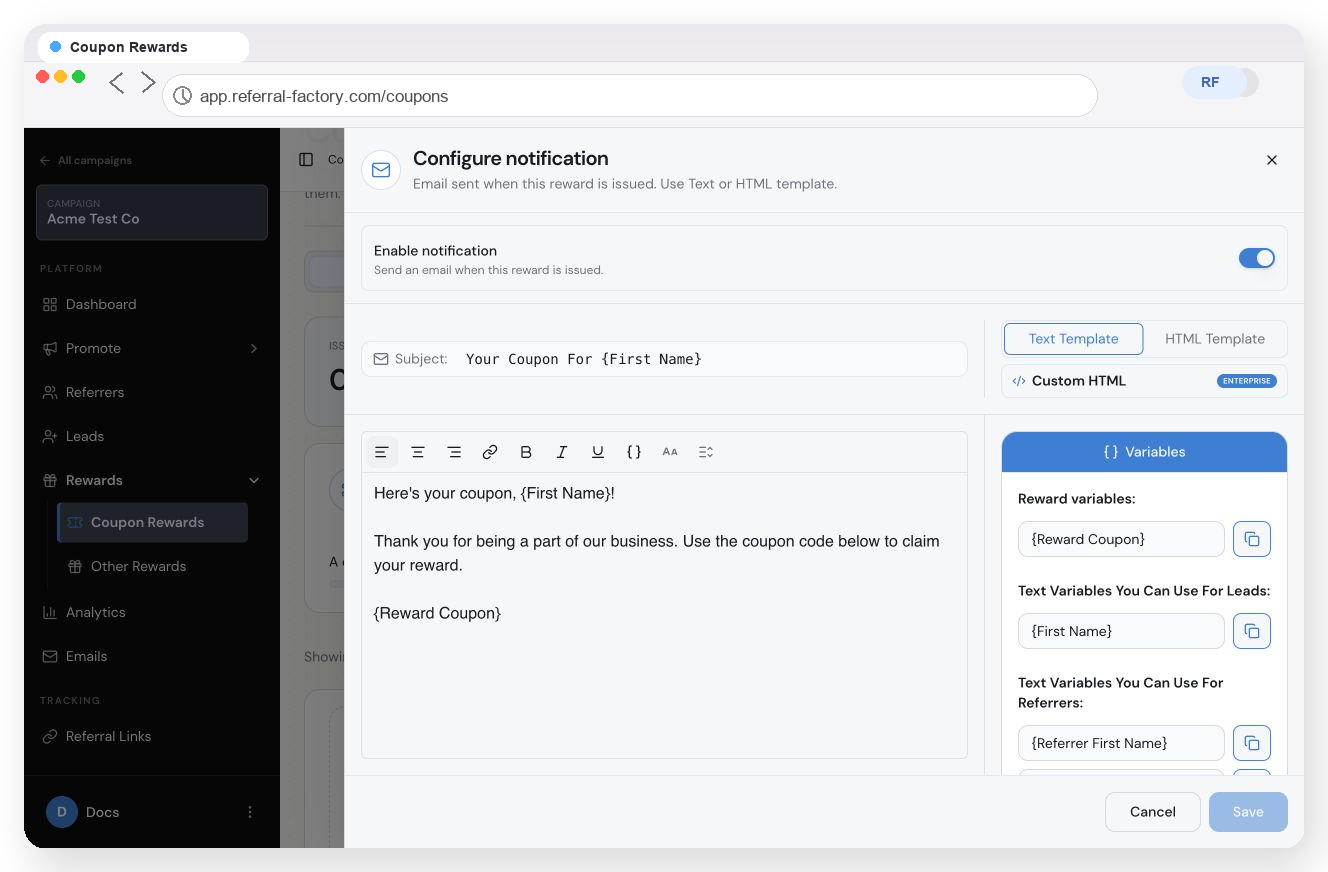
Add the {Reward Coupon} variable to the notification email.
7. Show a Lead coupon on the thank-you page
Open the coupon settings and turn on Show on referral link pages if the coupon should appear on the referral-link thank-you page. This option is available only for Lead coupons earned when a Lead joins the campaign. It is disabled for Lead coupons earned when a Lead becomes qualified.
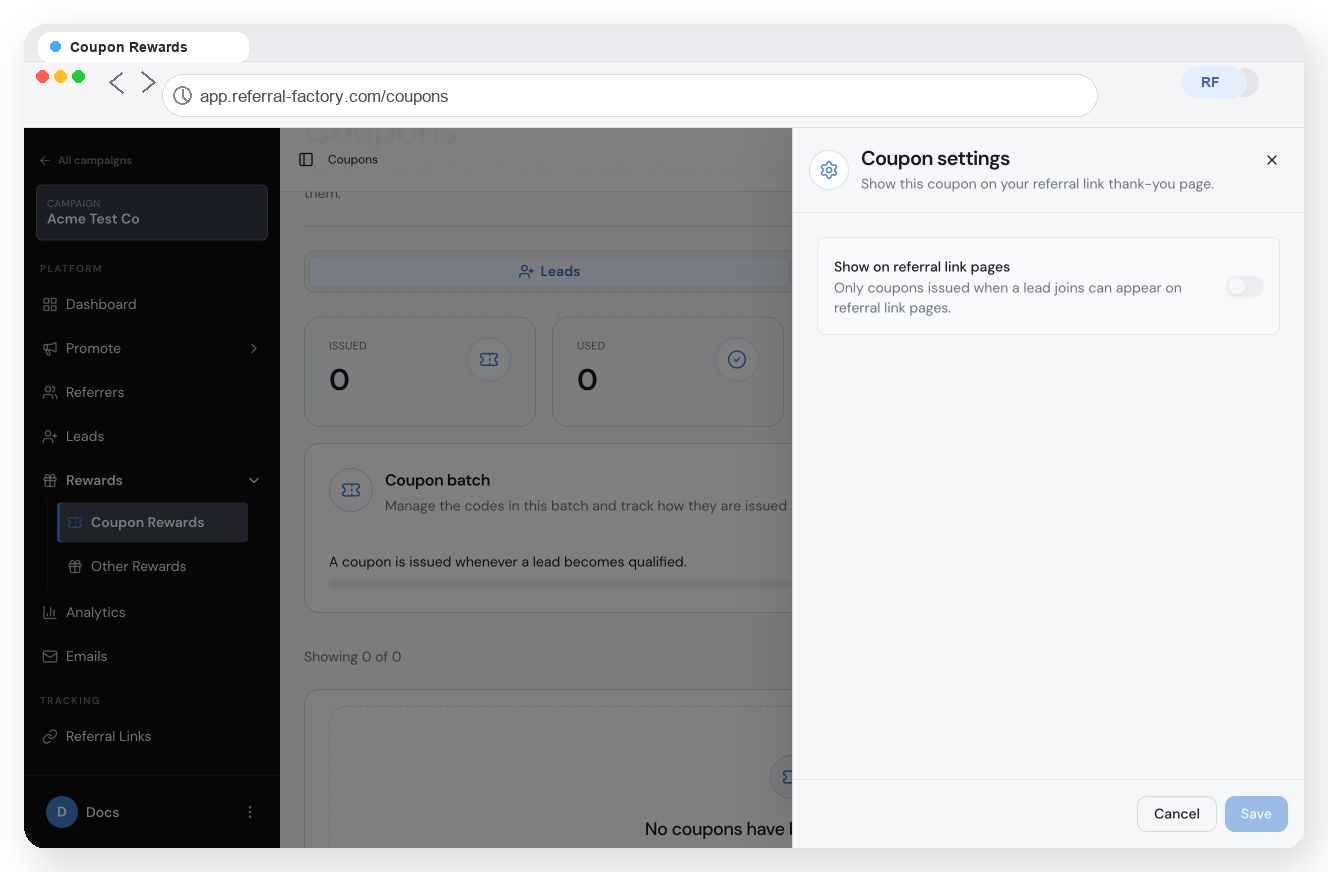
The thank-you-page setting is available for Lead-join coupon batches.
8. Test the coupon flow
Use a test campaign, a disposable test email address and a test coupon code pool before you launch the campaign.
Trigger the event you selected. For example, sign up a test Lead or qualify a test Lead, depending on the batch trigger.
Return to Rewards → Coupon Rewards and open the correct audience tab.
Confirm that the recipient, email address and coupon code are listed.
Check the status and the Issued and Remaining counters.
A coupon code can appear in the table before the reward changes from Due to Issued. Redemption is a separate step.
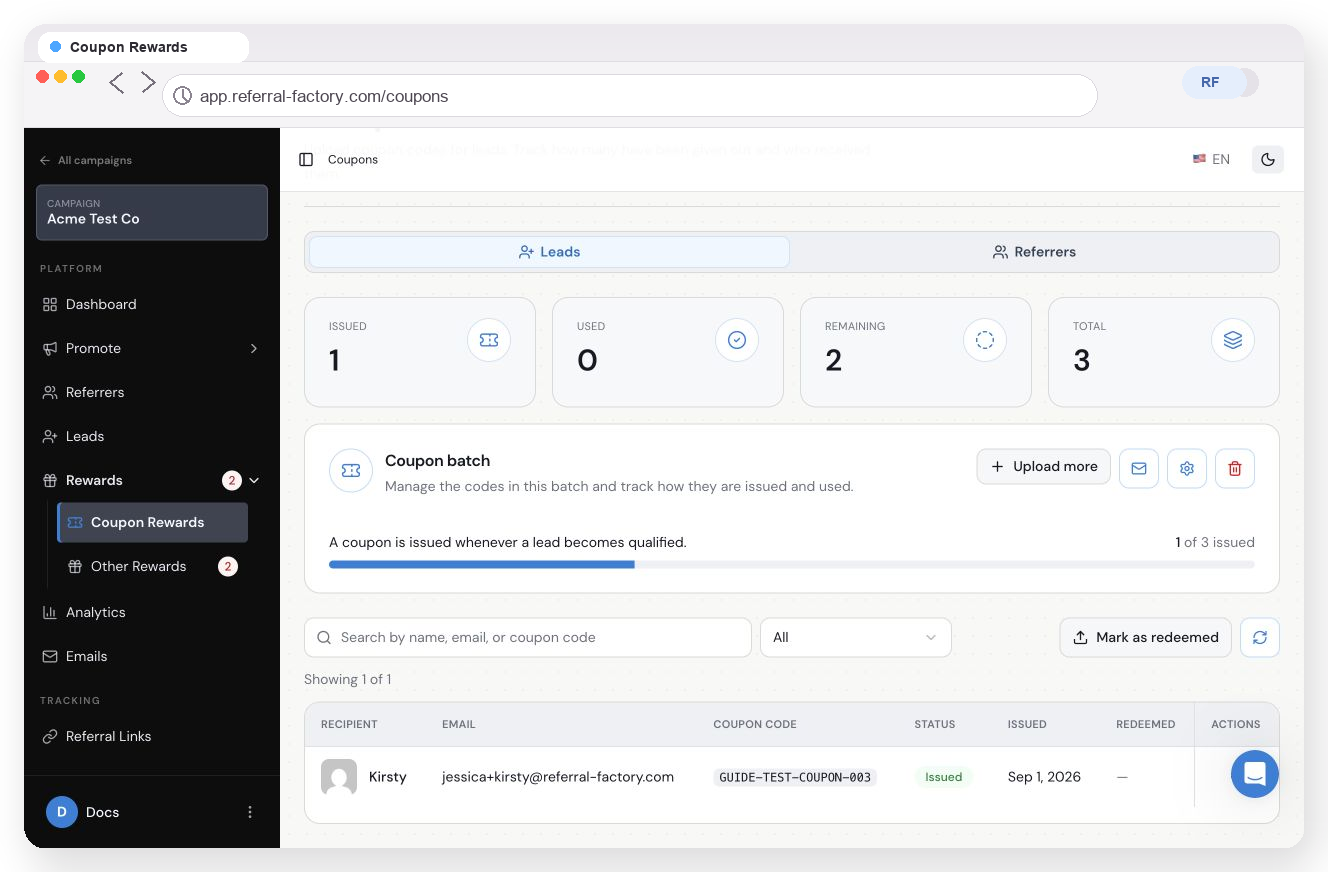
The coupon table shows the recipient, assigned code, status and redemption details.
9. Understand Due, Issued and redeemed
When the selected earning event happens, Referral Factory creates a Due reward. If a coupon is available at that point, it assigns the code and changes the reward to Issued automatically. If no coupon is available, the reward stays Due until more codes are available.
There is no Issue or Issue Now action and no Auto Issue setting in the Coupon Rewards flow. When an available coupon can fulfil the reward, Referral Factory issues it automatically. The configured notification is sent when the row changes to Issued, not when it first becomes Due.
If Remaining reaches zero, Due rows can stay Due until more codes are available. Use Upload more to add codes so Referral Factory can process the waiting rewards. Assigning a code alone does not change the row to Issued; the reward must be processed first.
The Issued counter shows how many codes have been assigned from the pool. It may be higher than the number of rows marked Issued because some assigned rewards can still be Due. Used counts coupons recorded as redeemed, Remaining counts unused codes still available, and Total counts all unique codes in the batch.
10. Mark a coupon as redeemed
Referral Factory does not automatically detect redemption in your external store or checkout. When a recipient has used a coupon, record it in Referral Factory so the batch stays accurate.
Open Mark as redeemed above the coupon table.
Paste the redeemed codes, or upload a CSV or text file.
If the redeemed code belongs to a Lead who should now be qualified, leave Also qualify leads? turned on.
Click Mark as redeemed.
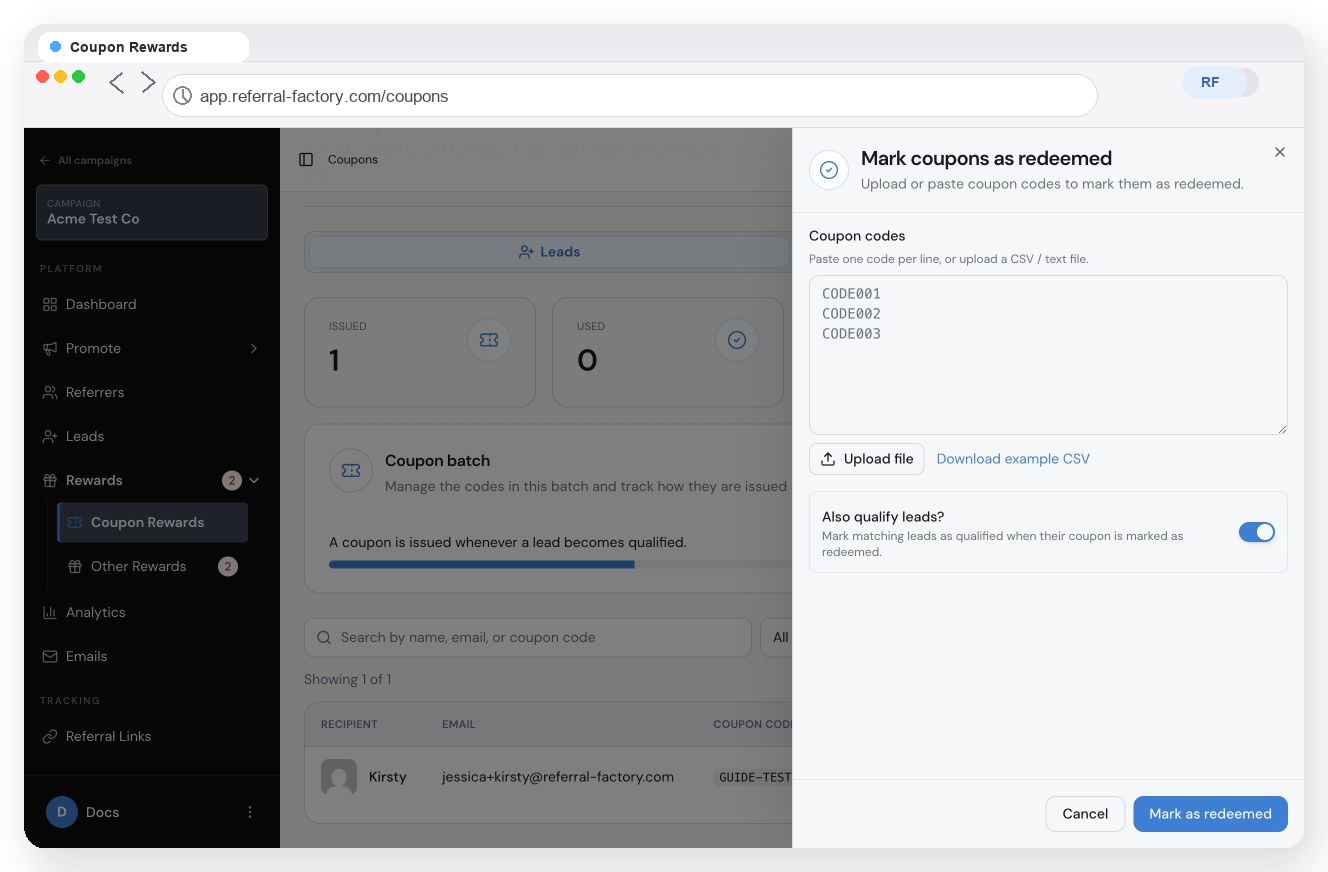
Record redeemed codes and optionally qualify the matching Leads.
11. Add more coupon codes later
Open the existing coupon batch and click Upload more. If Remaining is zero or getting low, add more codes before another person earns a Coupon Reward.
A note about Stripe Promo Codes
Coupon Rewards are for distributing your own uploaded codes. Stripe Promo Codes are a separate feature for creating Referrer codes through Stripe, giving Leads a checkout discount, and attributing the referral. Use the feature that matches the way your codes are created and redeemed.