
Need help applying this to your account?
Contact support and we will keep this article attached to your request.
The automated reward journey
The journey usually looks like this:
- Someone completes the action required by the Reward Rule.
- Referral Factory creates the reward for the person who should receive it.
- The reward appears as Due. This means it is waiting to be issued.
- If Auto Issue Rewards is enabled, Referral Factory can issue the reward without someone approving it manually.
- Referral Factory then sends the reward through the method you chose.
The final delivery step depends on the issuing method. Not every method sends money directly. Some methods pass reward information to another provider or workflow.
What each part does
| Part | What it controls |
|---|---|
| Reward Rule | Decides who earns the reward, what they earn, and what needs to happen first. |
| Auto Issue Rewards | Decides whether someone must manually approve the reward before Referral Factory issues it. |
| Issuing Method | Decides where the reward goes next, such as Tremendous, PayPal, Stripe Credits, Webhooks, or an automation. |
| What happens next | The provider or workflow may still need to process or deliver the reward. |
Where the issuing method fits
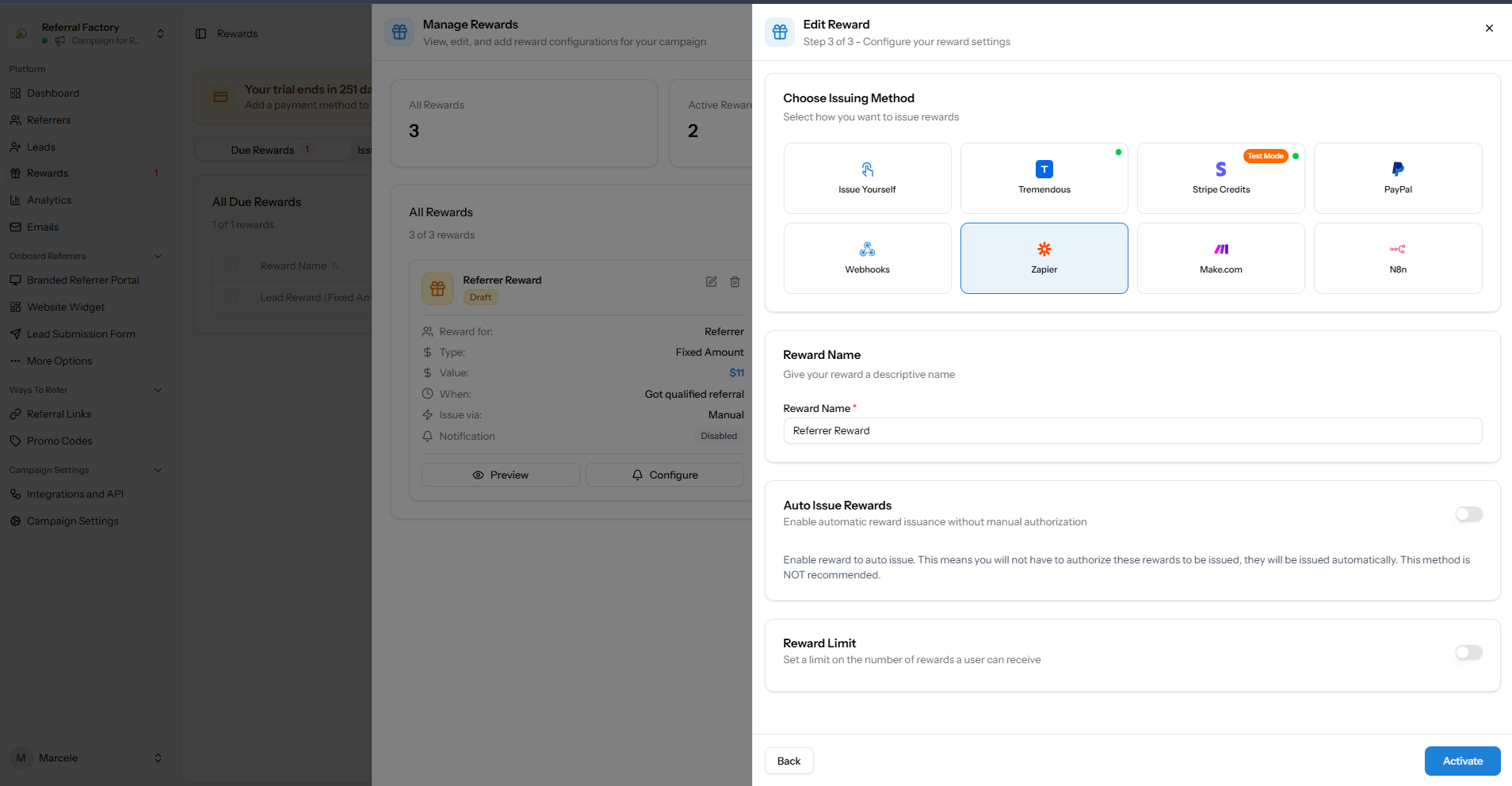
The Reward Rule contains the issuing method. Step 3 shows the available options. This choice does not decide who earns the reward or how much they receive. Those decisions come from the rest of the Reward Rule.
What Auto Issue Rewards changes
With Auto Issue Rewards turned off, a Due reward waits for someone to issue it manually. With Auto Issue Rewards turned on, eligible rewards can be issued without that manual approval step.
Auto Issue does not change the Reward Rule. The rule still decides who qualifies and what the reward is worth. Auto Issue only changes whether a person needs to approve the reward before it is issued.

Referral Factory warns that Auto Issue is not recommended without proper testing. This is because some issuing methods can spend money or send real rewards automatically. Test the rule and destination before turning it on for a live campaign.
What happens after Referral Factory issues the reward
Referral Factory then sends the reward through the method you chose. The provider or workflow handles the next step.
- Tremendous: Referral Factory sends the reward into the connected Tremendous setup. Tremendous handles delivery.
- PayPal: Referral Factory sends the reward through the connected PayPal setup.
- Stripe Credits: Referral Factory uses the connected Stripe Credits flow.
- Webhooks: Referral Factory sends the reward information to your configured endpoint.
- Zapier or Make.com: The issued reward can trigger your connected automation.
- n8n: Referral Factory can pass the reward into your configured n8n setup. Check your workflow for the next step.
- Issue Yourself: This is not automated delivery. Referral Factory tracks the reward, but your business handles the actual reward using its own process.
Does Issued mean the recipient has received the reward?
Not always. Issued means Referral Factory has sent the reward through the method you chose. If a provider or automation is involved, that service may still have its own processing or delivery status.
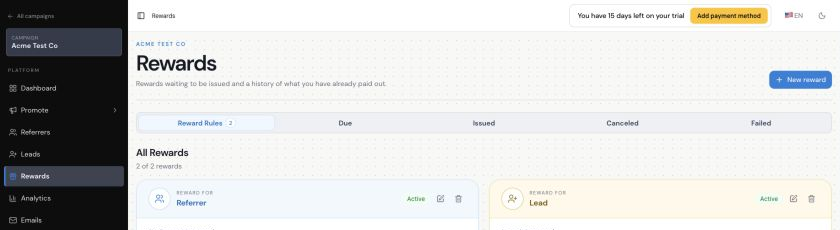
If a recipient says they did not receive a reward, first check whether Referral Factory shows it as Due, Issued, or Failed. If it is Issued, check the connected provider or workflow too.
If an automated reward fails
If Referral Factory can’t issue the reward, it may appear under Failed. Check the issuing method, the connection, the recipient details, and the workflow or endpoint. Some methods show Retry Failed Rewards. Only use it after you understand and fix the cause.
When automation is a good fit
Automation works best when you’re confident about exactly when rewards should be sent and you’ve tested the payout method first.
Manual approval may make more sense when rewards are high value, someone needs to review eligibility, you want a fraud or quality check before payout, or your team handles rewards manually. Neither approach is right for every campaign.
A simple example
A company gives a Referrer a $50 reward when their referral becomes a customer. The Reward Rule creates the $50 reward when the Lead qualifies. Because Auto Issue is enabled, the reward does not wait for someone to approve it manually. Referral Factory sends it through the issuing method chosen on the Reward Rule. If that method is Tremendous, Tremendous handles the next delivery step. If it is Zapier, the connected Zap handles the action the business configured.