
Need help applying this to your account?
Contact support and we will keep this article attached to your request.
Referral Factory determines when the reward becomes due based on the rules you configure, while the actual funds are paid from your connected PayPal Business account.
How cash rewards are paid through PayPal
When setting up a monetary reward, select PayPal as the issuing method.
The basic flow is:
Lead qualifies → Referrer earns a reward → Reward becomes Due → PayPal sends the cash payout
The payment is sent from your connected PayPal account to the recipient using their email address.
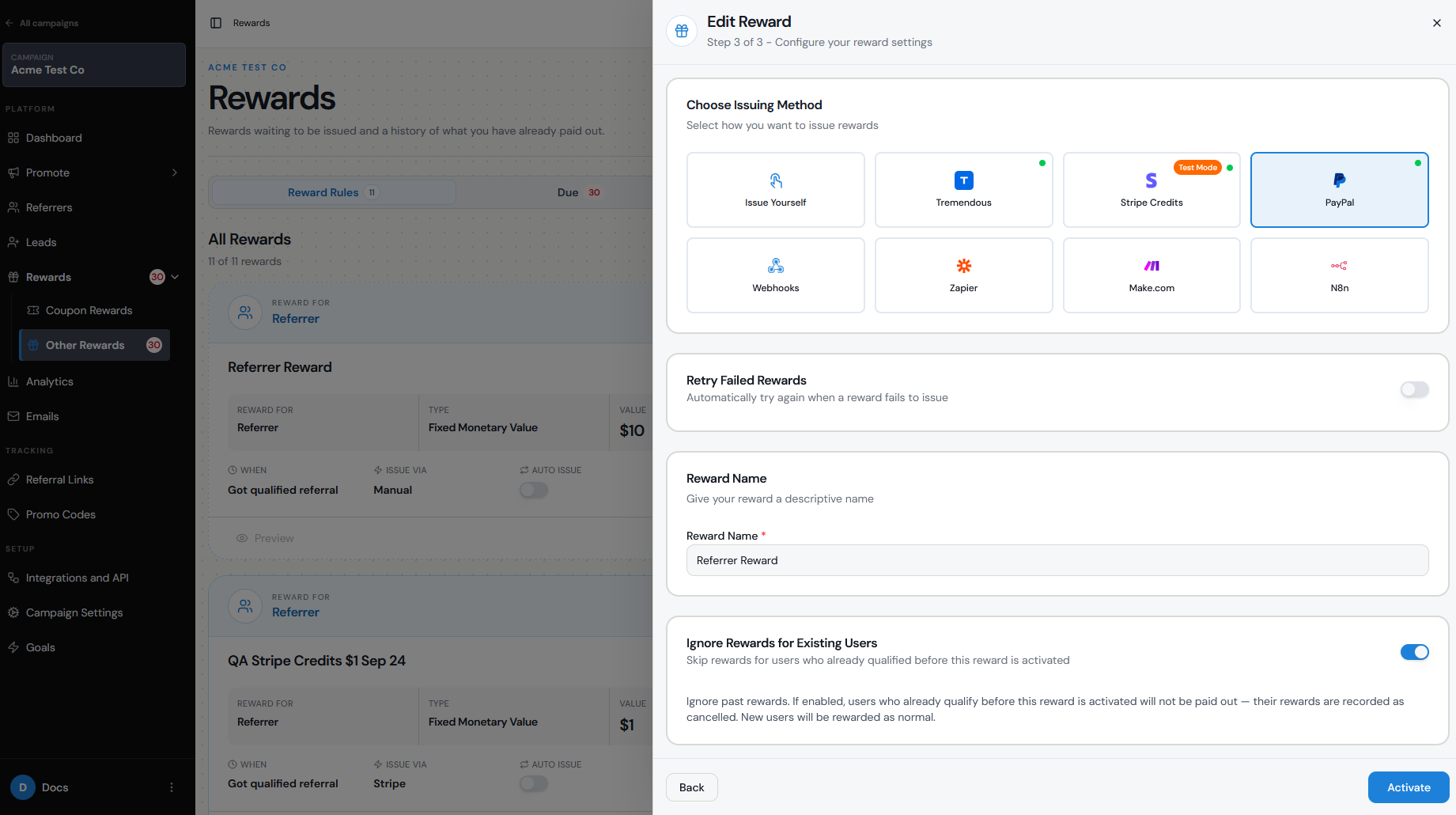
Account/connection prerequisites
Before you can issue rewards through PayPal, you need:
A PayPal Business account that can send payouts.
A connected PayPal account in Referral Factory.
Sufficient funds in your PayPal account to cover the rewards and any applicable PayPal fees.
A valid email address for each reward recipient.
The first time you select PayPal as the issuing method, you will be prompted to connect and authorize your PayPal account.
You can check the connection under Campaign Settings → Integrations and API → Rewards.
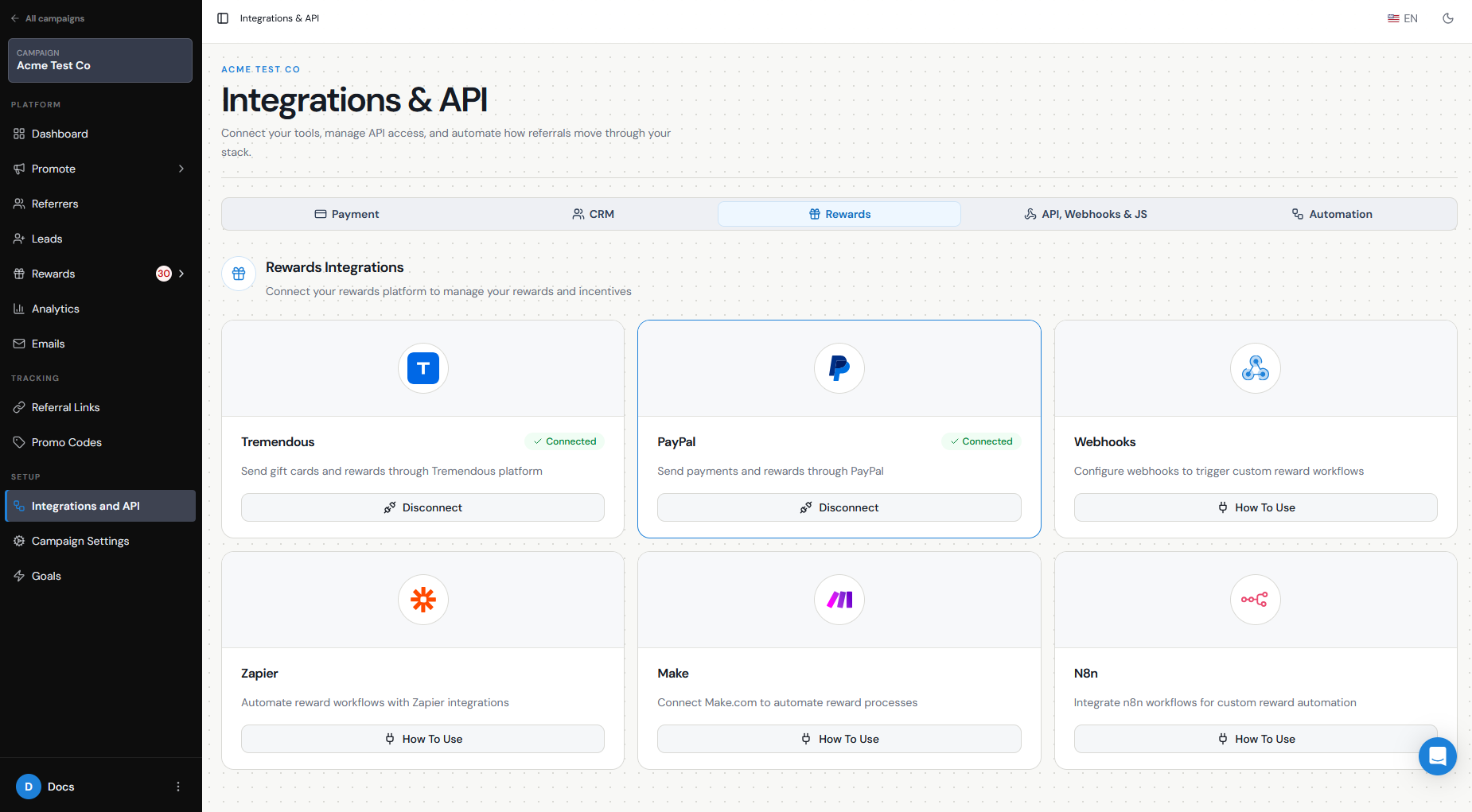
Recipient email/data
PayPal rewards are matched using the recipient's email address.
The Referrer's email in Referral Factory therefore needs to be associated with a PayPal account for the payout to be successfully delivered.
If the email cannot be matched to a valid PayPal account, the payout may fail.
This is worth considering when designing your Referrer signup form. If you plan to reward people through PayPal, make sure you are collecting a valid email address from each participant.
Reward value and trigger
When creating the reward, choose who should receive it and configure the value and qualification rules.
For example:
Reward the Referrer $25 every time one of their referred Leads becomes Qualified.
You can configure a Fixed Amount reward or, where appropriate, a Commission Amount reward.
Monetary PayPal rewards are tied to successful referrals, so they cannot be triggered simply because someone joins the campaign or a new Lead signs up. The referred Lead must meet the qualification criteria that trigger the reward.
You can also configure how frequently the reward is earned, such as for every Qualified Lead or according to another supported reward structure.
Manual vs automatic issuing where available
By default, you can review rewards in Rewards → Due Rewards before sending them.
To issue a reward manually:
Go to Rewards → Due Rewards.
Find the PayPal reward.
Open the Actions menu.
Select Issue Now.
You can also issue multiple due rewards together using the available bulk actions.
If you enable Auto Issue Rewards in the reward configuration, Referral Factory can automatically send the PayPal payout when the reward becomes due.
Manual issuing gives you an opportunity to review the referral before money is sent, which can be useful for checking refunds, cancellations, fraud, or other eligibility issues.
Fees/currency
PayPal charges fees when rewards are issued through PayPal Payouts.
The current payout fees are:
U.S. transactions: $0.25 per transaction.
International transactions: 2% of the payment amount, with the maximum fee capped depending on the country.
Maximum individual payment: $20,000 USD.
Recipient fees: No fees are charged to the reward recipient.
Any applicable PayPal payout fees are paid by the sender, so factor these costs into your reward budget when deciding how much to offer.
You should also make sure that the currency you select for your reward is supported by your PayPal account and the recipient's location.
Status/failure handling
After a PayPal reward is issued, you can track it from Rewards → Issued Rewards.
Reward statuses can include Sending, Issued, or Failed.
If a PayPal reward fails, check:
Your PayPal integration is still connected.
Your PayPal account has sufficient funds.
Your account is able to send payouts.
The recipient's email address is associated with a valid PayPal account.
The reward configuration is still active.
Once you have corrected the problem, you can use the available reward actions to retry the payout where supported.
Testing
Before using PayPal rewards with live Referrers, test the complete reward journey.
Connect your PayPal Business account.
Create a test Referrer and Lead.
Confirm that the Referrer's email is associated with a PayPal account.
Trigger the qualification condition for the test Lead.
Confirm that the PayPal reward appears in Due Rewards.
Review the recipient, currency, and reward amount.
Issue the reward manually.
Check Issued Rewards and confirm that the payout completes successfully.
For your first test, keeping Auto Issue Rewards turned off makes it easier to check the reward details before an actual payment is sent.