
Need help applying this to your account?
Contact support and we will keep this article attached to your request.
How make fits into the reward flow
Referral Factory issues the reward, Make receives the reward event, and the scenario runs the next action you configured.
A reward that is Due is still waiting to be issued. It does not start the Make scenario. The scenario starts after the reward is Issued.
For example, a scenario could receive an issued custom reward, find the matching customer in a database, and add the reward amount to that customer’s account.
Choose Make.com in Referral Factory
1. Open the campaign where you want to configure the reward.
2. Go to Rewards → Reward Rules.
3. Select New reward, or open the Draft Reward Rule you want to edit.
4. Complete the reward and trigger settings, then continue to Choose Issuing Method.
5. Select Make.com.
6. Enter a descriptive Reward Name and review the settings shown for the rule.
7. Keep Auto Issue Rewards off if someone should review Due rewards first. Turn it on only after the scenario and its destination actions are ready.
8. Select Activate when the rule is complete.
Create the make scenario
1. In Make, create a new scenario.
2. Add the Referral Factory module.
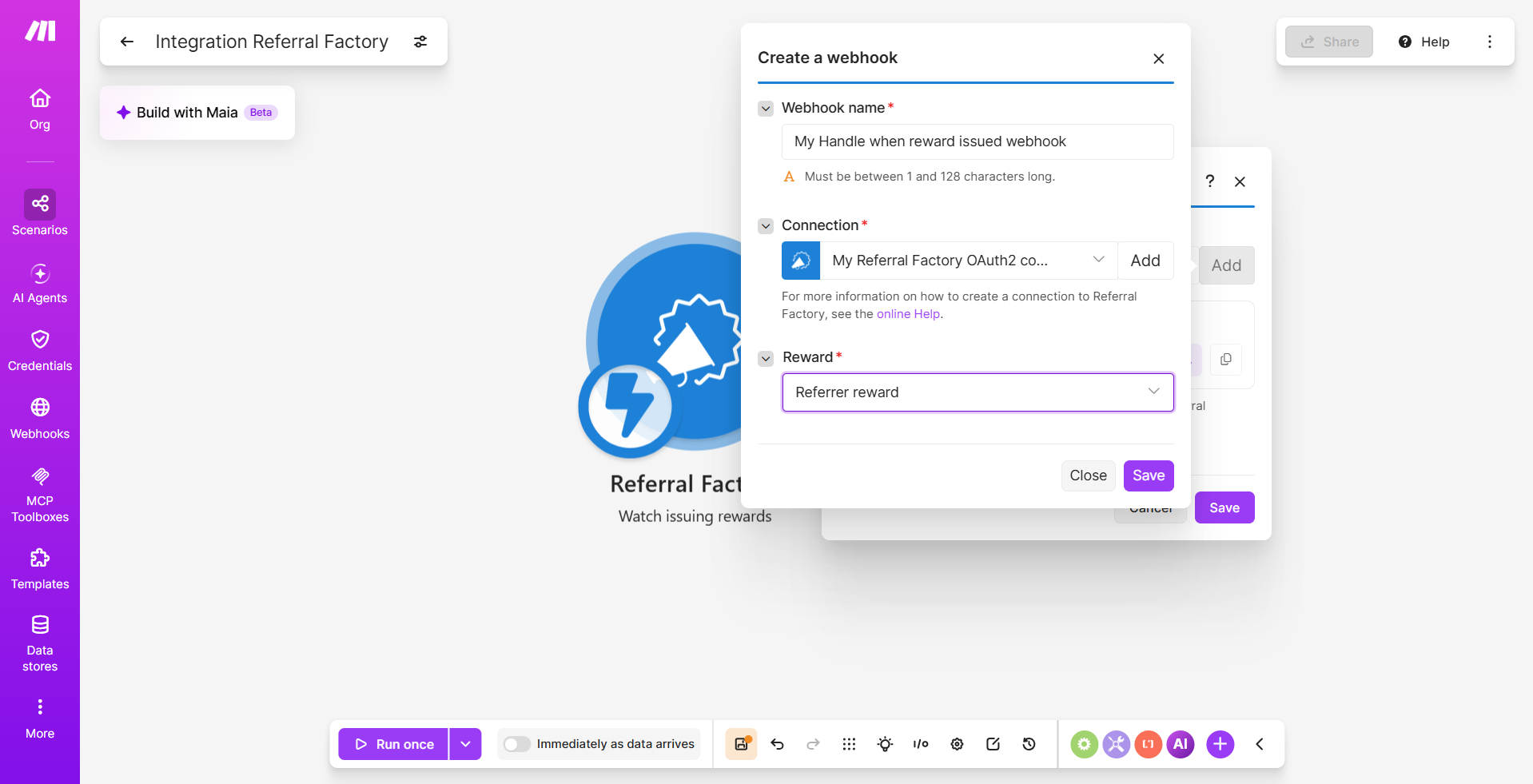
3. Choose Watch issuing rewards as the trigger module. This is the current Make trigger for rewards issued through Make.com.
4. Create or select the Referral Factory connection.
5. Select the relevant reward where the module asks you to choose one.
6. Run the module once to load a sample issued reward.
Add the next module
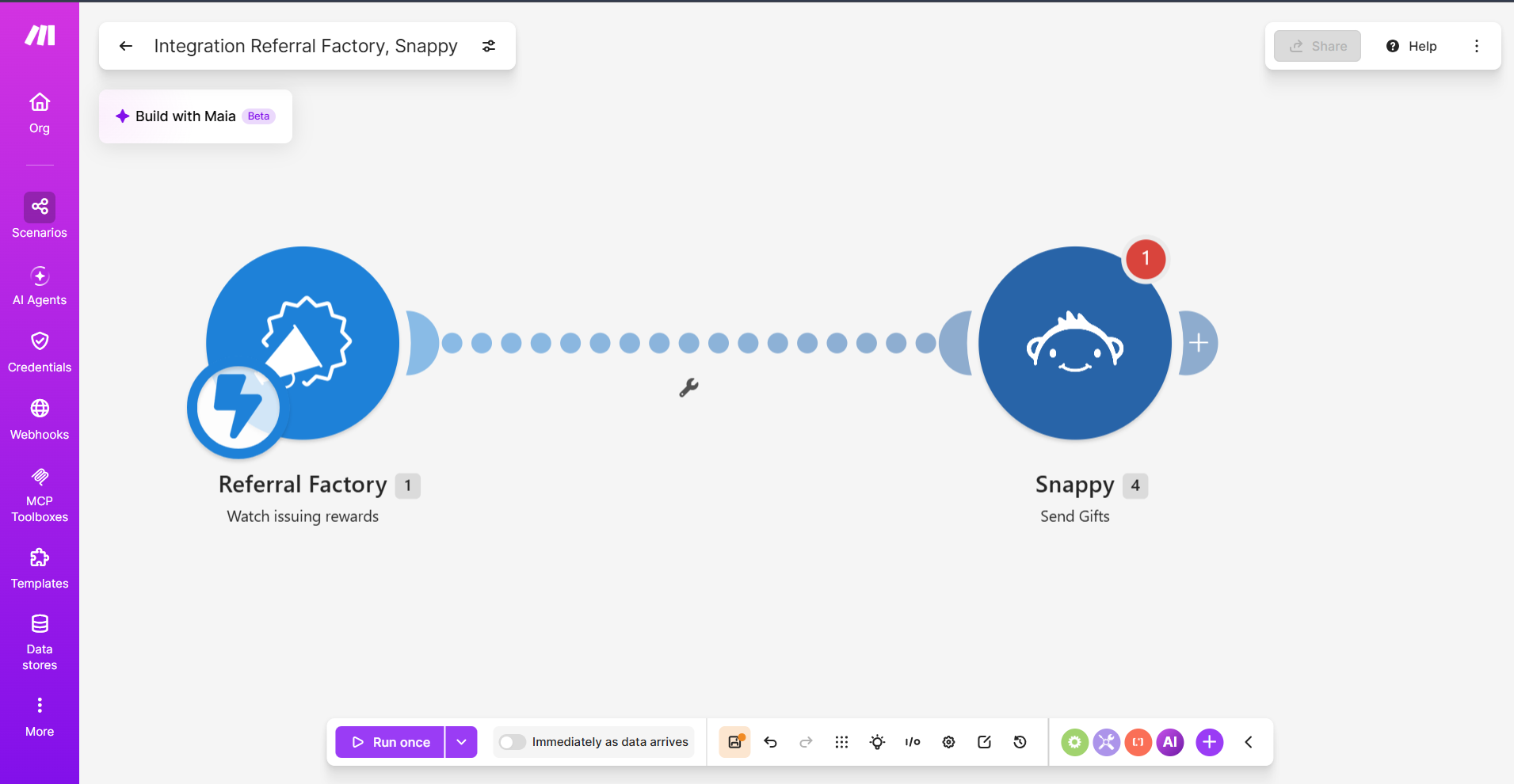
1. Add the app or service that should receive the reward information.
2. Choose the action, such as creating a record, sending an email, adding points or calling another service.
3. Connect the destination account.
4. Map the reward and recipient fields from the Referral Factory module into the next module.
5. Add a filter or another module if different rewards need different actions.
6. Run the scenario with controlled test data and confirm the destination result.
Activate and check the scenario
Save and activate the scenario after the test succeeds. Then check that Referral Factory shows the reward as Issued, Make shows a successful Watch issuing rewards run, and the final app completed its action.
If the scenario does not run, first check that the reward is Issued rather than Due, the correct reward is selected, and the scenario is active.