
Need help applying this to your account?
Contact support and we will keep this article attached to your request.
Overview
Create a Pipedrive record when someone becomes a new referrer in your campaign
When someone joins your campaign as a new referrer, Referral Factory can create a matching Pipedrive Lead or Deal. This guide covers new referrers who join after you save the setup. It does not cover importing people who already exist in Pipedrive.
Can I automatically send new Referrers to Pipedrive?
Yes. In the connected Pipedrive settings, the Referrers tab lets you choose what happens when a referrer joins the campaign. You can create a new Lead or a new Deal in Pipedrive, then map the referrer information that should be sent.
Before you start
Make sure Pipedrive is connected to the campaign and that you know whether you want new referrers to appear as Pipedrive Leads or Pipedrive Deals. Select the campaign first. You will then use Integrations and API, CRM, and the Referrers tab.
When is a new Referrer sent to Pipedrive?
Referral Factory sends the referrer when they join the campaign, after you have selected a Pipedrive action, completed the required mappings, and saved the changes. The setting applies to new referrers who join after setup.
How do I choose what happens when a new Referrer joins?
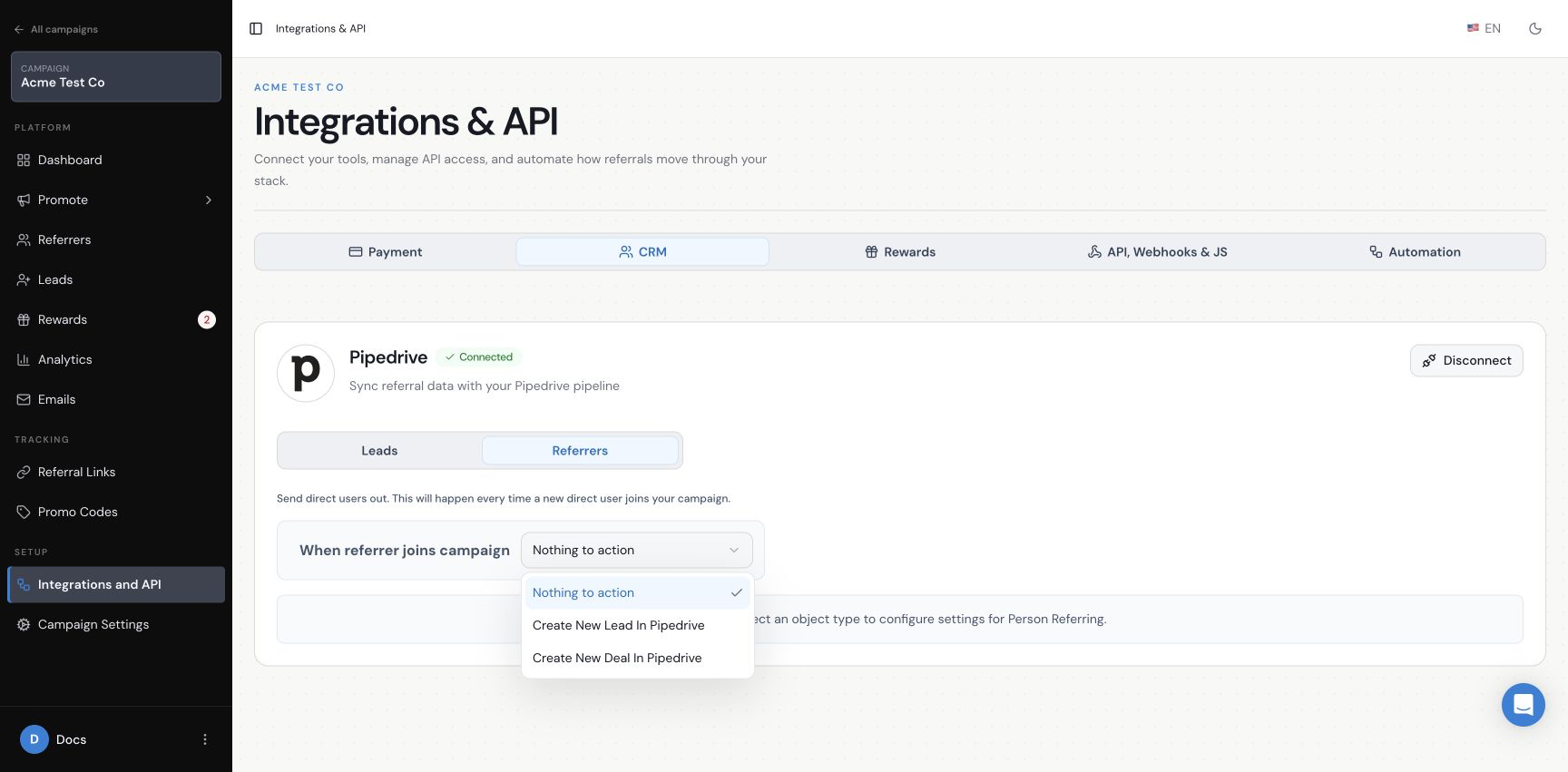
Open Integrations and API, select CRM, and select the Referrers tab. Under When referrer joins campaign, open the menu and choose Create New Lead In Pipedrive or Create New Deal In Pipedrive. The fields shown next depend on your choice.
Choose what Referral Factory creates when a referrer joins
How do I create a new Pipedrive Lead for each Referrer?
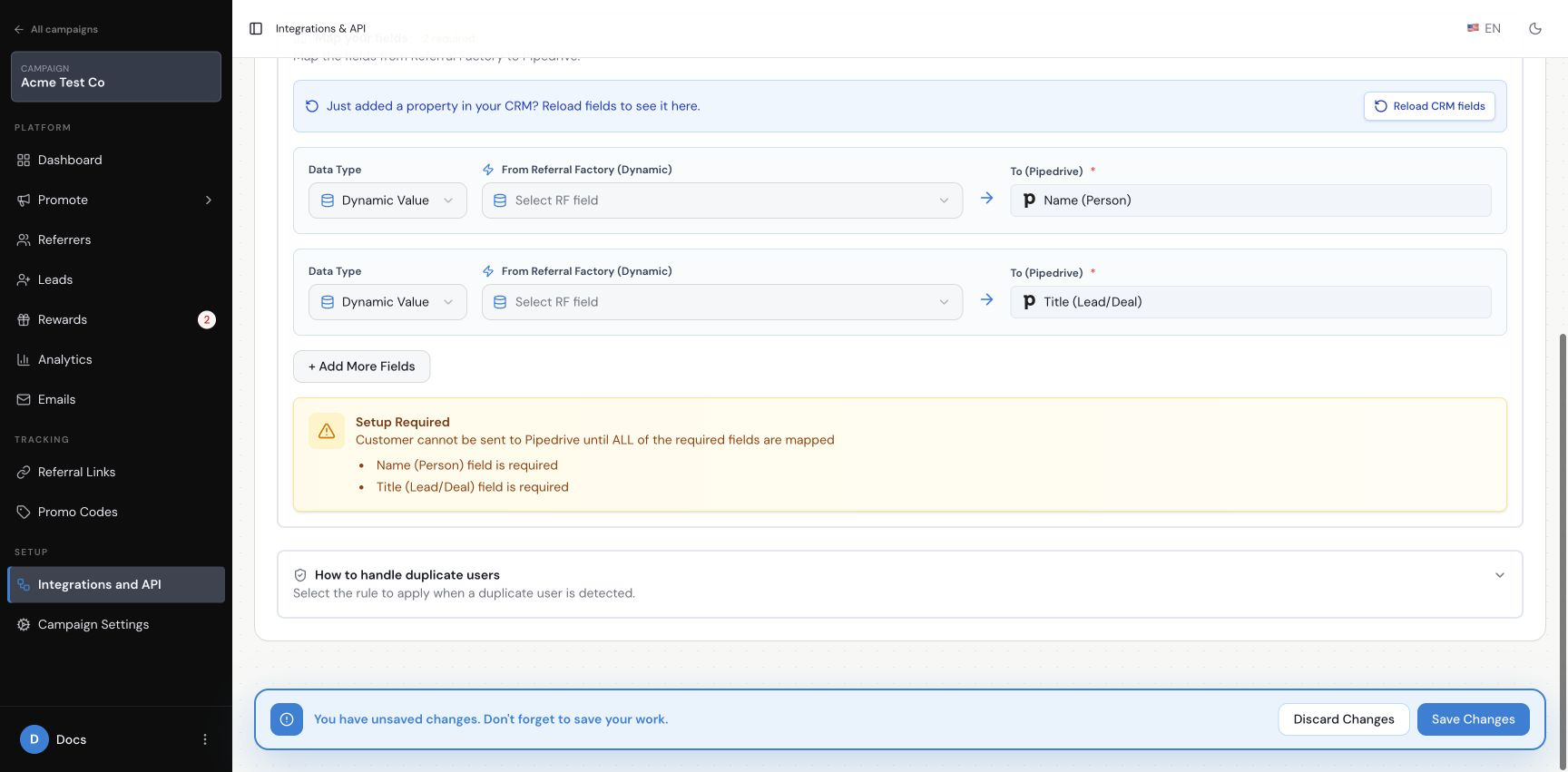
Under When referrer joins campaign, choose Create New Lead In Pipedrive. Referral Factory opens Map your fields. The current Lead setup shows two required Pipedrive destinations: Name (Person) and Title (Lead/Deal).
For each row, select the Referral Factory value that should be sent to the Pipedrive destination. For example, use a value collected from the referrer for Name (Person), then choose the campaign or another suitable value for Title (Lead/Deal). The exact values available depend on your campaign fields.
Map the fields for a new Pipedrive Lead
How do I create a new Pipedrive Deal for each Referrer?
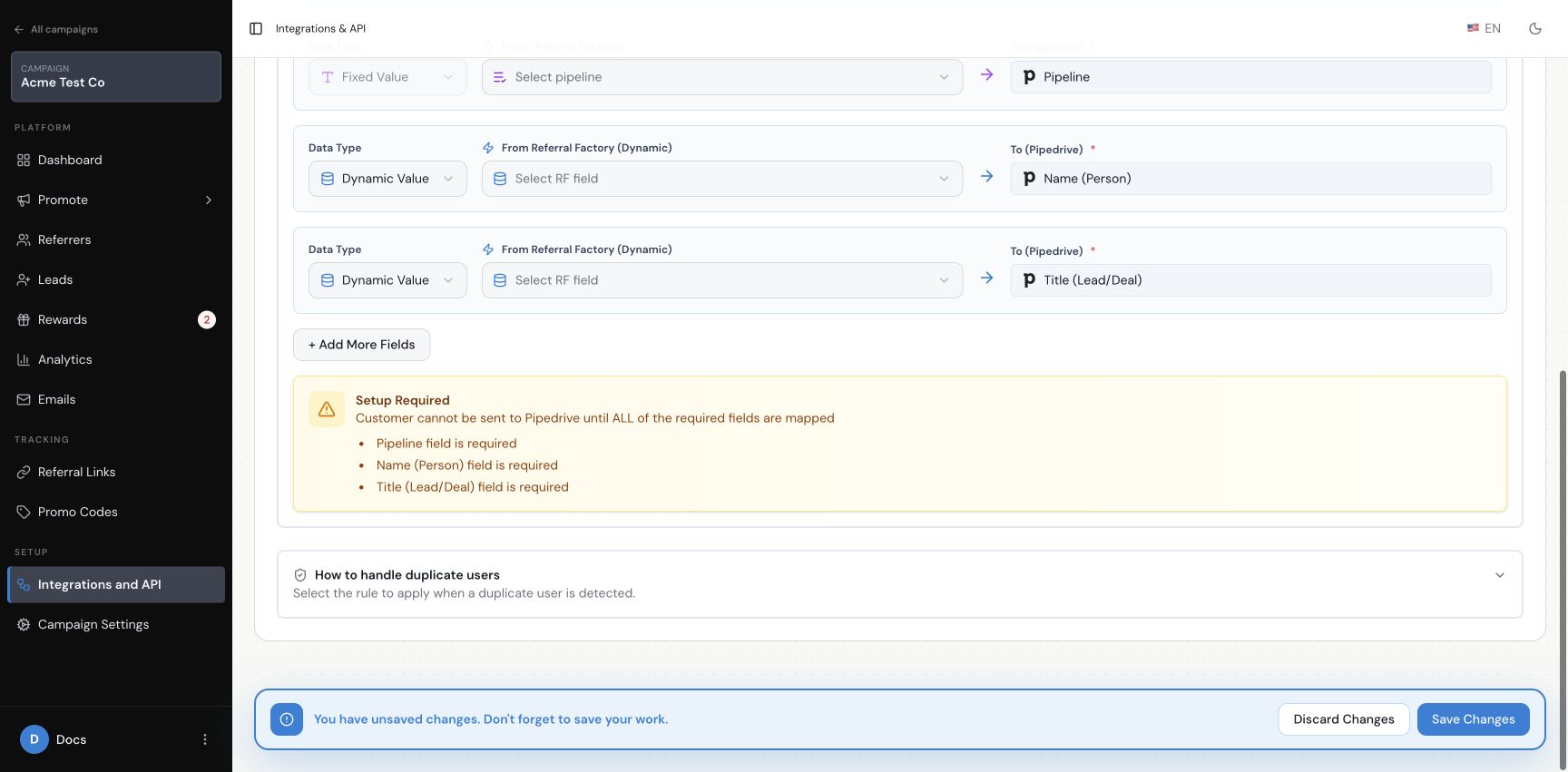
Under When referrer joins campaign, choose Create New Deal In Pipedrive. The Deal setup shows three required Pipedrive destinations: Pipeline, Name (Person), and Title (Lead/Deal).
Choose the Pipedrive pipeline as a Fixed Value. Then use Dynamic Value for the referrer information sent to Name (Person) and Title (Lead/Deal).
Map the fields for a new Pipedrive Deal
How do I map Referrer information to Pipedrive?
In Map your fields, select the Referral Factory value under From Referral Factory (Dynamic), then check the destination under To (Pipedrive). Use a value that comes from the new referrer for fields such as Name (Person).
If you recently added a Pipedrive field and it is not listed, use Reload CRM fields and check the mapping menu again. Referral Factory shows Setup Required until all required Pipedrive fields are mapped.
What Referrer information can I send to Pipedrive?
You can map the Referral Factory values collected when the referrer joins to the Pipedrive destinations shown in the setup. The current required destinations are Name (Person) and Title (Lead/Deal) for a Lead, plus Pipeline for a Deal. Additional fields may be available through Add More Fields, depending on the connected Pipedrive account.
How do I save and test the setup?
Review the mappings, then select Save Changes at the bottom of the Referrers setup. Use a separate dummy email address to join the campaign as a new referrer. After joining, check the campaign’s Referrers table in Referral Factory and look in Pipedrive for the Lead or Deal created by the saved action.
Confirm that the new record has the expected name and title, and that the correct pipeline is used when you test the Deal option. Allow time for the integration to process before checking Pipedrive. Use dummy data rather than a real customer.