
Need help applying this to your account?
Contact support and we will keep this article attached to your request.
Overview
Use this guide to add people who already exist in Pipedrive as referrers in a Referral Factory campaign and give each person their own referral link.
Can I give my existing Pipedrive Contacts their own referral links?
Yes. Select the campaign you want to use, choose the Pipedrive people you want to add, map their details, and complete the sync. Afterward, those people appear as referrers in the campaign and can use their own referral links.
Before you start
Make sure Pipedrive is already connected to the campaign and that you can access the people you want to add. You also need to know whether you want to add all Pipedrive people or only people in a saved Pipedrive People filter.
How do I add existing Pipedrive Contacts as Referrers?
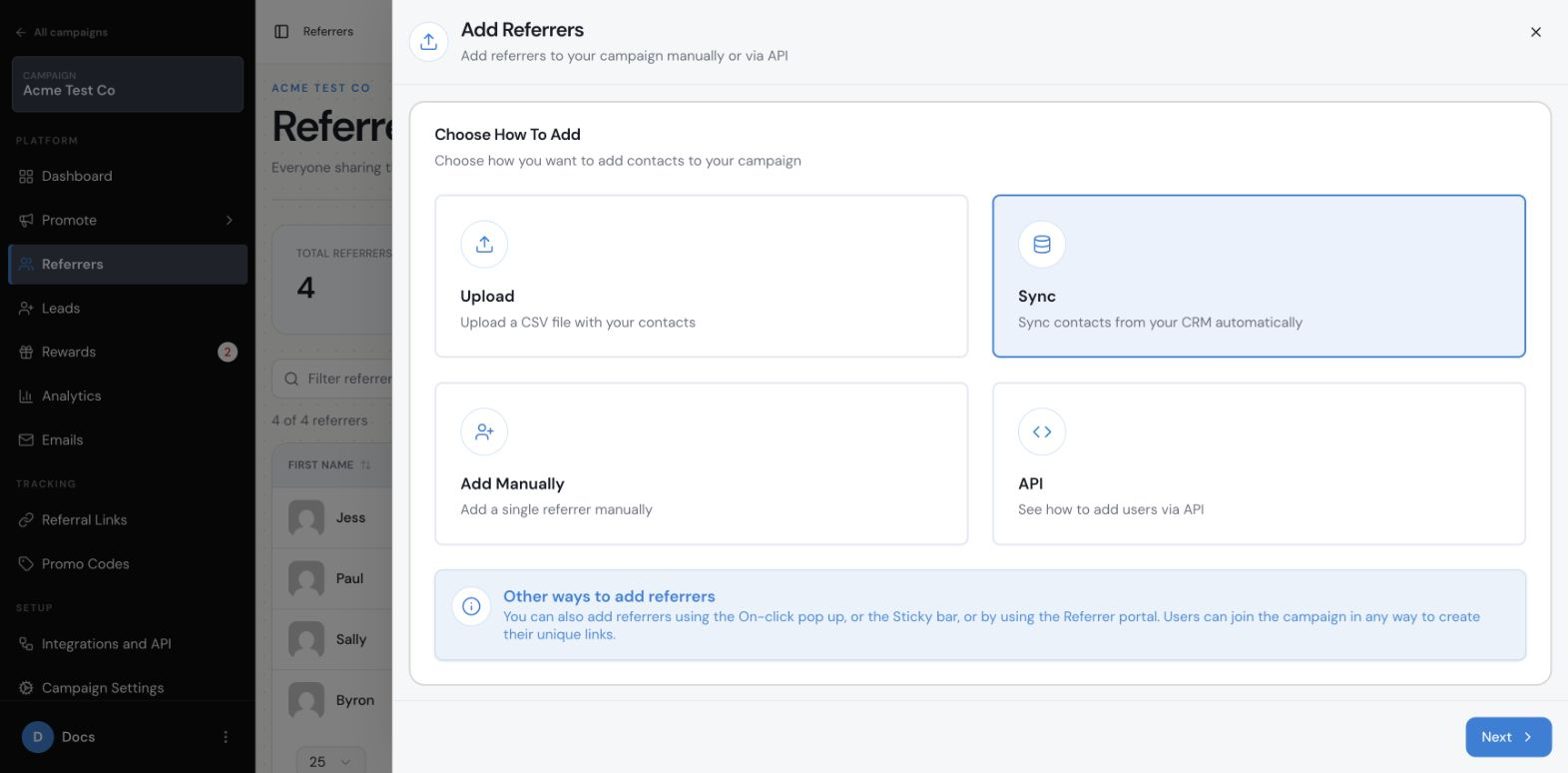
Select the campaign first. Then open Referrers, choose Add Referrers, and select Sync. Choose Pipedrive as the integration and continue to Pipedrive Sync Setup.
Add Referrers: choose Sync
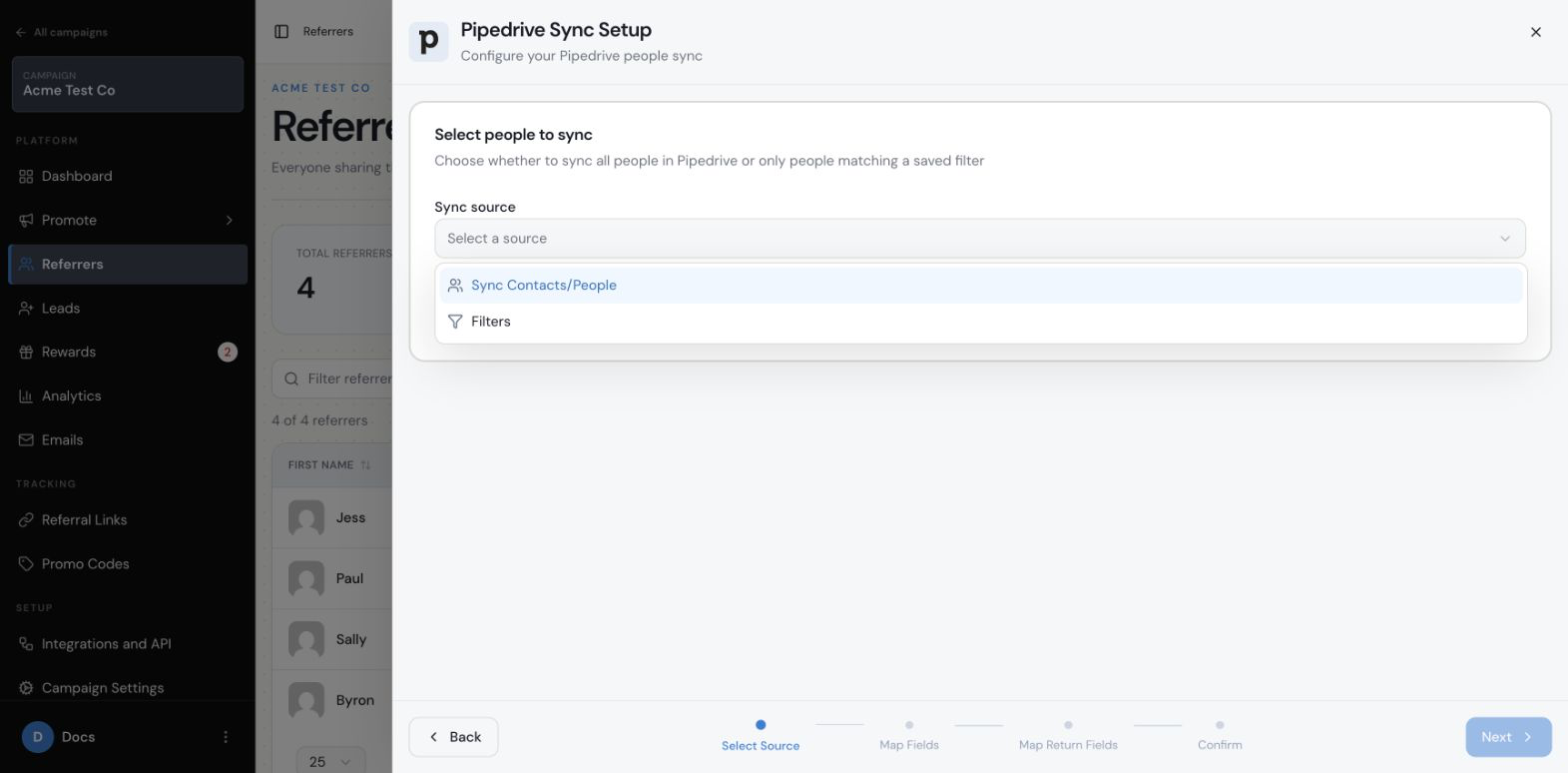
Pipedrive Sync Setup: choose a sync source
Step 1
Select the campaign. Choose the campaign where these people should become referrers.
Step 2
Open Referrers. Select Referrers from that campaign’s sidebar, then choose Add Referrers.
Step 3
Choose Sync. Select Sync contacts from your CRM automatically.
Step 4
Choose Pipedrive. Select Pipedrive in the Sync from Integration screen, then continue to Pipedrive Sync Setup.
How do I choose which Pipedrive Contacts to add?
Pipedrive gives you two ways to choose people: Sync Contacts/People or Filters. Sync Contacts/People includes the people visible in your Pipedrive account. Filters lets you choose a saved Pipedrive People filter, so only people who match that filter are added. The available filters depend on the saved filters in your Pipedrive account.
Step 1
Choose Sync source. In Pipedrive Sync Setup, open the Sync source menu.
Step 2
Choose everyone or use a filter. Choose Sync Contacts/People to include the people visible in Pipedrive, or choose Filters to select a saved Pipedrive People filter.
Step 3
If you choose Filters, select a saved filter. Open Pipedrive people filter and choose the saved filter containing the people you want to add.
How do I map my Pipedrive fields to Referral Factory?
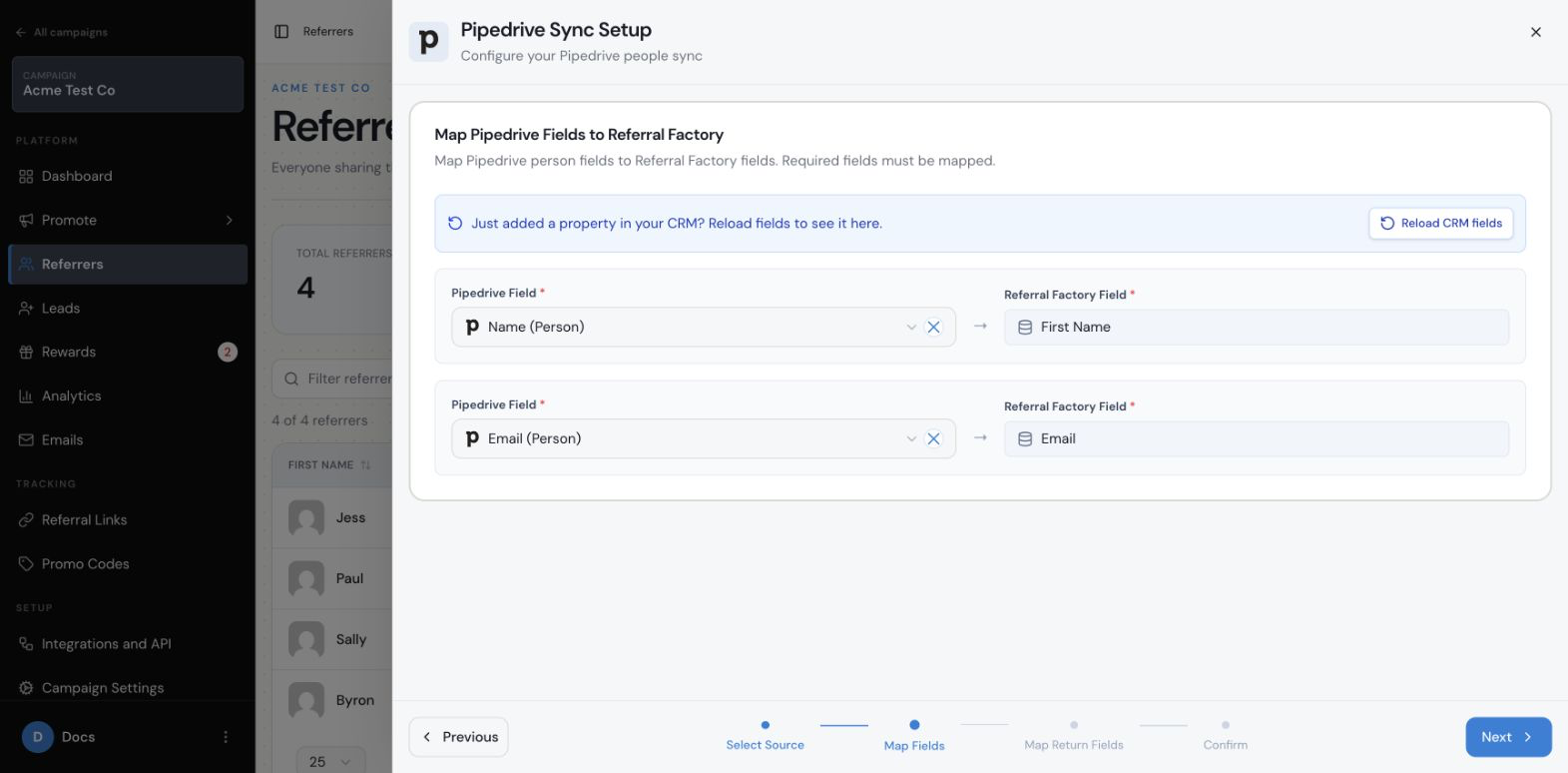
After choosing the people to add, map Pipedrive person fields to Referral Factory fields. In the setup screen, First Name is mapped from Pipedrive Name (Person), and Email must also be mapped. Required fields are shown before you can continue.
Map Pipedrive Fields to Referral Factory
Step 1
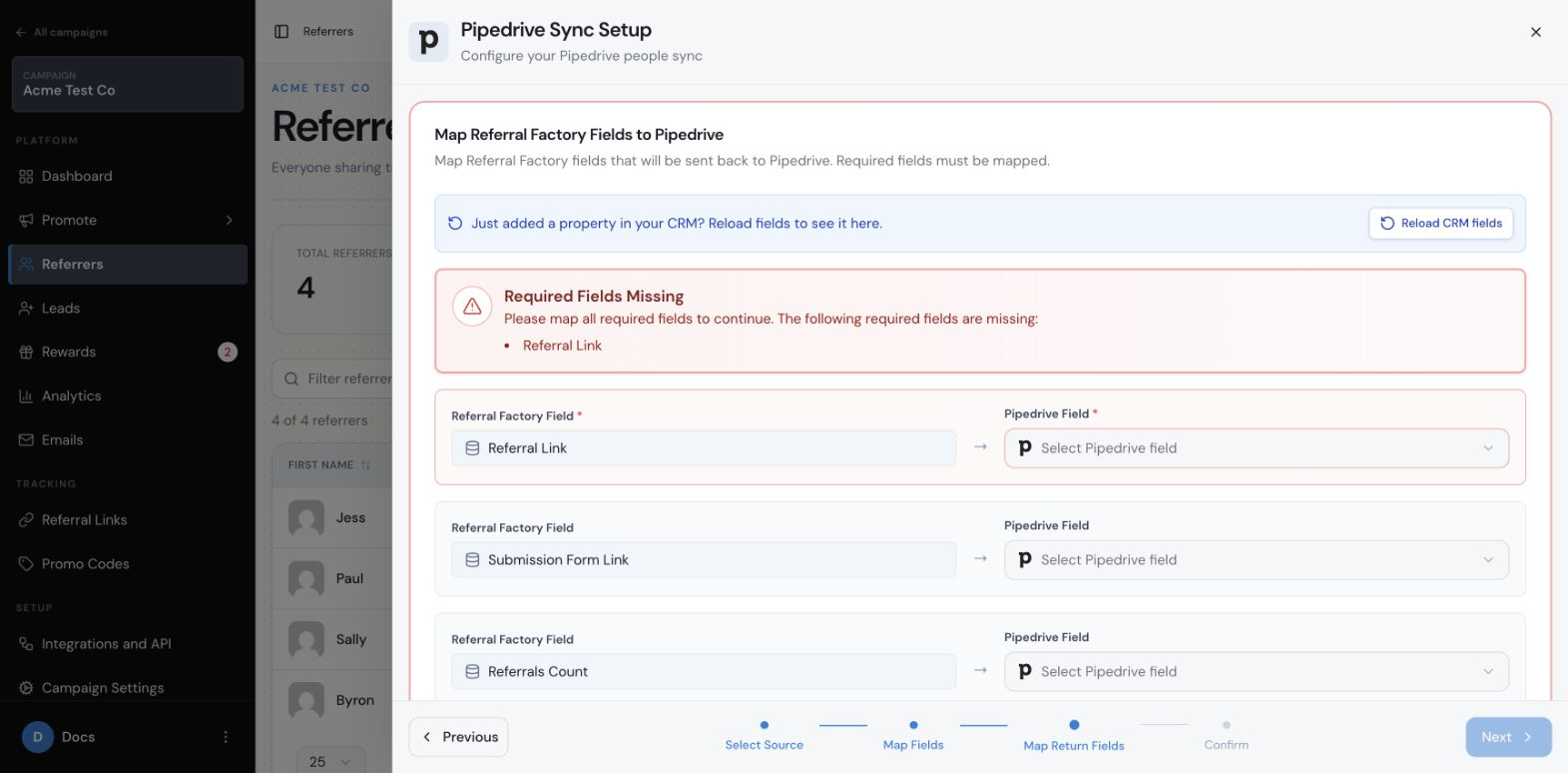
Review the required fields. Check the Required Fields Missing message and map every required Referral Factory field.
Step 2
Choose the Pipedrive field. Open the Pipedrive Field menu beside the Referral Factory field you are mapping, then select the matching Pipedrive field.
Step 3
Reload fields if needed. If a field you recently created in Pipedrive is not listed, use Reload fresh data from integration or Reload fresh Pipedrive fields, then check the menu again.
How do I send each Referrer’s referral link back to Pipedrive?
During setup, you can map Referral Factory fields back to Pipedrive. To send each person’s link back to Pipedrive, map Referral Link to the Pipedrive field where you want to store it. The same screen can also include Submission Form Link, Referrals Count, Converted Referrals Count, and Promo Code.
Map Referral Factory Fields to Pipedrive
What happens after the Contacts are added as Referrers?
After the sync is completed, the selected Pipedrive people appear in the campaign’s Referrers section. Referral Factory gives each person the referral details they need to share the campaign and records the leads they generate.
What if the contact already exists in my referral program?
If the person you are syncing already exists inside the Referral Factory campaign you are syncing with, then they will simply be skipped, and the sync moves on to the next person. The existing referrer inside your referral program will not be updated.
Where can each Referrer find their referral link?
You can see each person’s referral link in the campaign’s Referrers section, in the Referral Link column. The referrer can also find the link in the customer-facing referral experience you have enabled, such as the Branded Referrer Portal. If you map Referral Link as a return field, Referral Factory can send that link back to the selected Pipedrive field.
How do I test that the sync worked correctly?
Use a single dummy Pipedrive person or a saved filter containing only a safe test contact. Review the people and mappings, then complete the sync for that test contact.
Step 1
Check the referrer in Referral Factory. Open the campaign’s Referrers section and confirm that the test person appears with the expected name and email.
Step 2
Check the referral link. Confirm that the person has a unique referral link in the Referral Link column.
Step 3
Check the customer-facing experience. Open the enabled referrer experience with the test referrer and confirm that their referral link is visible and can be copied or shared.
Step 4
Check the Pipedrive fields. If you chose to send referral details back to Pipedrive, confirm that the link and any other selected details appear in the intended Pipedrive fields after the sync has completed.