
Need help applying this to your account?
Contact support and we will keep this article attached to your request.
Overview
You can automatically send new leads from Referral Factory to HighLevel as a contact or as an opportunity. This guide shows you how to choose what gets created, map the right fields and test the setup.
Can I automatically send new leads to HighLevel?
Yes. When a lead joins your campaign, Referral Factory can create or update a contact, or an opportunity with its contact, in your connected HighLevel sub-account. You choose which record to create for each campaign.
Before you start
Make sure HighLevel is connected in Referral Factory and that your campaign collects the lead information you want to send. If you want to create opportunities, make sure your HighLevel sub-account has at least one pipeline. Select the campaign first. You will then use Integrations and API, CRM, and the Leads tab.
How do I choose what happens when a lead joins my campaign?
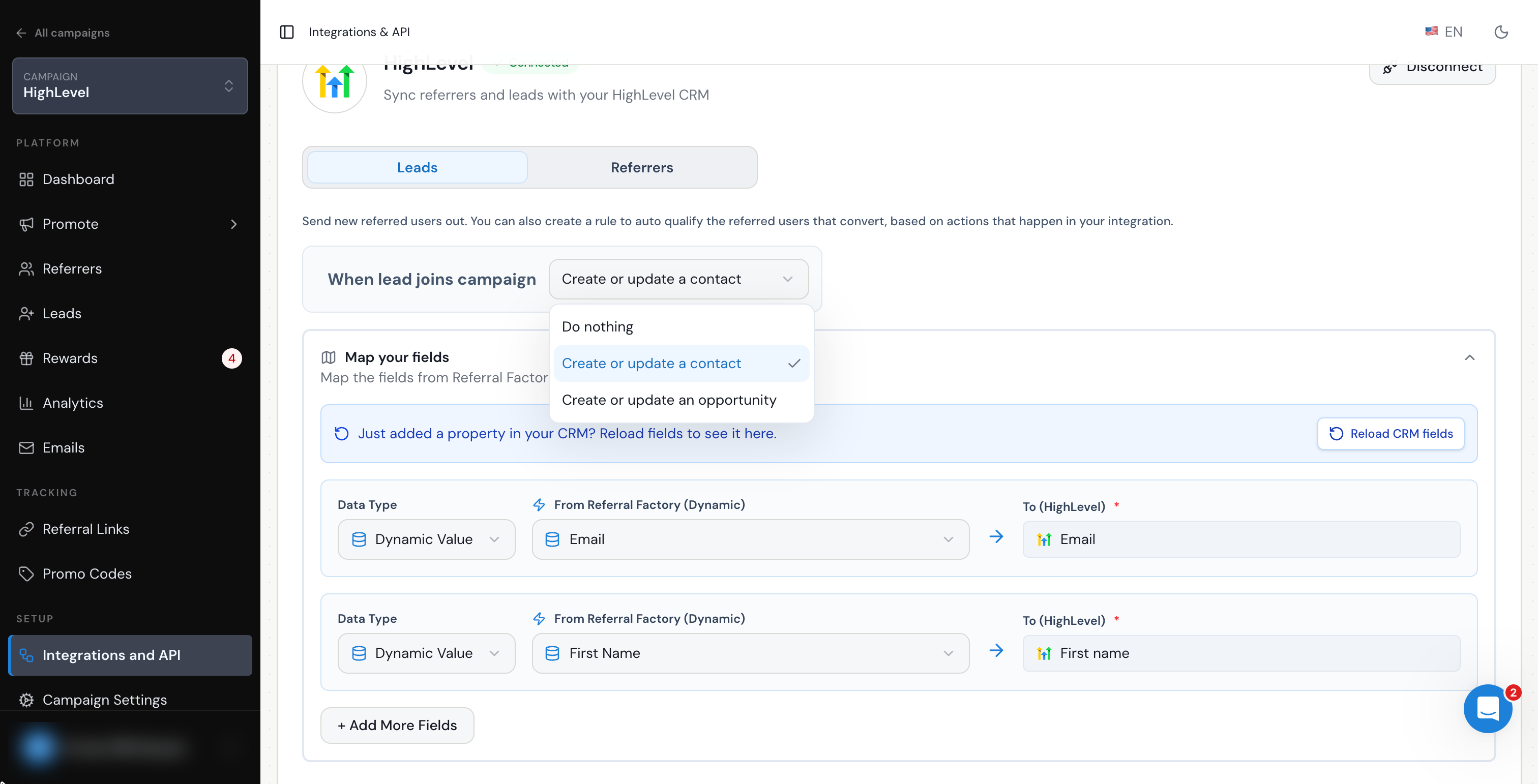
Open Integrations and API, select CRM, and open Leads. Under When lead joins campaign, choose one of the available actions: Do nothing, Create or update a contact, or Create or update an opportunity.
Do nothing means leads from this campaign are not sent to HighLevel. Create or update a contact is selected by default. Your choice also decides how referrals can be qualified later: from a contact field, or from an opportunity stage.
How do I create or update a contact in HighLevel?
Choose Create or update a contact. Referral Factory opens the Map your fields section. Two HighLevel fields are required: Email and First name.
For each required field, choose the Referral Factory value that should be sent to HighLevel, usually the lead’s email and first name. The exact Referral Factory fields available depend on what your campaign collects.
How do I create or update an opportunity in HighLevel?
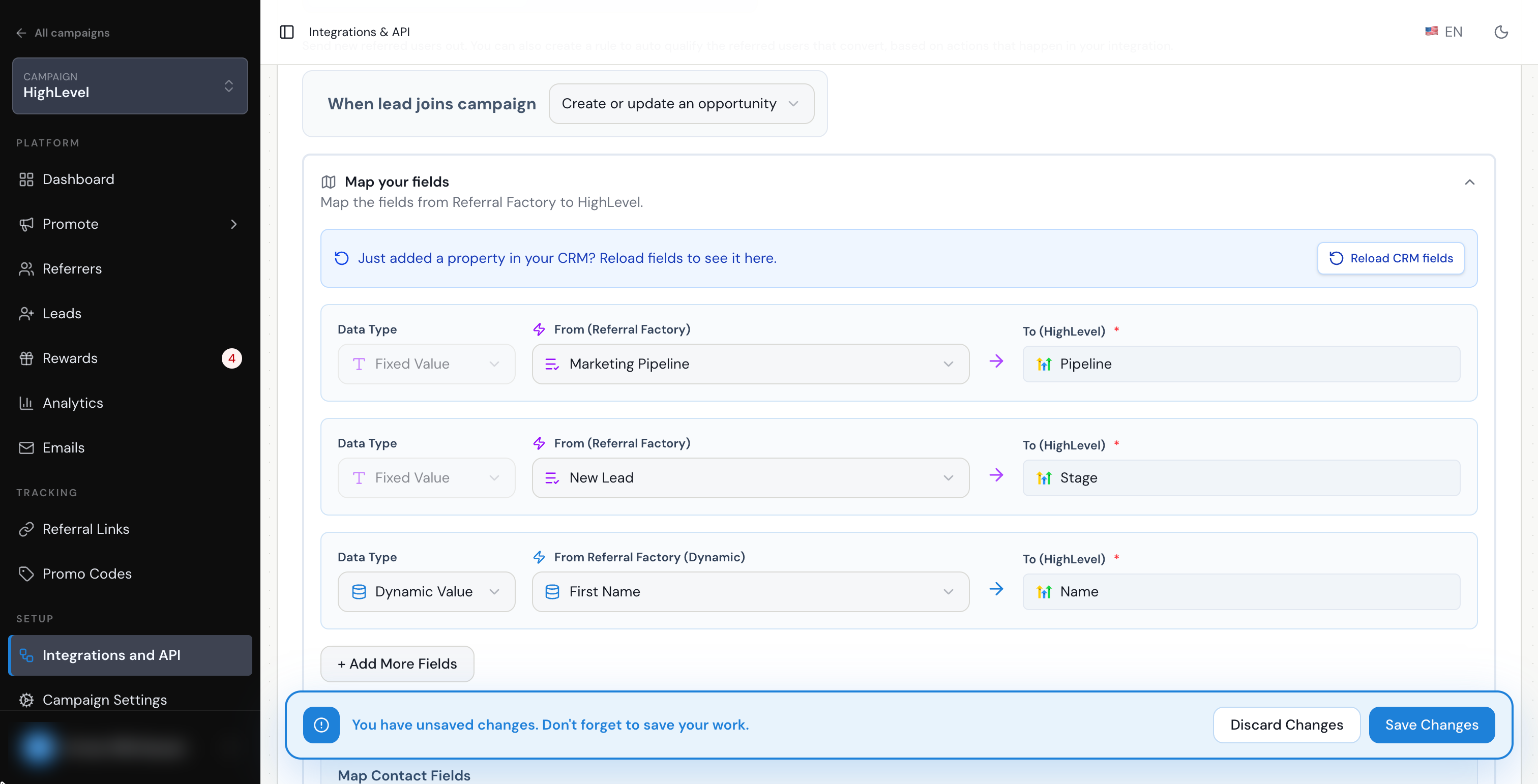
Choose Create or update an opportunity. Choose the Pipeline and the Stage where new opportunities should start, then check the Name row. Name uses the lead’s first name by default, and you can change it. New opportunities are created as open.
You can also map Monetary value, Status, Source and your HighLevel opportunity custom fields. If no pipelines are listed, create a pipeline in HighLevel, then select Reload CRM fields.
Should I also create the related contact?
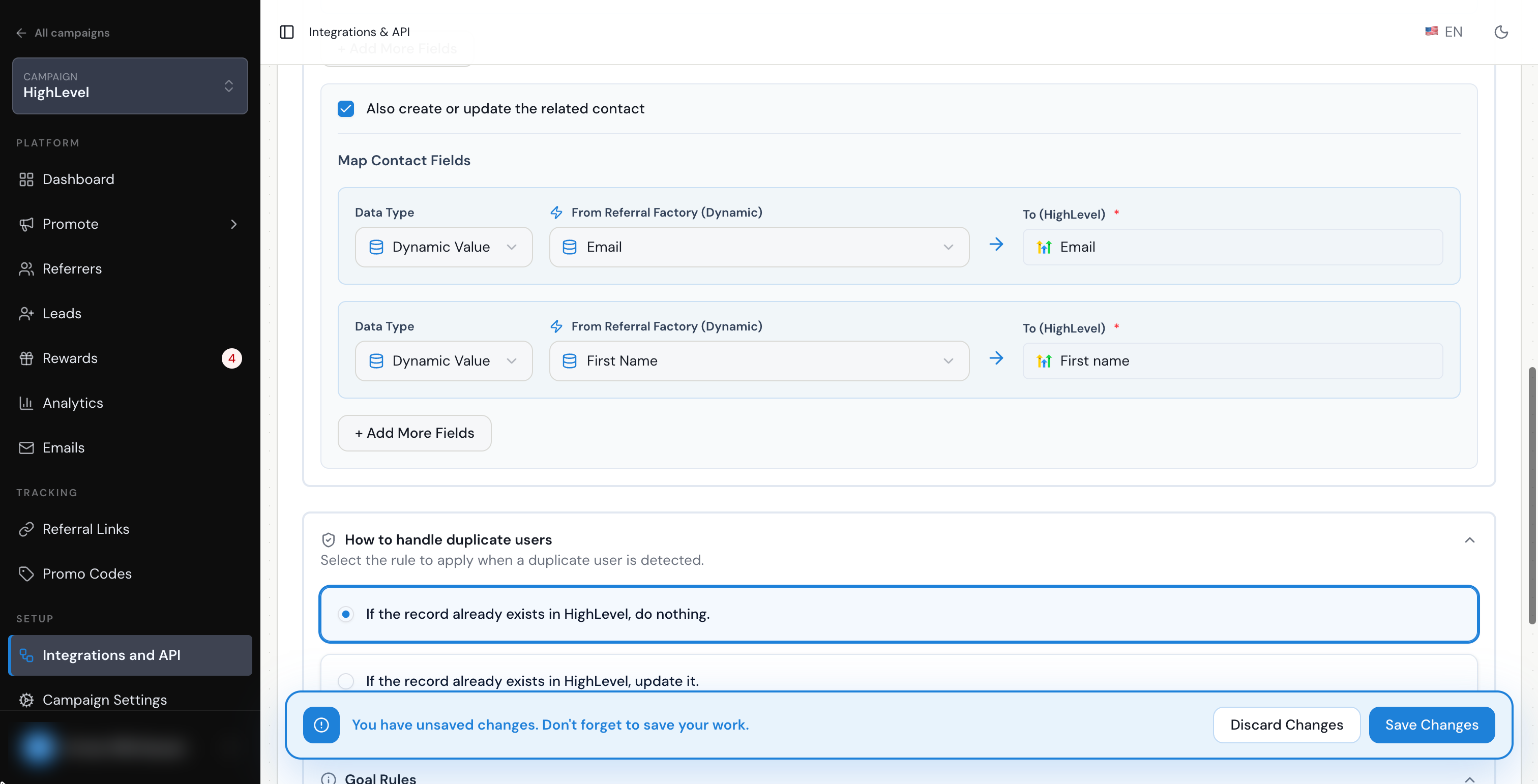
Yes. Every HighLevel opportunity belongs to a contact, so keep Also create or update the related contact turned on. It is on by default. Under Map Contact Fields, map Email and First name, and add any other contact details you need.
Referral Factory shows Setup Required until every required field, including Pipeline and Stage, is mapped.
How do I map Referral Factory fields to HighLevel?
In each row, choose the Data Type, select the value under From Referral Factory, and check the destination under To (HighLevel). Use Dynamic Value for information that changes from lead to lead, such as a name or email. Use Fixed Value for a value that should be the same every time.
Use Add More Fields to send more information, such as Last name, Phone, Company, Source, Tags or your HighLevel custom fields. For example, map Tags with a Fixed Value such as referral so you can start a HighLevel workflow for every referred lead. Separate several tags with commas.
If a field you need is missing, select Reload CRM fields and check the list again. File upload and signature custom fields cannot be mapped. Only map information your team needs in HighLevel.
What happens if the lead already exists in HighLevel?
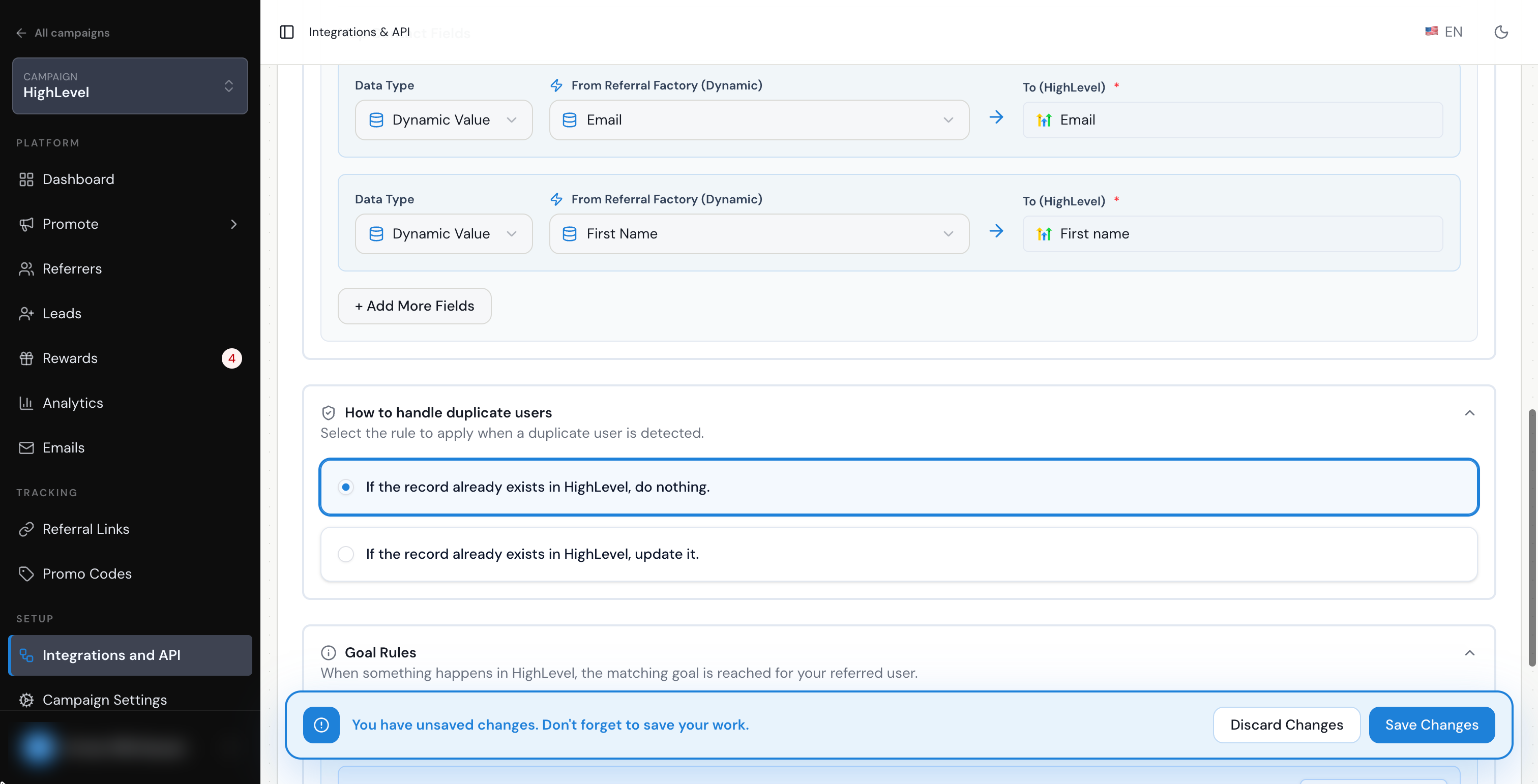
Referral Factory looks for an existing HighLevel contact with the same email address and, for opportunities, an open opportunity for that contact in the selected pipeline. Under How to handle duplicate users, choose what Referral Factory should do when it finds one:
- If the record already exists in HighLevel, do nothing. The existing record is linked to the referral but left unchanged. This is the default.
- If the record already exists in HighLevel, update it. The existing record is updated with the fields you mapped.
How do I save and test my HighLevel lead settings?
Review the required mappings and duplicate choice, then select Save Changes at the bottom of the page. Save the settings even if you kept the defaults, so the campaign uses them. To test the setup, use a separate dummy lead and complete the campaign sign-up journey with a referral link or another enabled campaign entry point. Then check HighLevel for the new contact or opportunity and confirm that the mapped information is in the expected fields.
Do not use a real customer as your test. If the test record does not appear, check the selected action, required mappings, duplicate rule, and HighLevel connection before trying again.
When does Referral Factory send the lead to HighLevel?
Referral Factory sends the lead once, when they join your campaign, as long as you selected Create or update a contact or Create or update an opportunity and saved the required settings. The record usually appears in HighLevel within a few minutes. Leads who joined before you saved the settings are not sent automatically.
If HighLevel rejects a lead, the lead shows Sending Failed in Referral Factory with the error HighLevel returned. Fix the cause, then use Resend.
Does sending a lead to HighLevel automatically qualify the referral?
No. Sending a lead to HighLevel only sends the lead information. It does not qualify the referral. Qualification is configured separately, so use the HighLevel automatic-qualification guide.