
Need help applying this to your account?
Contact support and we will keep this article attached to your request.
Overview
Use this guide to add people who already exist in HighLevel as referrers in a Referral Factory campaign, give each person their own referral link, and send that link back to HighLevel.
Can I give my existing HighLevel contacts their own referral links?
Yes. Select the campaign you want to use, choose which HighLevel contacts to add, map their details, choose which referral details go back to HighLevel, and start the sync. Afterward, those people appear as referrers in the campaign and can use their own referral links.
Before you start
Make sure HighLevel is already connected on the CRM page, using the sub-account that holds these contacts. Decide whether you want to add all contacts or only the contacts with one HighLevel tag.
To store each referral link in HighLevel, create a text custom field for contacts in your HighLevel sub-account first, for example Referral Link. You can create more fields for other referral details, such as Referrals Count.
How do I add existing HighLevel contacts as referrers?
Step 1
Select the campaign. Choose the campaign where these people should become referrers.
Step 2
Open Referrers. Select Referrers from that campaign’s sidebar, then choose Add Referrers.
Step 3
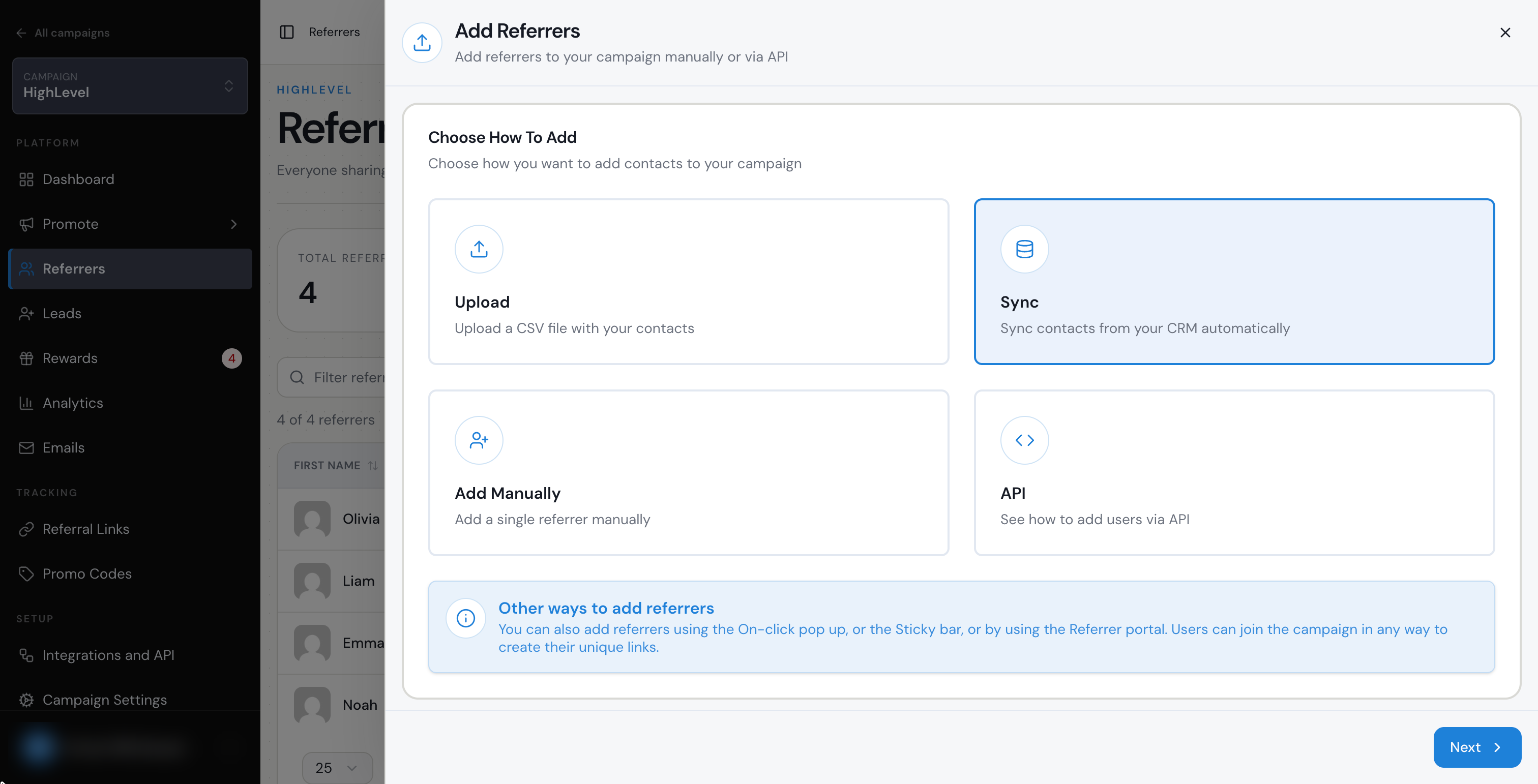
Choose Sync. Select the option to sync contacts from your CRM, then select Next.
Step 4
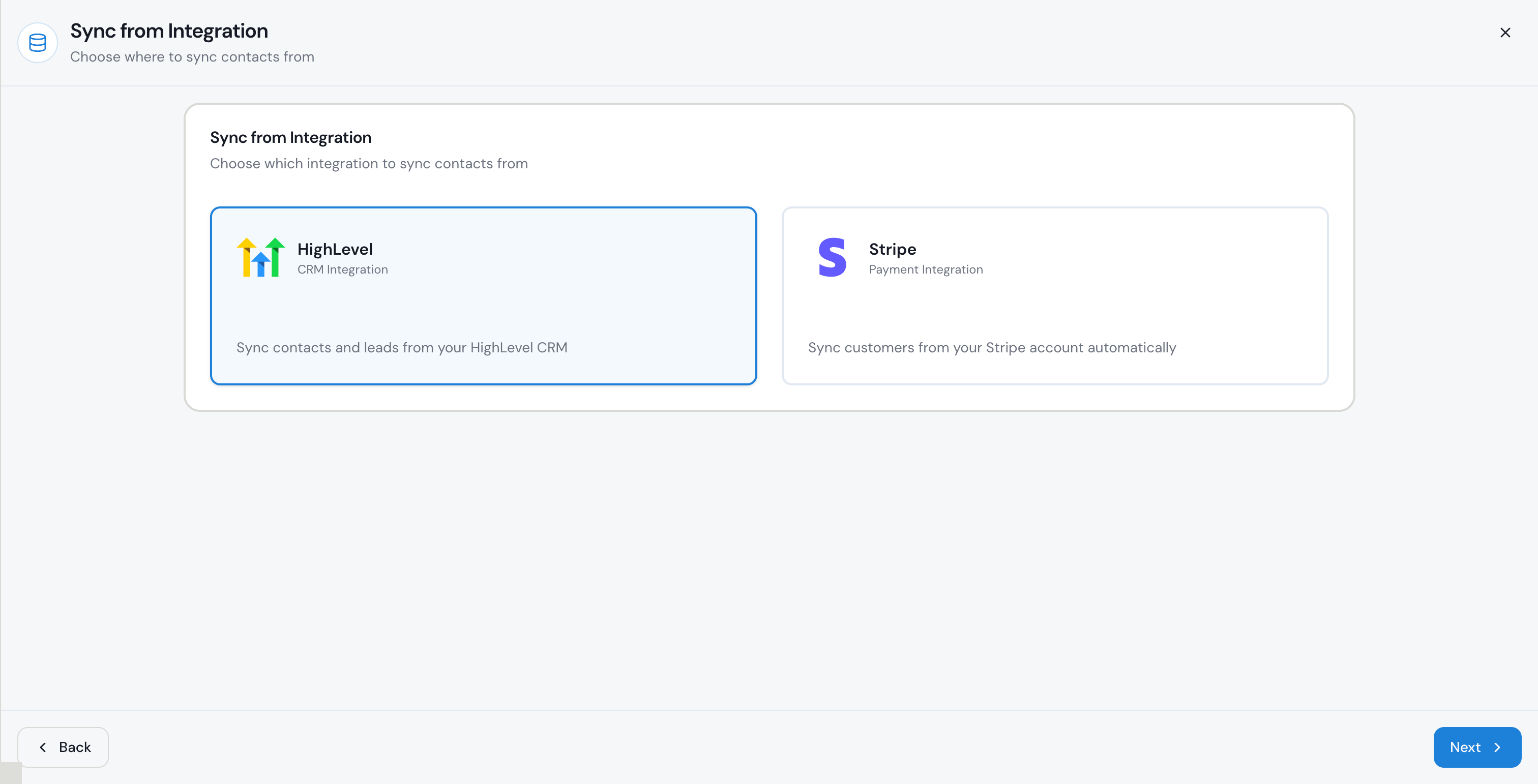
Choose HighLevel. Select HighLevel as the integration, then select Next to open HighLevel Sync Setup.
How do I choose which HighLevel contacts to add?
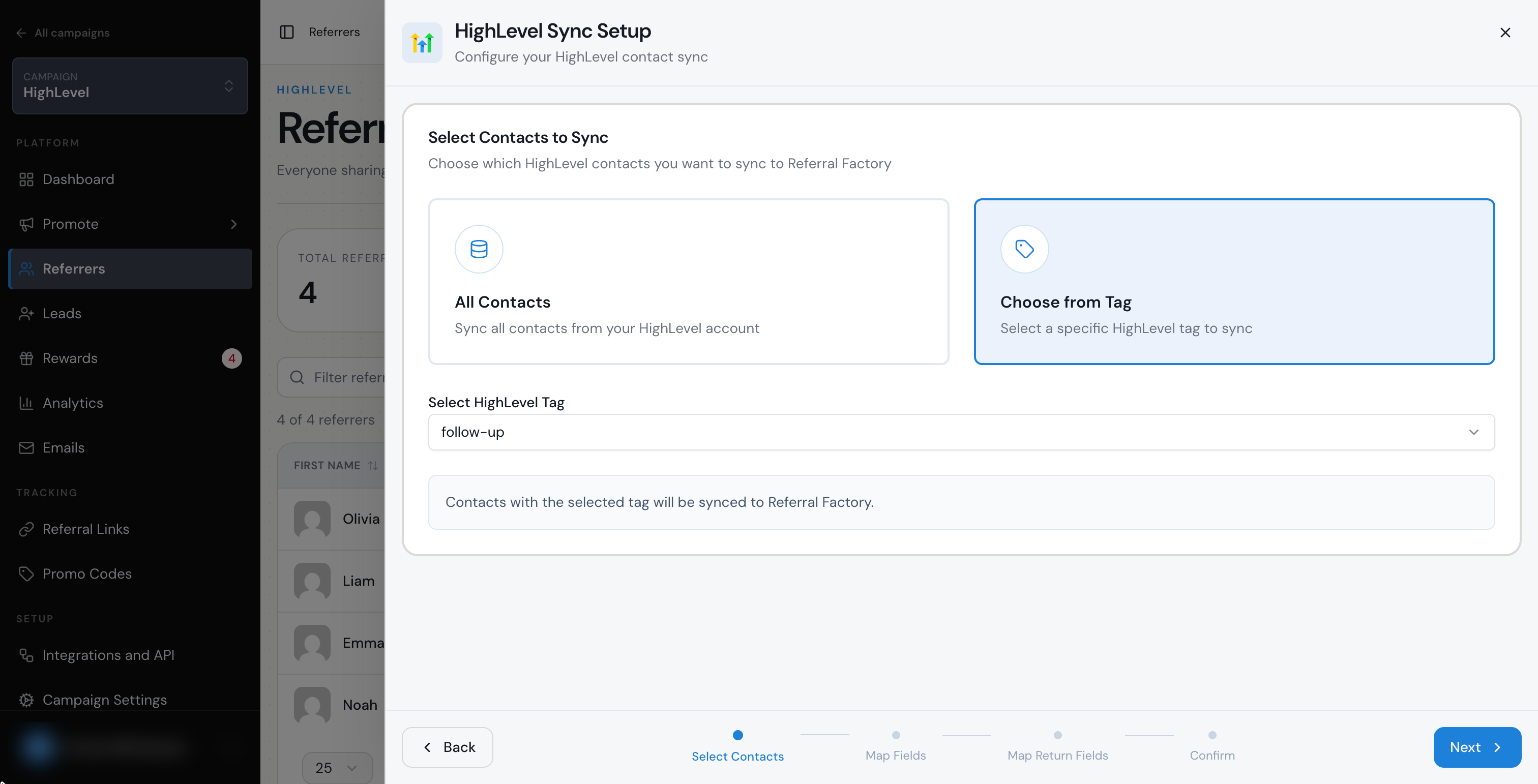
HighLevel gives you two ways to choose contacts. All Contacts includes every contact in the connected sub-account, up to the user limit of your Referral Factory plan. Choose from Tag lets you pick one HighLevel tag, so only the contacts with that tag are added.
Step 1
Choose the contacts. Under Select Contacts to Sync, choose All Contacts or Choose from Tag.
Step 2
If you chose Choose from Tag, pick the tag. Open Select HighLevel Tag and choose the tag that the people you want to add have. If a new tag is missing, refresh the list from HighLevel.
How do I map my HighLevel fields to Referral Factory?
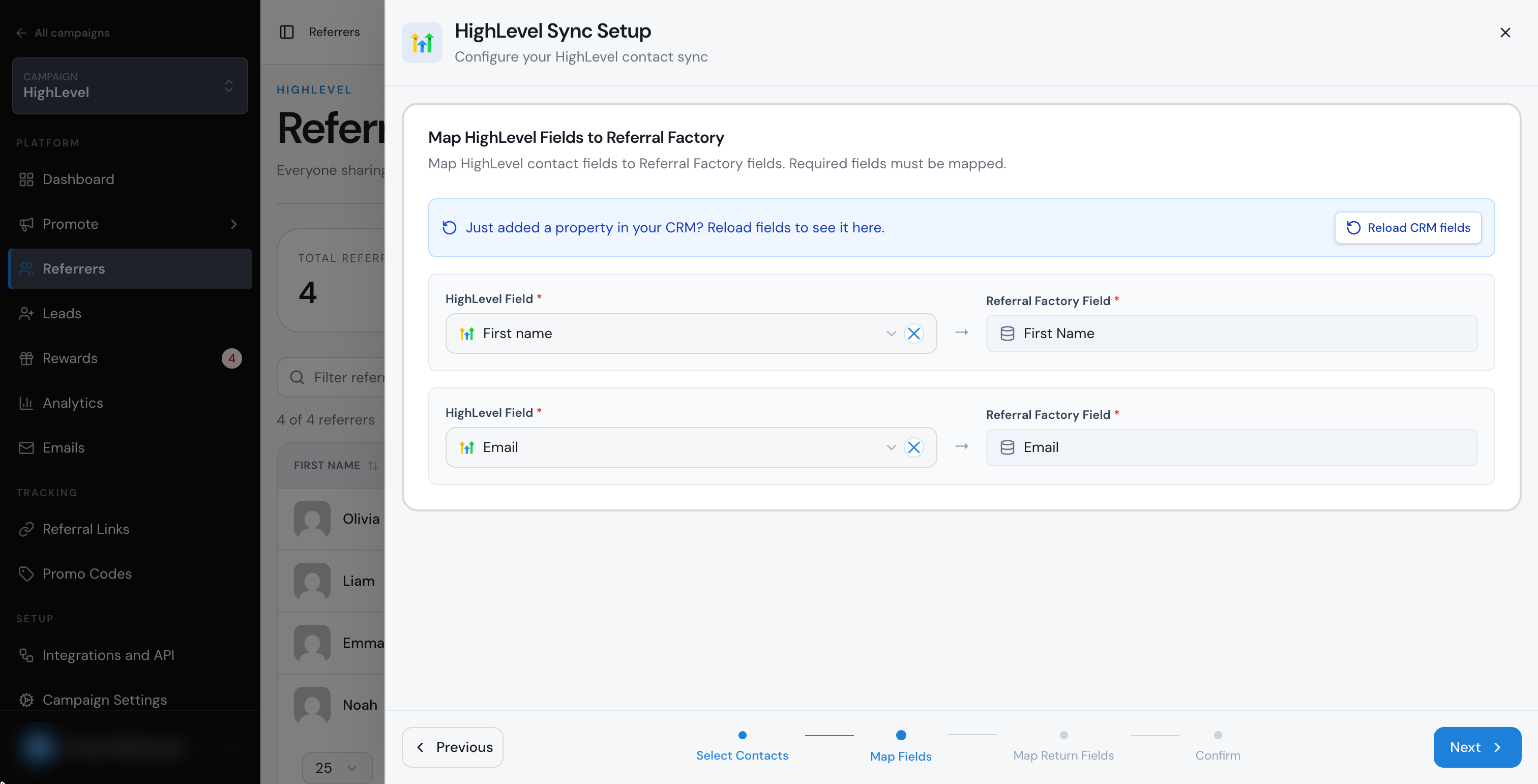
Next, map HighLevel contact fields to Referral Factory fields. First Name and Email are required, so map them to the matching HighLevel fields. If your referrer sign-up form has other required fields, map those too. Contacts without an email address or first name are skipped.
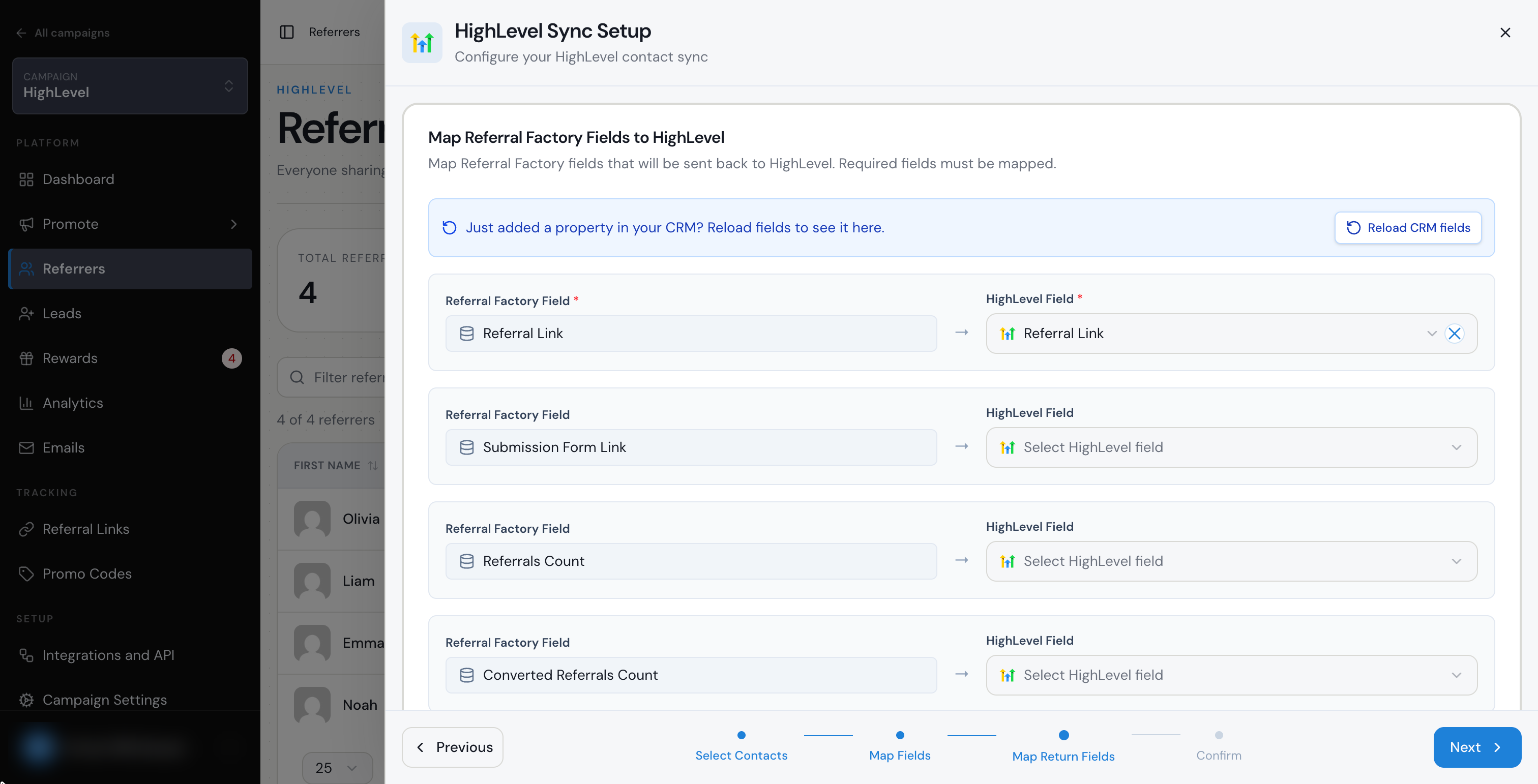
If a field you recently created in HighLevel is not listed, select Reload CRM fields to fetch fresh HighLevel fields, then check the menu again.
How do I send each referrer’s referral link back to HighLevel?
Next, map Referral Factory fields to HighLevel contact fields. Referral Link is required: choose the HighLevel custom field where each person’s link should be saved. You can also send Submission Form Link, Referrals Count, Converted Referrals Count and Promo Code to other contact fields.
Once the link is in HighLevel, you can use it in your HighLevel emails, SMS and workflows.
How do I review and start the sync?
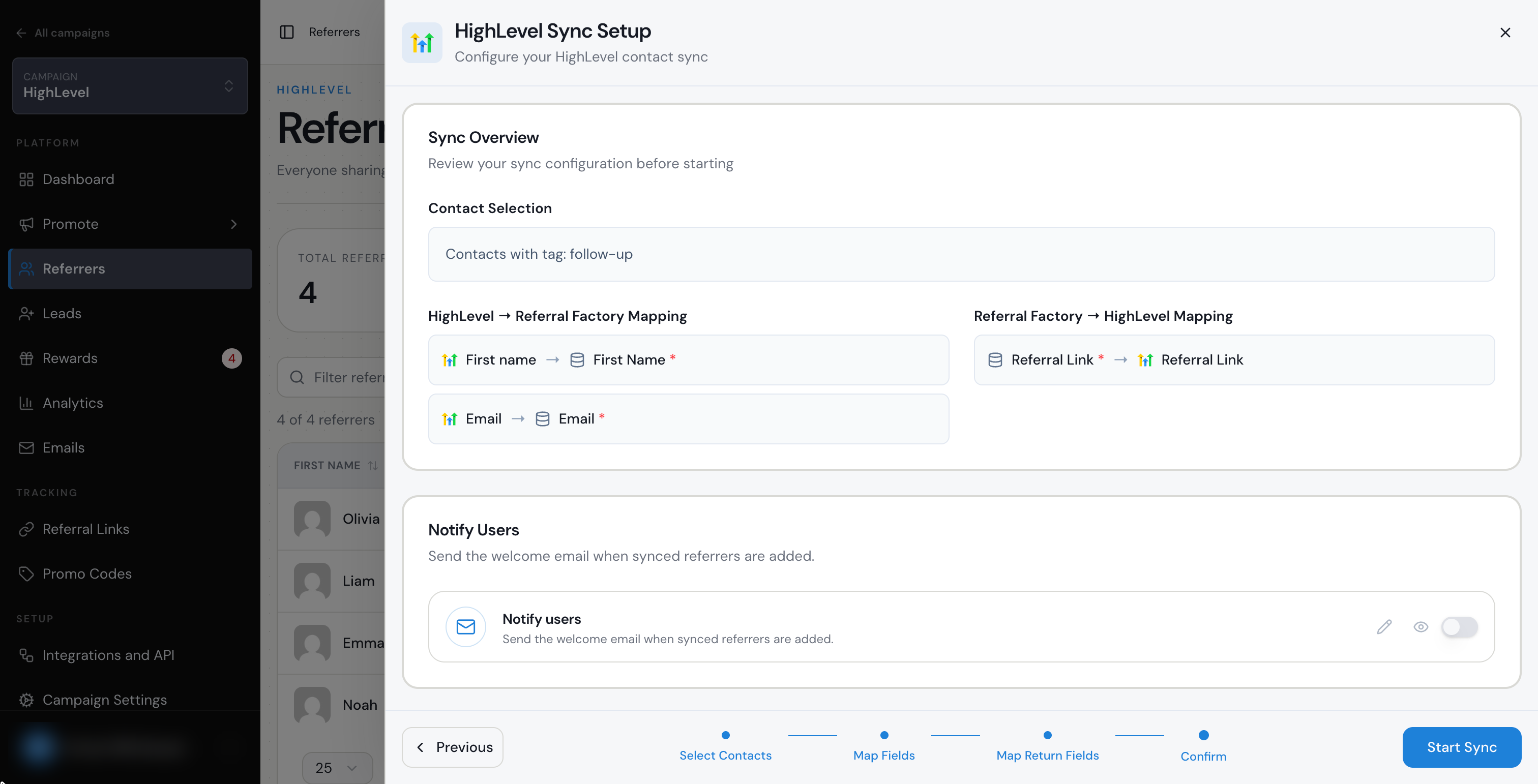
The Confirm step shows a Sync Overview with the contacts you chose and both field mappings. Check them before you continue.
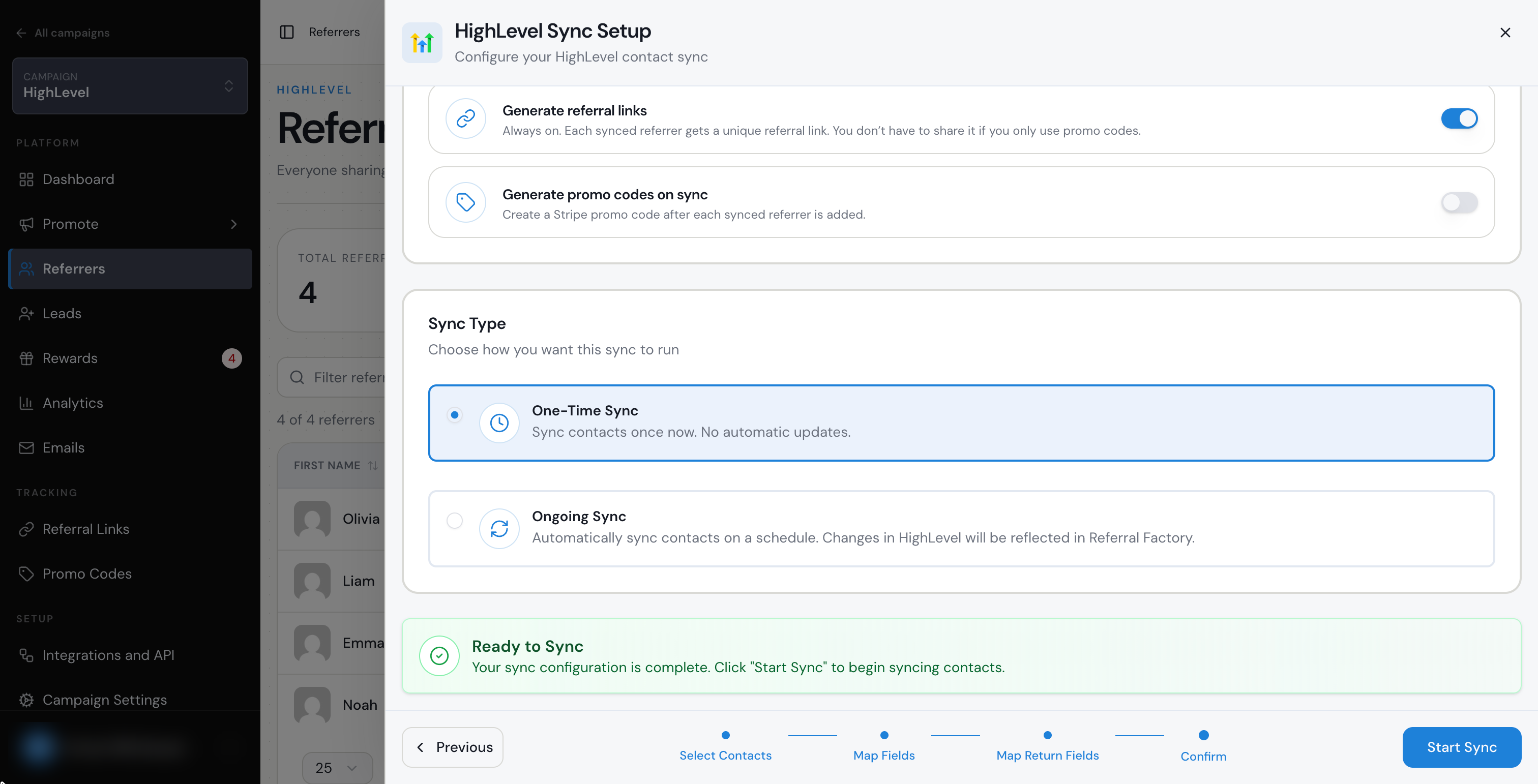
On the same step you can turn on Notify users to send your welcome email to the new referrers. Referral links are always created. If you use Stripe promo codes, you can also turn on Generate promo codes on sync.
Should I choose a one-time or ongoing sync?
Choose One-Time Sync to add the matching contacts once. Choose Ongoing Sync to keep adding new matching contacts automatically: when a contact is created in HighLevel, or gets the tag you chose, they are added to the campaign as a referrer.
Select Start Sync when you are ready. Referral Factory confirms that the sync has started and adds the contacts in the background.
What happens after the contacts are added as referrers?
After the sync is completed, the selected HighLevel contacts appear in the campaign’s Referrers section. Referral Factory gives each person the referral details they need to share the campaign and records the leads they generate.
If a person you are syncing already exists in the Referral Factory campaign with the same email, no duplicate is created. Their mapped details are updated, and they also become a referrer if they were only a lead.
Where can each referrer find their referral link?
You can see each person’s referral link in the campaign’s Referrers section, in the Referral Link column. The referrer can also find the link in the customer-facing referral experience you have enabled, such as the Branded Referrer Portal. If you mapped Referral Link, the link is also saved in the HighLevel contact field you chose. It can take a few minutes to appear there.
How do I test that the sync worked correctly?
Add a tag in HighLevel to a single safe test contact, then run a One-Time Sync with Choose from Tag and that tag.
Step 1
Check the referrer in Referral Factory. Open the campaign’s Referrers section and confirm that the test person appears with the expected name and email.
Step 2
Check the referral link. Confirm that the person has a unique referral link in the Referral Link column.
Step 3
Check the customer-facing experience. Open the enabled referrer experience with the test referrer and confirm that their referral link is visible and can be copied or shared.
Step 4
Check the HighLevel fields. Open the test contact in HighLevel and confirm that the referral link and any other selected details appear in the fields you mapped.