Need help applying this to your account?
Contact support and we will keep this article attached to your request.
Overview
Referral Factory can send emails to referrers and leads using our standard email sending service, from your verified business domain, or through your own mail server if you are on an Enterprise plan.
If you are happy to use Referral Factory's standard sending service, you do not need to connect a mail server or verify a domain before getting started.
Which email sending option should I use?
Referral Factory's standard email sending service
You can start sending campaign emails without connecting your own mail server.
Send from your own business domain
You can verify your business domain so emails come from an address such as referrals@yourbusiness.com while Referral Factory continues to send the emails.
For the setup steps, see How Can I Send Referral Program Emails From My Own Domain?
Use your own mail server - Enterprise
If you want Referral Factory emails to be sent through your own email provider, you can connect your mail server using SMTP. You will need the connection details from your email provider or IT team.
Where do I manage email sending settings?
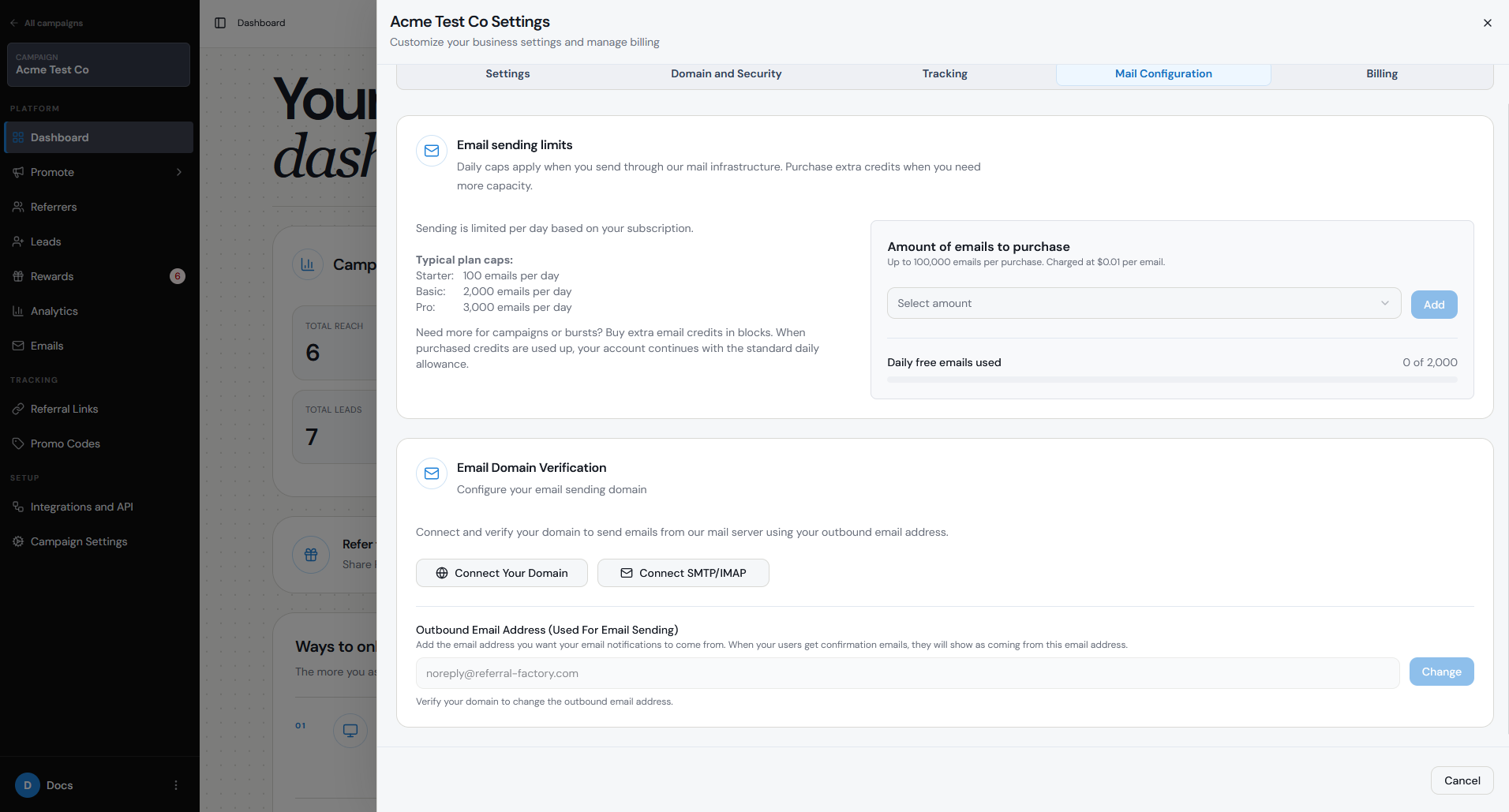
The quickest route is through the campaign you are working on. You can also open the same settings directly from your organisation settings.
Step 1
Open the campaign you want to manage.
Step 2
Select Emails from the sidebar.
Step 3
Open Sending settings.
Step 4
Select Connect your domain or Manage sending settings. This opens Organisation → Mail Configuration.
What should I set up before sending emails?
Once your sending method is ready, set up the campaign emails you actually want to use:
You do not need to turn on every email. Choose the ones that make sense for your referral journey.
- Review and customise the email templates.
- Turn on the automated emails you want to send.
- Check the sender name and email details.
- Test the emails before launching your referral program.
How do I test that emails are working?
Check that the email arrives, the sender details are correct, and any links or personalised information display properly.
Before launch, you can also run through the full referral journey to make sure each automated email sends at the right stage.
After delivery is configured, choose which automated messages to enable and review recommended referral email templates.
Step 1
Open the campaign you want to test.
Step 2
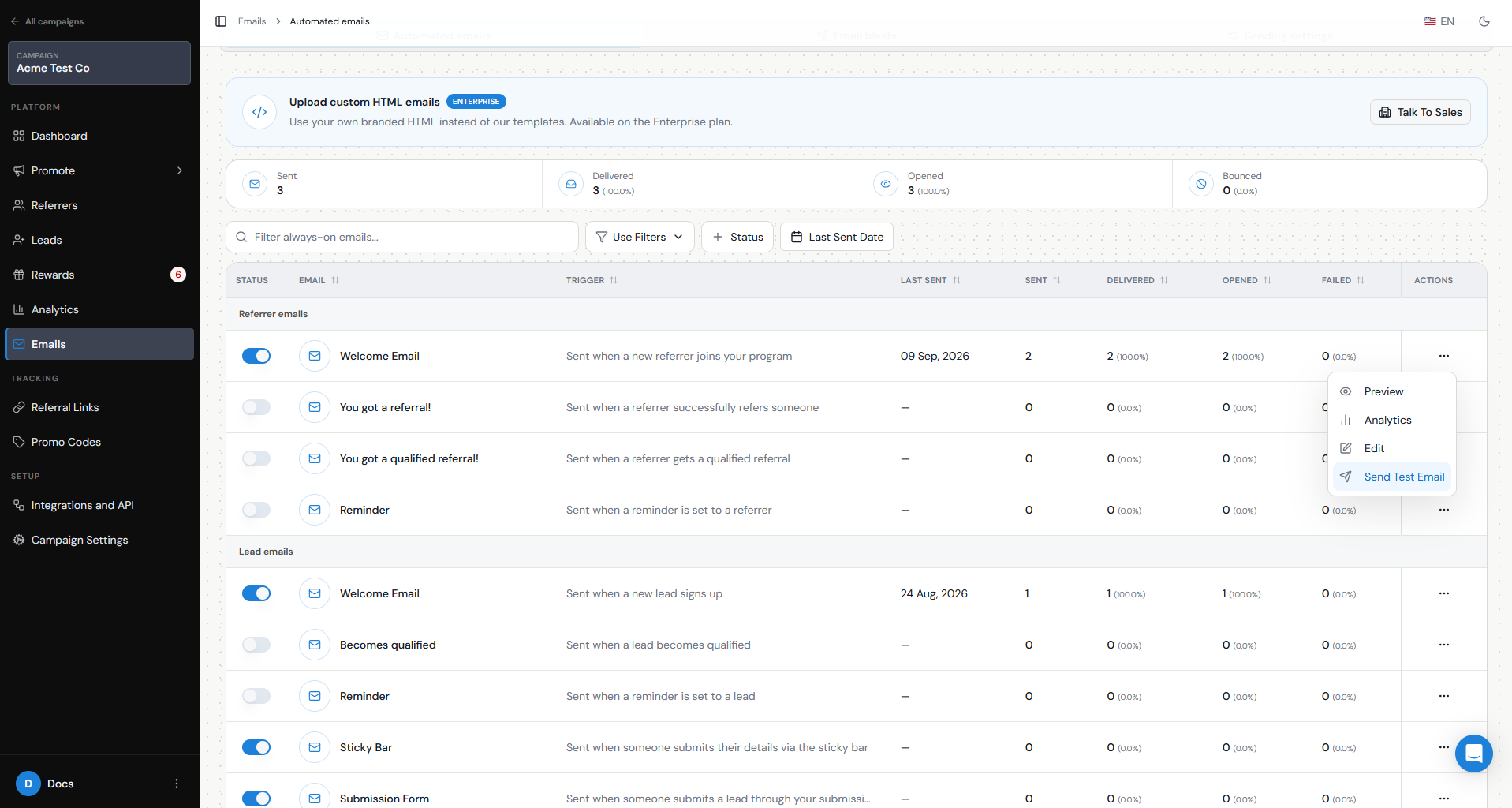
Go to Emails > Automated Emails.
Step 3
Open the email you want to check.
Step 4
Preview the email and send yourself a test email.