
Need help applying this to your account?
Contact support and we will keep this article attached to your request.
Overview
Use automated emails to keep referrers and leads informed at different stages of your referral program. Each campaign has its own email settings.
Open the campaign you want to work on and go to Emails → Automated emails.
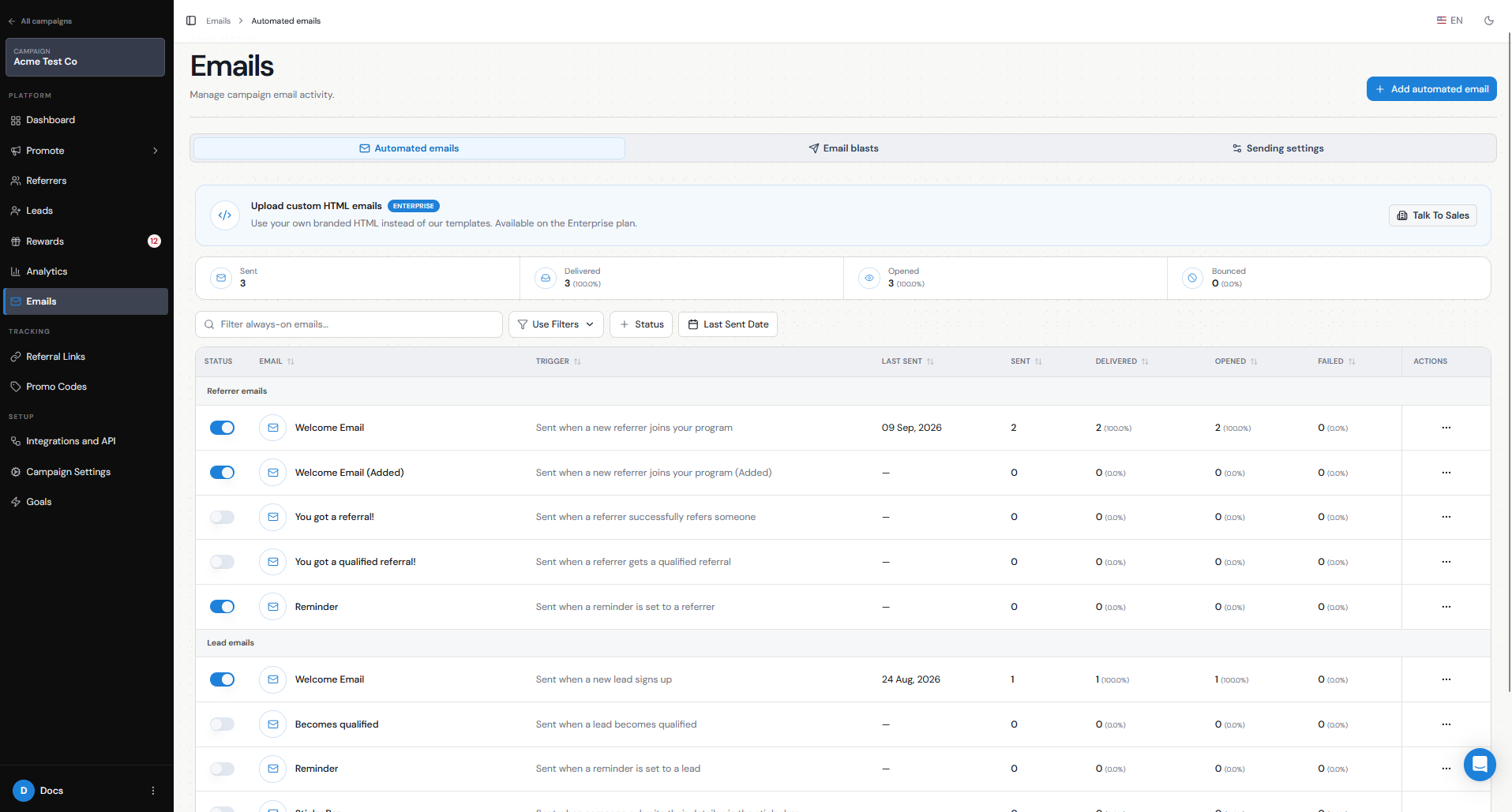
Which referral emails and reminders should I turn on?
Choose the emails that fit your referral journey.
For referrers, you can enable emails such as:
For leads, you can enable emails such as:
You do not need to turn every email on.
If you turn off the referrer welcome email, make sure you send the referrer their unique referral link from your side. Without receiving their referral link another way, they won’t be able to start referring.
Where available, you can add a separate welcome email for referrers added through a supported source.
- Welcome email — welcomes a new referrer when they join your program.
- You got a referral! — lets the referrer know when they successfully refer someone.
- You got a qualified referral! — lets the referrer know when one of their leads becomes qualified.
- Reminder — sends a reminder to the referrer when a reminder is set for them.
- Welcome email — sent when a new lead signs up.
- Becomes qualified — sent when the lead becomes qualified.
- Reminder — sends a reminder to the lead when a reminder is set for them.
How do I choose who receives each email?
You do not manually select the recipient for an Automated email. The email type decides who receives it and when it is sent.
To choose a particular group of referrers or leads, use an email blast instead.
How do I set the timing for reminders and notifications?
Most automated emails are sent when the matching action happens.
You do not need to choose a delay for these emails.
Reminder emails have a separate Reminder Interval setting. Check the interval shown before enabling one.
How can I edit and personalise the emails?
Go to Emails → Automated emails, find the email, and open its Actions menu to edit the template.
Edit the subject line and content and use personalisation variables for each recipient.
The editor shows variables available for that recipient, such as their name, referral counts, referral link or code, and portal link.
Referral Factory replaces each variable with the right information when the email is sent.
Enterprise customers can also use custom HTML emails.
How do I turn specific emails on or off?
Go to Emails → Automated emails.
Each automated email has its own toggle in the Status column:
Each email is controlled separately.
You can also click Add automated email to create a separate welcome email for a supported source.
- Turn the toggle on to enable the email.
- Turn the toggle off to prevent that email from sending.
Why aren't my email templates appearing during setup?
Check that the template was saved and that you are working in the correct campaign. Templates are set up per campaign.
Also check that:
If the template still does not appear, contact support with the campaign and template name.
Use the complete email-type overview to decide which messages belong in the journey, then adapt the copy using the referral email template guide.
- You created the correct email type for a referrer or lead.
- For a separate welcome email, you added the template under Add automated email.
- Your changes to the template were saved.