
Need help applying this to your account?
Contact support and we will keep this article attached to your request.
You can control how Referrers share their unique Referral Links by choosing which sharing options appear in their referral experience.
For example, you may want Referrers to share through WhatsApp and Email, while another campaign may be better suited to LinkedIn, SMS, and Copy Link.
Where sharing methods are enabled/disabled
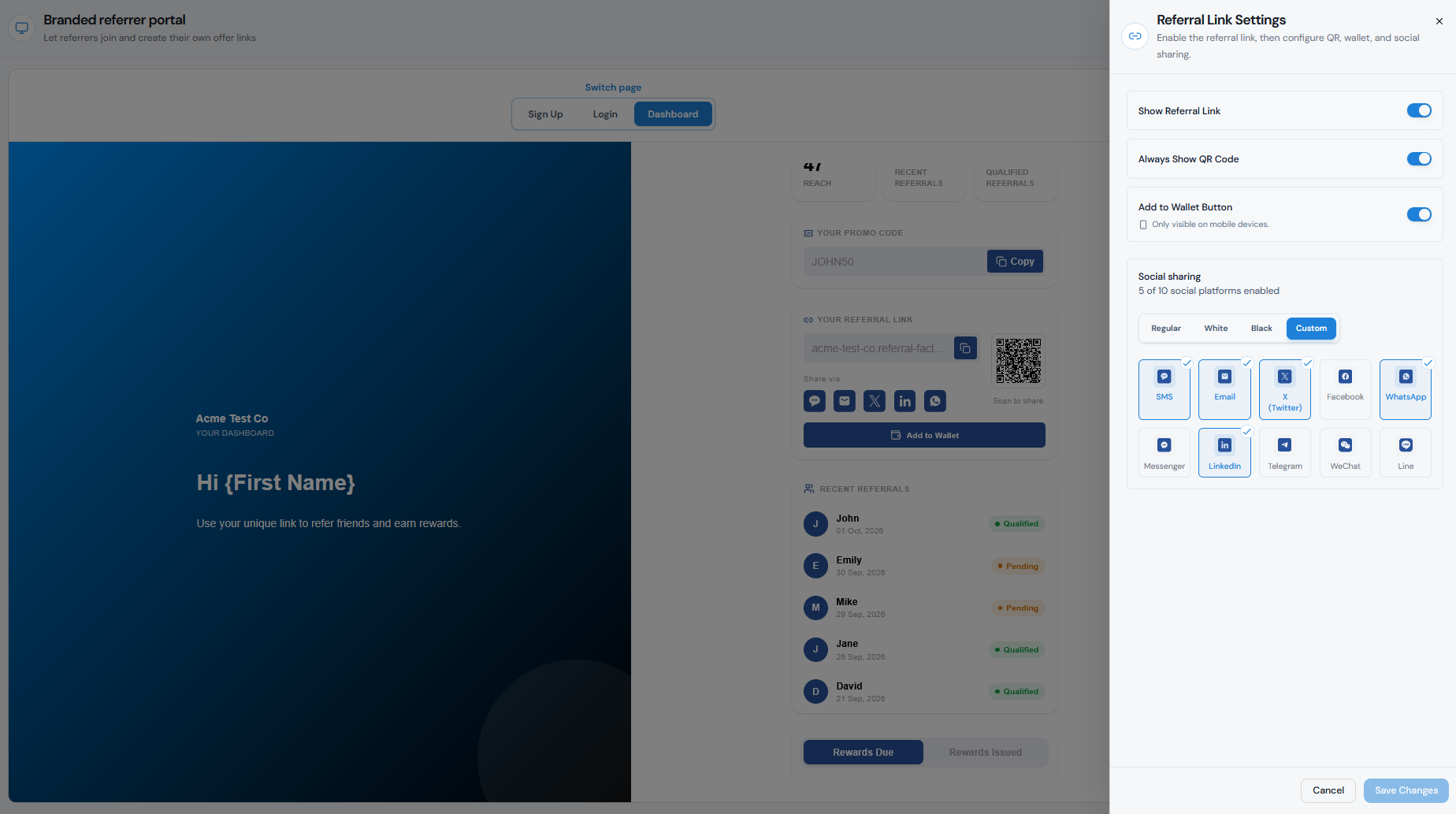
If your Referrers use the Branded Referrer Portal, you can control the sharing options displayed on their Dashboard.
Step 1
Go to Promote → Branded Referrer Portal.
Step 2
Open the Dashboard page.
Step 3
Under Add Blocks, find Referral Link.
Step 4
Add or select Socials.
Step 5
Turn individual sharing channels on or off.
Step 6
Save your changes.
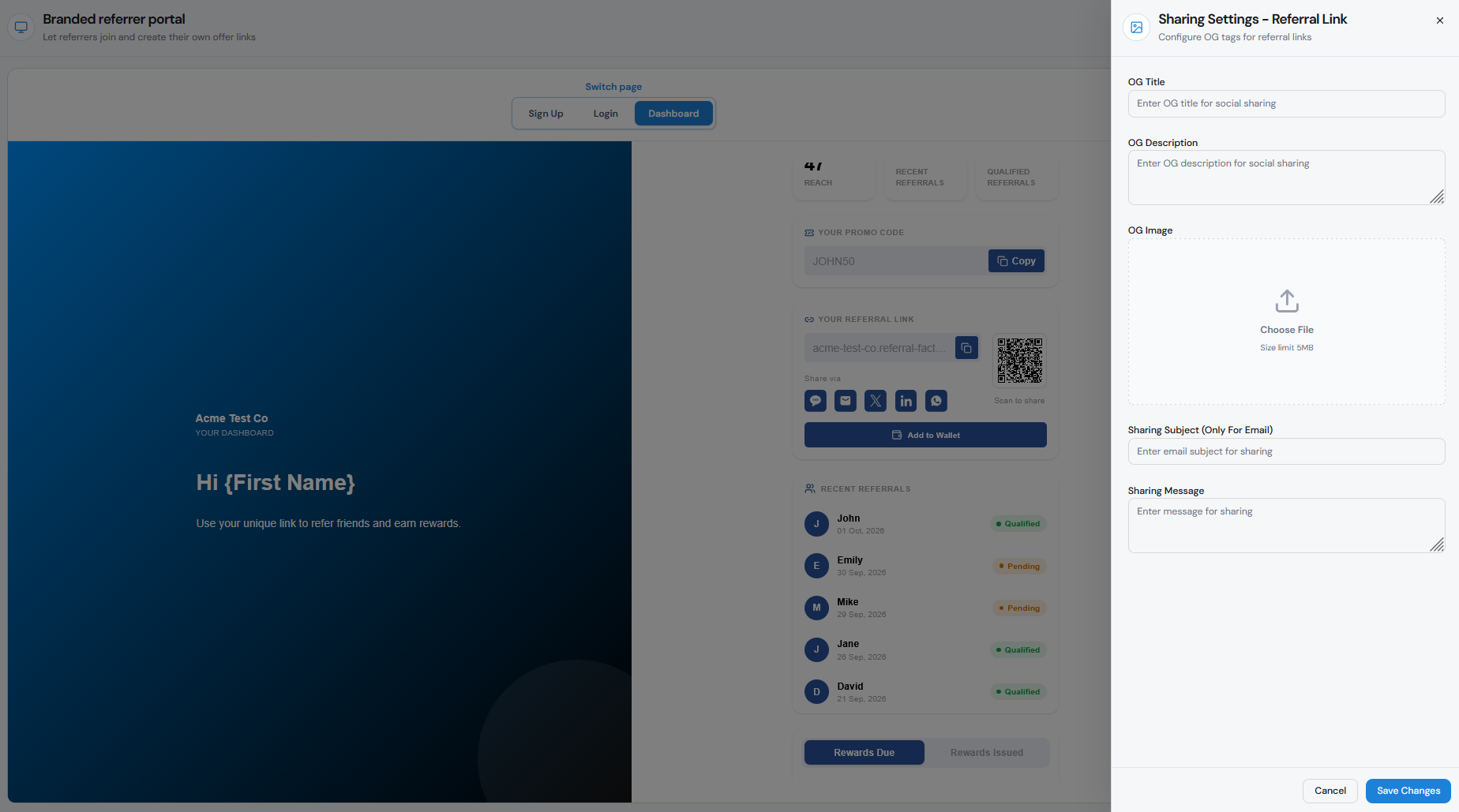
You can also use Referral Link Sharing Settings to configure the message and social preview that accompany the Referral Link when it is shared.
You do not need to display every option. Choose the channels that are most relevant to your customers and how they normally communicate.
For example, a B2B referral program might prioritize:
LinkedIn + Email + Copy Link
While a consumer referral program might use:
WhatsApp + SMS + Facebook + Copy Link
Impact on Referrer experience
The sharing methods you enable determine which shortcuts Referrers see when they access their Referral Link.
If a Referrer clicks WhatsApp, for example, Referral Factory opens the WhatsApp sharing flow with their unique Referral Link included. If they choose Email, the email sharing option can include the subject and message you configured.
The Copy Link option gives Referrers more flexibility because they can paste their unique link anywhere — even on channels you have not added as a dedicated sharing button.
Removing a social channel does not change the Referrer's Referral Link or prevent them from sharing it manually. It simply removes that sharing shortcut from the experience.
Channel-specific considerations
Choose sharing channels based on your audience rather than enabling every available option.
For example:
WhatsApp and SMS work well when referrals are normally shared directly with friends, family, or customers.
LinkedIn can be useful for professional, B2B, partner, or recruitment referral programs.
Email works well when Referrers are likely to introduce someone with more context.
Copy Link is useful in almost every campaign because it lets Referrers share their link through any channel they choose.
You should also configure the Sharing Message that accompanies the Referral Link.
For example:
I thought you might be interested in Acme. You can take a look here: [Referral Link]
For email sharing, you can also configure a Sharing Subject.
Test the resulting portal/page
Always test the sharing experience before promoting your campaign.
Step 1
Open the campaign as a test Referrer.
Step 2
Access the Branded Referrer Portal.
Step 3
Confirm that only the sharing options you selected are visible.
Step 4
Test the Copy Link button.
Step 5
Open several enabled social or messaging options and confirm the correct Referral Link is included.
Step 6
Check the sharing message and email subject where applicable.
Step 7
Share the link and confirm that it opens the correct Referral Link Page.
Step 8
Repeat the test on both desktop and mobile.
This helps make sure Referrers see a simple set of sharing options that fits your campaign rather than unnecessary channels they are unlikely to use.