
Read this page as a quick path: scan the headings, use the step blocks, and escalate if the expected result does not happen.
Need help applying this to your account?
Contact support and we will keep this article attached to your request.
The on-click pop-up is the recommended promotion tool for SaaS and online businesses. It sits inside your product and opens a referral invitation when a customer clicks a button — no page navigation required.
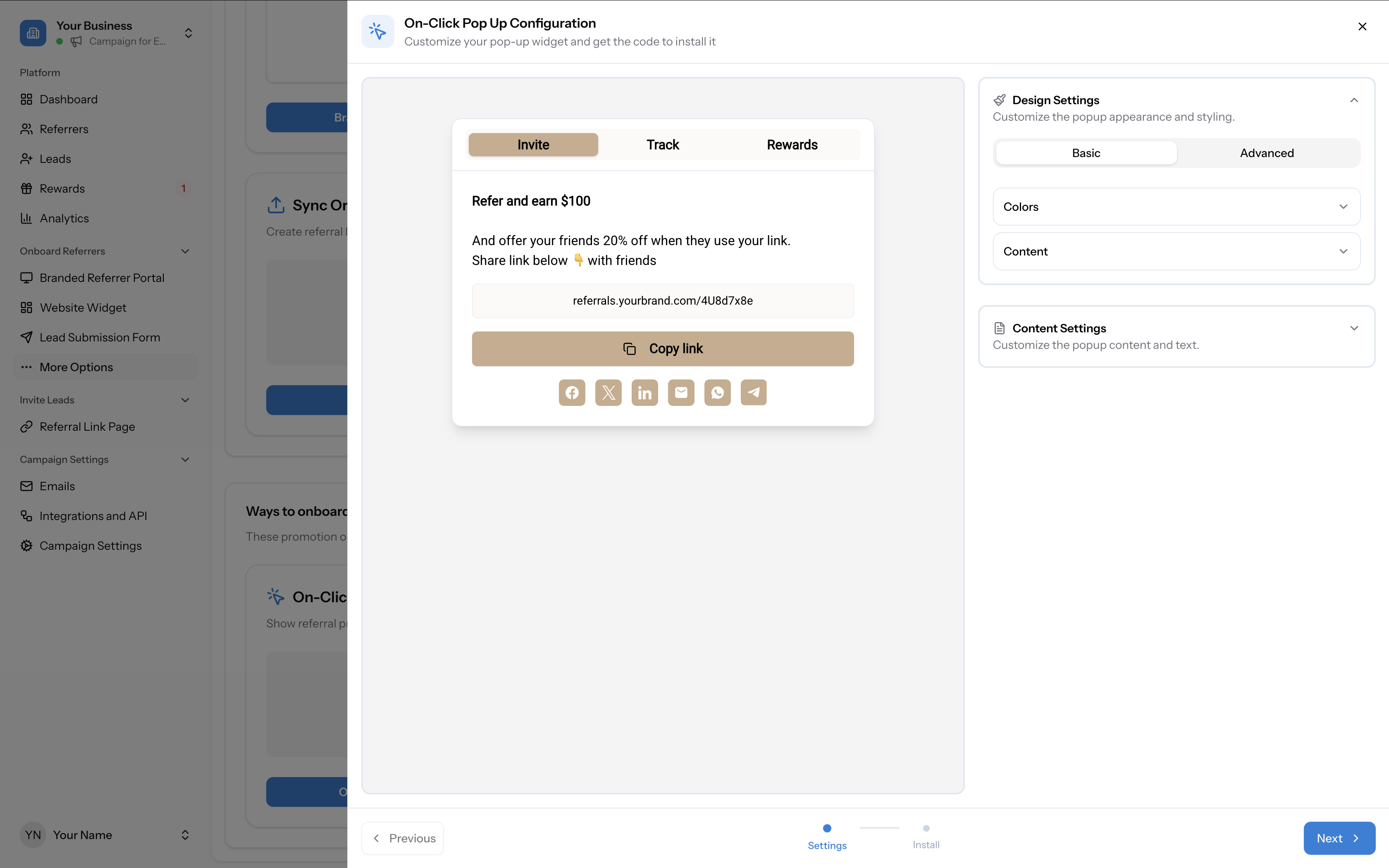
The pop-up has three tabs your referrers can switch between: Invite (share their link), Track (see their referrals and statuses), and Rewards (see earned and pending rewards). You can customise the design, content, and which tabs are visible.
Accessing the pop-up configuration
There are two ways to open the On-Click Pop Up Configuration:
The configuration has two steps: Settings (design and content) and Install (get the code). Use the Next and Previous buttons at the bottom to move between steps.
- From the Promote page — Click the On-Click Pop Up card under "Ways to onboard referrers — if they are logged in" and then click On-Click Pop Up Configuration.
- From the sidebar — Go to Onboard Referrers → On-Click Pop Up (or click More Options if it's not visible). You can show or hide this item in the sidebar using the eye icon on the Promote page.
Step 1: Settings
The Settings step has two sections on the right panel: Design Settings and Content Settings. The left side shows a live preview of how the pop-up will look to your referrers.
Design Settings
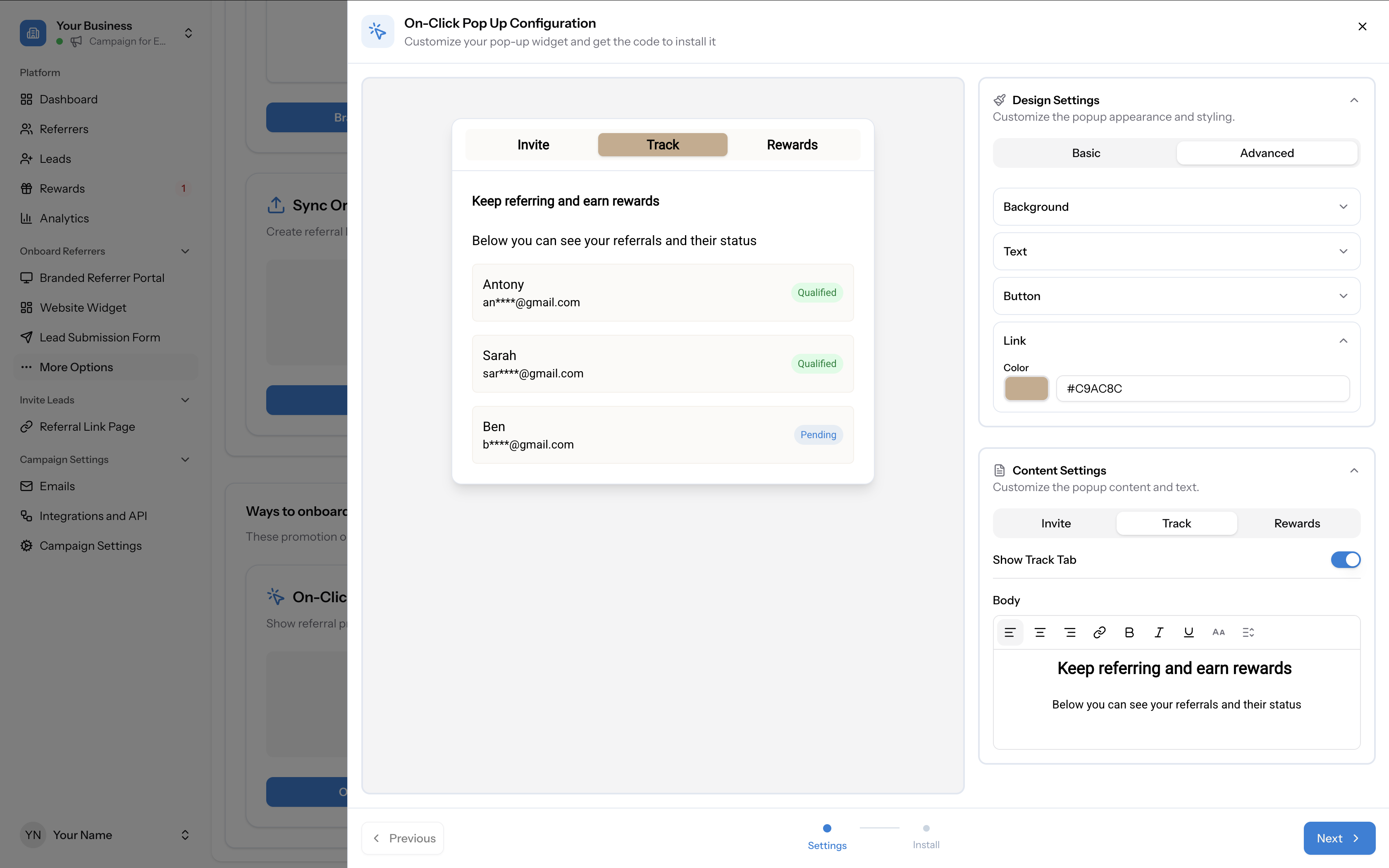
Design Settings control the pop-up's visual appearance. There are two sub-tabs:
Basic — style the core visual elements:
Advanced — additional styling options for more granular control.
- Background — set the popup background colour
- Text — set font, size, colour, and formatting (bold, italic, underline)
- Button — set font, size, background colour, text colour, border radius, and formatting
- Link — set link colour
Content Settings
Content Settings control the text and features shown on each of the three pop-up tabs. Switch between the Invite, Track, and Rewards sub-tabs to configure each one. The live preview on the left updates as you make changes.
The Invite tab is where referrers see their referral link and can share it.
The Track tab shows referrers a list of their referrals and their current status (Qualified, Pending, etc.).
The Rewards tab shows referrers their earned and pending rewards with amounts.
- Show Invite Tab — toggle on/off to show or hide this tab in the pop-up
- Body — rich text editor with formatting toolbar (alignment, links, bold, italic, underline, strikethrough, font size). Edit the heading and description text (e.g. "Refer and earn $100")
- Button Text — the label on the copy-link button (default: "Copy link")
- Social Icons — shows how many sharing icons are enabled (e.g. "6 / 10 enabled"). Configure which social platforms appear as sharing options
- Show Track Tab — toggle on/off to show or hide this tab
- Body — edit the heading and description text (e.g. "Keep referring and earn rewards")
- Show Rewards Tab — toggle on/off to show or hide this tab
- Body — edit the heading and description text (e.g. "Rewards due and issued")
Step 2: Install
Click Next to move to the Install step. This provides the full installation instructions to add the pop-up to your website or application.
1. Get code and token using API call
When a user logs into your website, make a POST request to retrieve a unique code and token for that user:
Request:
POST https://app.referral-factory.com/api/public/...Include the user's first name, email, and your popup secret in the request body (JSON format with
Content-Type: application/json).Response:
The API returns a
code and token for that user.Your popup secret is shown on this page with a Copy button. Keep it safe.
⚠️ IMPORTANT: Make this request from your backend only. Never share your popup secret with anyone.
2. Add code and token to JavaScript
Use the code and token from the API response in the JavaScript snippet provided. The snippet configures the
window.referralFactory object with the popup credentials and loads the Referral Factory popup script.Copy the snippet, replace the placeholder values with the actual code and token from your API response, and paste it before the closing
</body> tag on your website.3. Add className to trigger element
Add the
referral-factory-popup className to any HTML element on your page that should open the pop-up when clicked. For example:<button class="referral-factory-popup">Open Popup</button>You can add this class to any element — a button, link, menu item, or any other clickable element in your product.
4. Done!
Save and publish your changes. The pop-up will now appear when users click on elements with the
referral-factory-popup className.Best placement
The most effective placement is inside your logged-in product dashboard — somewhere customers see regularly, such as the main navigation, a sidebar, or a post-login notification area. The goal is for every customer who logs in to see the referral prompt.