
Read this page as a quick path: scan the headings, use the step blocks, and escalate if the expected result does not happen.
Need help applying this to your account?
Contact support and we will keep this article attached to your request.
Referral Factory includes a built-in Email Blast feature that lets you send a one-time email to your campaign contacts — no external email tool required. This is useful for launch announcements, promotional messages, or re-engagement campaigns.
Where to find it
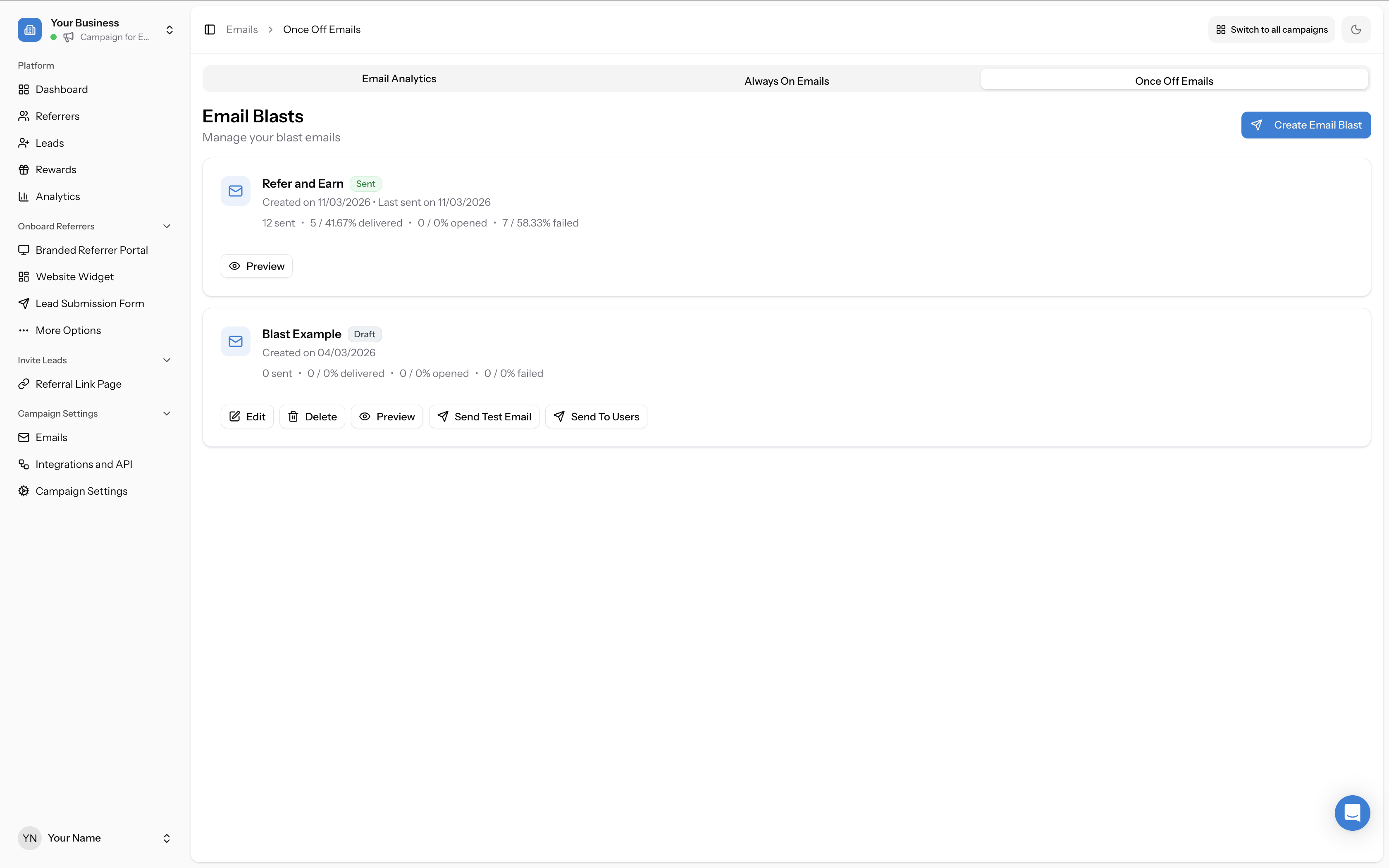
Go to Emails in the left sidebar, then click the Once Off Emails tab. You will see the Email Blasts section with a Create Email Blast button.
Getting access
Sending email blasts requires account approval. Until your account is approved, you will see a yellow banner at the top of the Once Off Emails tab: "Follow the steps below to get access to send emails."
Click Show Options to expand the banner and choose one of three verification methods:
Once approved, the banner disappears and you can send email blasts freely.
- Connect your own mailserver (~45 minutes) — connect your own mail server and use it for email sending. You will need to enter your SMTP credentials. Go to Settings to do this. Your email will remain as a draft while you connect your own mailserver.
- Verify your domain (~45 minutes) — connect your domain and verify it, allowing Referral Factory to send emails on behalf of your domain. Your email will remain as a draft while you verify your domain.
- Manually verify your organisation (~48 hours) — the support team manually verifies your business. Click to submit a support ticket. The team will reach out and may request your business incorporation certificate and a link to your company website or LinkedIn profile.
How to create and send an email blast
Step 1 — Campaign details
Click Create Email Blast and fill in:
The number of recipients is shown next to each audience option.
Click Next to continue.
- Blast Email Name — a name for your reference (not shown to recipients)
- Select Audience — choose who receives the email:
- All Users — every referrer and lead in the campaign
- All Referrers — only referrers
- All Leads — only leads
Step 2 — Email content
Write your email:
Available variables include:
Click Save when done.
- Subject — the subject line that appears in the recipient's inbox
- Email Content — the body of your email. Use the Variables button to insert personalisation placeholders
[First Name][Referral Link][Referrer Portal Link][Unsubscribe Link]
Step 3 — Test and send
Before sending to your full audience, use Send Test Email to preview the blast in your own inbox (see the Managing your blasts section below for details). When you are satisfied, click Send To Users on the blast. A confirmation dialog will appear asking you to confirm. The email is sent immediately and cannot be undone.
Managing your blasts
Each email blast appears in the Once Off Emails tab with:
| Status | Meaning | Available actions |
|---|---|---|
| Draft | Not yet sent — still editable | Edit, Delete, Preview, Send Test Email, Send To Users |
| Pending | Submitted and queued for delivery | Preview only |
| Sent | Delivery complete | Preview only |
- Its name and a status badge: Draft, Pending, or Sent
- Creation date
- Delivery stats (sent, delivered, opened, failed)
- Actions vary by status (see below)
Send Test Email
Before sending a blast to your full audience, click Send Test Email to send a preview to yourself. The test is sent to the email address associated with your account.
A confirmation modal appears letting you know the test email has been sent. Keep in mind:
- The test email can take up to five minutes to arrive — check your inbox (and spam folder)
- You can only send 10 test emails per hour
Send To Users
When you are satisfied with the test, click Send To Users to send the blast to your selected audience. A confirmation dialog will appear asking you to confirm. The email is sent immediately and cannot be undone.