
Read this page as a quick path: scan the headings, use the step blocks, and escalate if the expected result does not happen.
Need help applying this to your account?
Contact support and we will keep this article attached to your request.
This guide walks you through connecting Referral Factory to ServiceTitan and configuring it to automatically create bookings for referred leads, auto-qualify referrals, and sync your existing ServiceTitan customers into your campaign as referrers.
Before You Start
You will need:
The ServiceTitan integration is configured per campaign, so you will set it up separately for each campaign you want to sync.
- Your ServiceTitan Tenant ID (found in the top-right corner of your ServiceTitan account under Settings → Integrations → API Application Access)
- Admin access to both ServiceTitan and your Referral Factory campaign
Step 1: Submit Your Tenant ID
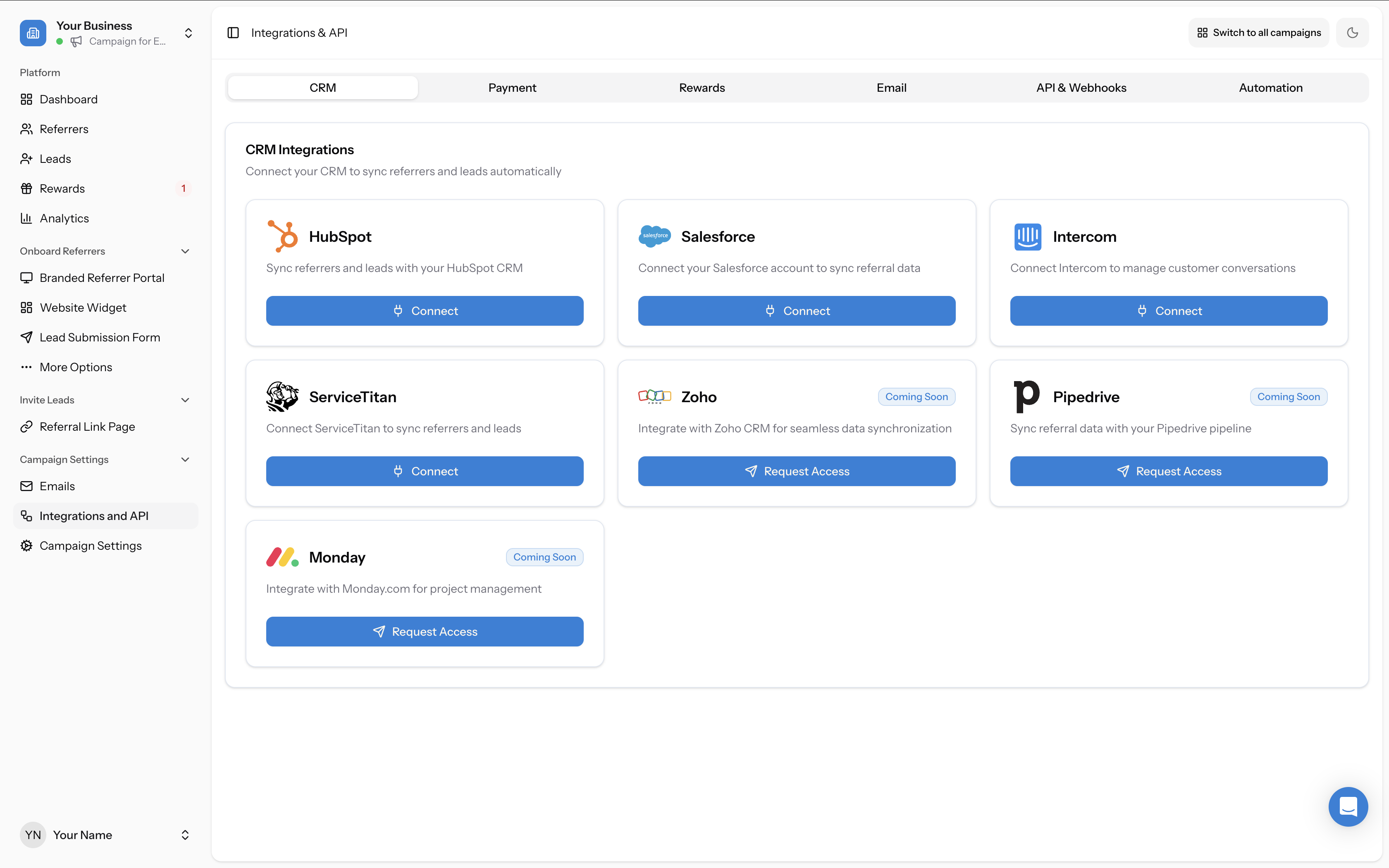
In your campaign, go to Campaign Settings → Integrations and API in the left-hand menu. Click the CRM tab at the top of the page, then click Connect under ServiceTitan.
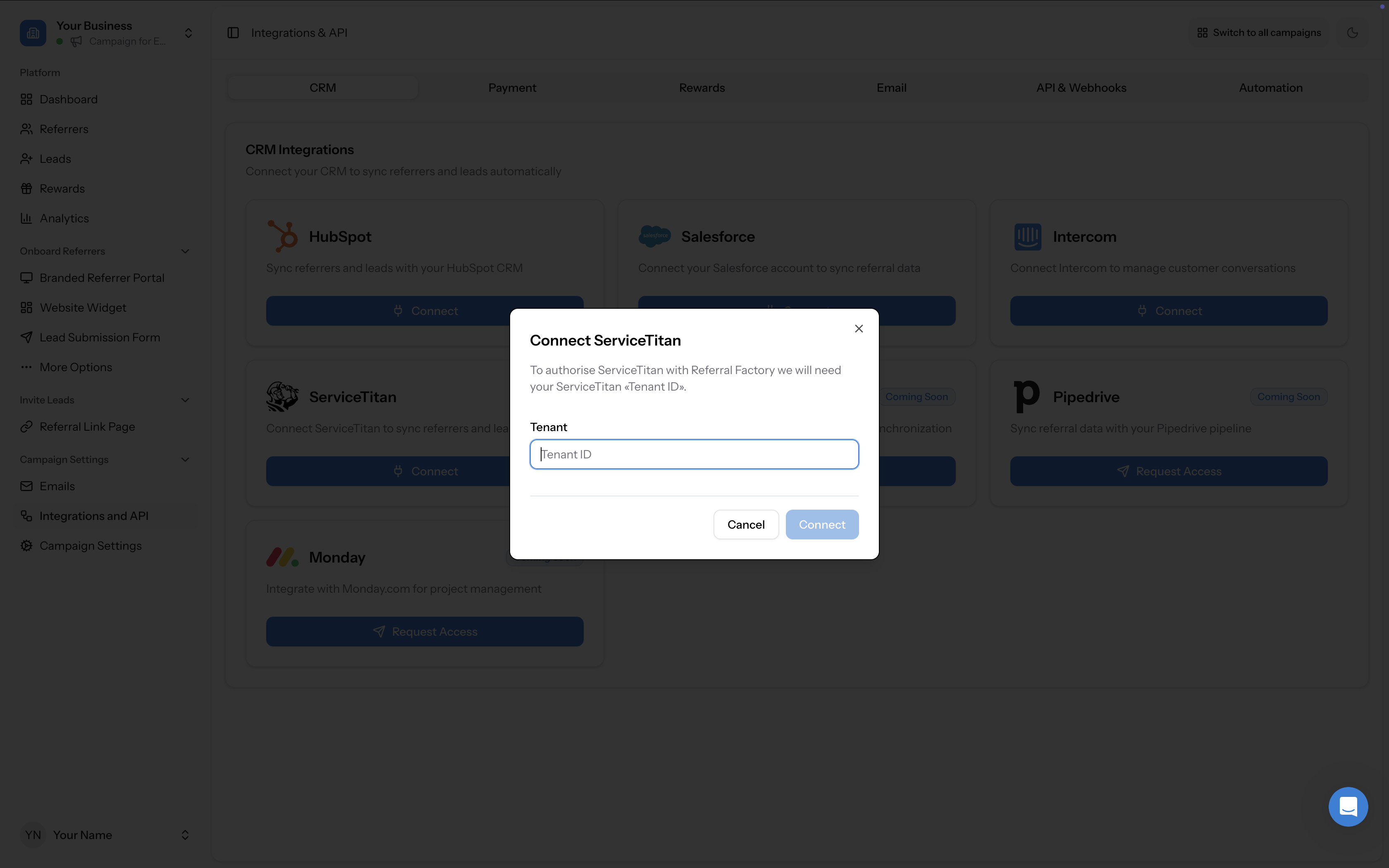
A modal will appear asking for your Tenant ID. Enter your ServiceTitan Tenant ID and click Connect.
After submitting, the ServiceTitan tile will show a Pending status. This means the Referral Factory team is reviewing your request.
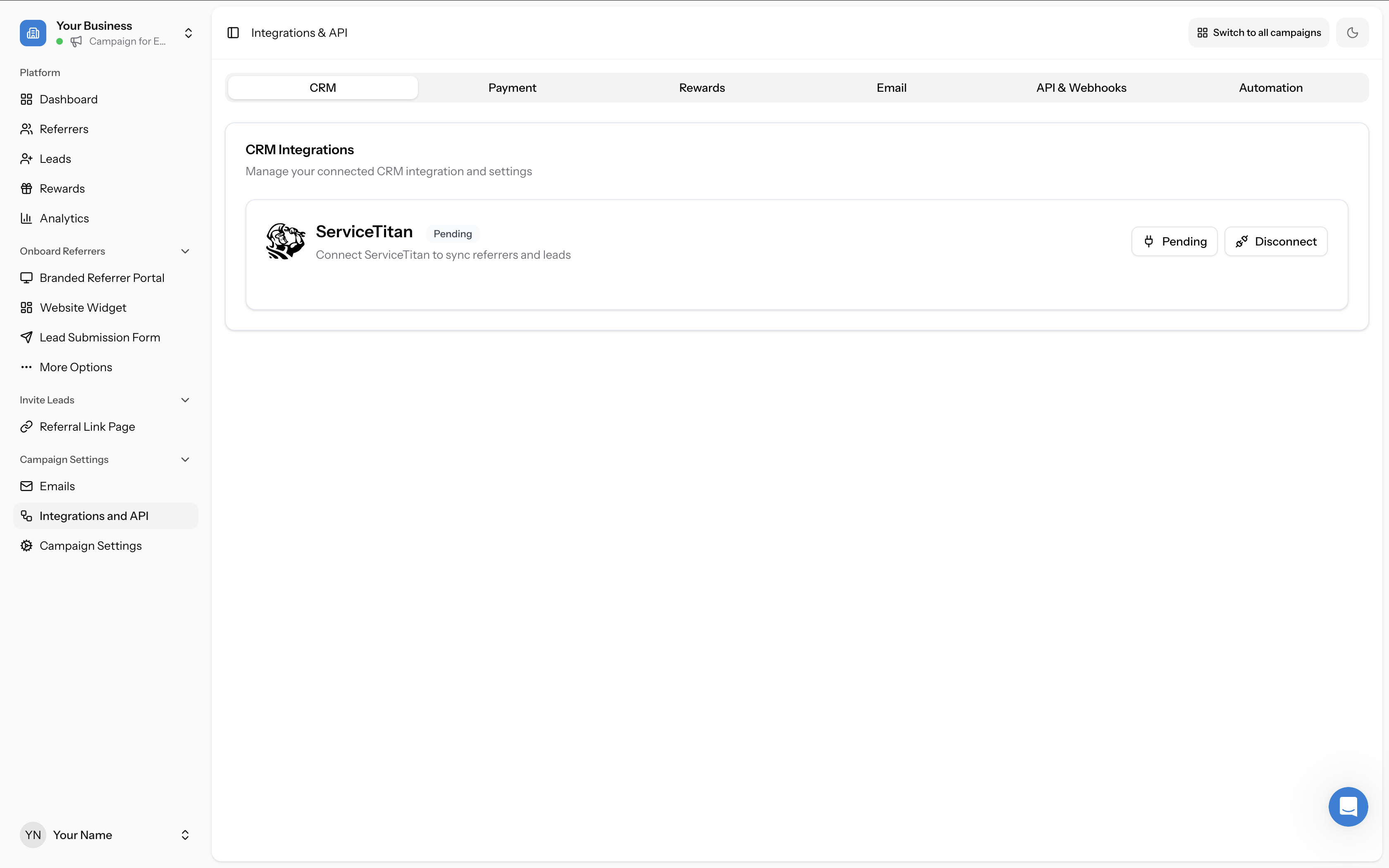
Approval typically takes 1–2 business days. You can continue setting up other parts of your campaign while waiting. See FAQ: How long does ServiceTitan integration approval take? for more details.
Step 2: Install the Referral Factory App in ServiceTitan
Once approved, the ServiceTitan tile in Referral Factory will change from Pending to Finalize.
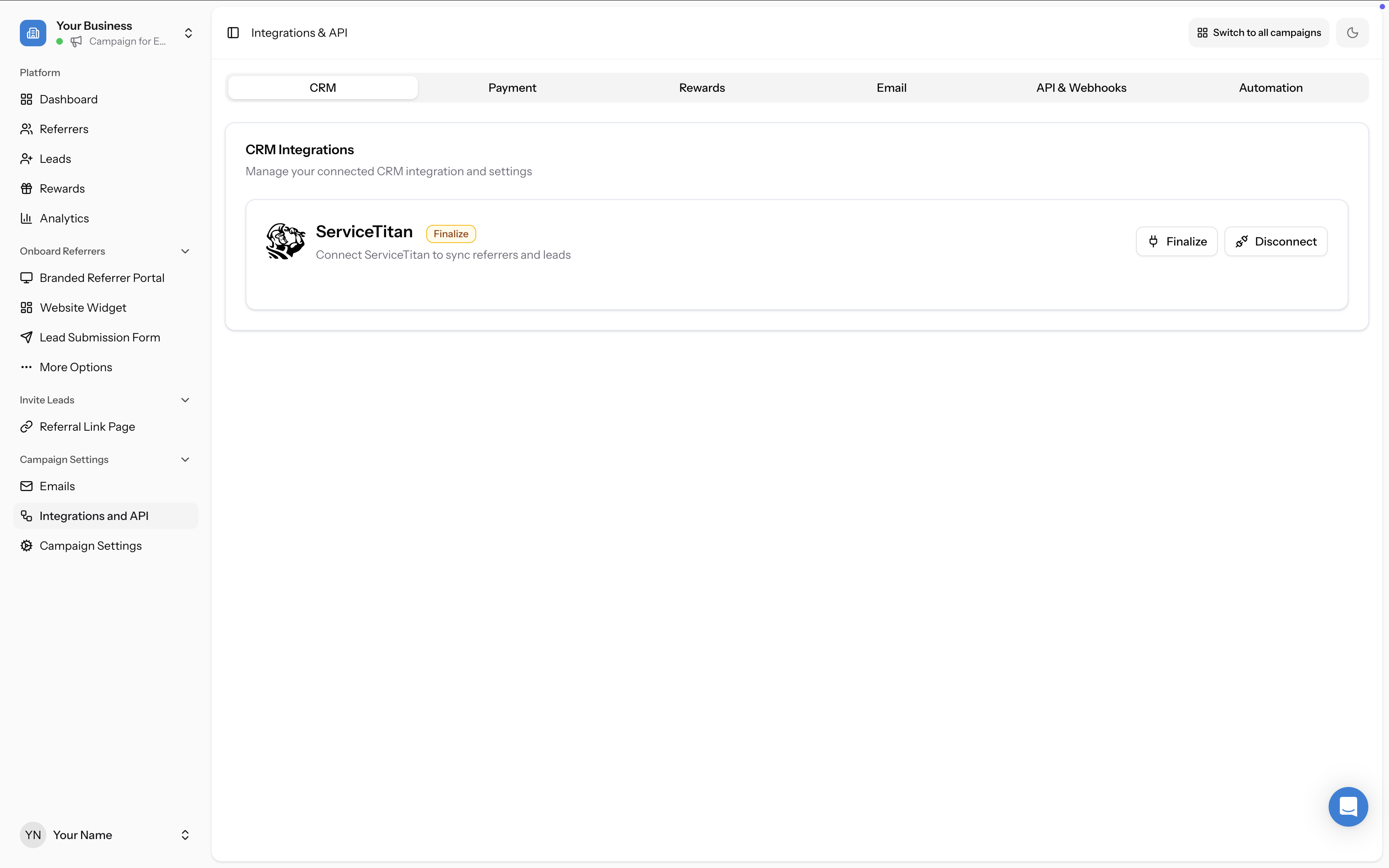
Before you can finalize the connection in Referral Factory, you need to install the Referral Factory app in your ServiceTitan account and obtain your API credentials.
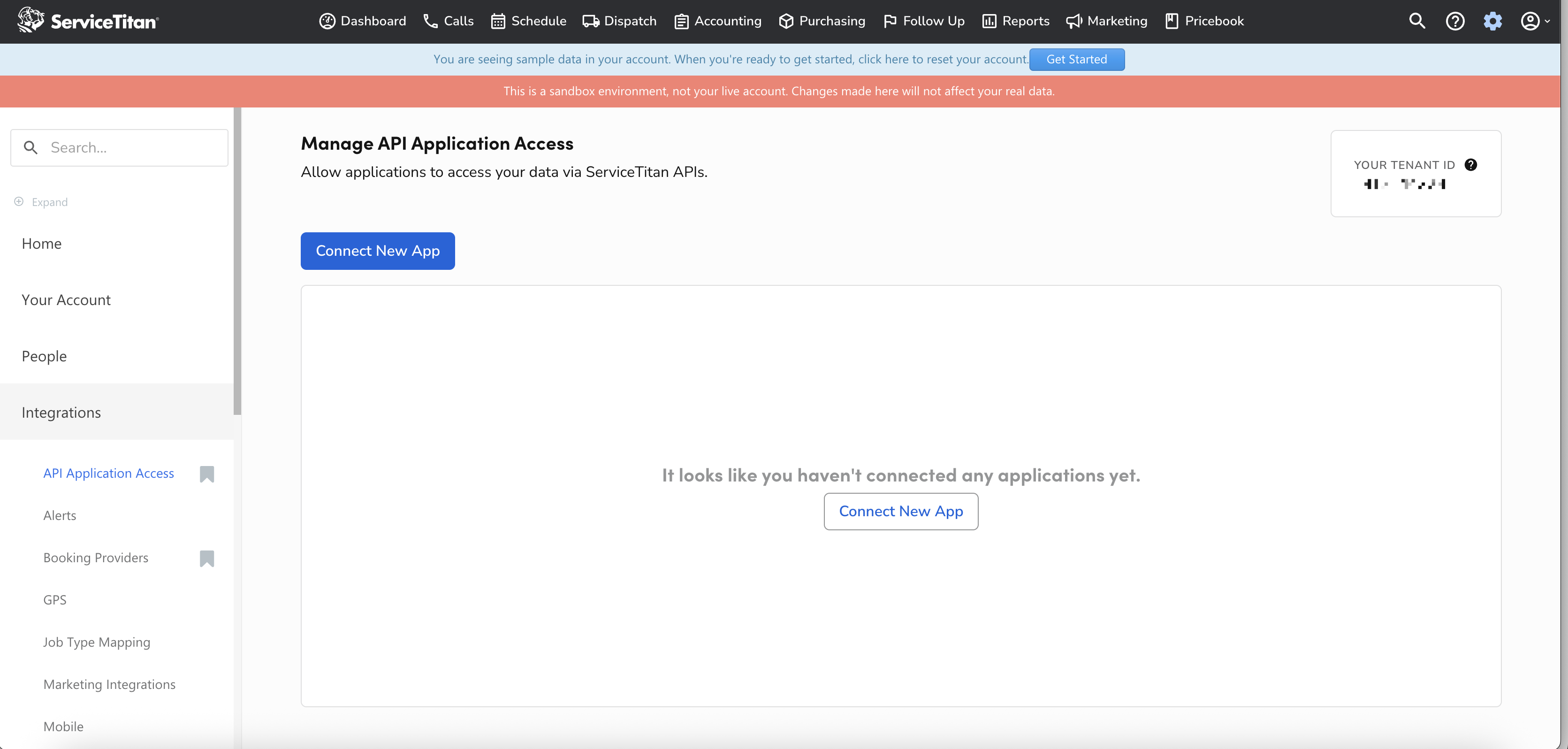
2a. Navigate to API Application Access in ServiceTitan
Log in to your ServiceTitan account and go to Settings → Integrations → API Application Access. Your Tenant ID is displayed in the top-right corner of this page.
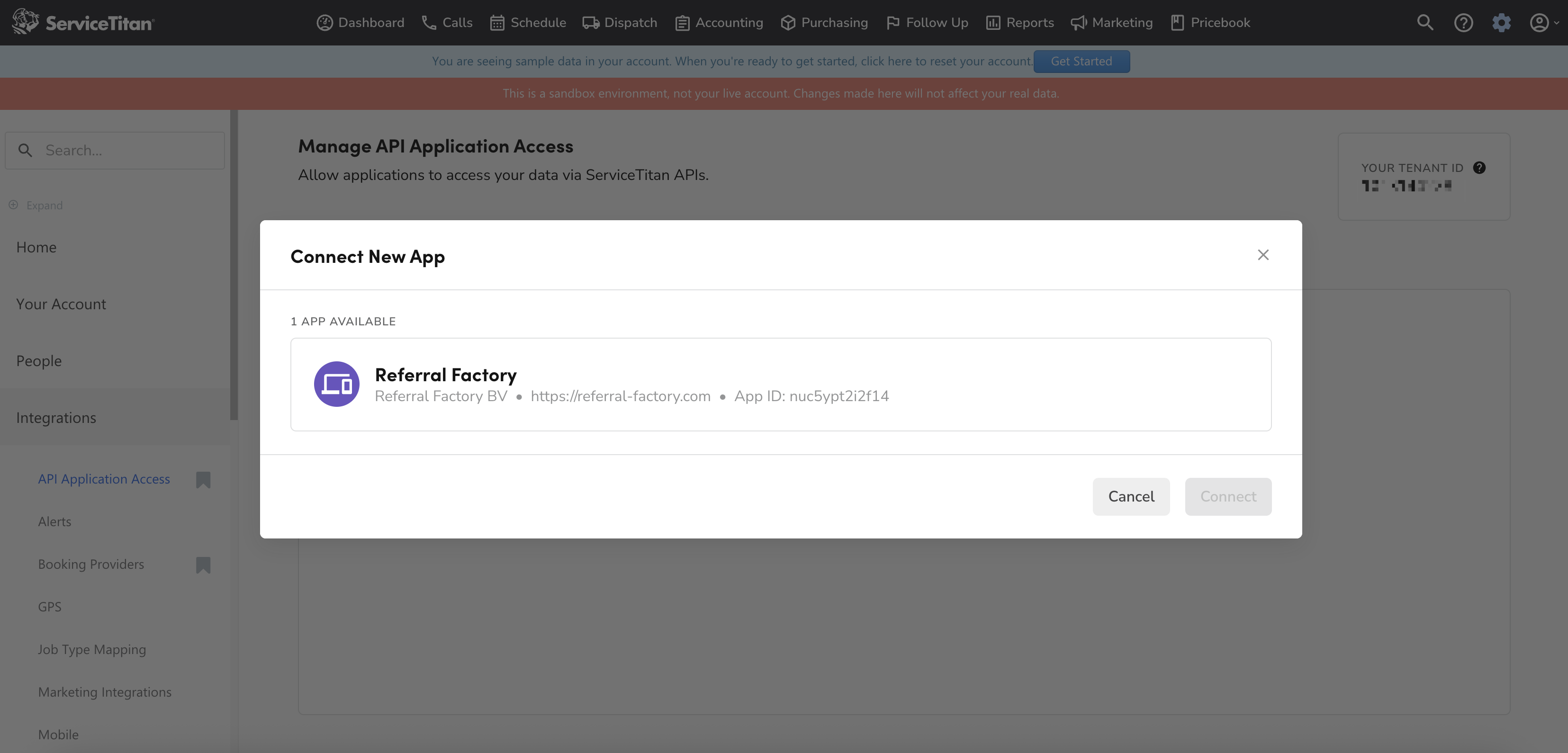
2b. Connect the Referral Factory App
Click Connect New App. You will see Referral Factory listed as an available app. Click Connect to proceed.
2d. Copy Your API Credentials
After allowing access, ServiceTitan will display your Application Details page with a success message. You will need three values from this page:
Keep this page open or save these values — you will need them in the next step.
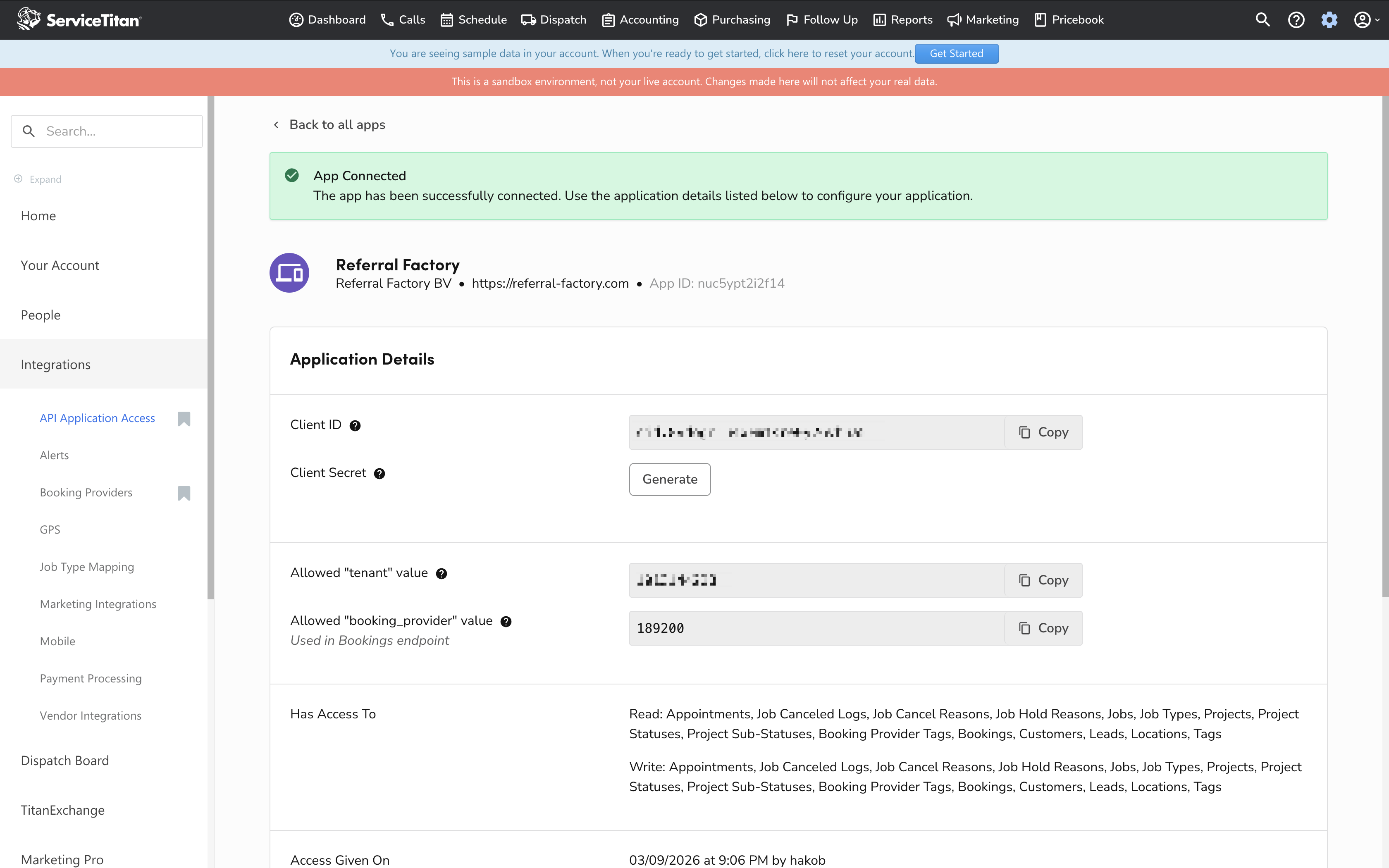
- Client ID — click Copy to copy it
- Client Secret — click Generate to create one, then click Copy
- Booking Provider Value — shown as "Allowed 'booking_provider' value," click Copy
Step 3: Finalize the Connection in Referral Factory
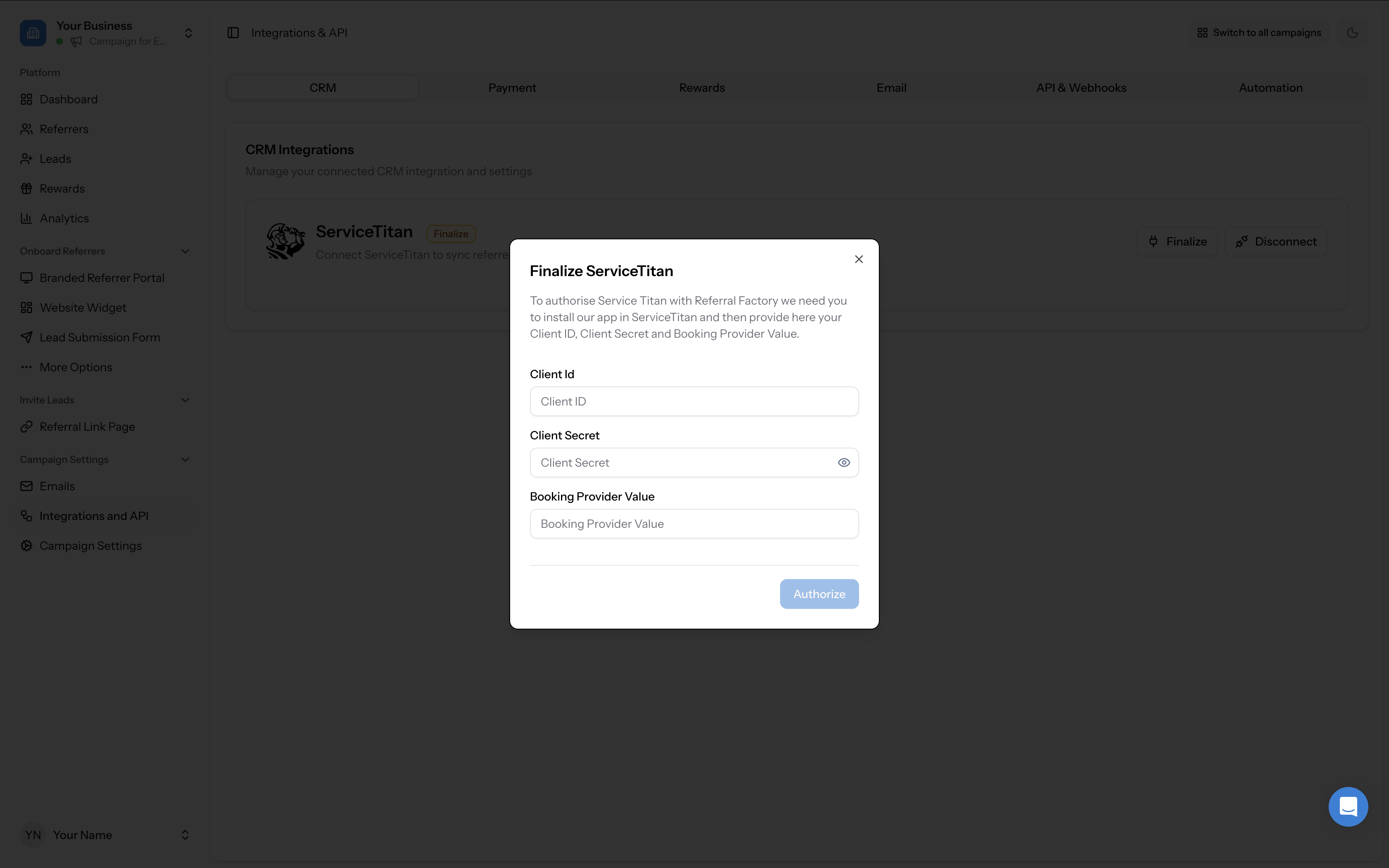
Go back to Referral Factory and navigate to Campaign Settings → Integrations and API → CRM tab. Click the Finalize button next to ServiceTitan.
A modal will appear asking for three values:
Click Authorize to complete the connection.
Once authorized, ServiceTitan will show as Connected with Leads and Referrers tabs available for configuration.
- Client ID — paste the Client ID from ServiceTitan
- Client Secret — paste the Client Secret you generated
- Booking Provider Value — paste the booking_provider value from ServiceTitan
Step 4: Configure What Happens When a Lead Joins Your Campaign
Once connected, you will see two tabs inside the ServiceTitan section: Leads and Referrers. Start with the Leads tab.
Use the When lead joins campaign dropdown to choose what happens in ServiceTitan each time someone is referred into your campaign. You can also create a rule to auto-qualify the referred users that convert, based on actions that happen in your integration.
The options are:
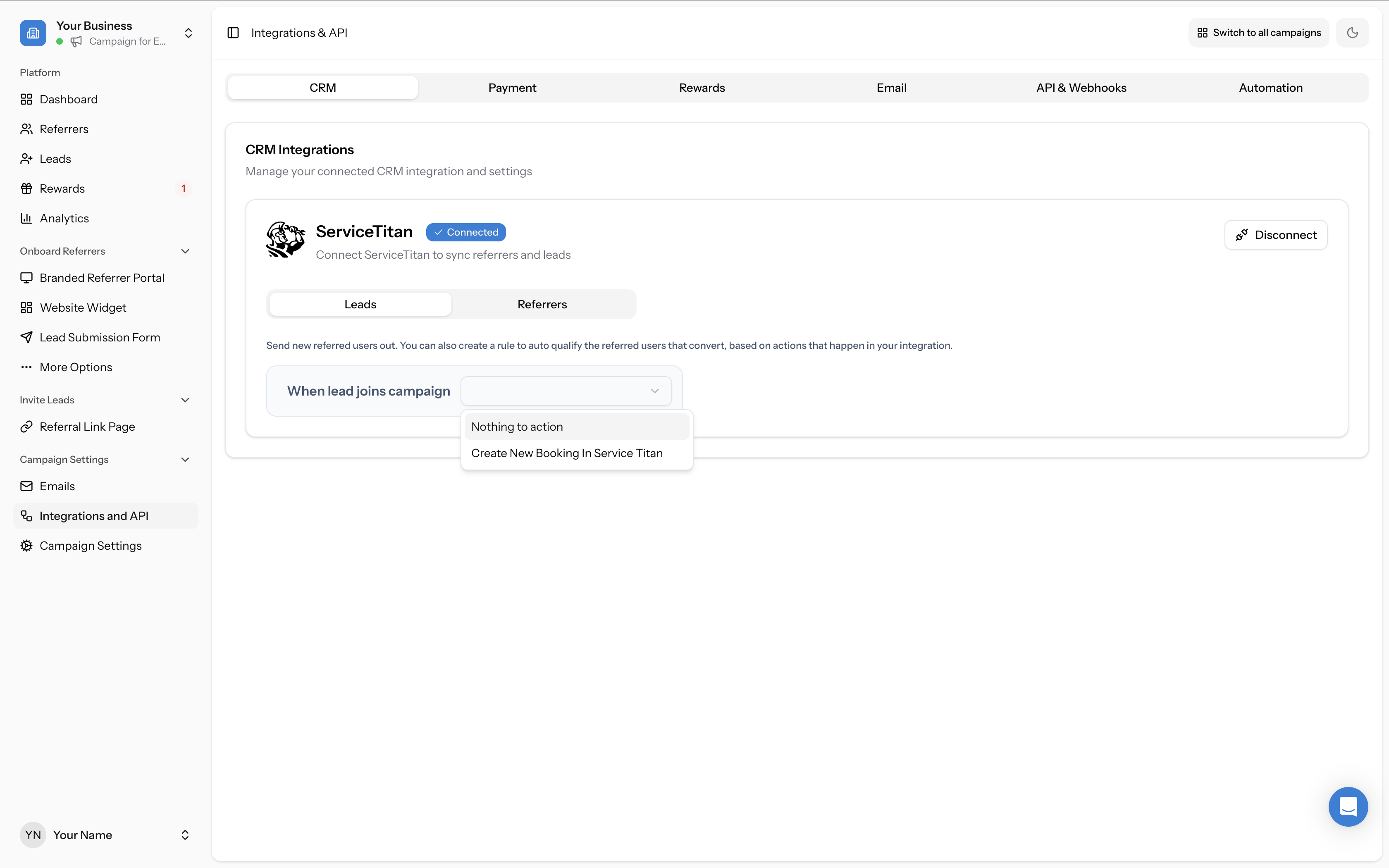
- Nothing to action — referred leads will not be sent to ServiceTitan
- Create New Booking In Service Titan — creates a new booking in ServiceTitan for each referred lead (recommended)
Step 5: Map Your Fields
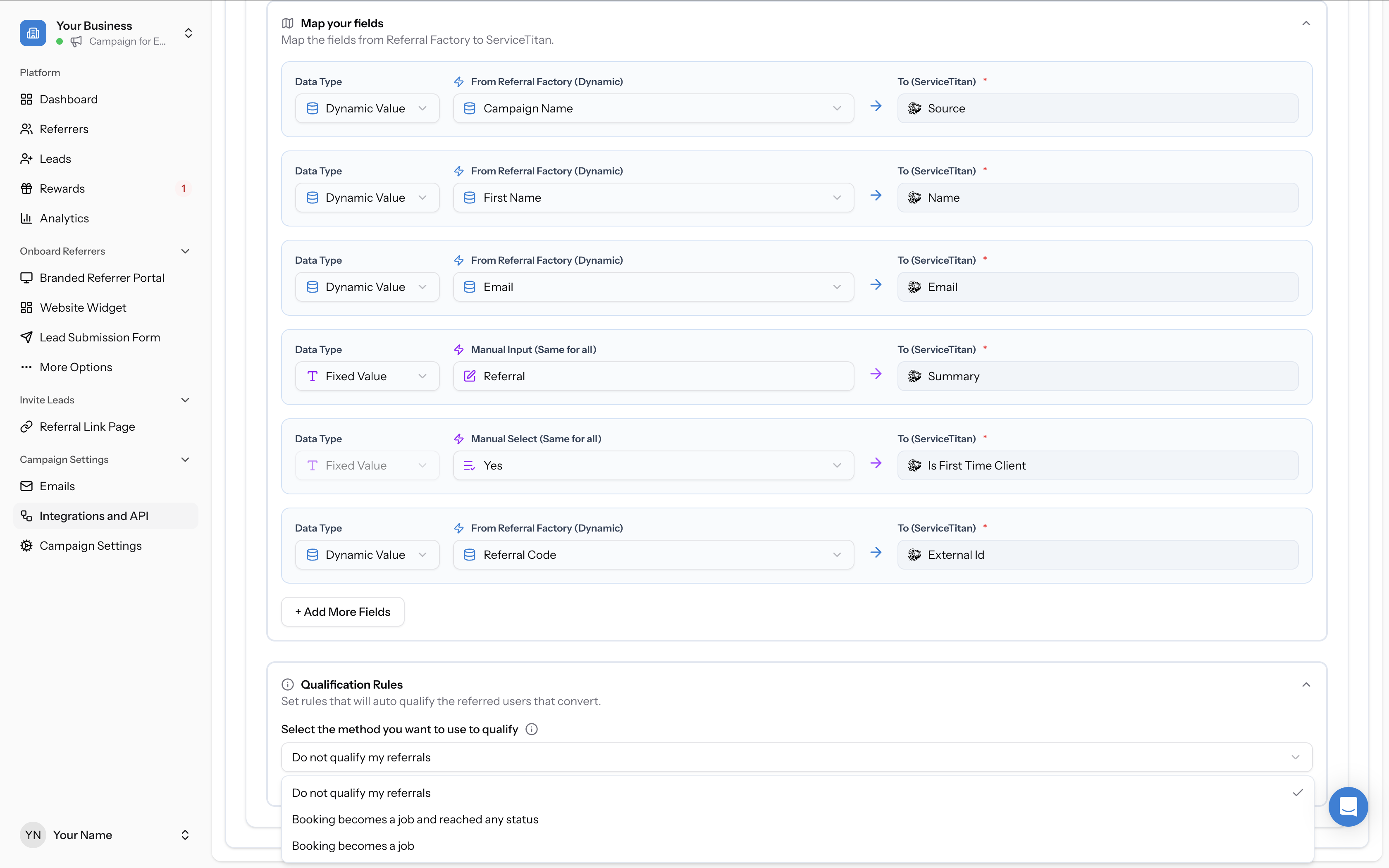
When you select Create New Booking In Service Titan, a field mapping section appears. This tells Referral Factory which data to send to ServiceTitan and which ServiceTitan field to write it to.
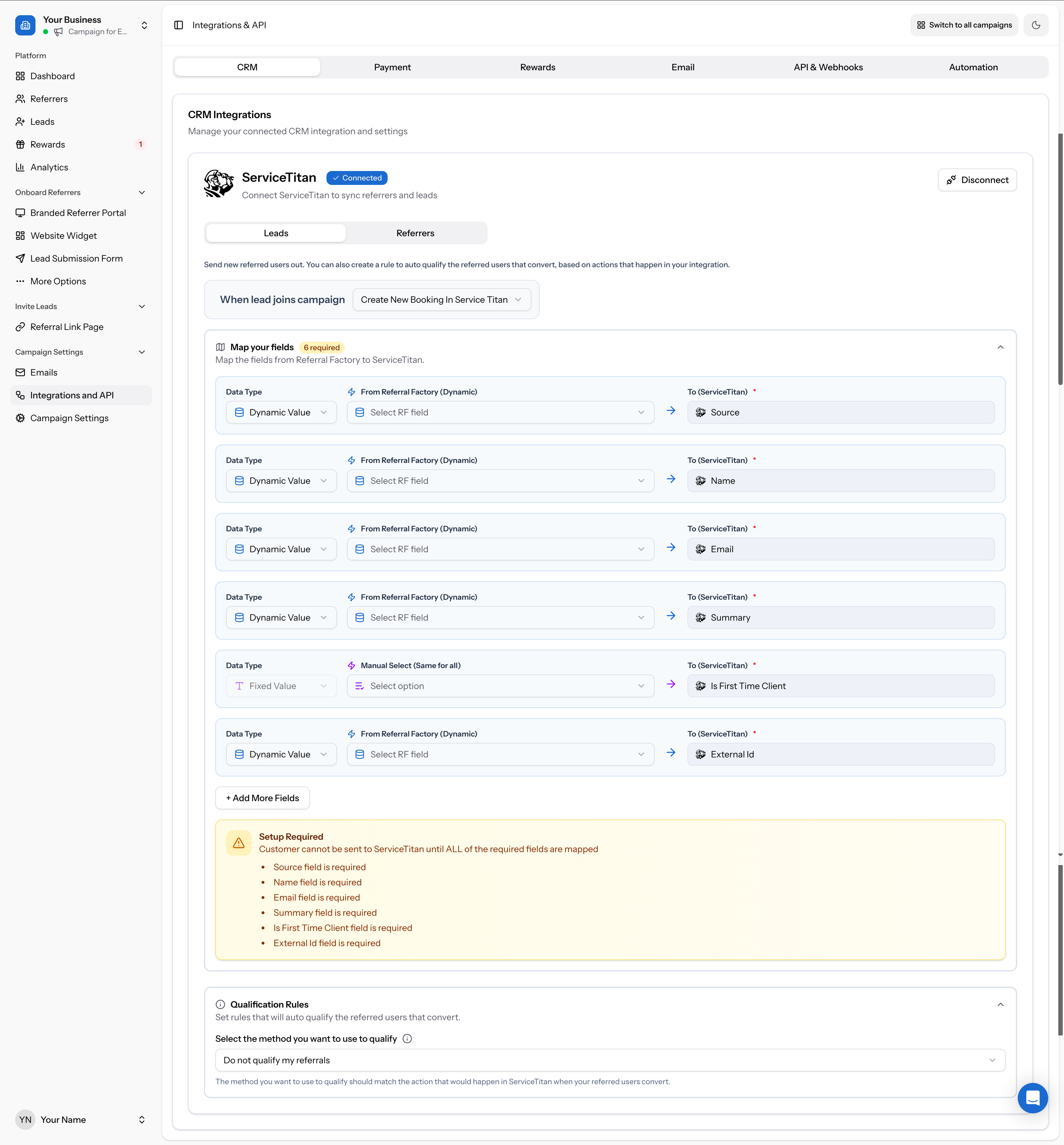
For each row, you will see three columns:
The required fields for ServiceTitan are marked with an asterisk (*). All required fields must be mapped before the integration will work. A "Setup Required" warning will display until all required fields are completed.
Here is an example of a completed field mapping:
| Data Type | From Referral Factory | To (ServiceTitan) |
|---|---|---|
| Dynamic Value | Campaign Name | Source * |
| Dynamic Value | First Name | Name * |
| Dynamic Value | Email * | |
| Fixed Value (Manual Input) | "Referral" | Summary * |
| Fixed Value (Manual Select) | "Yes" | Is First Time Client * |
| Dynamic Value | Referral Code | External Id * |
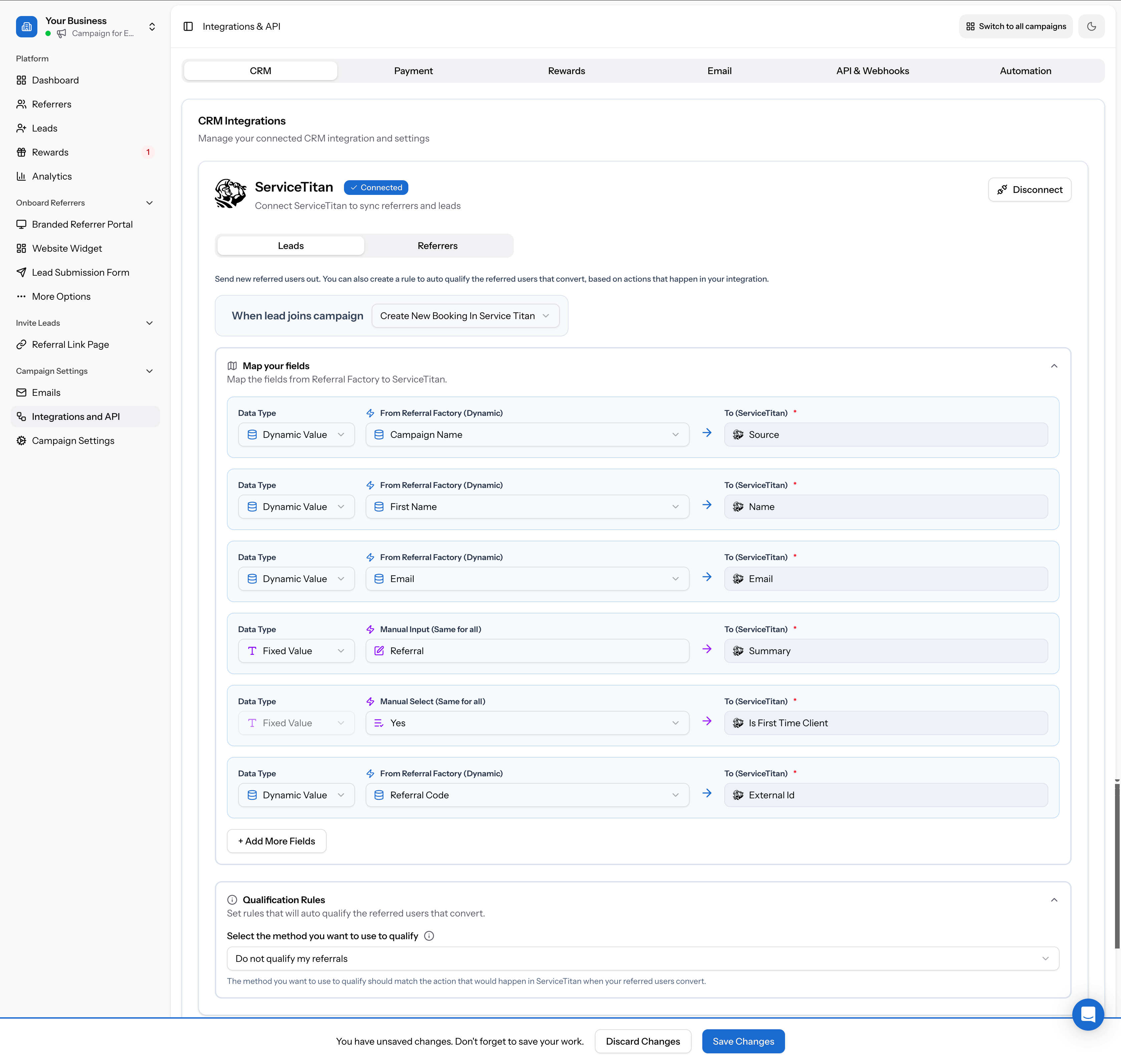
Click + Add More Fields to map additional data beyond the required fields.
Click Save Changes when you are done. A bar will appear at the bottom of the screen reminding you to save before navigating away.
- Data Type — choose between Dynamic Value (maps a Referral Factory field that is different per record), Fixed Value / Manual Input (a text value that is the same for all records), or Manual Select (choose from a set of options that apply to all records)
- From Referral Factory (Dynamic) — the source field from your Referral Factory campaign
- To (ServiceTitan) — the target ServiceTitan field to write the value into
Step 6: Set Up Qualification Rules (Optional)
Qualification rules let Referral Factory automatically mark a referral as qualified when something specific happens in ServiceTitan — so you do not need to qualify referrals manually.
There are three qualification methods:
Do not qualify my referrals
Select this if you prefer to qualify referrals manually. The integration will still create bookings in ServiceTitan but will not auto-qualify.
Booking becomes a job and reached any status
Choose this to qualify referrals when a booking becomes a job in ServiceTitan and a specific property reaches a specific value. When you select this option, two additional fields appear:
This is the most precise option. For example, you can qualify referrals only when a job reaches the "Completed" status.
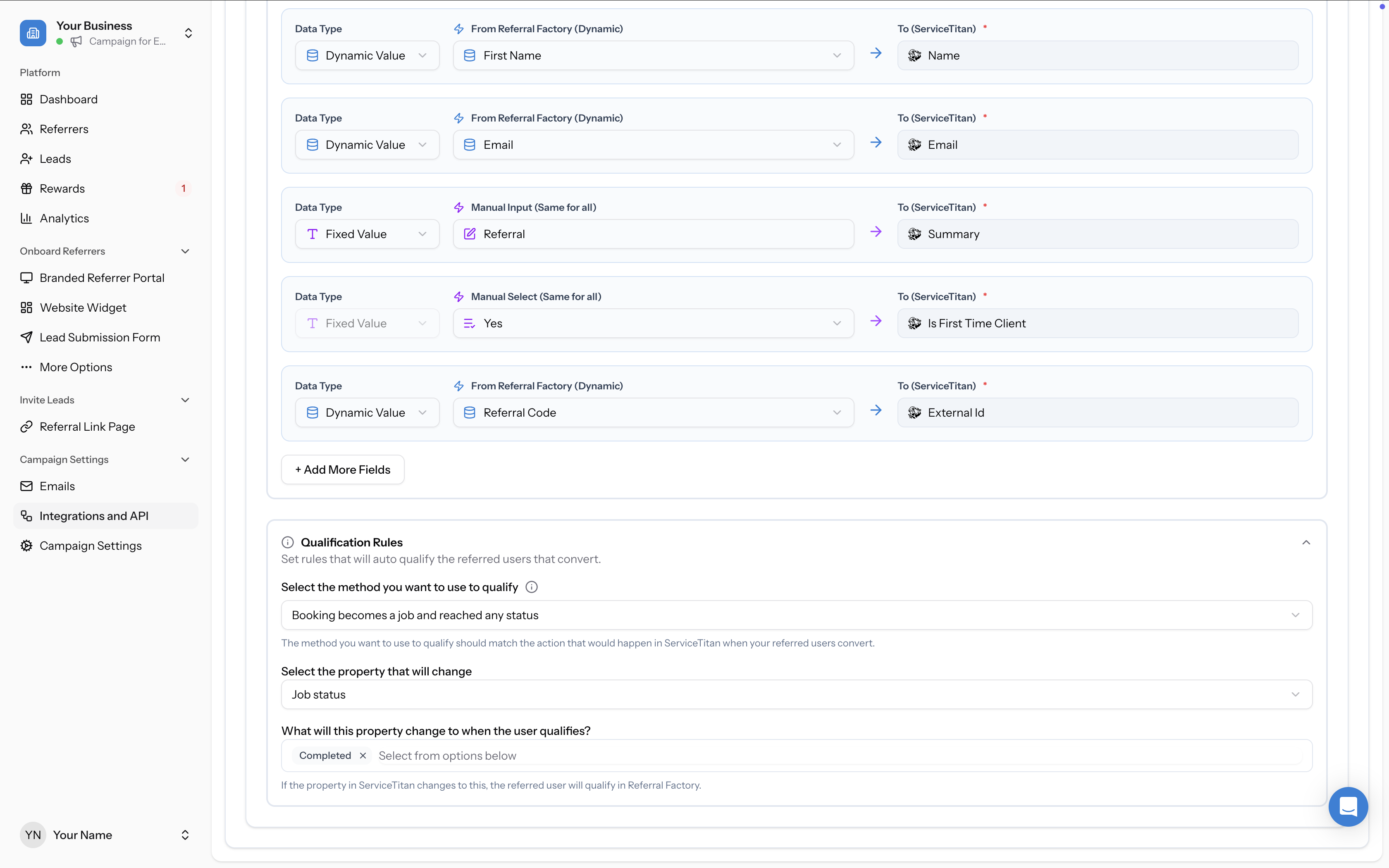
- Select the property that will change — for example, "Job status"
- What will this property change to when the user qualifies? — for example, "Completed"
Booking becomes a job
Choose this to qualify referrals as soon as a booking becomes a job in ServiceTitan, regardless of the job's status. This is the simplest option.
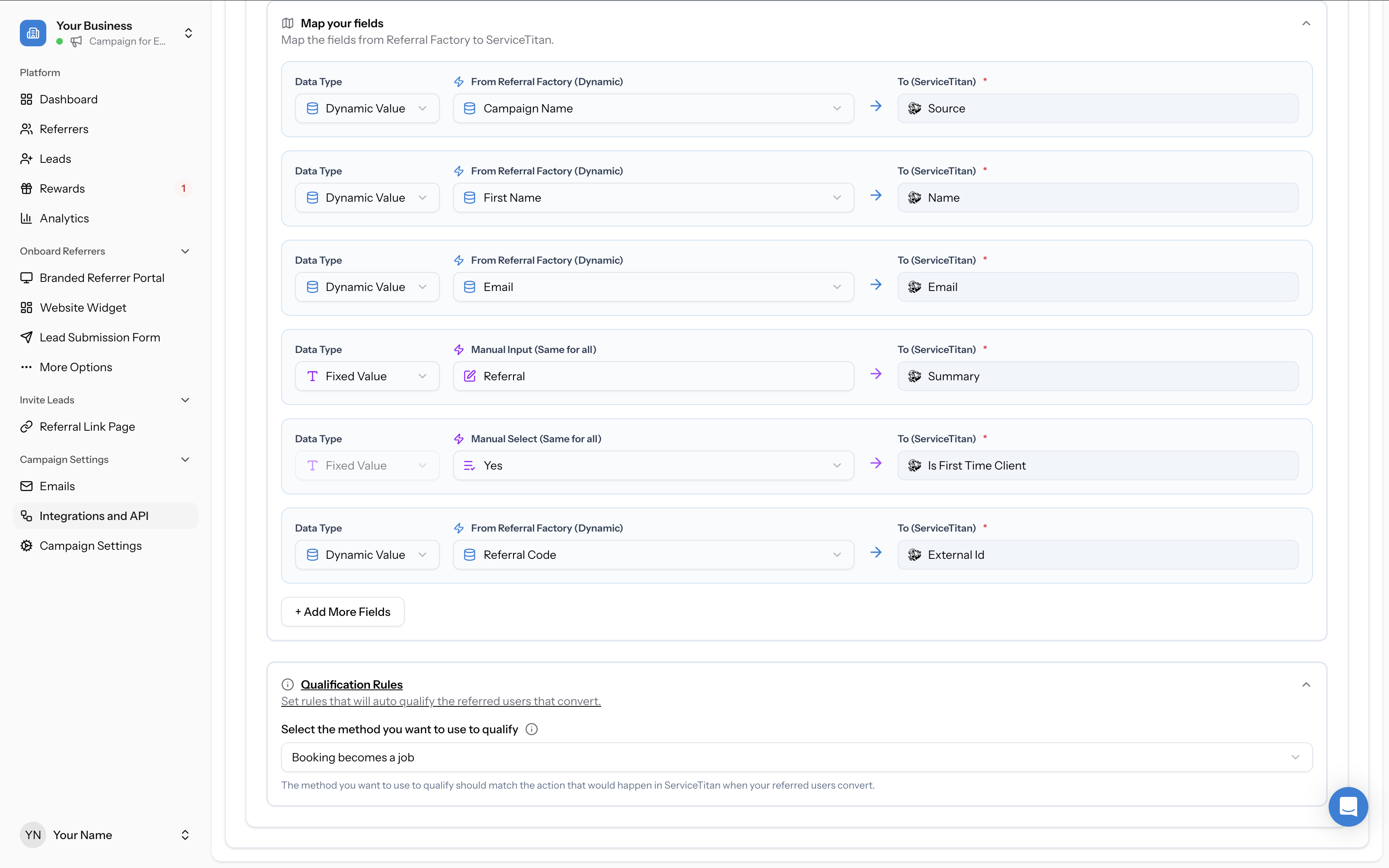
Click Save Changes.
Step 7: Configure the Referrers Tab
Switch to the Referrers tab in the ServiceTitan section. The settings here control what happens in ServiceTitan when someone joins your campaign as a referrer (a direct user). This will happen every time a new direct user joins your campaign.
The options are:
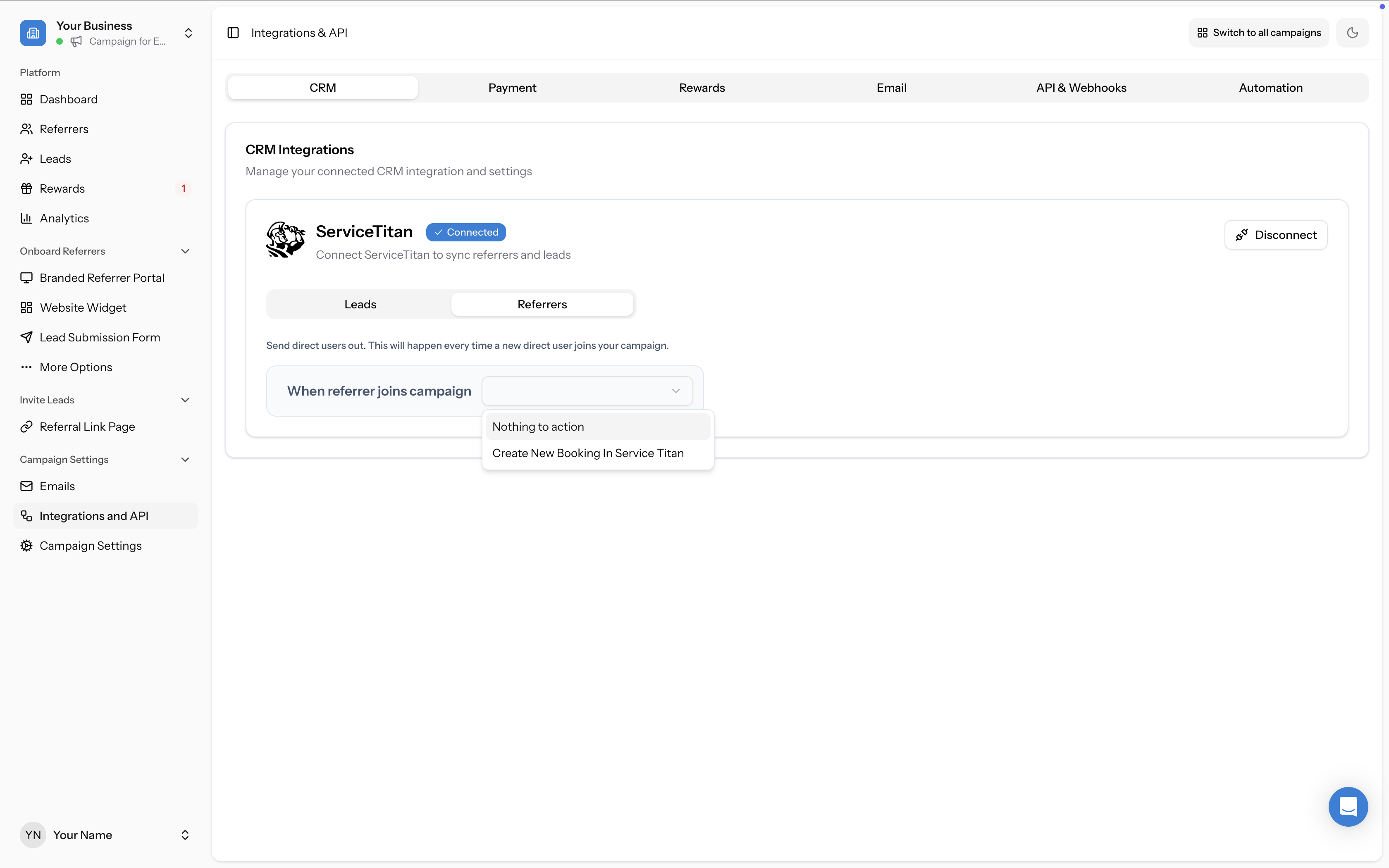
If you choose to create a new booking, you will configure field mapping the same way as the Leads tab.
- Nothing to action — referrers will not be sent to ServiceTitan
- Create New Booking In Service Titan — creates a new booking in ServiceTitan for each referrer
Syncing Your Existing ServiceTitan Customers as Referrers
If you want to enrol your existing ServiceTitan customers into your referral campaign automatically, you can sync them directly from the Referrers page.
Go to the Referrers page in your campaign (left sidebar), click Add Referrers, and choose Sync.
Select ServiceTitan as the source on the next screen.
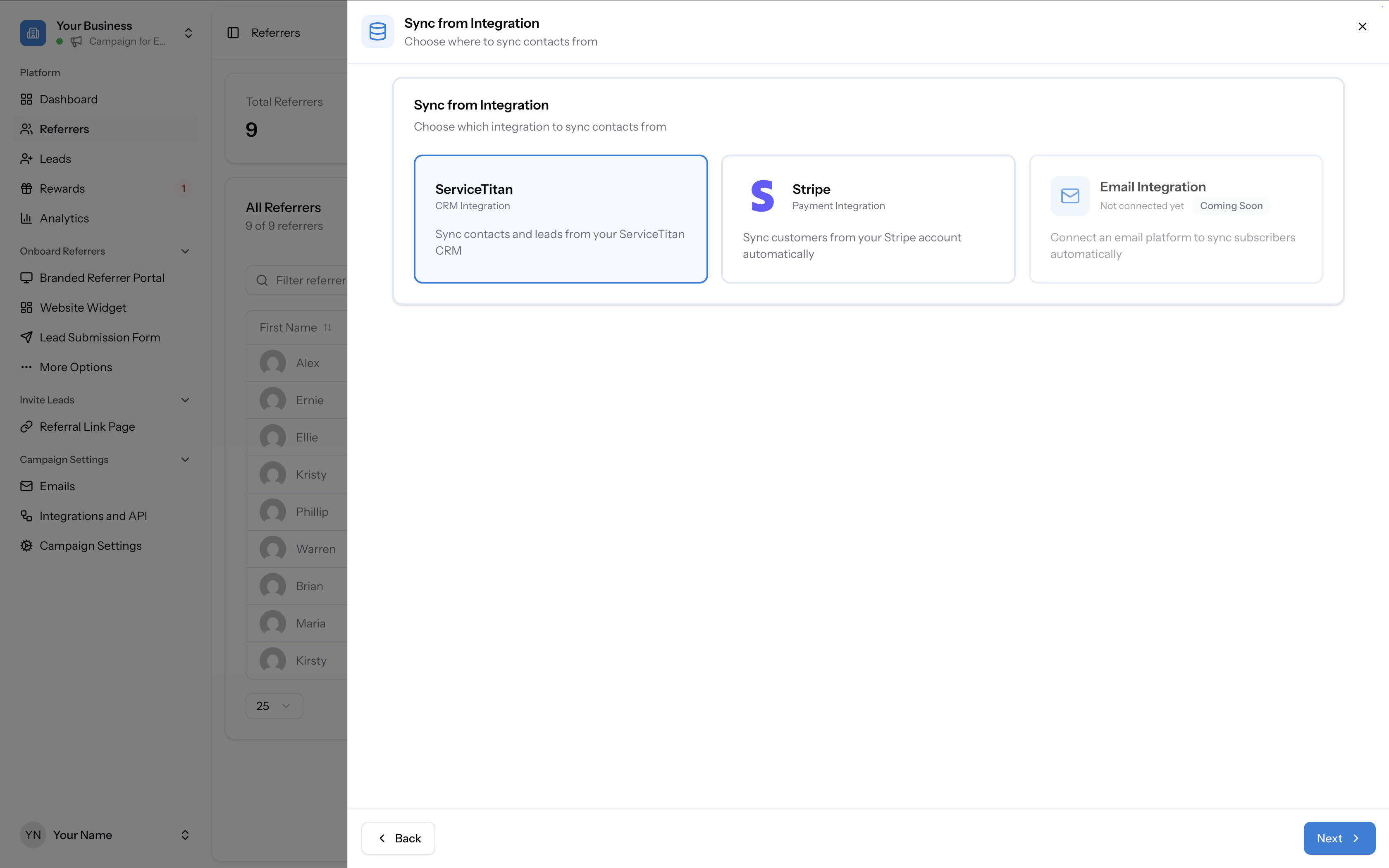
The setup wizard has three steps:
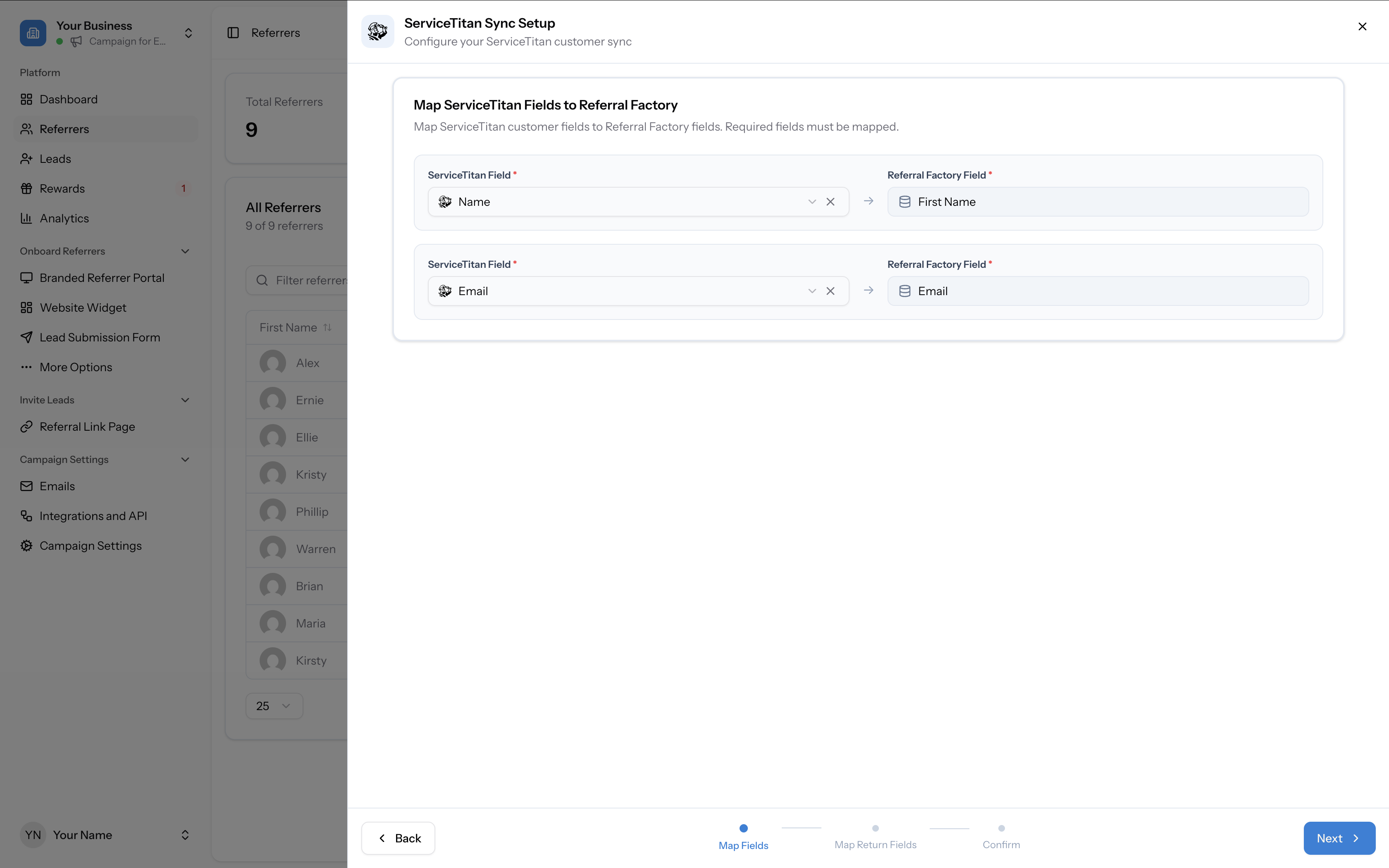
Map Fields
Map ServiceTitan customer fields to Referral Factory fields. Name and Email are required.
Map Return Fields
Choose which Referral Factory data to write back to ServiceTitan customer records. You can map Referral Link, Referrals Count, and Converted Referrals Count back to ServiceTitan fields.
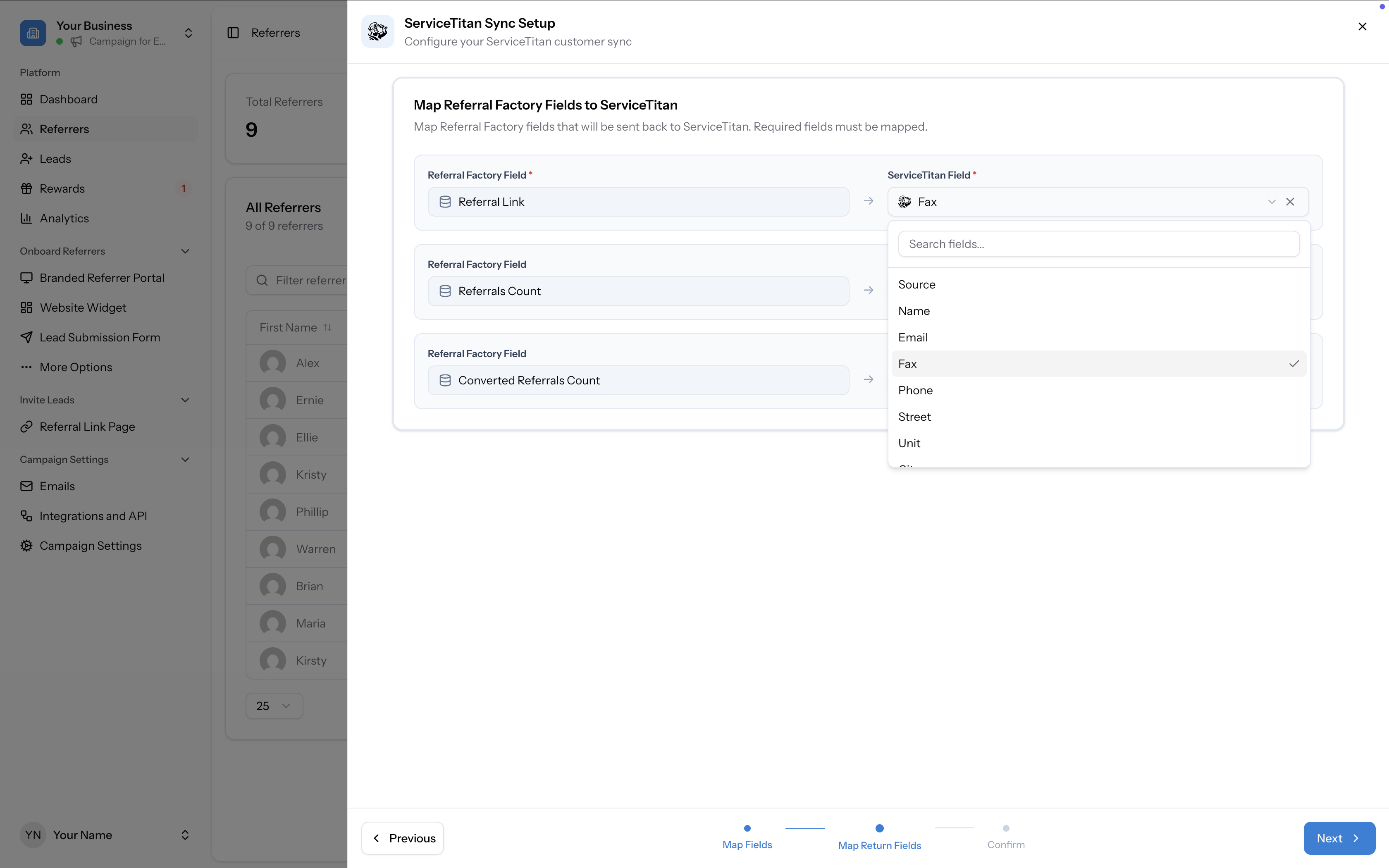
Important Note: Due to limitations with ServiceTitan’s API, we currently cannot sync referral links back into your CRM. Once you sync your ServiceTitan customers you will find them all the Referrers tab, and each will have a unique referral link.
Confirm
Review your field mappings and choose a sync type.
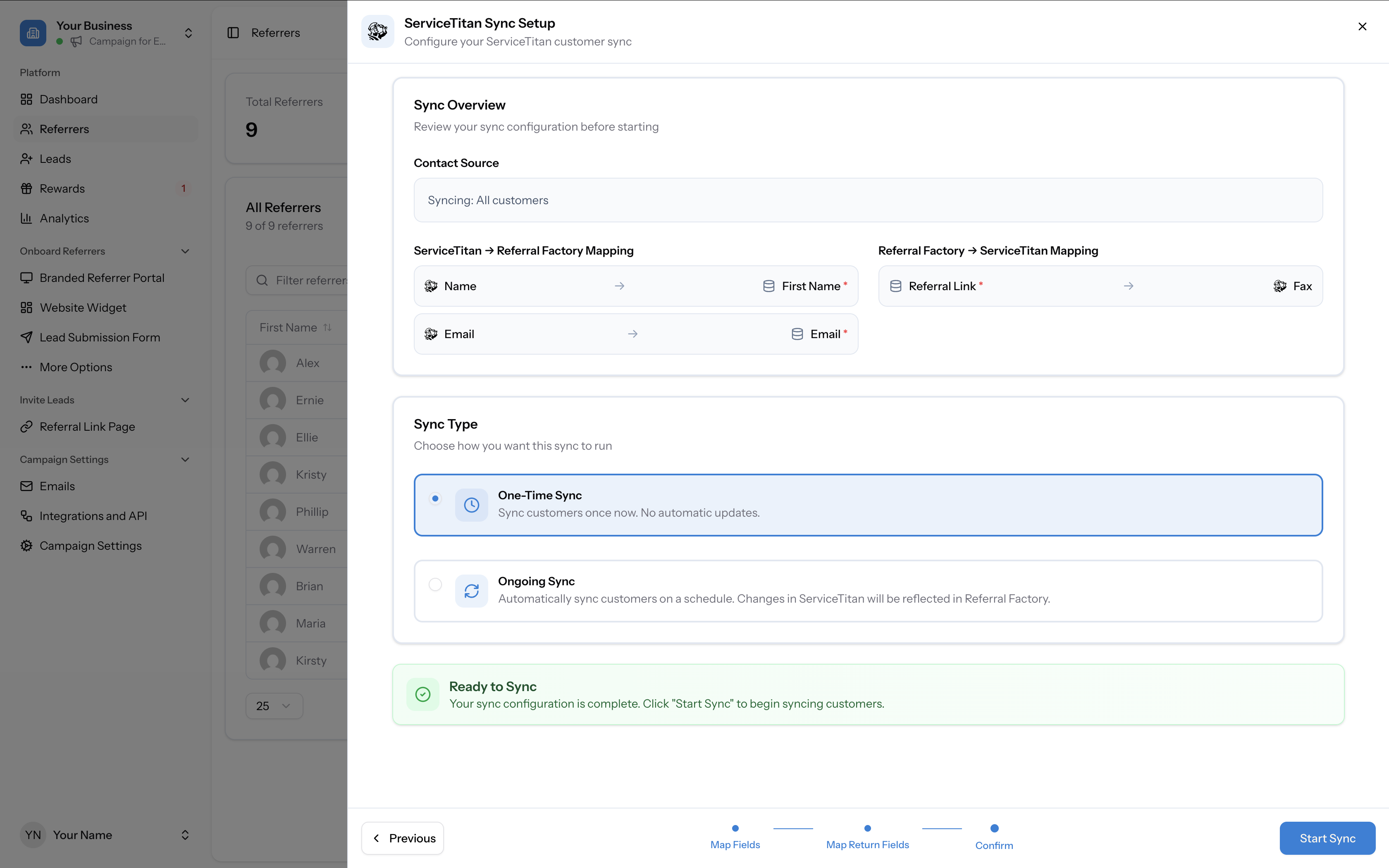
Click Start Sync to begin syncing your ServiceTitan customers.
- One-Time Sync imports your customers once. No automatic updates after that.
- Ongoing Sync keeps the sync running on a schedule so that new customers in ServiceTitan are automatically enrolled as referrers. Changes in ServiceTitan will be reflected in Referral Factory.
Frequently Asked Questions
Does Referral Factory see my ServiceTitan password?
No. The connection uses ServiceTitan's API Application Access system. Your ServiceTitan login credentials are never shared with Referral Factory.
Can I connect ServiceTitan to more than one campaign?
Yes. You configure the integration separately in each campaign, so each campaign can have its own field mapping and qualification rules.
Why is my integration stuck on Pending?
The Referral Factory team needs to approve your integration request. This typically takes 1–2 business days. If it has been more than 2 business days, contact support via chat. See FAQ: How long does ServiceTitan integration approval take?
What is the Booking Provider Value?
The Booking Provider Value identifies which booking provider in ServiceTitan should be used when Referral Factory creates new bookings. You can find it on the Application Details page in ServiceTitan after connecting the Referral Factory app (labeled "Allowed 'booking_provider' value").
Can I disconnect ServiceTitan?
Yes. Click the Disconnect button in the top-right corner of the ServiceTitan panel. This will remove the connection from this campaign.