Back to Help Hub
IntegrationsHow-To13 min readUpdated 2026-03-09

How to Connect and Configure Your HubSpot Integration

This guide walks you through connecting Referral Factory to HubSpot and configuring it to automatically send leads and referrers to your CRM, auto-qualify.

Read this page as a quick path: scan the headings, use the step blocks, and escalate if the expected result does not happen.
This guide walks you through connecting Referral Factory to HubSpot and configuring it to automatically send leads and referrers to your CRM, auto-qualify referrals, and sync your existing HubSpot contacts into your campaign.
For auto-qualification specifically, see How to Qualify Referrals Automatically Using HubSpot.

Before You Start

You will need an active HubSpot account and admin access to both HubSpot and your Referral Factory campaign. The HubSpot integration is configured per campaign, so you will set it up separately for each campaign you want to sync.

Step 1: Connect HubSpot

In your campaign, go to Campaign Settings → Integrations and API in the left-hand menu. Click the CRM tab at the top of the page, then click Connect under HubSpot.
A confirmation pop-up will appear. Click Connect HubSpot to proceed.
You will be redirected to HubSpot's authorisation page. Sign in to your HubSpot account, select the account you want to connect, and approve Referral Factory's access. Referral Factory is a HubSpot Certified App and uses a standard OAuth connection — your HubSpot password is never shared with Referral Factory.
Once approved, you will be returned to Referral Factory and HubSpot will show as Connected.

Step 2: Configure What Happens When a Lead Joins Your Campaign

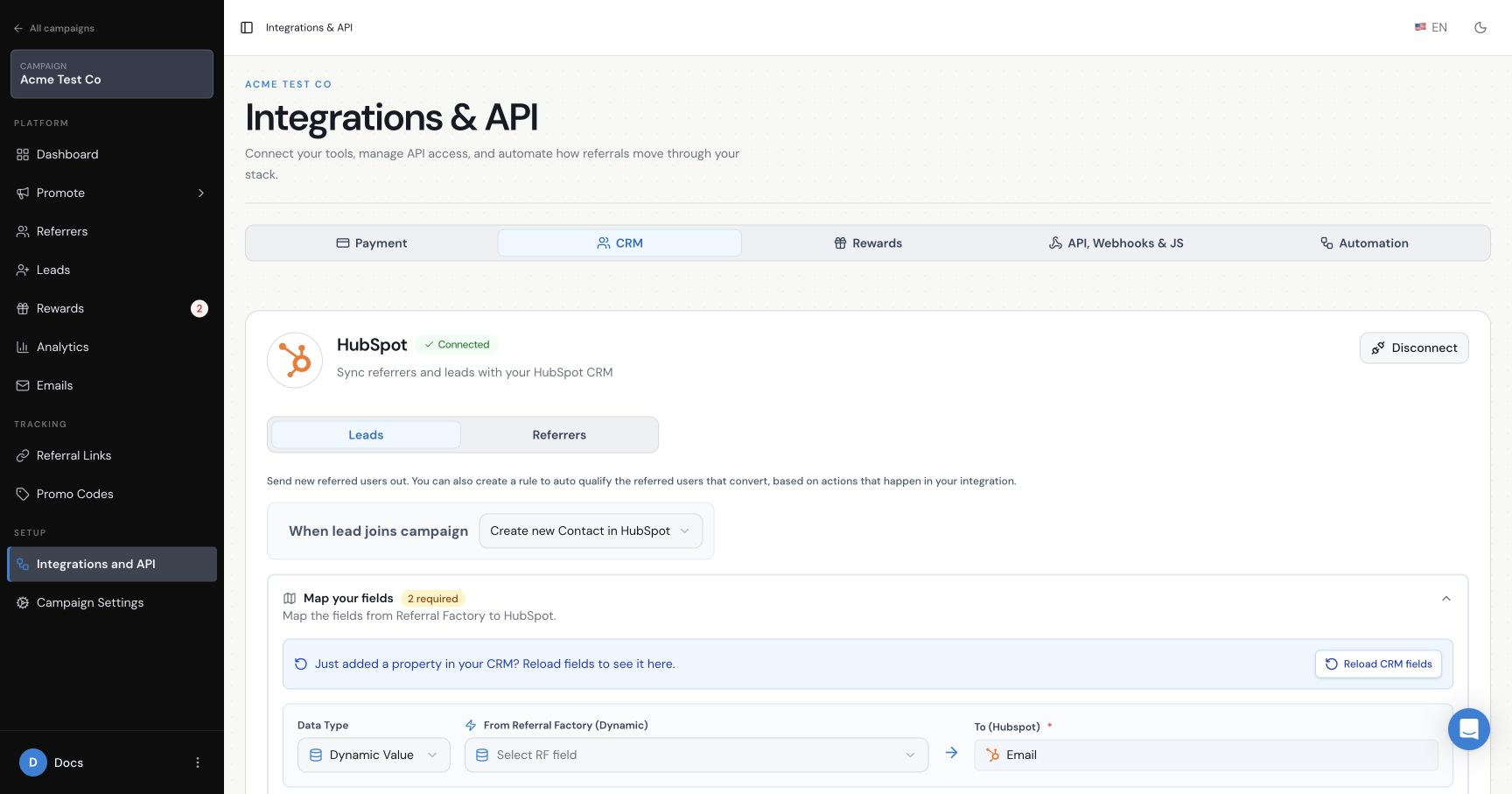
Once connected, you will see two tabs inside the HubSpot section: Leads and Referrers. Start with the Leads tab.
Leads tab showing "When lead joins campaign" dropdown
Use the When lead joins campaign dropdown to choose what happens in HubSpot each time someone is referred into your campaign:
Create new Contact in HubSpot sends the lead to HubSpot as a new Contact record. This is the most common choice for businesses managing leads through HubSpot contacts.
Create new Deals in HubSpot creates a new Deal in HubSpot instead. This is the better choice if your sales process is deal-based. When you choose this option, a checkbox will appear allowing you to also create an associated Contact at the same time.
Do nothing means referred leads will not be sent to HubSpot at all. This is only useful if you are exporting leads another way and is not recommended for most setups.

Step 3: Map Your Fields

Once you have chosen your object type, you need to map the fields — this tells Referral Factory which data to send to HubSpot and which HubSpot field to put it in.

Mapping Fields for Contacts

If you chose Create new Contact in HubSpot, two fields are always required: Email and First Name. The integration will not send any data to HubSpot until these are mapped. An orange warning banner will remain visible until all required fields are filled in.
Map your fields section showing two required rows: Email → Email and First Name → First Name, with orange required badge and Setup Required warning banner
For each row, you will see three columns:
Data Type dropdown showing Dynamic Value (checked) and Fixed Value options
Click + Add More Fields to map additional data beyond the required fields.
The Referral Factory fields available to map are grouped into three sections:
RF field dropdown open showing Basic Fields, Campaign Fields, and Referrer Fields sections
Click Save Changes when you are done. A bar will appear at the bottom of the screen reminding you to save before navigating away.
  • Data Type — choose between Dynamic Value (maps a Referral Factory field that is different per record) or Fixed Value (a manual input that is the same for all records). Most fields use Dynamic Value.
  • From Referral Factory — the source field. For Dynamic Value, select from the Referral Factory field dropdown. For Fixed Value, type the value directly into the text input.
  • To (HubSpot) — the target HubSpot property to write the value into.
  • Basic Fields — First Name, Email, Referral Code, Source, Referral Link
  • Campaign Fields — Campaign Name
  • Referrer Fields — Referrer First Name, Referrer Email, Referrer Referral Code, Referrer Referral Link, Referrals Count

Mapping Fields for Deals

If you chose Create new Deals in HubSpot, the required fields are different. Instead of Email and First Name, the deal mapping requires three fields: Pipeline, Deal Stage, and Deal Name.
Deals field mapping showing Pipeline, Deal Stage, and Deal Name as required fields
The first two rows — Pipeline and Deal Stage — use the Fixed Value data type, because they are the same for every deal created. Select your HubSpot sales pipeline and the deal stage that new referral deals should be created in (for example, "Qualified To Buy").
Deal stage dropdown showing HubSpot deal stages: Appointment Scheduled, Qualified To Buy, Presentation Scheduled, Decision Maker Bought-In, Contract Sent, Closed Won, Closed Lost
The third required field, Deal Name, typically uses a Dynamic Value so each deal has a unique name (for example, mapping the lead's Email as the deal name).
You can click + Add More Fields to map additional data to the deal record.
Below the deal field mapping, you will see a Create contact associated with deal checkbox. Enable this if you want Referral Factory to also create (or link) a HubSpot Contact when the deal is created.
When enabled, a Map Contact Fields section appears with its own Email and First Name mappings. These are required — if you enable the checkbox, you must map these contact fields before the integration will work.
Create contact associated with deal checkbox enabled, with Map Contact Fields section showing Email → Email and First Name → First Name

Step 4: Choose How to Handle Duplicate Contacts

The next section asks what should happen if the referred person already exists as a contact in HubSpot.
Option 1 (default): Do nothing, do not update the Contact in HubSpot.
If the referred person is already in your HubSpot, nothing changes and the referral will never qualify. This is a deliberate fraud prevention setting — it stops someone from earning a reward by referring a person who is already your customer.
Option 2: Update the Contact that already exists in HubSpot.
If the referred person is already in HubSpot, their record will be updated with the referral data and the referral can still qualify. Choose this if your referral program is open to re-engaging existing contacts.
Think carefully about which option fits your business model before saving.

Step 5: Set Up Qualification Rules (Optional)

Qualification rules let Referral Factory automatically mark a referral as qualified when something specific happens in HubSpot — so you do not need to qualify referrals manually.
There are two qualification methods:
Contact property would change: Choose a HubSpot contact property (such as Lifecycle Stage or Status) and the value it needs to change to (such as Customer or Active). When HubSpot updates that property to that value, the referral qualifies automatically in Referral Factory.
Contact property qualification configured with Lifecycle Stage → Customer
Deal stage would change: Only available if you chose to create Deals. Choose the deal stage that represents a successful conversion (such as Closed Won). When the deal reaches that stage in HubSpot, the referral qualifies.
Deal stage qualification configured with Closed Won selected
Note: Your qualification method must match the object type you chose. If you create Contacts, qualify on a Contact property. If you create Deals, qualify on a Deal stage. You cannot mix object types. See FAQ: How do I qualify referrals based on a deal stage when I'm creating contacts, not deals? if you need a workaround.
If you prefer to qualify referrals manually, select Do not qualify my referrals and skip this section.
Click Save Changes.

Step 6: Configure the Referrers Tab

Switch to the Referrers tab in the HubSpot section. The settings here control what happens in HubSpot when someone joins your campaign as a referrer.
The options are the same as for Leads: Do nothing, Create new Contact, or Create new Deals. Map your required fields (Email and First Name) and choose your duplicate handling rule.
For the Referrers tab, it is recommended to also map the Referral Link field to a custom HubSpot contact property. This writes each referrer's unique referral link into their HubSpot record, which is useful if you want to include referral links in HubSpot email sequences or workflows. You will need to create a custom single-line text property in HubSpot first (for example, named "referral link") — see the section on creating a custom HubSpot property in How to sync your HubSpot contacts as referrers.
Referrers tab field mapping showing Email → Email, First Name → First Name, and Referral Link → referral link, with duplicate handling set to update existing contact
Note that there are no Qualification Rules for referrers — qualification only applies to referred leads.

Syncing Your Existing HubSpot Contacts as Referrers

If you want to enrol your existing HubSpot contacts into your referral campaign automatically, you can sync them directly from the Referrers tab. This is separate from the integration settings above.
Go to the Referrers tab in your campaign, click Add Referrers, and choose Sync.
Select HubSpot as the source.
The setup wizard has four steps:
Select Contacts: Choose to sync all contacts in your HubSpot account, or select a specific HubSpot list to sync a targeted segment.
HubSpot Sync Setup — Select Contacts step showing All Contacts and Choose from List options
Map Fields: Map HubSpot fields to Referral Factory fields. First Name and Email are required.
Map Fields step showing First Name → First Name and Email → Email
Map Return Fields: Choose which Referral Factory data to write back to HubSpot contact records. The Referral Link field is required. You can also optionally map Referrals Count and Converted Referrals Count. These are the only return fields available.
Confirm: Review your configuration and choose a sync type.
Confirm step — Sync Overview showing Contact Selection, both field mappings, and Sync Type options
One-Time Sync imports your contacts once. No automatic updates after that.
Ongoing Sync keeps the sync running on a schedule so that new contacts added to HubSpot (or the selected list) are automatically enrolled as referrers.
Click Start Sync. You will be returned to the Referrers tab and a confirmation message will appear at the bottom of the screen.
Your synced contacts will appear in the Referrers table. Each contact that came from HubSpot will show a HubSpot icon in the Contacts column. Hovering over this icon lets you copy the contact's HubSpot Contact ID.
Referrers table showing synced contacts with HubSpot icons in the Contacts column

Frequently Asked Questions

Does Referral Factory see my HubSpot password?
No. The connection uses OAuth, which means HubSpot authorises the connection directly. Your credentials are never shared with Referral Factory.
Can I connect HubSpot to more than one campaign?
Yes. You configure the integration separately in each campaign, so each campaign can have its own field mapping and qualification rules.
Why is my referral not qualifying even though the contact updated in HubSpot?
Check your duplicate handling setting first. If it is set to "do nothing" and the lead already existed in HubSpot before joining your campaign, the referral will never qualify. Switching to "update the existing contact" allows those referrals to qualify.
Why is no data showing up in HubSpot after a lead joins?
The most common cause is unmapped required fields. Go to Integrations & API → CRM → Leads and check for the yellow "Setup Required" warning banner. Make sure Email and First Name are both mapped, then click Save Changes.
Can I disconnect HubSpot?
Yes. Click the Disconnect button in the top-right corner of the HubSpot panel. This will remove the connection from this campaign.
Related strategy reading

Go deeper with Learn

This help article explains the setup. These Learn guides explain the bigger strategy, planning, and real-world use of referral programs.

Article feedback

Did this answer your question?

Your vote helps support spot weak articles, fix missing steps, and decide when a person should step in.