
Need help applying this to your account?
Contact support and we will keep this article attached to your request.
You can customize your referral program so the experience feels consistent with your brand — from your referral pages and referrer portal to your website widget, emails, and referral links.
You can control your logo, colours, fonts, images, page layout, messaging, and more. If you want a completely white-labelled experience with no Referral Factory branding, additional options are available on our Pro and Enterprise plans.
What parts of a Referral Factory program can be white-labelled?
You can brand the main touchpoints your referrers and Leads interact with, including:
- Referral Links
- Branded Referrer Portal
- Website Widget
- On-Click Pop Up
- Lead Submission Form
- Emails
- Referral links and portal URLs
- Social sharing previews
Using the page builders, you can customize elements such as your logo, images, colours, fonts, buttons, form fields, and page layout. You can also customize the content and messaging shown throughout the referral experience.
If you are on the Enterprise plan, you can go a step further and upload your own HTML pages for greater control over the design.
Can I match referral pages, widgets, the portal and emails to my brand?
Yes. Each part of the referral experience can be customized to help it fit naturally with your existing brand.
Referral Link Page
Go to Tracking → Referral Links
From the Design tab, you can customise your:
- Logo
- Background and container colours
- Fonts and text colours
- Buttons
- Form fields
- Links
- Page layout
You can also add, remove, and rearrange content blocks using the drag-and-drop builder.
Branded Referrer Portal
Go to Promote → Branded Referrer Portal.
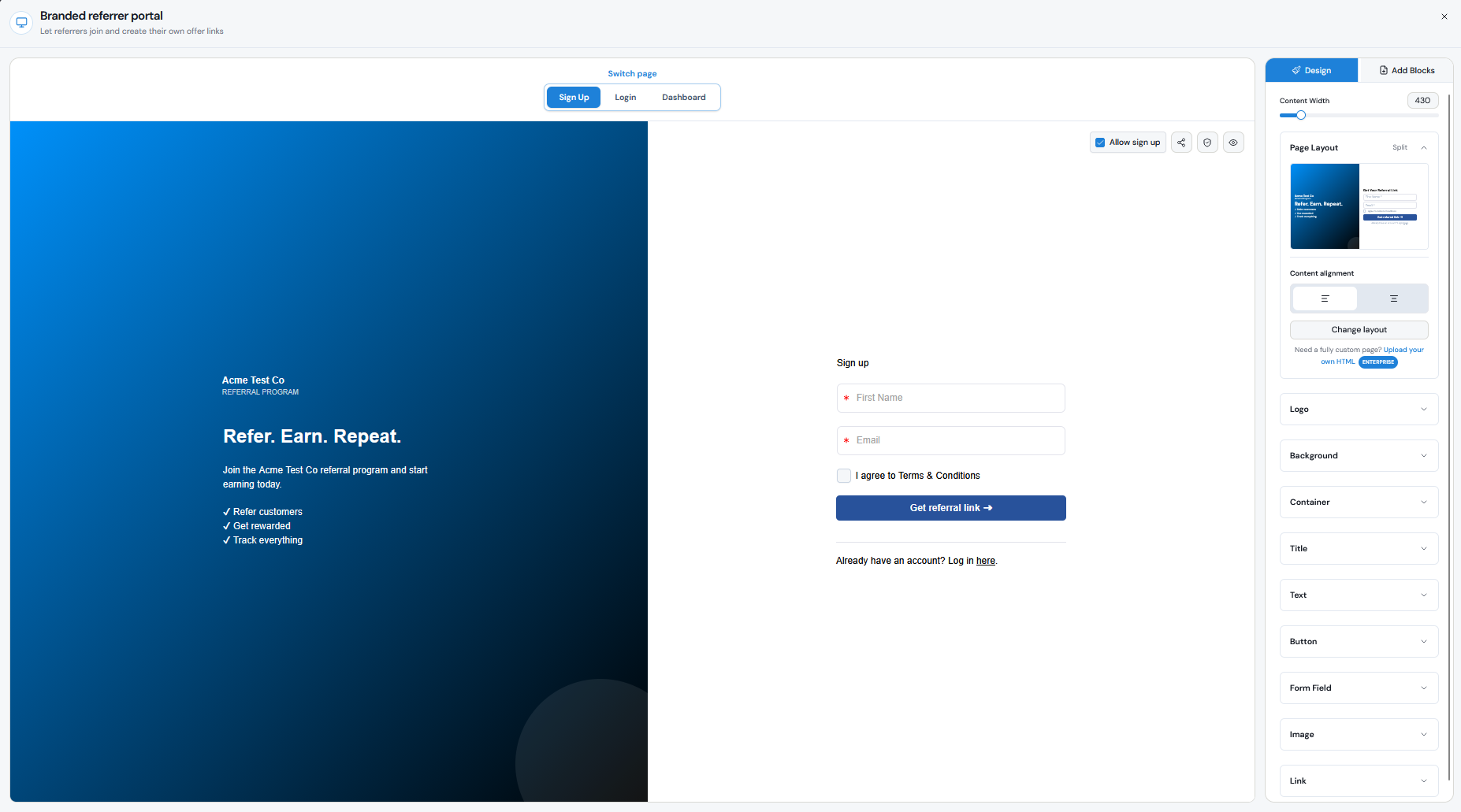
You can independently design the Sign Up, Login, and Dashboard pages while applying your global branding across the portal. This includes your logo, colours, fonts, buttons, form fields, images, and links.
Website Widget
Go to Promote → Website Widget.
You can customize the widget's:
- Button size and shape
- Button text
- Logo
- Background colour
- Text colour
- Position on your website
When someone clicks the widget, your Branded Referrer Portal opens as an overlay on your website.
On-Click Pop Up
Go to Promote → On-Click Pop Up.
The On-Click Pop Up is designed for customers who are already logged into your product. You can customise its:
- Background
- Fonts and text
- Buttons
- Links
- Content
You can also control the content shown under the Invite, Track, and Rewards tabs and choose which tabs are visible.
Lead Submission Form
Go to Promote → Lead Submission Form.
The Lead Submission Form allows referrers to submit a Lead's details directly instead of asking the Lead to use a referral link.
It uses the same drag-and-drop builder as the Referral Link Page and Branded Referrer Portal, allowing you to customize the layout, text, images, buttons, form fields, colours, and other design elements. You can also customize the message shown after a Lead is submitted.
Emails
You can customize the subject line, content, and personalisation variables used in your referral program emails from the Emails section of your dashboard.
For even greater design control, Enterprise customers can use custom HTML.
Can I use my own domain or subdomain?
Yes. On the Pro and Enterprise plans, you can connect your own domain so your referral links use your brand instead of a Referral Factory URL.
For example:
refer.yourbrand.com/ABC123
instead of:
yourbrand.referral-factory.com/ABC123
Your custom domain is configured from Campaign Settings. One custom domain can currently be connected per account, and it is shared across the campaigns in that account.
Using your own domain helps make the referral journey feel like part of your existing website rather than a separate platform.
Can I remove 'Powered by Referral Factory' branding?
Yes. 100% White Label is available on the Pro and Enterprise plans.
This removes Referral Factory branding from your:
- Pages
- Emails
- Widgets
You can also connect your own domain so Referral Factory does not appear in your referral URLs.
You do not need to manually remove the Referral Factory branding once your account has access to the white-label feature.
Can the full referral experience work well on mobile?
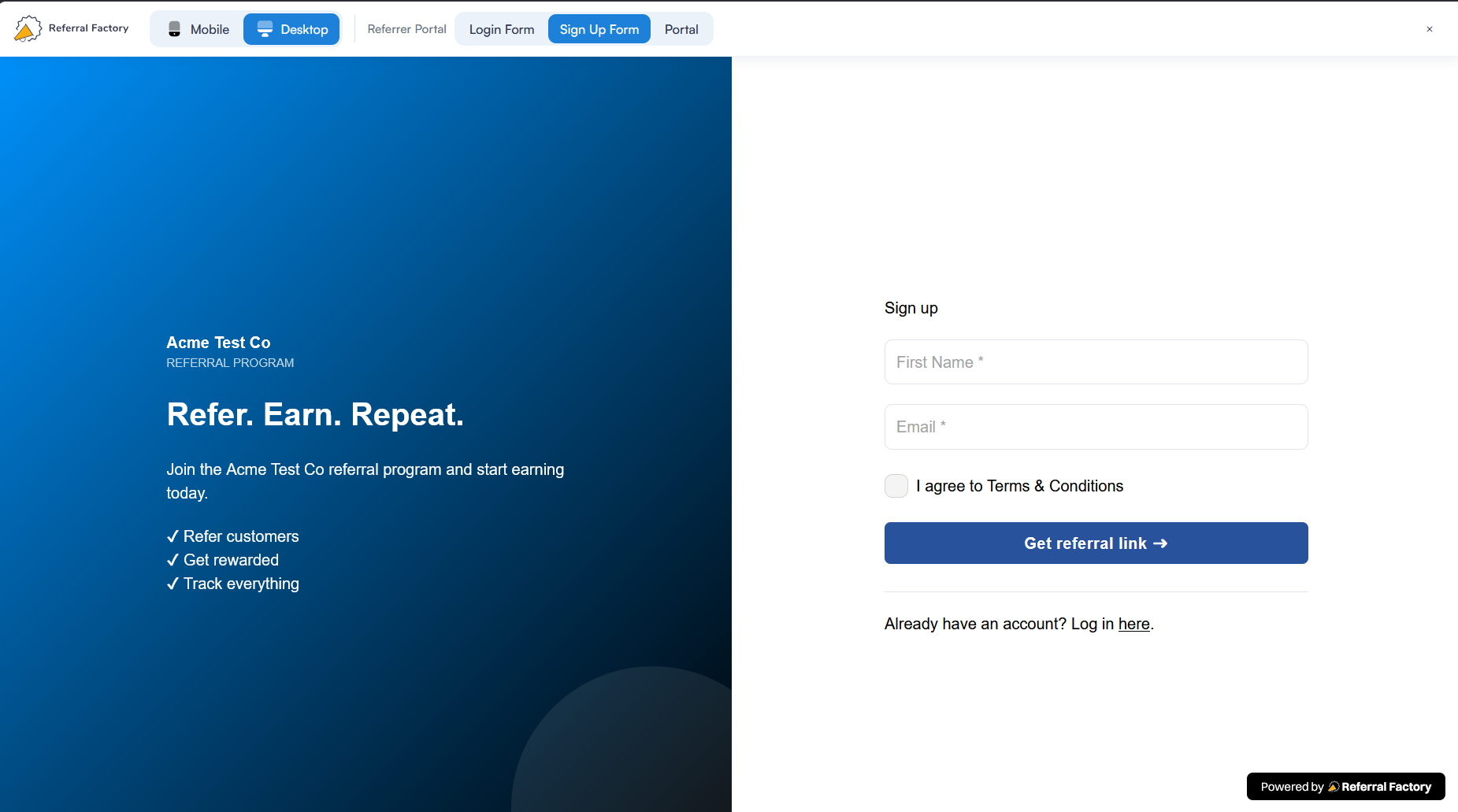
Yes. When designing your referral pages and portal, you can preview the experience across:
- Desktop
- Mobile
Use the device preview icons at the top of the builder to check how your design looks at different screen sizes before publishing it.
We recommend checking the mobile preview whenever you change your layout, images, text, buttons, or form fields so the referral journey remains clear and easy to use on smaller screens.
Which branding options depend on the plan I use?
Most of the core tools for designing your referral experience are available through the standard page builders. The main differences between plans relate to white-labelling and advanced control.
| Branding feature | Availability |
|---|---|
| Customise referral pages and portal | All plans |
| Customise widget appearance | All plans |
| Customise email content | All plans |
| Remove Referral Factory branding | Pro and Enterprise |
| Connect your own domain | Pro and Enterprise |
| Upload your own HTML pages | Enterprise |
| Advanced custom HTML control | Enterprise |
The Pro plan adds 100% White Label and your own domain, while Enterprise also adds custom HTML for businesses that need greater control over the design and referral experience.