
Read this page as a quick path: scan the headings, use the step blocks, and escalate if the expected result does not happen.
Need help applying this to your account?
Contact support and we will keep this article attached to your request.
To set up the Tremendous integration, you'll first need a Tremendous account (free to sign up at tremendous.com). Once you have an account, create a campaign inside Tremendous, add funds, and then connect it to Referral Factory.
Step 1: Create your Tremendous account and campaign
- Create an account at tremendous.com if you don't already have one.
- Inside Tremendous, create a campaign and configure your reward options (gift cards, PayPal, bank transfers, etc.).
- Add funds to your Tremendous account balance — this is where reward payouts will be debited from.
Step 2: Connect Tremendous to Referral Factory
![Rewards tab in Integrations & API showing all reward integrations, with Tremendous showing "Connected" badge and Disconnect button]](/images/help/31fb777f519f809dbf33dfafdef333b4.png)
- In Referral Factory, go to Campaign Settings → Integrations and API → Rewards tab.
- Click Connect under the Tremendous tile.
- You will be redirected to Tremendous to authorise the connection. The screen will show "Referral Factory wants access to Referral Factory" with the following permissions:
- View information associated with your team
- Issue payments on behalf of your team
- View campaigns
- View payment methods
- Click Authorize to complete the connection. You will be redirected back to Referral Factory, and the Tremendous tile will now show a green Connected badge.
Step 3: Select Tremendous as the issuing method
If you have multiple campaigns in Tremendous, click the dropdown to see all available campaigns and select the correct one.
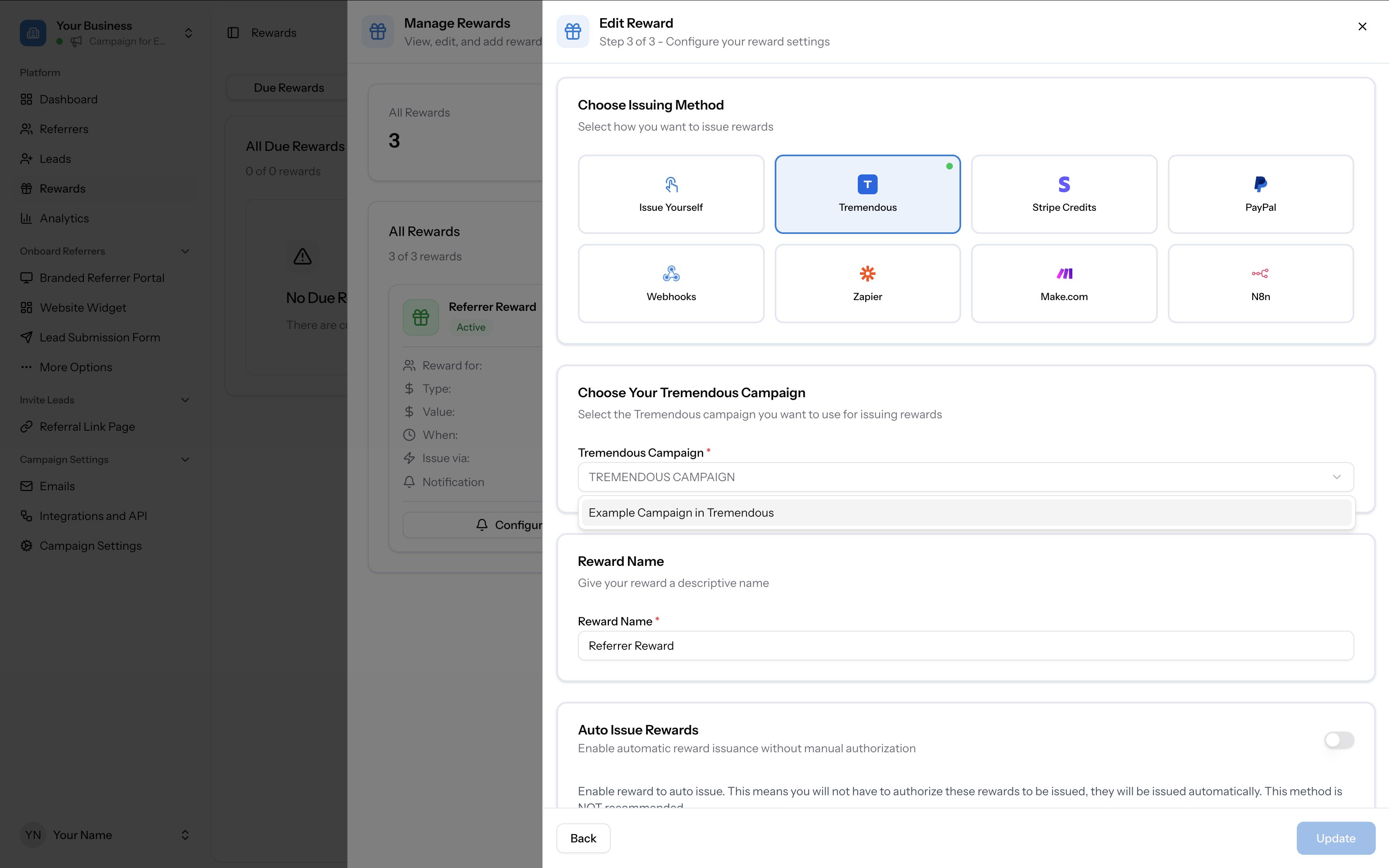
- Go to Rewards in the left sidebar, click Manage Rewards, and create or edit a reward.
- In Step 3 of the reward setup, select Tremendous as the issuing method.
- A Choose Your Tremendous Campaign dropdown will appear. Select the Tremendous campaign you want to use for issuing rewards.
- Set the Reward Name, configure Auto Issue Rewards and Reward Limit as needed.
- Click Activate to make the reward live.
Common connection issues
- White screen or error during connection — log out of all Tremendous accounts, log back into the correct one, then try connecting again from Referral Factory.
- Team member can't connect — the account owner needs to grant permission via Teammates > Roles inside Tremendous.
- Wrong account connected — disconnect Tremendous completely (from the Rewards tab, click Disconnect), log out of all Tremendous accounts, log into the correct one, and reconnect.
- Campaign not showing in dropdown — see FAQ: Why isn't my Tremendous campaign showing in the dropdown?