
Need help applying this to your account?
Contact support and we will keep this article attached to your request.
Overview
Use email blasts to send a one-time email to selected referrers or leads.
Send to everyone in a group, or create a custom audience with filters. You can save audiences and reuse them for future email blasts.
Can I email only a selected group of Referrers or Leads?
Yes. When creating an email blast, choose whether you want to email:
Then send to all referrers or leads, or create and select a more specific audience.
For example, create an audience for referrers who meet certain criteria and send the email blast only to that group.
- Referrers
- Leads
How do I choose or filter the audience?
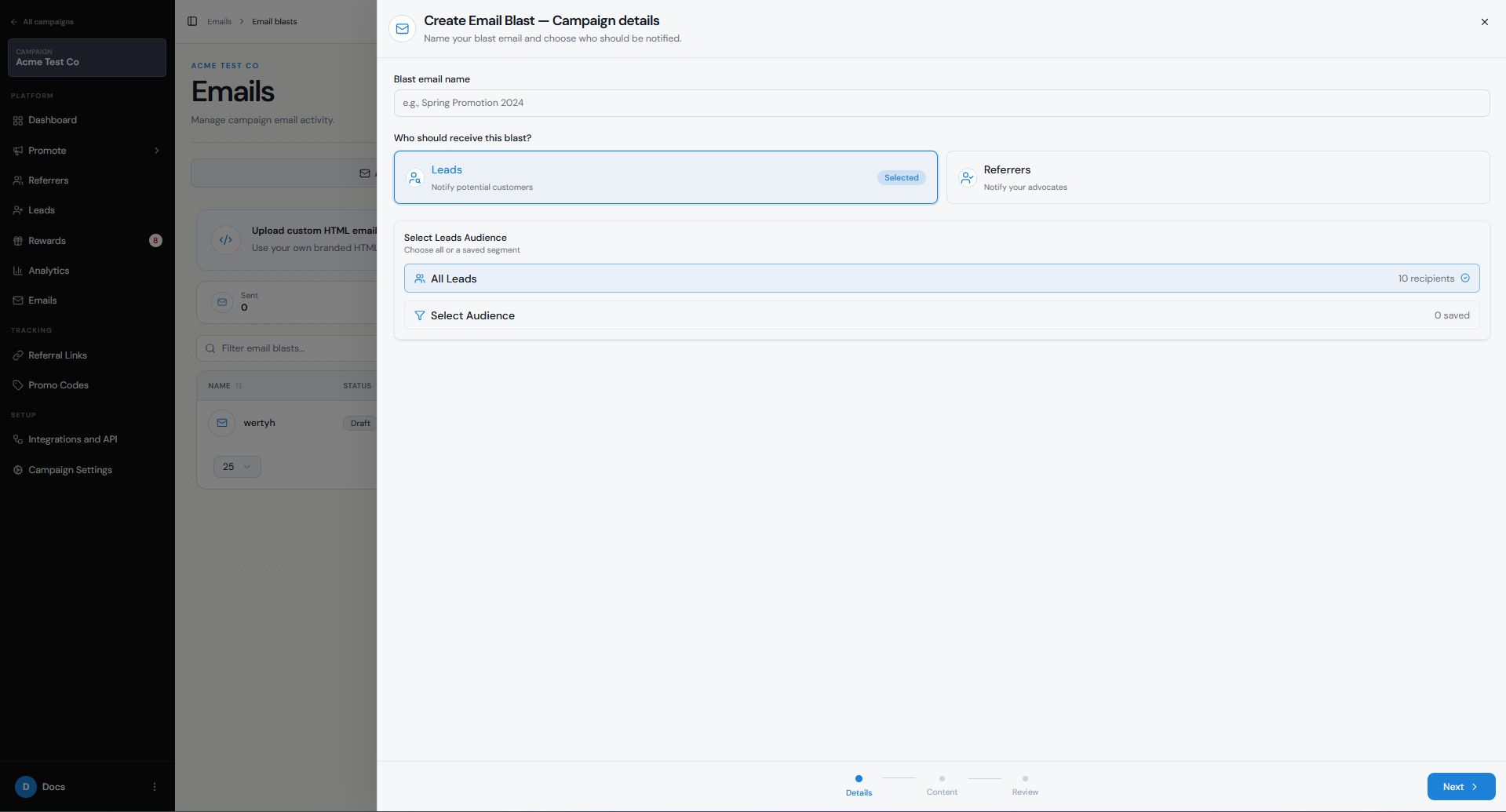
When creating an email blast, first select referrers or leads.
You can then:
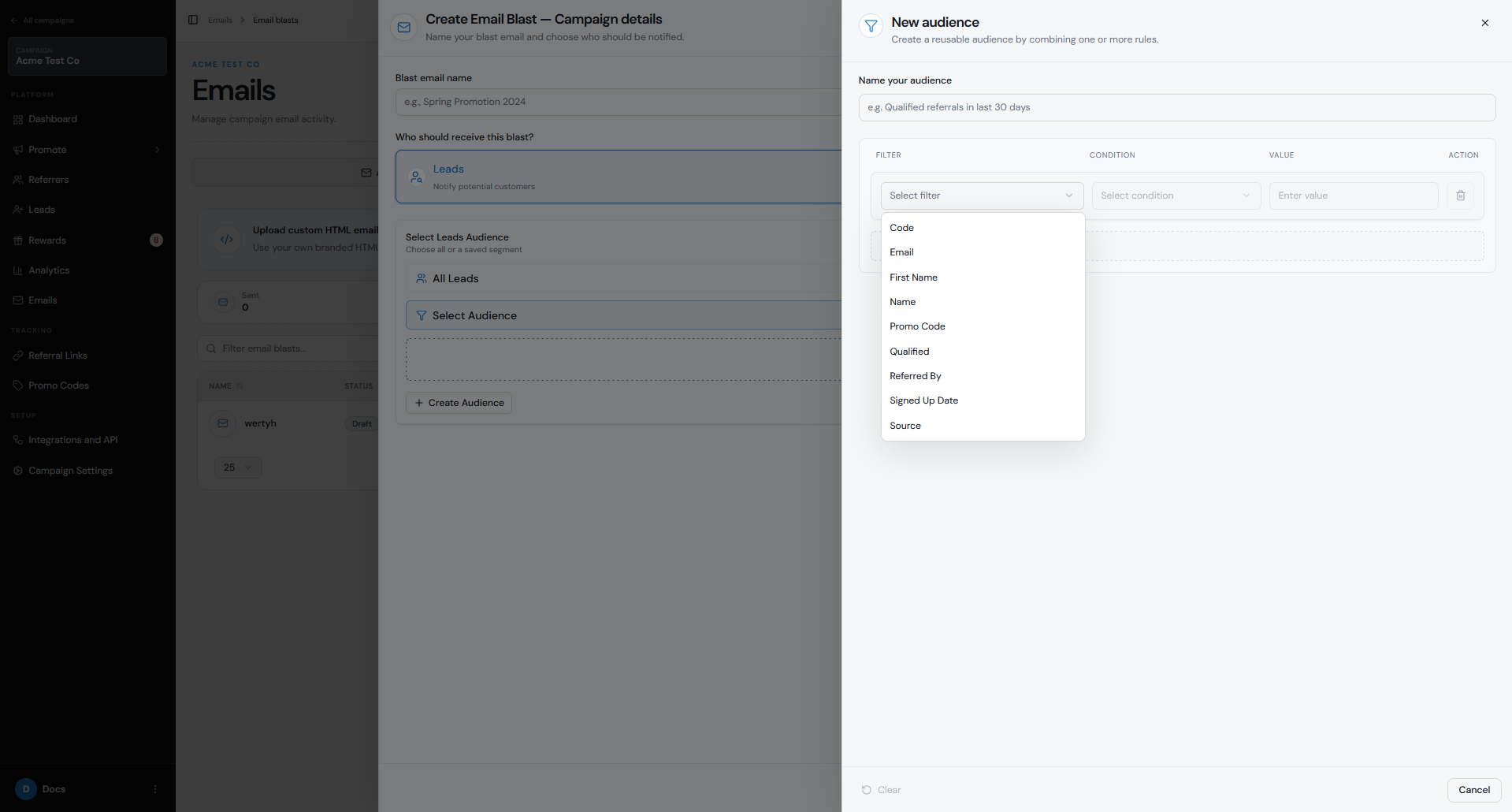
To create a new audience:
The available filters depend on whether the audience is for referrers or leads and on your campaign data.
The current audience flow shows filters such as Code, Email, First Name, Name, Promo Code, Qualified, Referred By, Signed Up Date, and Source. The exact filters depend on your audience and campaign data.
- Select All Referrers or All Leads, or
- Click Select audience to use a saved audience or create a new one.
Step 1
Click Create Audience.
Step 2
Give the Audience a name so you can identify it later.
Step 3
Select the field you want to filter by.
Step 4
Choose the condition.
Step 5
Enter or select the value.
Step 6
Add additional rules if you want to narrow the Audience further.
Step 7
Save the Audience.
Can I personalise the message?
Yes. Use the variables available in the email editor to personalise your email blast.
Variables add information that is unique to each recipient.
Depending on the recipient and campaign, this can include their name, referral information, or referral link.
For example, you can address each referrer by name and include their referral link.
How do I create and send the email?
To create an email blast:
Before sending, check the selected audience and recipient count.
Step 1
Open the campaign you want to use.
Step 2
Go to Emails → Email blasts.
Step 3
Create a new email blast.
Step 4
Give the blast an internal name.
Step 5
Choose whether the recipients should be Leads or Referrers.
Step 6
Select everyone in that group or choose a saved/custom Audience.
Step 7
Write your subject line and email content.
Step 8
Add personalisation variables where needed.
Step 9
Review and test the email.
Step 10
Send the email blast when you are ready.
What consent or communication rules should I consider?
Make sure you are allowed to email the people in your audience. By default, Referral Factory emails all have an unsubscribe link in them. Additionally if any of your referrers or leads unsubscribe from an email, our system will no longer send them emails from that campaign.
How do I test and review the send?
Before sending an email blast, send yourself a test email and review it.
Check the subject line, content and formatting, personalisation variables, links, recipient type, audience, and recipient count.
For the wider email options available in the platform, read the Referral Factory email options guide. You can also use the referral email template guide when writing the blast.