
Need help applying this to your account?
Contact support and we will keep this article attached to your request.
When you log in to Referral Factory, you land on your campaign dashboard. The platform is organized around campaigns, so each campaign has its own Referrers, Leads, reward rules and payouts, emails, settings, connected integrations, and performance data.
The left-hand sidebar is the main way to move around your referral program. If you manage more than one campaign, you can also switch between individual campaigns or view data across all campaigns.
What can I see on the Referral Factory dashboard?
Referral Factory gives you two main dashboard views: a business-level dashboard and an individual campaign dashboard.
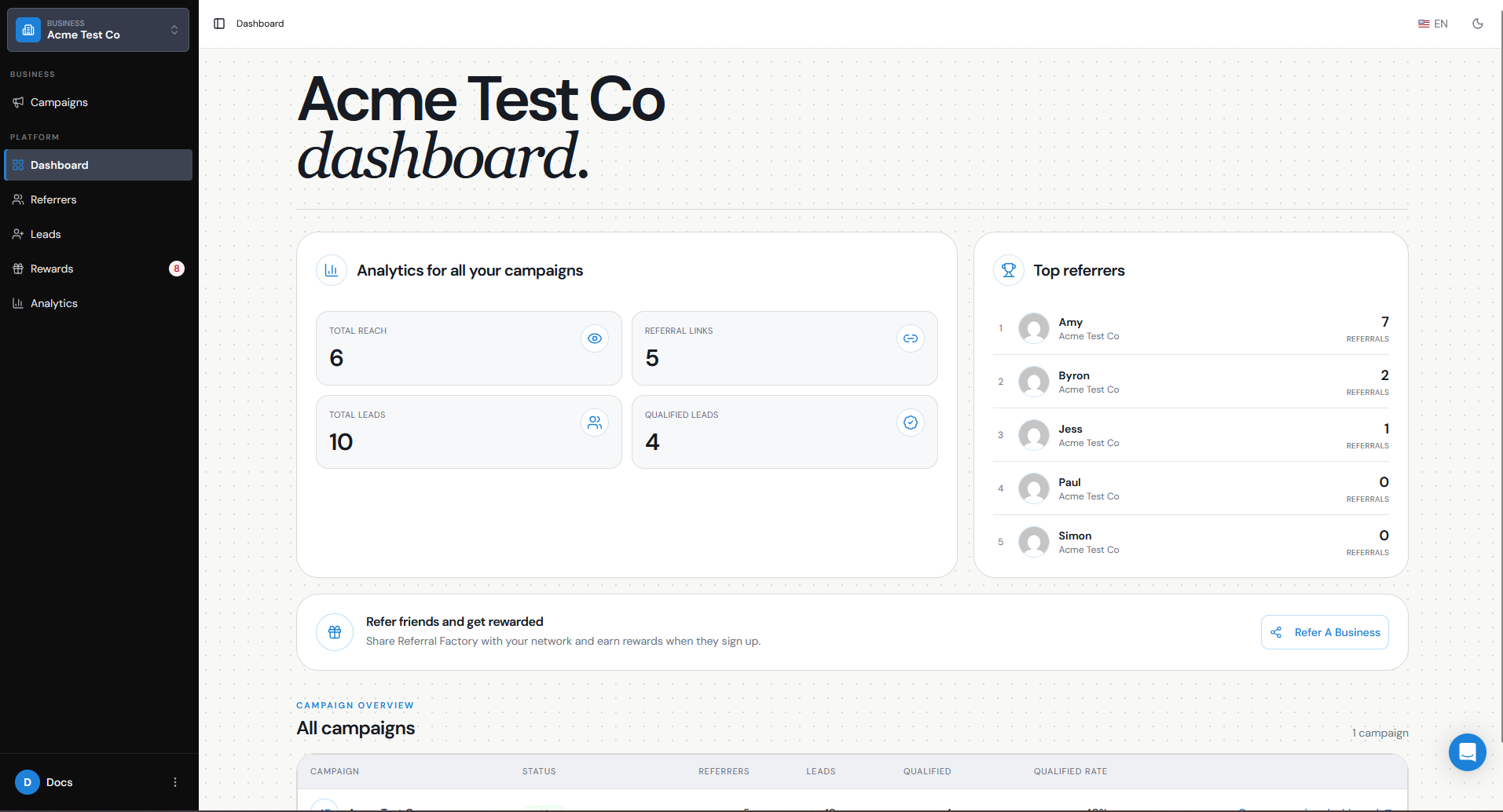
Your business-level dashboard gives you an overview across all of your campaigns. It includes:
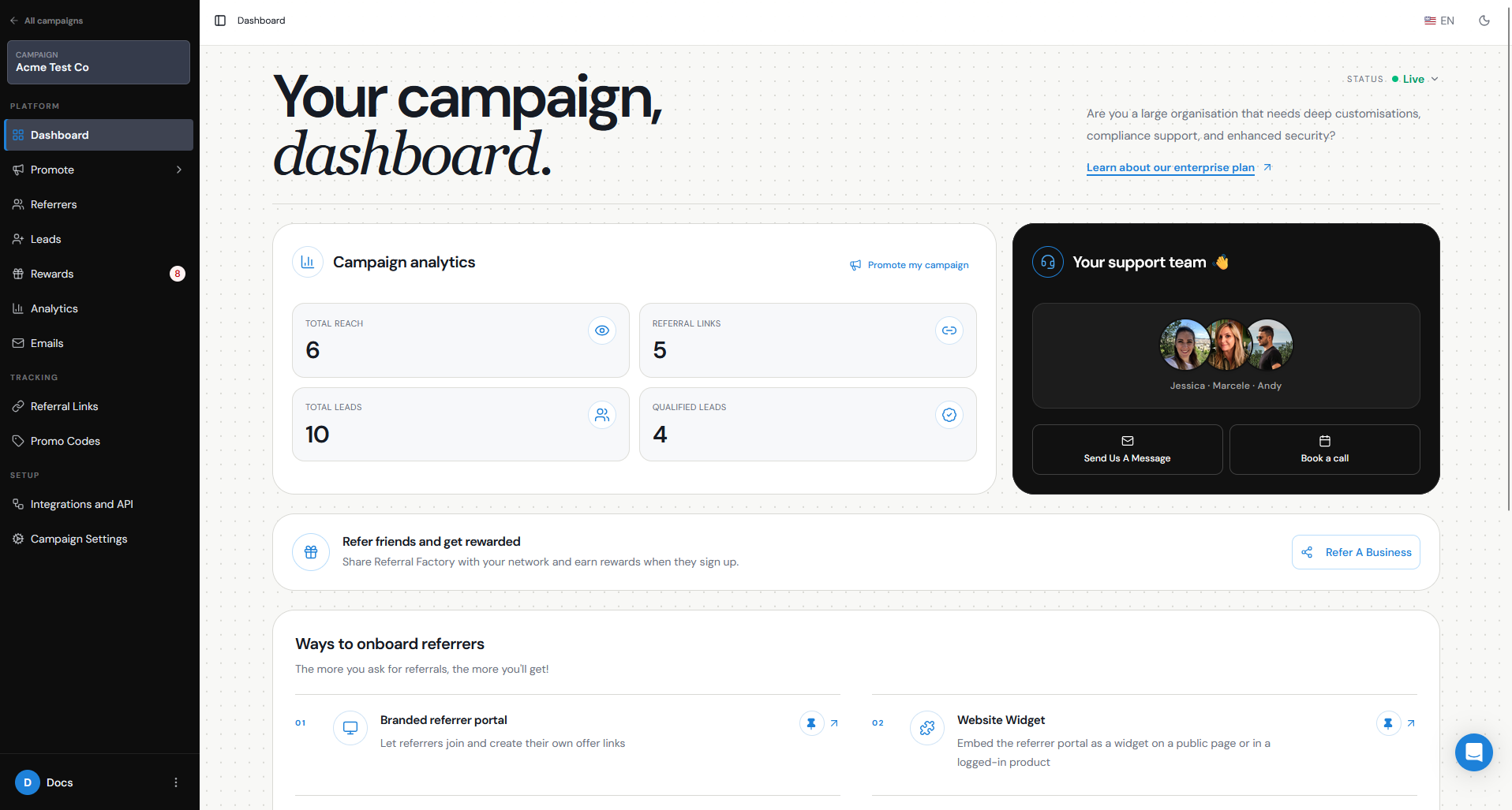
When you open a specific campaign, the dashboard changes to show information and tools for that individual referral program. From here, you can:
This lets you use the business dashboard for a high-level overview and the campaign dashboard when you need to work on a specific referral program.
- Analytics for all your campaigns, including Total Reach, Referral Links, Total Leads, and Qualified Leads.
- A Top Referrers section showing your highest-performing Referrers across your campaigns.
- A Campaign Overview showing your campaigns and key performance information for each one.
- A shortcut to Refer a Business.
- Review ways to promote your campaign.
- Choose how you want to onboard Referrers.
- Open the campaign’s analytics.
- See the current campaign status.
- Contact your Referral Factory support team by sending us a message or booking a call.
Where do I find my campaigns?
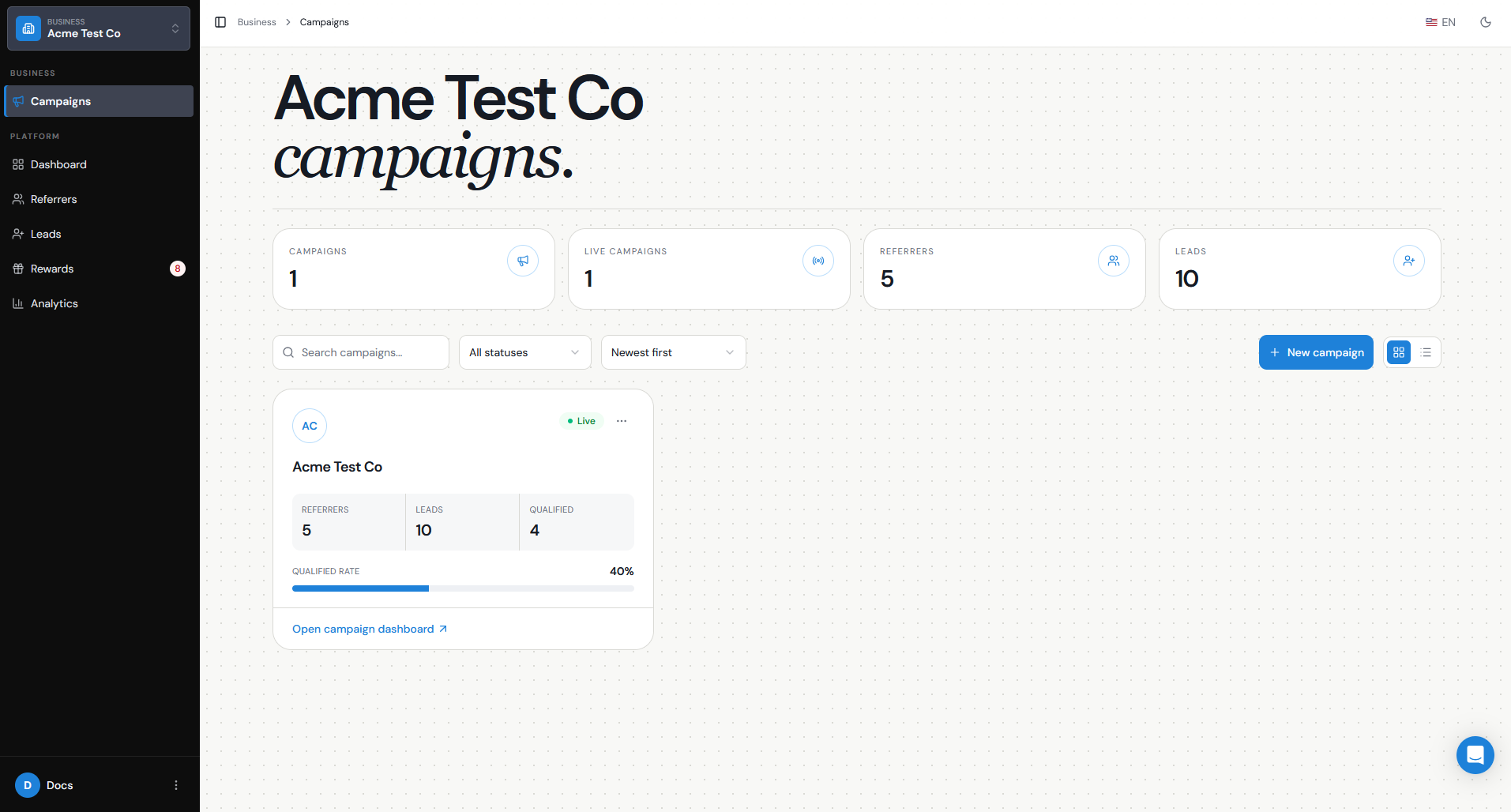
You can find your campaigns under Campaigns in the left-hand sidebar.
The Campaigns area shows the referral programs connected to your business. From here, you can open the campaign you want to manage or create a new campaign.
Once you open a campaign, its name appears at the top of the left-hand sidebar.
To return to the business-level view or switch to another campaign, click All campaigns at the top of the sidebar.
Each campaign has its own:
If you manage several referral programs, always check which campaign you have open before making changes.
- Referrers
- Leads
- Rewards
- Emails
- Referral Links
- Analytics
- Integrations
- Campaign Settings
Where do I manage Referrers and Leads?
Use Referrers and Leads in the left-hand navigation.
Go to Referrers to manage the people sharing or promoting your referral program. From here, you can review your Referrers and their activity.
Go to Leads to see the people who have been referred through your program. This is where you can review referral activity and check whether a Lead is still pending or has become Qualified.
When you are inside a specific campaign, these areas show the Referrers and Leads connected to that campaign.
When you are working at the business level, you can review Referrers and Leads across your campaigns.
Where do I see rewards?
Select Rewards from the left-hand sidebar.
This is where you can review and manage the rewards connected to your referral programs.
You can use the Rewards area to:
If you see a number next to Rewards in the sidebar, this indicates that there are rewards requiring attention.
When you are inside an individual campaign, you can manage rewards for that campaign. At the business level, you can review rewards across your referral programs.
- See rewards that are waiting to be issued.
- Review rewards that have already been issued.
- Manage reward activity.
- Check rewards that may need your attention.
Where do I find analytics and performance data?
Select Analytics from the left-hand navigation for more detailed reporting.
Your business dashboard also gives you a quick performance overview across all of your campaigns, including:
When you open a specific campaign, you can view that campaign’s performance from Analytics or use the Campaign analytics shortcut on the campaign dashboard.
This makes it easy to move between a high-level view of all your referral programs and the detailed performance of one campaign.
- Total Reach
- Referral Links
- Total Leads
- Qualified Leads
- Top Referrers
Where are account and Campaign Settings?
Referral Factory separates account-level settings from campaign-level settings.
For account-level settings, click your name in the bottom-left corner of the dashboard. From there, you can access areas such as:
These settings apply to your account or business rather than to one individual campaign.
For campaign-level settings, first open the campaign you want to manage. The left-hand sidebar then gives you access to the settings and tools for that specific referral program.
These include:
Because these settings are specific to the campaign you have open, always make sure you are working in the correct campaign before making changes.
- Profile
- Organisation
- Billing
- Teammates
- Promote — manage how people join or interact with your referral program. This includes options such as the Branded Referrer Portal, Website Widget, On-Click Pop Up, Lead Submission Form, and other promotion methods.
- Referrers — manage the people promoting the campaign.
- Leads — manage the people who have been referred.
- Rewards — manage rewards for the campaign.
- Analytics — review campaign performance.
- Emails — manage campaign emails.
- Referral Links — manage referral link settings and tracking.
- Integrations and API — connect your CRM, payment platform, API, and other integrations.
- Campaign Settings — manage the campaign’s general configuration.