
Need help applying this to your account?
Contact support and we will keep this article attached to your request.
You can invite other people on your team to access your Referral Factory account without sharing your own login details. Each teammate gets their own login, and you can choose an access level based on what they need to see or manage.
Teammate access is useful when different people are responsible for campaign management, reporting, billing and subscription management, connecting Referral Factory to other apps, or other parts of your referral program.
How do I invite a teammate?
You can invite teammates directly from the Teammates section of your account.
To invite someone:
The teammate will receive an invitation by email. Once they accept it, they can log in to Referral Factory using their own credentials.
This means you do not need to share the main account login with other people who need access to your referral program.
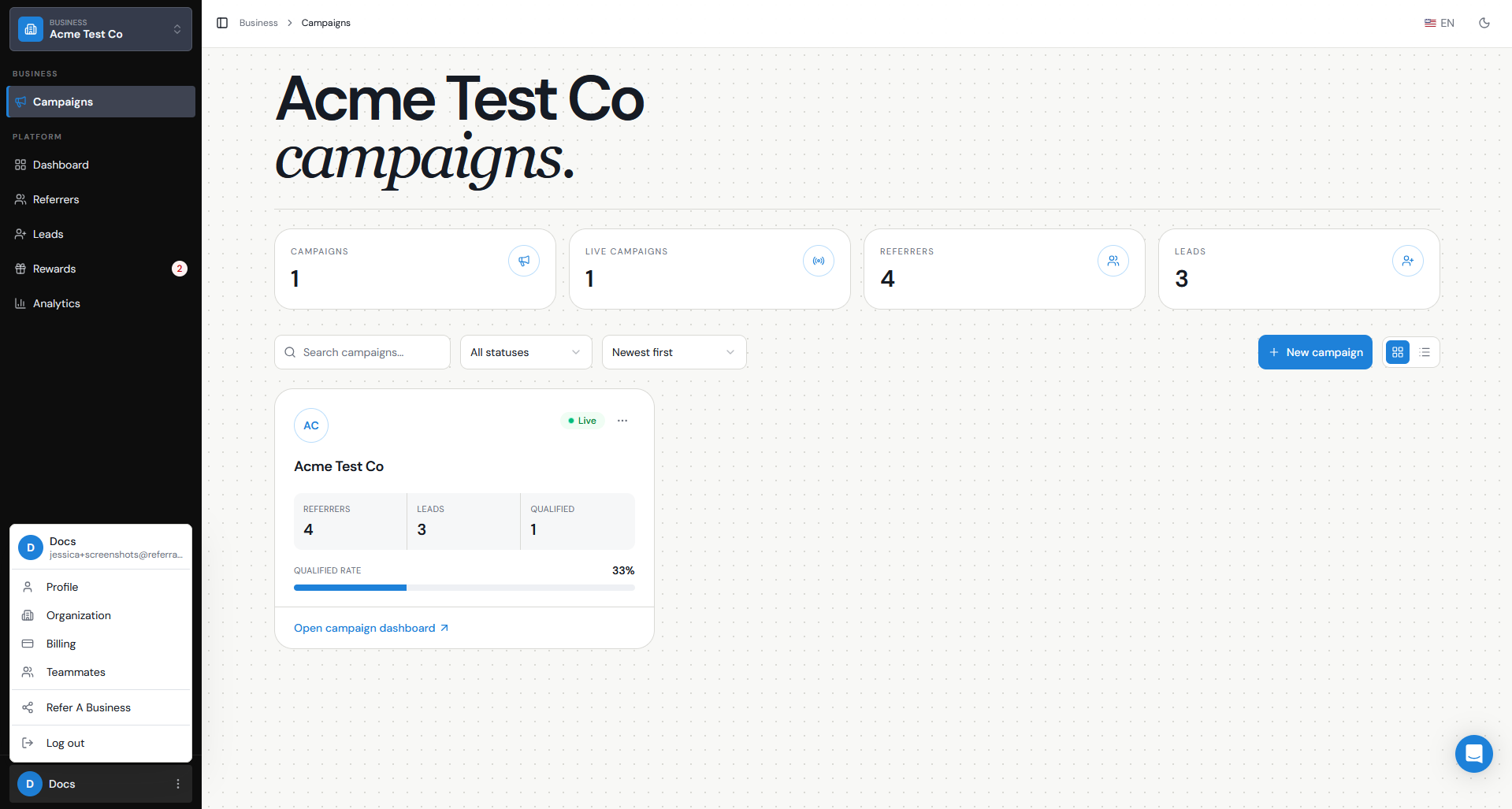
- Click your name in the bottom-left corner of your Referral Factory account.
- Select Teammates from the menu.
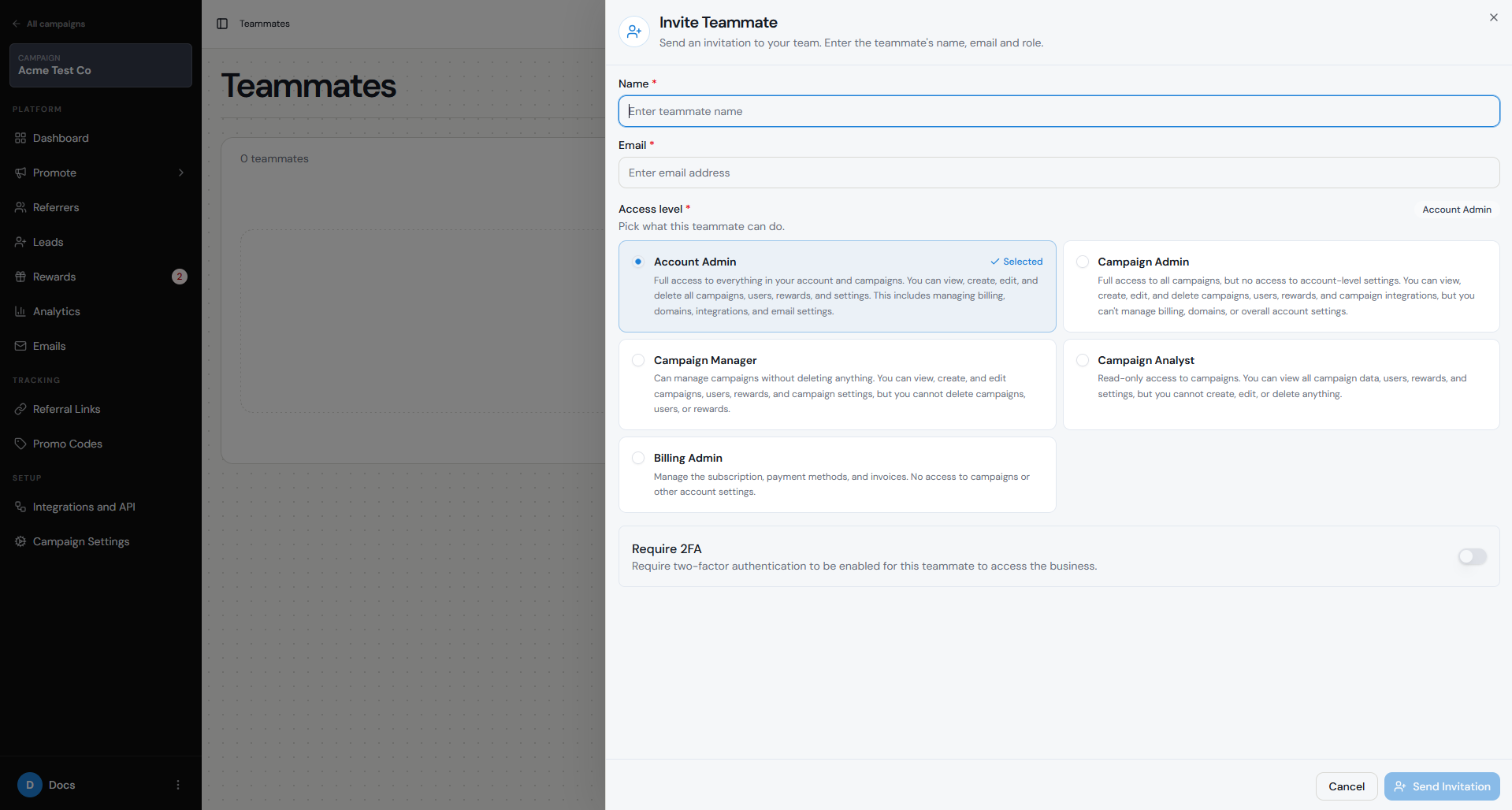
- Click Invite Teammate.
- Enter the teammate’s name and email address.
- Choose the appropriate Access Level.
- If needed, turn on Require 2FA to require two-factor authentication for that teammate.
- Click Send Invitation.
What roles or permissions are available?
When you invite a teammate, you can choose from several access levels depending on what they need to do:
This makes it possible to give each teammate the access they need without giving everyone full administrative permissions.
- Account Admin — full access to the account and all campaigns.
- Campaign Admin — full access to campaigns, without access to account-level settings.
- Campaign Manager — can manage campaigns but cannot delete campaigns, users, or rewards.
- Campaign Analyst — read-only access to campaign information.
- Billing Admin — access specifically for managing the subscription, payment methods, and invoices.
What can each role see or change?
Each access level is designed for a different type of teammate.
Account Admin
Has full access to everything in the account and campaigns. An Account Admin can view, create, edit, and delete campaigns, users, rewards, and settings. This also includes account-level areas such as billing, domains, integrations, and email settings.
Campaign Admin
Has full access to all campaigns but does not have access to account-level settings. A Campaign Admin can view, create, edit, and delete campaigns, users, rewards, and campaign integrations, but cannot manage areas such as billing, domains, or other account settings.
Campaign Manager
Can manage campaigns without deleting anything. They can view, create, and edit campaigns, users, rewards, and campaign settings, but cannot delete campaigns, users, or rewards.
Campaign Analyst
Has read-only access to campaigns. They can view campaign data, users, rewards, and settings, but cannot create, edit, or delete anything.
Billing Admin
Can manage the subscription, payment methods, and invoices. A Billing Admin does not have access to campaigns or other account settings.
Choosing the right access level is useful when several teams are involved in your referral program. For example, your marketing team may need Campaign Manager access while someone in finance may only need Billing Admin access.
How do I update someone’s access?
You can change a teammate’s access if their responsibilities change.
To update their permissions:
The teammate’s access will then reflect the permissions of their new role.
For example, if someone originally only needed to review campaign results but is now responsible for managing the campaign, you could change their access from Campaign Analyst to Campaign Manager.
- Go to Teammates.
- Find the teammate whose access you want to change.
- Open their teammate settings.
- Select the new Access Level.
- Save your changes.
How do I remove a teammate?
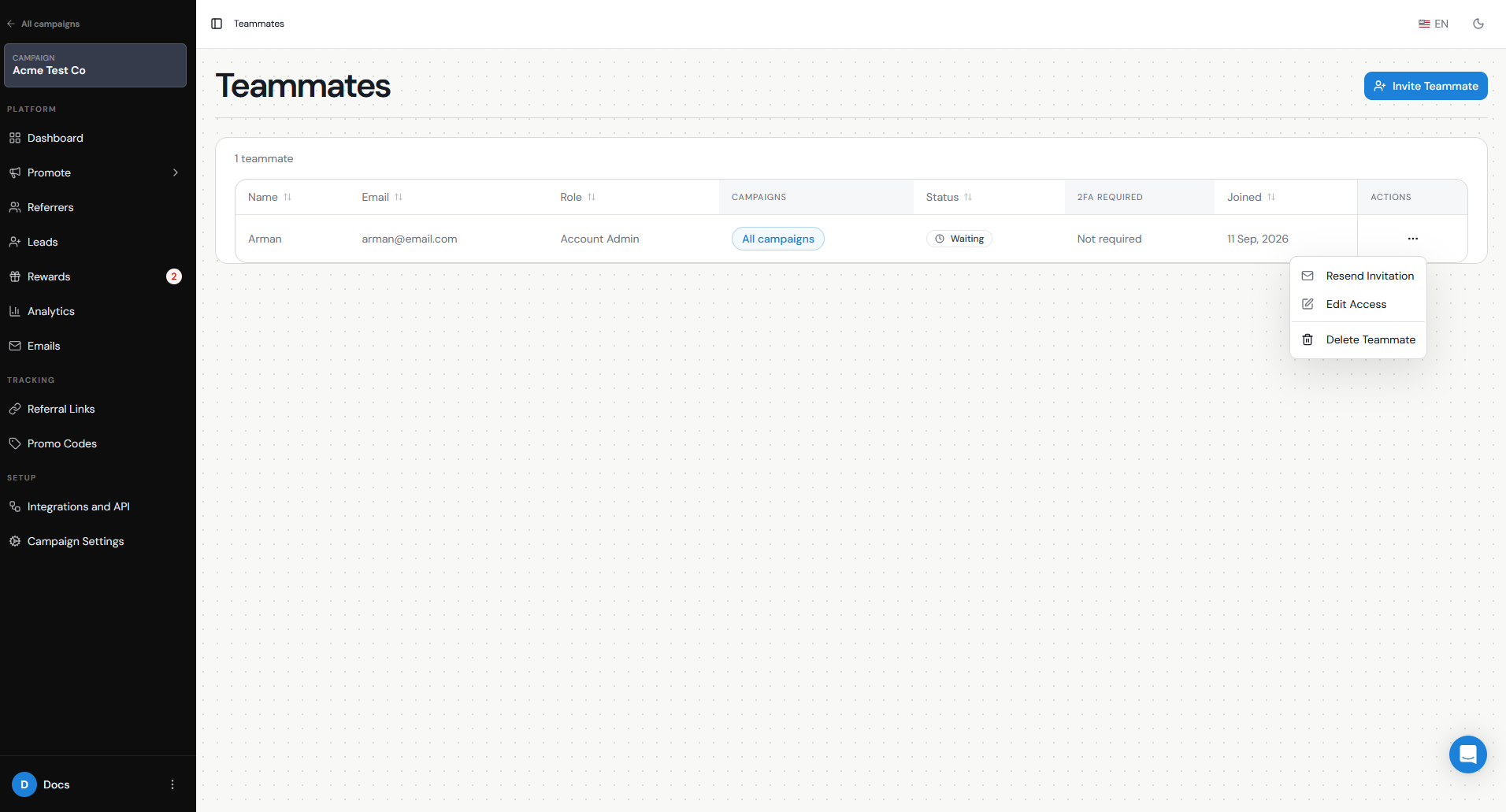
If someone no longer needs access to your Referral Factory account, you can remove them from the Teammates section.
Go to Teammates, find the person you want to remove, and select the option to remove their teammate access.
Once removed, they will no longer be able to log in to your Referral Factory account.
This is particularly important when someone leaves your company or no longer works on your referral program.
Are there plan limits on team access?
Yes. Teammate access is available on the Basic plan and above. It is not included on the Starter plan.
Teammate access is available on:
There is currently no limit on the number of teammates you can add on plans that include teammate access.
If you are on the Starter plan and need multiple people to access and manage your Referral Factory account, you will need to upgrade to Basic or above.
- Basic
- Pro
- Enterprise
How should I manage teammate access?
We recommend giving each teammate the lowest level of access they need to do their job rather than giving everyone Account Admin access.
For example:
You can also enable Require 2FA when inviting a teammate if you want two-factor authentication to be required before they can access your business.
It is a good idea to review your teammate list regularly and remove access for anyone who no longer needs it. This helps keep your account organised and ensures sensitive areas such as billing, integrations, and account settings are only available to the right people.
- Use Campaign Analyst for someone who only needs to review campaign performance.
- Use Campaign Manager for someone who needs to build and manage campaigns but should not be able to delete data.
- Use Campaign Admin for someone responsible for the full campaign setup and management.
- Use Billing Admin for finance or accounting team members who only need access to subscriptions, payment methods, and invoices.
- Reserve Account Admin for people who need full access to both campaigns and account-level settings.